Which Controller and Connection Type Do You Have?
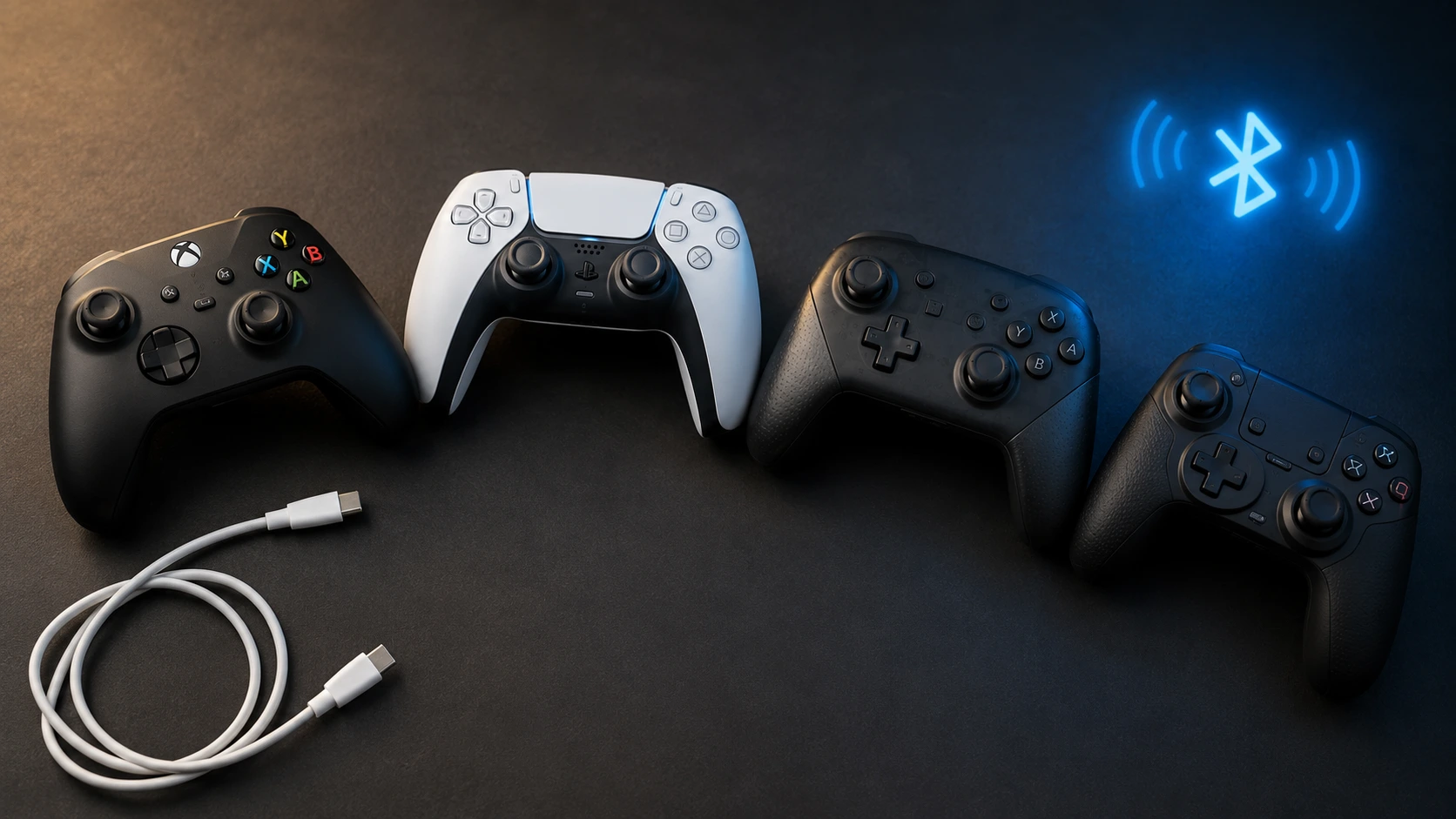
If you’re asking why won’t my controller connect to my PC, the answer almost always comes down to one thing you haven’t checked yet: what controller you actually have and how it’s supposed to connect. I’ve watched people spend two hours chasing Bluetooth fixes on a controller that has never supported Bluetooth. Not even close to supported. That check takes thirty seconds and it rules out half the problems before you touch a single setting.
Look at your controller right now. Xbox controllers specificall check the plastic ring around the Xbox button on the front. Does the faceplate flow in one seamless piece all the way around that button, or is there a separate black plastic plate surrounding it? That one design difference is the whole answer. Seamless faceplate means Bluetooth. Separate plate means USB cable or the Xbox Wireless Adapter only. That’s not a workaround. That’s just what that hardware supports
PlayStation controllers are more straightforward to identify. The DualShock 4 has its lightbar across the back edge. The DualSense has one across the front touchpad strip. Both support Bluetooth natively. The catch and this is the part Windows never tells you is that PlayStation controllers need additional software to actually register inputs in most PC games. Windows detects the hardware fine. Your games probably won’t see anything without DS4Windows running
The Nintendo Switch Pro Controller is a different situation entirely. It pairs over Bluetooth without any trouble. But it runs on DirectInput protocol, and most PC games are built around XInput the protocol Xbox controllers use. So Windows sees the controller, confirms the connection, and everything looks right. You open a game. Nothing happens. That’s not a pairing failure. That’s a protocol mismatch, and fixing it takes a different approach than everything else on this list
Generic USB controllers are the unpredictable ones. Some plug in and work immediately. Others rely on drivers the manufacturer stopped updating in 2016 and never looked back. The real trap is the Windows 10 to Windows 11 upgrade. A controller that worked perfectly the day before the upgrade can stop working entirely the day after. Windows 11 dropped support for several older HID driver models that Windows 10 still handled quietly in the background.
Now figure out how you’re trying to connect. USB wired is the most straightforward—plug it in and it should work. Bluetooth requires pairing through Windows settings and only works if your controller actually supports it. Xbox has a third option, the Xbox Wireless Adapter, which is a dedicated USB dongle that handles the connection differently than standard Bluetooth.
Write down what you have. Xbox with Bluetooth support? DualSense? Generic USB? Whatever the answer is, that’s the only context that actually matters for everything that follows. The fixes are completely different depending on what you’re holding
The Cable Problem: Why Your Controller Lights Up But PC Doesn’t Detect It
Your controller powers on the moment you plug it in. The lights come up. Maybe it vibrates for half a second. And Windows does absolutely nothing no connection sound, no device pop-up, no detection at all. The PC isn’t even acknowledging that anything was just plugged in.
This is the most common usb controller not detected situation I deal with, and the cause is almost always the cable. USB cables look identical from the outside but they’re not built the same. Some carry both power and data. Some carry power only. The power-only type lights your controller up perfectly which is exactly why it’s so confusing but your PC never gets a data signal because there’s nothing to receive. From Windows’ perspective, nothing is connected at all.
The cable that shipped with your controller might be power only. I know that sounds unlikely, but it happens. Manufacturers often include charging cables, not data cables. And phone charging cables the ones people grab most often are almost always power only. They all look the same. Same connector. Same thickness. No marking anywhere on the outside. You plug it in, the lightbar turns on, and you spend the next hour convinced the problem is your PC.
If you’re using a PS4 controller and the lightbar is glowing yellow, that’s the power-only cable symptom. The controller has electricity. But your PC has no data connection to work with. From Windows’ side of things, nothing is plugged in.
The good news is you can test this in about thirty seconds.
How to Test If Your Cable Actually Transfers Data
Grab your phone and the same USB cable you just tried with your controller. Plug your phone into your PC using that cable. Now try to open your phone’s files on your computer like you’re transferring photos.
Can you see files? The cable works for data.
Does your phone charge but no files show up? Power only cable. That’s your problem right there.
I’ve watched people reinstall Windows and order new controllers when the cable was the entire problem. Five dollar fix. Test it first before you do anything else. If it won’t transfer phone files, it won’t carry controller data either. And if the cable passes that test but your controller still won’t show up, at least you’ve eliminated the easiest answer. The real problem is somewhere else
And if the cable passes the phone test but your controller still won’t connect, you’re dealing with a different problem. At least now you know the cable isn’t it.
Which USB Ports Should You Use? (2.0 vs 3.0 Matters)
Not every USB port on your PC behaves the same way with gaming controllers, and this is one of the first things I check when someone has a usb port not working for controller situation. The short version: use USB 2.0 ports, not USB 3.0.
USB 3.0 is faster for transferring files, but that speed is useless to a controller. What controllers need is consistent polling the PC checking for new input signals at a regular interval and USB 2.0 handles that more reliably than 3.0 does. I’ve had controllers work completely fine in a USB 2.0 port and drop inputs or disconnect randomly the moment I moved them to a USB 3.0 port on the exact same machine. Same controller, same drivers, different port
How do you tell which is which? USB 3.0 ports usually have blue plastic inside. USB 2.0 ports are black or white. If your PC is newer and everything is USB 3.0, you’ll still be fine most of the time. But if you’re having random disconnections or the PC isn’t recognizing your controller at all, switch to a USB 2.0 port if you have one.
The front and top ports on a PC case are almost always less reliable than the rear ports. Nobody talks about this, but it matters. Front panel ports run through internal header cables and extra connectors before they reach your motherboard. Rear ports connect directly to the board itself. That shorter, cleaner path makes a real difference when you’re dealing with detection failures.
Skip the USB hubs too. Skip the splitters. Plug the controller straight into the PC tower. Every extra device between your controller and your motherboard is another chance for something to go wrong. I’ve seen people troubleshoot for hours because they had their controller plugged into a hub that was plugged into another hub. Direct connection. Back of the PC. USB 2.0 if you have it.
That’s where you start when your pc not detecting controller and you’ve already confirmed the cable isn’t the issue.
Before You Try Anything: Unplug Your Console and Clear Bluetooth Clutter
Your controller keeps locking onto your Xbox or PlayStation instead of your PC. Or Windows sees the controller for a second and then loses it immediately. Both of those point to interference in the environment, and clearing it takes maybe two minutes before you touch any settings. This is what I do before anything else when bluetooth controller pairing failed situations land in my lap.
If your console is anywhere near your desk, pull the power cable out of the wall. Not just the standby button. The actual power cable. When you press the pairing button on your controller, it wakes up anything in range that knows its signal — and a nearby console almost always wins that race. Your PC starts the handshake, the controller detects the console, and the console takes the connection before your PC finishes
And it happens fast. You won’t even see the console turn on sometimes. The controller just refuses to pair with the PC, and you have no idea the console is interfering in the background. Unplug the console entirely and the problem disappears.
The second problem is a crowded Bluetooth stack. Your PC’s Bluetooth adapter has a ceiling on how many simultaneous connections it can manage. Old keyboards, unused mice, a headset you replaced last year, and three previous controller pairings that never got cleaned up — all of that is sitting in memory, eating into available slots. When bluetooth not pairing controller errors show up as Windows starting but never finishing the pairing process, this is frequently the actual reason
Go into your Windows Bluetooth settings right now. Look at everything listed under paired devices. Remove anything you don’t actively use. Old phone? Remove it. Headset you replaced six months ago? Remove it. That controller from your last troubleshooting attempt that shows as paired but not connected? Definitely remove it.
Every device you clear gives your Bluetooth receiver more room to actually complete the new pairing you’re trying to do. This is especially true if you’re dealing with bluetooth not pairing controller situations where Windows shows the pairing process starting but never finishing.
One thing most people skip with Xbox controllers: pull the batteries out and leave them out for ten seconds. That clears whatever temporary connection state was stuck in memory. Dead or dying batteries specifically cause problems that look exactly like Bluetooth pairing failures the controller starts to pair and then drops but no amount of driver work will fix a power issue.
PlayStation and Switch controllers use built-in batteries. If yours is low — and I mean really low, not just showing one bar — charge it for at least fifteen minutes before you try pairing again. A battery-starved controller will often show pairing activity in Windows, then die mid-handshake. Windows logs it as a connection failure. The controller just didn’t have enough juice to finish.
Clear the environment first. Then start the actual fixes.
PS4 and PS5 Controllers Won’t Connect? You Need to Delete Them from Your Console First
If your DualShock 4 or DualSense throws a Windows connection error every time you try to pair it — or shows up for a second and drops immediately — you’re dealing with a ps4 controller pc not working situation that almost every troubleshooting guide gets wrong. They keep pointing at Windows. The real problem is your PlayStation console
Your PlayStation controller is still registered in your console’s Bluetooth memory. As long as that registration exists, your console claims priority over the connection. Windows starts the pairing process, the controller detects your PlayStation in the background, and the console wins. Every single time.
This traces back to the console, not Windows. Restarting, reinstalling Bluetooth drivers, resetting the controller — none of that touches the actual problem. What you need to do is delete the controller registration from your PlayStation console’s Bluetooth memory. Until you do that, your console keeps claiming the connection before Windows can finish the handshake
And I mean actually delete it. Not just turn the console off. Not disconnect the controller and walk away. You have to go into the console’s settings and remove the controller registration completely.
Step-by-Step: Delete Your Controller from PlayStation Console Memory
Turn on your PlayStation console and go to the main settings menu. Navigate to Accessories, then Bluetooth Accessories. You’ll see a list of every controller that’s ever been paired to this console.
Find your controller in that list. It might say Wireless Controller or DualSense Wireless Controller or show the specific model. Select it and choose the option to delete or forget the device. The exact wording changes depending on whether you’re on a PS4 or PS5, but the option is always there.
Once you’ve deleted the controller registration, turn the console off completely. Not rest mode. Off. Then move to your PC and start the pairing process from scratch
Go back to your PC. Open Windows Bluetooth settings and start the pairing process fresh. Put your controller into pairing mode using the correct button combination for your model. For the DualShock 4, press and hold the Share button first, then press and hold the PlayStation button. Keep holding both until the lightbar starts flashing white rapidly.
For the DualSense, the process is almost identical but uses a different button. Press and hold the Create button first, then press and hold the PlayStation button while still holding Create. The lightbar will flash when the controller enters pairing mode.
Windows will start searching for Bluetooth devices, and this part takes longer than most people expect — sometimes a full two minutes. Don’t interpret thirty seconds of silence as a failure. The controller is still broadcasting. When it appears in the list, click it immediately. If Windows asks for a PIN, type 0000. Four zeros. That’s the standard pairing code PlayStation controllers use when connecting to anything outside the PlayStation ecosystem.
When the controller finally appears in the list, click it to pair. If Windows asks for a PIN, enter 0000. Four zeros. That’s the default pairing code for PlayStation controllers connecting to non-PlayStation devices.
The ps4 bluetooth pc connection should go through cleanly this time. The variable that was blocking it is gone.
Setting Up DS4Windows for Game Compatibility
After you pair your DualShock 4 or DualSense, Windows confirms the connection in Device Manager and shows the controller as active. That part works. But the majority of PC games still won’t register any input from it — because games aren’t looking for PlayStation protocol
PlayStation controllers don’t get the same native Windows treatment that Xbox controllers do. Windows sees the hardware, but PC games are almost universally built around XInput — the Xbox input protocol. DS4Windows bridges that. The ds4windows setup process is straightforward: install it, run it in the background, and it translates every DualShock 4 and DualSense input into XInput signals that games actually understand.
Download DS4Windows from the official source and install it. Run the program and it should pick up your PlayStation controller the moment it launches. Leave it running in the background while you game. That’s the entire workflow. Games that showed zero input from the controller before will now respond normally.
Both the DualSense and DualShock 4 need this translation layer to function properly on Windows — that’s just how PlayStation controllers work on PC, not a patch or workaround. A growing number of newer titles have added native ps5 dualsense pc support, but most games still require DS4Windows to handle the input translation
The PS5 Audio Hijacking Problem (And How to Fix It)
This one catches nearly everyone. Your DualSense connects to the PC, everything looks fine, and then your audio just stops. Headphones go quiet. Speakers cut out. You haven’t touched the volume or changed any settings, and you have no idea what just happened
The DualSense registers itself as an audio output device when it connects to Windows. Your PC sees the controller’s built in speaker and microphone and switches your default audio output to the controller. Your sound is now trying to play through a tiny controller speaker instead of your actual headphones or speakers.
This also creates what looks like random controller disconnections. The controller itself stays paired — Windows is just constantly shuffling audio devices back and forth, and that instability bleeds into the input connection. What feels like the controller dropping is actually Windows losing track of which device is doing what
Open Windows sound settings and look through the playback devices list. If DualSense Wireless Controller appears there as an audio output, right-click it and disable it. Not just remove it as default — disable it completely. The controller still works normally for games. You’ve just removed it from the audio device rotation so Windows stops trying to route sound through it
That one setting change fixes both the audio hijacking and the perceived disconnection issues that come with it.
Xbox Controller Bluetooth Won’t Pair? Here’s the Real Fix
Windows shows your Xbox Wireless Controller in the Bluetooth device list. You click it, the pairing screen comes up, and then — ‘Try connecting your device again.’ You try again. Same error message. You try a third time. Nothing. This is the most common pair xbox controller pc bluetooth failure I see, and the reason it keeps repeating is that you’re running the same failed handshake sequence over and over without clearing the state that caused it.
Most people give up after three or four attempts and assume something is broken. But the fix is simpler than that, and it works almost every time if you know the exact sequence to follow.
The underlying problem is a handshake failure between your controller’s firmware and whatever Bluetooth driver version Windows is currently running. When you press pair, the controller and the PC exchange authentication signals in sequence. If the controller firmware sends a response the Windows driver doesn’t recognize — wrong version, outdated format, whatever the specific conflict is — the whole sequence times out. That timeout is the ‘try connecting again’ error.
Before you do anything else, make sure your controller actually supports Bluetooth. Check the plastic around the Xbox button on the front of your controller. If the faceplate is one seamless piece that flows all the way around the button, your controller has Bluetooth. If there’s a separate black plastic plate surrounding the button, your controller doesn’t support Bluetooth at all. You’ll need to use a USB cable or get the xbox wireless adapter pc instead.
Your PC also needs Bluetooth 4.0 or higher to support Xbox controller pairing. Older adapters simply won’t complete the connection. You can check your version in Device Manager under the Bluetooth section — open the adapter properties and look at the driver details or hardware ID for the version number. Anything below 4.0 means the hardware itself is the blocker, not the software.
The “Try Connecting Your Device Again” Error Fix
When Windows throws that error, clicking the same pairing button again just runs the exact same failed handshake sequence one more time. Nothing changes. What you need to do first is clear the controller’s connection state completely
Pull the batteries out of your Xbox controller. Wait about ten seconds. This fully drains the controller’s temporary memory and clears whatever handshake state was causing the failure. Put the batteries back in.
Go back to your PC and close the Bluetooth pairing window entirely. Exit all the way to the main Bluetooth settings screen. Then click Add Device to start a completely fresh attempt
Press and hold the small pairing button on the top of your Xbox Wireless Controller. Hold it until the Xbox logo starts flashing rapidly. That flashing means the controller is actively broadcasting its Bluetooth signal and ready to pair.
“Windows can take up to two full minutes to surface your controller in the Bluetooth device list — not thirty seconds, not one minute, two full minutes, especially on older hardware or if there are multiple other Bluetooth devices nearby. Don’t interpret silence as failure. The discovery window is just slow
When Xbox Wireless Controller appears in the list, click it immediately. If Windows throws the error again, run the whole sequence one more time — batteries out, Add Device screen fully restarted, fresh pairing button press. The second attempt goes through most of the time. You’ve cleared the controller state and the PC’s cached failed attempt, so nothing is carrying over from the first try
Update Your Controller Firmware (Xbox Accessories App)
Outdated controller firmware is responsible for more Bluetooth pairing failures than most people realize. Microsoft ships controller firmware update patches regularly — the controller gets new protocol handling, new driver compatibility — and old firmware versions often conflict with the Bluetooth stack that shipped with whatever recent Windows update ran last week. Most people never check this. The controller firmware update option isn’t exactly advertised
Download the xbox accessories app from the Microsoft Store. It’s free and it’s the official tool for managing Xbox controller settings on Windows. Connect your controller to your PC using a USB cable. Not Bluetooth. A physical USB cable. The app can’t update firmware over a wireless connection.
Open the Xbox Accessories app. It should detect your connected controller immediately and show an image of the controller on screen. Look for three dots or a menu button underneath that image. Click it. If there’s an Update Now button, click it. The app will download and install the latest controller firmware update.
This whole process takes about two minutes. And sometimes the firmware update is exactly what fixes the Bluetooth pairing issue. The controller gets updated drivers that play nicely with Windows current Bluetooth stack, and suddenly the pair xbox controller pc bluetooth process works perfectly.
One caveat worth knowing: firmware updates occasionally break Bluetooth pairing temporarily. The new firmware introduces a protocol change that specific PC Bluetooth adapters don’t immediately handle, and pairing fails in a way it didn’t before the update. If that happens to you, it’s not user error. Microsoft almost always pushes a corrective update within a week or two. In the meantime, the USB cable connection still works fine
Xbox Wireless Adapter: The Bluetooth Alternative
If Bluetooth keeps failing after everything above, the Xbox Wireless Adapter is the hardware solution that bypasses the problem entirely. It’s a small USB dongle built specifically for Xbox controller connections. Instead of using Windows Bluetooth — which is where all these pairing failures happen — it runs on Microsoft’s own dedicated wireless protocol
You plug the adapter into a USB port on your PC. Press the small button on the adapter itself. Then press the pairing button on your controller. The two devices sync directly with each other without involving Windows Bluetooth at all. No drivers to mess with. No handshake failures. No compatibility issues.
The xbox wireless adapter pc runs about twenty to thirty dollars depending on where you buy it. Not cheap for a dongle, but if you’ve burned two hours on Bluetooth troubleshooting with nothing to show for it, that’s an easy trade. The connection is also genuinely better than Bluetooth — lower latency, dedicated protocol, designed specifically for this hardware
I use the adapter on my main PC even though Bluetooth works fine. The connection is just better.
Fix Driver Problems in Device Manager (Show Hidden Devices!)
You’ve uninstalled and reinstalled your controller driver. Maybe twice. Windows confirms the driver is installed and working fine. The controller still won’t connect. The problem isn’t the driver you can see in Device Manager — it’s the hidden driver entries Windows keeps around after old connections that are now directly conflicting with the new one
Every time you connect and disconnect a controller, Windows creates a driver entry. When you remove the controller, Windows is supposed to clean up that entry. But it doesn’t always. Old driver entries stay in the system as hidden devices, and when you try to connect your controller again, those ghost entries conflict with the new connection attempt. Windows gets confused about which driver to use, and the whole thing fails.
Most people never find these hidden entries because Windows Device Manager doesn’t show them unless you specifically tell it to. And almost no troubleshooting guide mentions this step. The same hidden device problem causes issues with screen flickering on Lenovo laptops and other hardware detection failures.
Never download random driver files from sketchy websites when you see a gamepad not recognized windows error. I see people do this all the time. They search for generic controller drivers, download some file from a third party site, and install software that could be anything. Half the time it’s malware. The other half it’s an outdated driver that makes things worse. Windows already has the drivers you need. You just need to clean up the conflicting entries first.
The “Show Hidden Devices” Step Everyone Misses
Open Windows Device Manager. You can do this by pressing the Windows key, typing Device Manager, and clicking the result. Or press Windows key plus R, type devmgmt.msc, and hit Enter.
Once Device Manager is open, click View in the menu bar at the top. Select Show hidden devices. This is the step that changes everything. Suddenly you’ll see grayed out entries that weren’t there before. Those are the ghost devices that have been causing problems.
Now expand the section where your controller should appear. If you’re using a wired connection, look under Xbox Peripherals or Universal Serial Bus controllers. If you’re connecting via Bluetooth, expand the Bluetooth section. You might also see controller entries under Human Interface Devices.
Look for any grayed out entries related to controllers. Right click each one and select Uninstall device. Do this for every single grayed out controller entry you find. These old entries are what’s blocking your new connection from working properly.
After you remove all the hidden devices, restart your PC. When Windows boots back up, plug in your controller or start a fresh Bluetooth pairing. Windows will detect the controller as if it’s brand new and install clean drivers without any conflicting entries in the way.
This hidden device cleanup solves probably half of all controller driver not installed problems I’ve seen. And it takes about two minutes once you know where to look.
How to Uninstall and Reinstall Controller Drivers
If showing hidden devices and cleaning them up didn’t work, try a full driver reinstall. This forces Windows to completely forget about your controller and start from scratch.
In Windows Device Manager, find your controller in the device list. Right click it and select Uninstall device. A warning will pop up asking if you’re sure. Click Yes. If there’s a checkbox that says Delete the driver software for this device, check that box. You want Windows to remove everything.
Now unplug your controller completely. If it’s connected via USB, pull the cable. If it’s Bluetooth, go into Windows Bluetooth settings and remove the controller from your paired devices list.
Restart your PC.
After the restart, plug your controller back in or start the Bluetooth pairing process again. Windows will detect the controller as a new device and automatically download and install fresh drivers. This process works because you gave Windows a completely clean slate with no leftover files or registry entries from the old driver installation.
That’s how you properly reinstall controller driver entries when the standard update driver option doesn’t fix the issue.
Alternative: Enable HID Controller via Control Panel (From Reddit User)
Sometimes the problem isn’t that the driver is missing. It’s that the USB HID driver exists but is disabled, and Windows Device Manager doesn’t make that obvious. One Reddit user found an alternative path through Control Panel that fixes this when the Device Manager approach fails.
Open Control Panel. Go to Hardware and Sound, then click Devices and Printers. Find your controller in the list. It might show up as Wireless Controller or with a generic gamepad icon.
Right click the controller and select Properties. Go to the Hardware tab. You’ll see a list of hardware functions. Look for something called HID compliant game controller or HID compliant device. Select it and click the Properties button at the bottom.
In the new window that opens, go to the Driver tab. If you see a button that says Enable, click it. That means the HID driver was disabled, and that’s why your gamepad not recognized windows errors kept happening.
This Control Panel route accesses the same drivers as Device Manager, but the interface shows you different information. Sometimes you can see that a driver is disabled here when Device Manager just shows it as working. Especially useful when dealing with windows 11 controller issues where the standard Device Manager view isn’t telling you the whole story.
Stop Random Disconnections: Fix Windows Power Management Settings
Your controller works fine for the first five or ten minutes. Then it cuts out for a few seconds. Sometimes it reconnects on its own. Sometimes you have to unplug and replug it. And the whole thing repeats randomly throughout your gaming session.
This isn’t a pairing problem or a driver problem. Windows is cutting power to your USB ports to save energy. And it’s doing this while you’re actively using the controller.
Windows power management has no idea you’re gaming. All it sees is a USB device that isn’t constantly screaming for data. So Windows decides to shut it down to conserve battery or reduce heat. The controller disconnects for three to five seconds. If you’re lucky it reconnects when Windows turns the power back on. If you’re not lucky, you’re fumbling with the cable mid-game.
The fix is telling Windows to stop doing this. And I need to be honest. Most guides don’t explain this properly. They give you one setting to change and call it done. But there are actually two separate power management systems you need to disable, and if you miss either one, the disconnections keep happening.
Disable USB Power Saving in Device Manager
Open Device Manager. Press Windows key, type Device Manager, and click the result. Or press Windows key plus R, type devmgmt.msc, and hit Enter.
Expand the Universal Serial Bus controllers section. You’ll see several USB Root Hub entries. Each one represents a power management point. Right click the first USB Root Hub and select Properties.
Go to the Power Management tab. You’ll see a checkbox that says Allow the computer to turn off this device to save power. Uncheck it. That checkbox is what’s causing the random disconnections.
But here’s the thing. You need to do this for every single USB Root Hub in that list. Not just one. If you miss even one, Windows will still cut power through that hub, and you’ll still get disconnections. Go through the entire list and uncheck that box for every USB Root Hub entry.
Click OK and you’re done with Device Manager. But this is only half the fix. The other half is the system-wide power plan setting.
Disable USB Selective Suspend System-Wide
This is the setting that most guides miss entirely. It’s the reason people fix the Device Manager step and then wonder why their controller still disconnects randomly.
Open your Windows search bar and type Power and sleep settings. Click the result. On the right side of the window you’ll see Additional power settings. Click it. If you’re having trouble locating these settings, Microsoft’s official power settings guide provides detailed screenshots for different Windows versions.
You’re now in the classic Windows power settings. Look for your current power plan. It probably says High Performance or Balanced. Click Change plan settings next to your active plan.
Click Change advanced power settings. A new window pops up with a long list of options. Expand USB settings. You’ll see USB selective suspend setting. That’s the culprit.
Change the dropdown from Enabled to Disabled. But here’s the critical part. You need to disable it for both battery and plugged-in states. Sometimes the setting shows two dropdowns, one for battery and one for when plugged in. Set both to Disabled.
Click Apply and then OK. Restart your PC for the changes to take effect.
Now your controller won’t randomly disconnect during games because Windows isn’t cutting power to the USB ports anymore. The combination of these two changes stops the power management system at both the device level and the system level. Miss either one and the problem persists.
I’ve seen people fix only the Device Manager setting and give up when disconnections still happen. Or they only disable USB Selective Suspend and wonder why it’s still acting up. Both settings working together is what actually solves this. Not one or the other.
Controller Connects to Windows But Games Don’t See It (Steam & Software Fixes)
Your controller shows up in Windows perfectly. Device Manager recognizes it. Windows Bluetooth settings confirm it’s paired. You open a game and nothing happens. The controller is completely invisible to the game even though Windows knows it exists.
This is where most people get confused. They think the connection is broken because the game won’t respond. But the connection is actually fine. The problem is that Windows and your game speak different languages when it comes to controller input.
Windows has one way of talking to your controller. Games have another. Those two conversations don’t always match up automatically. Especially if you’re using a PlayStation controller or a generic USB gamepad. Xbox controllers usually work out of the box because Windows has native support for them. Everything else needs some help.
The fix isn’t always obvious because there are multiple layers involved. Windows recognizes your controller. But your game might need Steam to translate for it. Or Steam might be causing conflicts with other software you’re running. Or the game itself might need configuration changes. It’s not one fix. It’s usually a combination.
Enable Generic Gamepad Support in Steam Big Picture Mode
If you’re using Steam to play your games, Steam Big Picture Mode has built in controller support that most people never enable. Launch Steam and look for the Big Picture Mode button. It’s in the top right corner of the window. Click it.
Once you’re in Big Picture Mode, open the Settings menu. You’re looking for a gear icon. Click it and navigate to Controller Settings. This is where the magic happens.
You’ll see checkboxes for different controller types. Generic Gamepad Configuration Support is the main one. Check that box. Then check the boxes for your specific controller type. If you’re using PlayStation, check PlayStation configuration support. If you’re using an Xbox controller, check Xbox configuration support. If you’re using a Switch Pro controller, check that one too.
Under the detected controller list, you can click Identify to make your controller vibrate. This confirms it’s detected. You can also click Preferences to adjust dead zones or fix thumbstick drift issues.
This is the steam controller settings configuration that most people completely skip. And then they wonder why their controller works in Steam Big Picture mode but not in actual games. The games themselves still need to recognize the input. But enabling these settings in Steam gives your game the translation layer it needs.
When Steam Input Causes More Problems Than It Solves
Here’s something that drives people crazy. You enable Steam controller support and suddenly some games work better. And other games stop working entirely. Your controller input goes missing or becomes erratic. Sometimes the buttons map backwards. Sometimes nothing registers at all.
That’s Steam Input creating conflicts with your game’s native controller support. Steam Input is a mapping software that translates your controller input for games that don’t have built in support. But if your game already has its own controller support, Steam Input gets in the way and causes problems.
The fix is simple. Right click your game in your Steam library and select Properties. Go to the Controller section. You’ll see an option for Steam Input. Toggle it off for that specific game. Now Steam stops trying to translate input and your game uses its native controller recognition instead.
But here’s where it gets more complicated. If you’re also running DS4Windows for PlayStation controller support, Steam Input can conflict with that too. Two mapping tools fighting over the same controller input. The game receives confused signals and your controller input not registering becomes the result.
My general rule is this. Use only one translation layer at a time. Either use Steam Input, or use DS4Windows, or use your game’s native support. Never stack multiple tools on top of each other. Pick the one that works best for your specific game and disable the others.
Some games just work better without any of this extra software involved. Plug in your controller and let the game talk to it directly. If that works, leave it alone.
Nintendo Switch Pro Controller Won’t Work on PC? The DirectInput Problem
Your Nintendo Switch Pro Controller connects to your PC just fine. Windows recognizes it. You see it in your device list. But when you launch a game, nothing happens. The game acts like no controller is plugged in at all.
This isn’t a connection failure. It’s a language barrier. Your Switch controller and most PC games speak completely different protocols, and Windows doesn’t automatically translate between them.
Here’s the fundamental issue. The Nintendo Switch Pro Controller uses DirectInput protocol. Most PC games expect XInput protocol. Xbox controllers use XInput natively, which is why they usually work without any fiddling. But Switch controllers use DirectInput, which games don’t know how to interpret. So even though Windows sees your controller perfectly, the game sees nothing because it’s listening for a different type of signal.
This is a weird compatibility quirk that catches everyone off guard. You’ve got a fully functional controller connected to a fully functional PC. But the two aren’t speaking the same language when it comes to game input.
The easiest fix is using Steam Big Picture Mode. Valve added native Switch Pro Controller support to Steam years ago, and it translates the DirectInput signal into something games understand. So if you’re playing through Steam, your Nintendo Switch Pro Controller will work fine. Launch Steam, go to Big Picture Mode, enable Switch controller support in the settings, and you’re done.
But not every game runs through Steam. And sometimes you want to play games directly without launching Steam. That’s where the 8BitDo adapter comes in.
The $20 8BitDo Adapter That Fixes Everything
There’s a hardware solution that bypasses all the software complications. The 8BitDo Bluetooth adapter is a small USB dongle that costs around twenty dollars. It handles the DirectInput to game-compatible translation at the hardware level instead of making Windows or Steam do it.
Plug the adapter into your PC. Pair your Nintendo Switch Pro Controller to the adapter using the pairing button on the back of the adapter. The controller connects directly to the dongle, not to Windows Bluetooth. And the adapter translates the DirectInput signal into a format every game recognizes.
This is the nuclear option if you’re tired of wrestling with Steam configuration or software conflicts. You get a plug and play solution that works in every single game without any setup. The controller just works. And at twenty dollars, it’s cheaper than the time you’d waste troubleshooting DirectInput issues.
I’ve used the Nintendo Switch Pro Controller on PC with both methods. Steam Big Picture works perfectly if you’re staying inside the Steam ecosystem. But if you want true universal compatibility across every game without any software layer involved, the 8BitDo adapter is worth every penny.
The DirectInput versus XInput problem isn’t unique to Switch controllers. Any generic gamepad that uses DirectInput has the same issue. But for Switch specifically, these two options cover every real world scenario you’re likely to encounter.
Desktop PC Users: Is Your Bluetooth Antenna Actually Plugged In?
If you built your own PC or bought a custom desktop, check the back of your case right now. Look for a small antenna attached to an I/O port or motherboard header. If you don’t see one, your Bluetooth probably doesn’t work. And that’s likely why your controller won’t pair.
This sounds crazy. You have a Bluetooth chip on your motherboard. You should be able to use it without anything else, right? But desktop Bluetooth isn’t like laptop Bluetooth. Laptops have antennas built into their casings. Desktops don’t. Your motherboard shipped with a separate antenna that you have to physically attach yourself.
And almost nobody knows this. People spend hours troubleshooting drivers, updating Windows, resetting controllers, when the real problem is a tiny antenna still sitting in the motherboard box from the day they built their PC.
I’ve seen this exact scenario more times than I can count. Someone with a custom built desktop PC trying to pair a Bluetooth controller. They’re convinced the hardware is broken or Windows is misconfigured. The Bluetooth adapter shows up in Device Manager. Device Manager says it’s working fine. But the PC refuses to discover any Bluetooth devices. And the reason is an unplugged antenna that never got installed.
Look at the back of your motherboard where all the ports are. You’ll see metal I/O shield ports and sometimes header connectors going into the motherboard itself. Your Bluetooth antenna comes with two tiny connectors that push onto the back of the motherboard’s Bluetooth module. Or sometimes it screws onto an antenna port on the I/O shield.
The antenna itself looks like a small metal stick or a flat clip with some plastic coating. If you can’t find it, dig through the motherboard box. It’s usually in a little plastic baggie with the other small accessories. Most people throw that bag away without looking inside.
Installation takes literally thirty seconds. Find where the antenna connects on your motherboard. It’s usually labeled with small text. Push the connector onto the header pin. That’s it. You don’t need tools. You don’t need to take anything apart beyond what’s already open if you’re building a new PC.
After the antenna is installed, restart your PC. Then try pairing your controller over Bluetooth. Most of the time it works immediately.
This is such a common oversight. And it’s completely invisible as a problem. Your Bluetooth shows as installed and working because the hardware is there. But without the antenna, the signal is so weak that Windows can’t discover any devices at all. You could troubleshoot driver issues for days and never figure out that the antenna was the problem the whole time.
Use Windows Built-In Controller Diagnostics to Confirm It Actually Works
You’ve tried everything. The controller pairs, the drivers update, Windows sees it. But you’re still not sure if the controller actually works or if something is quietly failing behind the scenes.
Windows has a built-in testing tool that most people never find. It’s called the game controller properties window, and it shows you in real time whether your controller is actually sending input signals to your PC.
Open your Windows search bar and type Controller. You’re looking for Set up USB game controllers. Click it. A small window appears with a list of connected controllers. Find yours and click it. Then click Properties.
Now you’re in the diagnostic window. You’ll see a display that looks like a gamepad with axes grids on the sides and numbered buttons. Move your analog sticks. The crosshair grids should respond immediately, showing which direction you’re pushing. Press every button on your controller. The corresponding numbered boxes should light up in red when you press them.
This is how you confirm your controller actually works at the Windows level. If the analog sticks move the grids and the buttons light up when you press them, your controller is fine. The hardware is working. Windows is receiving input perfectly.
But here’s where it gets interesting. You might see all the inputs responding correctly in this test. Then you open a game and the controller input not registering suddenly becomes a problem. The game doesn’t see any input even though this Windows diagnostic proves the controller works perfectly.
When that happens, you know the issue isn’t your controller or Windows. It’s a software layer issue. It could be Steam Input interfering. It could be a game-specific compatibility problem. It could be missing game controller support. But you’ve isolated the problem to the software side instead of wasting time on more driver updates and hardware tests.
I use this diagnostic as my baseline check. If the inputs show up here, I know the connection is solid. Everything from that point forward is about making the game see the input. This simple test saves hours of pointless troubleshooting because it immediately tells you whether the problem is hardware or software.
Still Not Working? Advanced Troubleshooting and When to Get Help
At this point you’ve tried everything I’ve covered. Cable swaps, driver updates, power management fixes, the Windows diagnostic tool. And your controller still won’t work. Time to figure out if you’re dealing with a broken controller or if something else is going on.
Test your controller on a different device. Plug it into another PC if you have access to one. Or connect it to a PlayStation, Xbox, or Nintendo Switch. If the controller works perfectly on another system, your first PC has a software or configuration problem that neither of you can solve easily. It’s time to accept that and move on.
But if the controller fails everywhere, you know it’s hardware. The controller itself is broken. No amount of troubleshooting will fix that.
Here’s what usually happens with dead controllers. They stop responding completely. No lights. No vibration. Nothing. Or they light up and vibrate but never actually register any button presses or stick movement. The Windows game controller diagnostic will show zero input activity when you test it.
Sometimes a controller shows power but not input because of a hidden power switch. This catches people constantly. Look at your generic third party controller carefully. Is there a small switch or toggle somewhere on the back or side? That’s a physical power toggle separate from USB power. Flipping it on is sometimes all it takes. The controller gets electricity from USB so it lights up, but without the power switch turned on, it won’t send input signals.
If your controller really is broken, a few options exist. If it’s still under warranty, contact the manufacturer. Many companies offer replacement options for defective units. If it’s out of warranty, buying a new controller is usually cheaper than professional repair. Quality controllers from Xbox, PlayStation, and Nintendo rarely break. The cheap generic ones break constantly, so if you bought a budget controller, replacing it is often the better choice than trying to fix it.
But before you give up and buy a replacement, run the Windows Hardware Troubleshooter one last time. Open Windows Settings, go to Update & Security, then Troubleshoot. Run the Hardware and Devices troubleshooter. Sometimes there are USB interface issues or driver conflicts that Windows can actually fix on its own. It’s worth trying because it’s free and takes five minutes.
If that fails and your controller works on other devices but not your PC, the problem is your PC’s configuration. Not your controller. At that point you might need actual tech support from someone who can look at your system in person.
Why does my controller light up when I plug it in but Windows doesn’t detect it?
Your USB cable is probably power-only and doesn’t transmit data. Test it by plugging your phone into your PC with the same cable and trying to transfer files. If files won’t transfer, swap to a data-capable cable.
How long should I wait for my controller to appear in Bluetooth device list?
Bluetooth discovery takes up to 2 full minutes. Keep the controller in pairing mode and wait. If nothing appears after 2 minutes, toggle Bluetooth off and back on.
Why does my PS4/PS5 controller keep giving me a connection error when I try to pair it to PC?
Your console still has the controller registered in its Bluetooth memory. Go to your console’s Settings → Accessories → Bluetooth Accessories and delete the controller. Then retry PC pairing and enter 0000 if Windows asks for a PIN.
Should I use USB 2.0 or USB 3.0 ports for my controller?
Use USB 2.0 ports. They provide more consistent hardware polling for gaming peripherals. Prefer rear motherboard ports over front panel ports for best stability.
Why does my controller randomly disconnect every few minutes during games?
Windows power management is cutting USB power. In Device Manager, expand Universal Serial Bus controllers, right-click each USB Root Hub, go to Properties → Power Management, and uncheck “Allow computer to turn off this device.” Also disable USB Selective Suspend in Power Plan settings.
why won’t my controller connect to my pc even though it worked before?
Start with the simplest fixes: unplug your console if nearby, swap your USB cable for a data-capable one, and restart your PC. If that fails, go into Device Manager, expand Universal Serial Bus controllers, right-click each USB Root Hub, disable power-saving mode, and restart. Most connection failures come down to power management or cable issues—not broken hardware.