
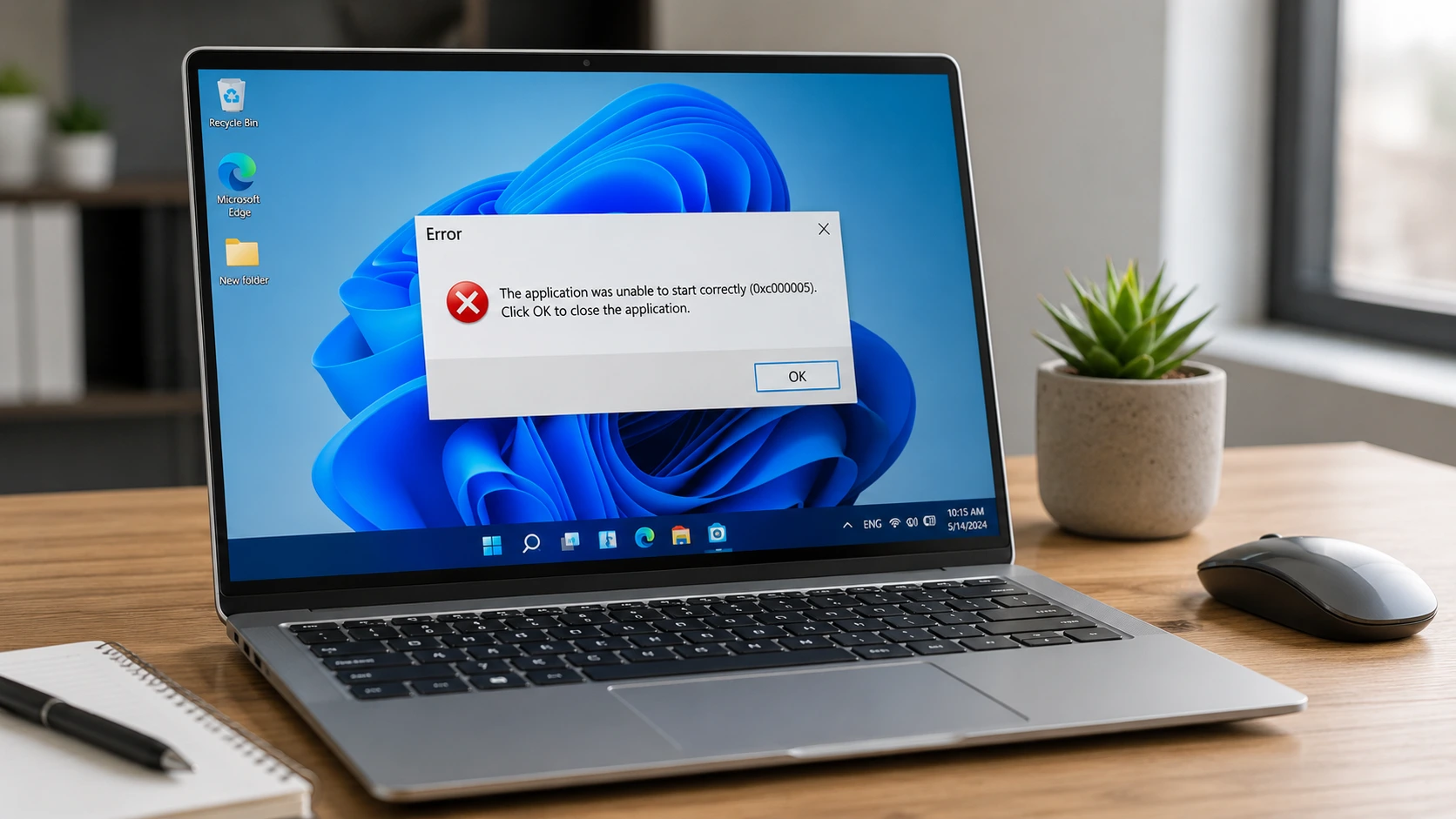
What ‘This App Can’t Run on Your PC’ Actually Means (And Why Windows Shows It) — Windows 10 & 11 Fix Guide
Here’s the first thing I want you to know: the ‘this app can’t run on your PC’ error does not mean your PC is broken, and it does not mean the app is malware. Windows is doing exactly what it’s built to do — stopping an application from launching because something about that app and your current system configuration don’t match up.
It’s an incompatibility or a security checkpoint. That’s the whole story.
This error is Windows’ way of blocking an application that either doesn’t match your system’s processor architecture, isn’t recognized as a trusted program by Microsoft SmartScreen, or is hitting a permission wall it can’t pass on its own. Those are three completely different problems with three completely different fixes — which is exactly why random troubleshooting takes so long.
I’ve watched this error convince people their PC is dying. It isn’t. In most cases the fix runs under five minutes, once you know which of the five root causes you’re actually dealing with.
What most people don’t realize: this error has appeared across Windows 10 and Windows 11 machines since at least 2018. Microsoft’s own support forums still show new questions about it in 2025 and 2026. This is not a glitch Microsoft patched and moved on from. It’s a persistent category of problem with genuinely distinct causes that each need their own solution.
And here’s what trips people up most. Even logged in as an administrator, Windows can still show this error. Microsoft SmartScreen operates completely independently of your account type — admin status does not override SmartScreen’s checks. That’s exactly why ‘just run it as administrator’ fails so often. People try it, nothing changes, and they assume something is seriously broken. But the real issue is somewhere else entirely
The 5 Reasons This Error Appears — Pick Your Situation
I always start here because the right fix depends entirely on which cause is actually in front of you. Trying random fixes without identifying the root problem is how a five-minute task becomes an hour of frustration.
Architecture mismatch — the most common cause by a wide margin. You’re trying to run a 64-bit app on a 32-bit version of Windows, or an x64 app on an ARM-based PC. When the 32-bit vs 64-bit compatibility between your system and the installer don’t match, Windows simply cannot execute the file. This is a hardware-level limitation. No setting adjustment, no security override, nothing fixes it except downloading the correct version of the app built for your processor type.
SmartScreen or Windows Defender blocking the app — Windows SmartScreen flags apps that lack a valid digital signature or come from publishers it doesn’t recognize. This isn’t a verdict on whether the app is actually dangerous. An unsigned app blocked by Windows just means SmartScreen hasn’t encountered it enough times to extend automatic trust — it means unverified, not infected.
Windows 11 S Mode — some Windows 11 devices, particularly budget laptops, ship in S Mode by default. In S Mode, only Microsoft Store apps are permitted to run. Traditional .exe files are blocked by design, not by error. If your PC is running S Mode and you’re trying to install a standard program downloaded from the web, you’ll see this error every time until you exit S Mode.
Corrupted system files — a shared system dependency, something like a Visual C++ Runtime or a core Windows DLL, can get corrupted and cause multiple apps to fail at the same time. When this happens, the corrupted exe file behavior you’re seeing isn’t an app problem. It’s a system-level issue sitting underneath the apps themselves.
Permission or account issue — some applications need administrator privileges to install or run properly. If the app is requesting access that your current user account can’t grant, Windows blocks the launch. This is different from the SmartScreen scenario. Here, administrator account permissions are the specific blocker, and running the app as administrator usually resolves it directly.
Before You Try Anything: Figure Out Which Type of Error You’re Dealing With
Spend sixty seconds here before touching a single setting. I mean it. The most common reason people burn an hour on this error and still can’t fix it is that they applied the right fix to the wrong problem. Both types of problems produce identical error messages on screen — same wording, same popup, completely different root cause, completely different solution.
One question cuts through all of it: is it one specific app showing this error, or did multiple apps all stop working around the same time?
That answer splits the troubleshooting path completely. One app failing points to app-level causes — architecture mismatch, a SmartScreen block, a permission issue, or a bad download. Multiple apps failing simultaneously points to system-level corruption underneath all of them. The fixes for those two scenarios share almost nothing in common.
One App Failing vs. Everything Suddenly Broken — Two Very Different Problems
If one app is failing, that’s an app-level problem. Something about that specific program doesn’t line up with your system — wrong architecture version, a SmartScreen block, a permission issue, or a corrupted download. The fixes involve checking your system type, adjusting security settings, or re-downloading the file. All of that is in the sections below.
But if multiple apps stopped working at once — especially after a restart — that’s a different situation entirely.
I’ve seen this exact scenario come up repeatedly in real user discussions. PC running fine, one reboot, and suddenly Discord, Steam, and everything else started showing this error. Not one app. All of them. Nothing had changed on the user’s end, and they had no way to know what happened.
When the ‘this app can’t run on your PC’ error appears across multiple unrelated programs at the same time, the cause is almost always system file corruption — specifically a shared dependency that those programs all rely on. Something like a core Windows runtime or a shared system-level DLL got corrupted. The individual apps are fine. What they’re sitting on top of isn’t.
That’s why single-app fixes do nothing in this scenario. Re-downloading Discord won’t fix it if the corrupted file lives inside Windows itself. Running one program as administrator won’t either. The System File Checker (SFC) and the DISM system image restoration tool are what actually address this — and I cover exactly how to run both in the right order in the advanced fixes section.
Before going anywhere else, answer these two questions:
Is it one app or multiple apps showing this error right now?
Did this start after a reboot, or has this specific app never worked on your PC?
One app that never worked → go to the architecture check section. That’s the most likely cause.
One app that used to work and stopped → start with SmartScreen and the System File Checker sections.
Multiple apps all failing at once → skip directly to the system-wide corruption section and run DISM and SFC before anything else.
Those two questions just saved you from trying the wrong fix for thirty minutes
The System File Checker is one of Windows’ most powerful built-in repair tools, but it works best when used correctly. For a deeper understanding of what SFC actually does and how it interacts with Windows system files, Microsoft’s support article on using the System File Checker tool explains the technical details behind the scanning and repair process.
Check This First: Is the App Even Built for Your Windows Version?
Architecture mismatch is the single most common reason people see this error. And the frustrating part is that no setting, no security adjustment, and no amount of troubleshooting will fix it — because the problem isn’t a setting. It’s a physical incompatibility between the installer you downloaded and the processor architecture your PC runs on.
Here’s what actually happens. A 64-bit application will not execute on a 32-bit version of Windows — period. That’s not a configuration issue. Sixty-four-bit apps need a 64-bit processor and a 64-bit OS to run, and a 32-bit Windows install simply can’t provide that. The same logic applies to ARM-based Windows PCs trying to run x64 apps that weren’t built with ARM support: either the app runs through an emulation layer, or it doesn’t run at all.
Most people skip this check entirely and jump straight to disabling SmartScreen or running as administrator. I get it — those are the fixes that flood every forum. But if the root cause is an architecture mismatch, none of them will do anything. You’ll be troubleshooting settings on a problem that has nothing to do with settings.
How to Find Your Windows Version in 30 Seconds
Press the Windows key and the letter I at the same time to open Settings. Go to System, then scroll down to About. Look for the line that says System type.
What you’ll see is one of three things:
x64-based PC means you have a 64-bit operating system running on a 64-bit processor. This is the most common setup on both Windows 10 and Windows 11 machines. You can run both 32-bit and 64-bit apps, but you still need to download the version that actually matches what you’re trying to install — the x64 label doesn’t mean any installer will work.
x86-based PC means you have a 32-bit system. You can only run 32-bit apps. A 64-bit installer will not work here. No fix changes that.
ARM-based PC means your device runs on ARM processor architecture, which is increasingly common on newer Windows 11 laptops running Snapdragon chips. ARM64 apps run natively on these machines. Many standard x64 apps won’t — or will run only through an emulation layer that some programs don’t support and won’t fall back to.
Write down what your System type line says before doing anything else in this guide.
How to Download the Right Version (and Avoid Making This Mistake Again)
This is where most people make the actual mistake. They check their system type, confirm they have a 64-bit PC, head to the software’s website, and click the first Download button they see. That button almost always defaults to whatever version the publisher assumes most people need — and that assumption isn’t always right for your specific setup.
The fix for an app compatibility error on Windows almost always starts with getting the correct file. Not adjusting settings. Not changing permissions. Getting the right file for your processor type.
When you search for software to download, add the word “download” explicitly to your search query. Instead of searching just the software name, search for the name plus download. That tends to surface the official download page more reliably than the product homepage, which sometimes buries the download options below the fold or doesn’t show them at all on the first visit.
Once you’re on the download page, don’t automatically click the biggest button. Look at what’s actually available first. Most publishers that offer multiple architecture versions label them clearly — you’ll see options like “64-bit,” “32-bit,” “x64,” “x86,” or “ARM64” somewhere near the download links. Match what you see to what your System type showed you.
If the page shows only one download option with no architecture label, check the software’s system requirements page or support documentation separately. Some publishers list compatibility there, or offer different downloads for each architecture version if you dig for them. One extra step before clicking the wrong installer is faster than diagnosing a blocked launch after the fact.
How to Fix ‘This App Can’t Run on Your PC’: The Quick Fixes That Work for Most People
Most guides on how to fix the ‘this app can’t run on your PC’ error open with ‘run as administrator’ and then list nine more things in no particular order. That’s a reliable way to waste forty-five minutes. The three fixes below resolve the majority of single-app cases, and they’re ordered by what actually works most often — not by what takes the fewest words to explain.
Start with the Unblock fix. It handles more cases than any other single method I’ve seen, and almost no one tries it first.
The ‘Unblock’ Fix Most People Never Try (It’s in File Properties)
This is the fix I check first, and almost no guide mentions it. When you download an executable from the internet, Windows automatically attaches a hidden security tag to that file marking it as coming from an external source. Windows SmartScreen sees that tag and blocks the file from launching — even if the app is completely legitimate, even if you have full administrator privileges on your PC. The digital signature verification check happens at the file level, not at the account level.
The Unblock checkbox removes that tag. It’s specific to that one file, it doesn’t change any system-wide security settings, and the whole process takes about ten seconds.
Here’s how to do it:
- Find the downloaded .exe file in your Downloads folder or wherever you saved it
- Right-click the file and select Properties
- In the Properties window, click the General tab
- Look at the very bottom of that tab — you’ll see a Security section with text that reads “This file came from another computer and might be blocked to help protect this computer”
- Check the box next to Unblock
- Click Apply and then OK
- Try running the file again
If SmartScreen was blocking the app because of an unsigned app or a publisher not verified by Windows, the file will open without any error after this.
I recommend this before anything else because the Unblock fix only affects the specific file you’re trying to run. Disabling SmartScreen system-wide which is what most guides default to — lowers your protection against every file you download until you remember to turn it back on. The Unblock method gets you the same result without that exposure.
If the Unblock option doesn’t appear in your Properties window, the file either isn’t flagged as an external download or the flag was already cleared. Move to the next fix the cause is something other than a SmartScreen block.
Run as Administrator — When It Works and When It Won’t
Right-click the app and select Run as administrator. If a User Account Control prompt appears, click Yes.
This works when the problem is a permission issue — specifically when the app needs elevated administrator account permissions to access certain system folders, registry keys, or protected resources that a standard user account can’t reach. Registry permission errors at the app level are exactly the kind of thing this fixes.
But here’s what almost nobody explains: running as administrator does absolutely nothing if the real problem is a SmartScreen block on an unsigned executable, an architecture mismatch, or a fundamental compatibility issue with Windows. Administrator privileges control what a running process can access. Windows SmartScreen operates before the process even starts — it decides whether to launch the app at all, and your account type doesn’t factor into that call.
So if you right-click, run as administrator, and the same error comes straight back, stop trying the same thing. That result tells you the issue isn’t permissions. A run as administrator error that keeps coming back is Windows pointing you somewhere else.
What this fix is actually useful for: apps that need to write files to system directories, apps that modify protected Windows settings, or installers that require elevated rights to complete their setup. Those cases respond immediately. Anything else won’t.
Update Windows First — Then Re-Download the App
Two completely different problems send people here, and both show up as the same error message on screen.
The first is an outdated Windows installation. Some apps check the Windows version or specific system components before launching, and if your OS is significantly behind, the app will refuse to run. Open Settings, go to Windows Update, and click Check for updates. If you’re experiencing broader performance issues alongside this error, you might also want to check our guide on how to repair a slow PC, as outdated systems often show multiple symptoms simultaneously.
The second problem is a corrupted download. A corrupted exe file behaves exactly like an incompatible one — Windows can’t read it properly, so it blocks the launch and shows the same error message you’d see from an architecture mismatch. This happens more often than people expect, especially on slower connections where downloads get interrupted mid-transfer or written to disk incompletely.
The fix is simple. Delete the file you already have completely. Go back to the official source and download a fresh copy. Don’t use a cached version from your browser — clear your browser cache first to make sure you’re getting a new file, not a stored broken one. Don’t move the corrupted file to a different folder hoping that helps. That does nothing.
If the same browser produced a corrupted file once, try a different browser for the fresh download. Occasionally the browser’s own download manager is what caused the incomplete file in the first place.
Windows 11 Specific: S Mode, Developer Mode, and Side-Loading Fixes
If you’re seeing ‘this app can’t run on your PC’ on Windows 11 and none of the standard fixes have worked, there’s a real chance the problem isn’t the app. Windows 11 has two specific configurations that block traditional programs by design — and most people have no idea either one is active on their machine.
These aren’t bugs or Windows 11 setup errors. They’re intentional restrictions built into specific versions of the OS. The fix for each one is completely different from anything in the earlier sections — and the first step for both is just knowing which one you’re actually dealing with.
Side-loading apps on Windows 11 — running programs not distributed through the Microsoft Store — is either blocked or restricted depending on which of these two configurations is active. So let’s find out
Is Your PC in S Mode? Check This Before Anything Else
Windows 11 S Mode is a locked-down version of the operating system that only allows apps installed through the Microsoft Store. Every traditional .exe installer — the kind you download from a website and run directly — is blocked by default. This isn’t a SmartScreen block or a permissions issue. S Mode doesn’t permit that type of installation at all, by deliberate design. Any Windows Store app installation error in S Mode isn’t a bug — it’s the expected behavior of a restricted OS configuration.
What catches people off guard is that Windows 11 in S Mode looks identical to standard Windows 11. Same desktop. Same Settings app. No banner, no warning, no obvious indicator that you’re in a restricted mode. You only find out when an app refuses to run and nothing makes sense.
Checking takes thirty seconds. Open Settings, go to System, then scroll down to About. Look at the Windows specifications section near the bottom. If your PC is in S Mode, the Edition line will read something like “Windows 11 Home in S mode.” Those words — “in S mode” — are the only visible sign.
If you don’t see that phrase, your PC is running standard Windows 11 and S Mode isn’t the issue. Move to the Developer Mode section.
If you do see it: open the Microsoft Store app, search for “Switch out of S Mode,” and open the result. There’s a single Get button — click it. Windows processes the switch and confirms when it’s done. No restart required. After that, standard .exe installers will work normally.
One thing worth being clear about: switching out of S Mode is permanent. Microsoft doesn’t provide a path back in. For most people that’s not a problem, but it’s worth knowing before making the change.
How to Enable Developer Mode for Unsigned Apps
Developer Mode is a different setting from S Mode, and it solves a different problem. Where S Mode blocks all external apps universally, Developer Mode addresses the specific situation where you’re trying to run an app that isn’t signed or isn’t distributed through official channels — what’s commonly called side-loading apps on Windows 11. An unsigned app blocked by Windows is exactly the scenario Developer Mode is designed to handle.
When Developer Mode is on, Windows 11 allows apps from any source to install and run, not just those carrying a verified publisher signature. This matters most for developers testing their own software, but it also applies to legitimate apps that haven’t gone through Microsoft’s signing process.
Here’s how to turn it on in Windows 11:
- Open Settings with the Windows key + I
- Click System in the left panel
- Scroll down and select For developers near the bottom of the list
- Toggle Developer Mode to On
- Click Yes when the confirmation prompt appears
On Windows 10 the path is slightly different — go to Settings, then Update and Security, then For developers. The toggle is in the same place once you get there.
No restart is needed after enabling Developer Mode. Try running your app immediately.
One important limitation: Developer Mode doesn’t fix every blocked app. If the app is blocked because of an architecture mismatch or a corrupted download, this setting won’t change that outcome. If you enable it and the error persists, the cause is something else — return to the earlier diagnostic questions.
SmartScreen Is Blocking the App — Here’s the Safest Way to Fix It
SmartScreen is the reason most people’s first instinct — running the app as administrator — doesn’t work. Microsoft SmartScreen operates completely independently of your account type or administrator privileges. It doesn’t care if you’re logged in as admin, and it doesn’t care if you right-click and explicitly choose Run as administrator. SmartScreen makes its blocking decision before Windows even considers launching the process, and your account status plays no role in that call.
That’s the single most counterintuitive thing about this error — most people assume admin rights override everything on their own PC. They don’t override the Windows SmartScreen filter. When SmartScreen blocks an app because of a missing digital signature, or because the publisher isn’t verified by Windows, no level of administrator account permissions changes that outcome until you address SmartScreen directly.
There’s a right way and a wrong way to handle a SmartScreen block. The difference matters
Unblock vs. Disable SmartScreen: Which One Should You Use?
The Unblock method I covered in the previous section is what to try first, every time. Right-click the file, select Properties, go to the General tab, and check the Unblock box at the bottom. Click Apply and OK. That removes the security flag from that specific file without changing anything system-wide — the Windows SmartScreen filter stays active for everything else on your PC, and your protection level stays exactly where it was. You’re just telling Windows you trust this one specific file.
If the Unblock checkbox doesn’t appear, or if you already tried it and the error persists, temporary SmartScreen disabling is the fallback. But only temporary — you disable it long enough to install or launch the app, then immediately turn it back on.
Here’s how to temporarily disable SmartScreen:
- Open Windows Security from the Start menu or by searching for it
- Click App and browser control in the left panel
- Click Reputation-based protection settings near the top
- Find the line that says Check apps and files
- Toggle the switch to Off
- Click Yes if a User Account Control prompt appears
- Go back and run your app
- After the app installs or launches successfully, return to the same Reputation-based protection settings screen and turn Check apps and files back to On
Do not leave Microsoft SmartScreen disabled after you’re done. I’ve watched people turn it off to install one program and forget about it for months — leaving Windows Defender’s app protection weakened against every file downloaded in the meantime.
Unblock affects one file and does it permanently. Disabling SmartScreen affects every file and should only be done temporarily. When Unblock is available and works, that’s always the better option.
Compatibility Mode Fix — When to Use It (and One App Where You Shouldn’t)
Compatibility mode tells Windows to run a program as if it’s operating on an older version of Windows — usually Windows 7 or Windows 8. This helps with apps built for older Windows versions that don’t recognize Windows 10 or Windows 11 as compatible.
Here’s how to set it:
- Right-click the app’s .exe file or shortcut
- Select Properties
- Click the Compatibility tab
- Check the box that says “Run this program in compatibility mode for”
- From the dropdown, select Windows 8 or Windows 7
- Also check the box near the bottom that says “Run this program as an administrator”
- Click Apply and then OK
Both settings live in the same Properties window, so you can enable compatibility mode and administrator privileges in one step.
Here’s the part most guides skip. Some modern apps specifically forbid compatibility mode because they handle Windows version detection internally. If you force compatibility mode on these apps, you don’t fix the problem — you make it worse.
The most well-known example is Battle.net and all Blizzard games. Blizzard’s official support documentation explicitly states: do not use compatibility mode on the Battle.net app. It manages its own compatibility automatically, and manually overriding that setting complicates troubleshooting instead of helping.
Before enabling compatibility mode on any app, check the publisher’s official support documentation first. If they say don’t use it, don’t. For most older apps compatibility mode is safe and frequently solves the problem. For certain modern apps, it actively creates new ones.
Advanced Fixes When Nothing Else Has Worked
When every standard fix fails and a full Windows reinstall starts looking like the only option, there’s a repair sequence that has pulled people back from that edge more times than any other method. It’s also the fix most guides either skip entirely or bury in a 20-step list where nobody actually reaches it.
These advanced fixes address problems that live below the app level — in shared system files, in security policy settings, and in user profile configurations. If nothing in the earlier sections worked, one of these is almost certainly the actual cause.
Run DISM Then SFC to Repair Your System Files (Do This Before Reinstalling Windows)
The System File Checker and the DISM tool work together to repair corrupted Windows files, but the order matters. SFC scans your system files and tries to repair any corruption it finds — but it draws its replacement files from the Windows system image stored on your hard drive. If that image is itself corrupted, SFC pulls broken files to fix other broken files and nothing gets repaired.
DISM repairs the system image first. Running DISM before SFC gives the System File Checker a clean, verified source to work from.
Here’s the exact sequence:
- Search for Command Prompt or CMD in the Start menu
- Right-click Command Prompt and select Run as administrator — do not skip this step
- Click Yes when the User Account Control prompt appears
- Type this command exactly:
dism /online /cleanup-image /restorehealth - Press Enter
- Wait for the DISM scan to complete — this can take ten to fifteen minutes depending on your system
- Once DISM finishes, type:
sfc /scannow - Press Enter
- Wait until the SFC scan reaches 100% — do not close the Command Prompt window early, even if it appears stuck
- Restart your PC after both scans complete
One point that trips up a lot of people: even if you’re already logged into an administrator account, you must right-click Command Prompt and explicitly select Run as administrator. Opening CMD normally will cause both commands to fail with a privileges error. The elevated window is required — not optional.
After the restart, SFC applies any repairs it identified. Real users have confirmed that running this DISM plus SFC sequence fixed apps that were completely blocked, and in multiple-app failure scenarios, everything started launching normally after a single restart. This is the fix that addresses SFC scan corrupted files at the root level — not at the surface.
The Local Security Policy Fix Most Guides Never Mention
This one is genuinely obscure — I’ve only seen it documented in a handful of places, and none of the major troubleshooting guides cover it. When the problem is that User Account Control settings or Group Policy configurations are blocking apps despite your account having full administrator privileges — essentially an app blocked by group policy at the security settings level — this is what actually resolves it. Registry permission errors that persist despite admin rights are often rooted here too.
Here’s how to access and configure Local Security Policy:
- Press Windows key + R to open the Run dialog
- Type
controland press Enter to open Control Panel - Make sure View by is set to Large icons in the top right
- Click Administrative Tools
- Double-click Local Security Policy
- In the left pane, expand Local Policies
- Click Security Options
- Scroll down the right pane until you see the User Account Control policies
- Find and double-click “User Account Control: Admin Approval Mode for the Built-in Administrator account” → Set to Enabled → click Apply, then OK
- Find and double-click “User Account Control: Run all administrators in Admin Approval Mode” → Set to Enabled → click Apply, then OK
- Find and double-click “User Account Control: Allow UIAccess applications to prompt for elevation without using the secure desktop” → Set to Enabled → click Apply, then OK
- Close all windows and restart your computer
The restart is not optional. These Group Policy changes only take effect after Windows reboots. After the restart, try running your app again.
Not every case needs this fix. But the cases that do won’t respond to anything else.
Create a New Admin Account to Bypass Profile Corruption
Sometimes the user profile itself is corrupted in a way that no settings fix or permission adjustment will resolve. The profile corruption blocks apps at a level that looks identical to a permissions error but doesn’t respond to the usual administrator account permission fixes. Creating a new administrator account and testing the app there tells you immediately whether the problem lives in your profile or somewhere deeper in Windows.
Go to Settings → Accounts → Family and Other Users. Click Add account, then choose to add a user without a Microsoft account. Create a local account and assign it administrator privileges. Log out of your current account, log into the new one, and try running the app.
If the app works in the new account, your original profile has the corruption causing the block. You can either migrate your files to the new account permanently, or attempt to repair the original profile separately. If the app still fails in the new account, the cause is system-wide and has nothing to do with your profile.
Proxy, VPN, Antivirus, and Other Blockers
These causes are less common than the ones above, but each takes under two minutes to check and rule out. If you’ve already been through the main fixes, run through these before moving to the advanced repair section.
VPN or proxy blocking app install — if you’re running a VPN or have proxy settings configured, temporarily disable them and try the app again. Some VPNs interfere with digital signature verification or block connections the installer needs to complete.
Third-party antivirus conflict — Windows Defender and third-party antivirus software can conflict with each other in ways that block app launches. Temporarily disable your antivirus, try the app, then immediately re-enable protection after testing. Don’t leave it off.
Disk errors — run a disk error check with the command chkdsk C: /f /r from an elevated Command Prompt. Restart when prompted and let the disk check complete before Windows starts fully.
Clear temporary files — press Windows key + R, type %temp%, press Enter, select all files, and delete them. Then clear your browser cache if the error appeared right after downloading the app.
Windows Defender scan — run a full Windows Defender scan to rule out actual malware or interference from something Windows has flagged but not yet quarantined.
When ALL Your Apps Suddenly Stopped Working (This Is Different)
If Discord, Steam, and everything else you had running before a reboot are all showing ‘this app can’t run on your PC’ at the same time, this is a different problem than anything covered in the single-app fix sections. This isn’t an app compatibility problem. Something underneath all of those apps broke.
I know I covered the triage version of this earlier. But the scenario deserves its own section because the instinct when multiple apps fail is to start fixing the apps — re-downloading Discord, reinstalling Steam, one by one. That’s the wrong move entirely. The apps are fine. What they depend on isn’t.
Go directly to the DISM and SFC repair sequence in the advanced fixes section. Skip everything else in between. I’ve seen people on the verge of a full Windows reinstall run those two commands, restart, and have everything working again. That’s the fix — and it takes about ten minutes to try before you wipe your system.
What Causes Sudden System-Wide App Failure
The most common culprit is a corrupted shared system library. Programs like Discord, Steam, and most other Windows apps rely on shared code libraries — usually the Microsoft Visual C++ Runtime redistributables or specific system DLL files — to handle common operations. If one of those shared files gets corrupted, every program that depends on it stops working at the same time. The individual apps don’t know what’s wrong. They just fail to launch because the resource they need isn’t intact anymore.
What corrupts these files? Sometimes a Windows update writes data incorrectly. Sometimes a hard drive is starting to fail and has produced bad sectors. Sometimes RAM running at an unstable overclock — particularly XMP profiles pushed beyond what the motherboard actually supports — causes data corruption that spreads through the system over time.
And sometimes there’s no identifiable trigger at all. One user described their PC working perfectly until a normal reboot, after which Discord and Steam both showed this error simultaneously. Nothing had visibly changed. The corruption was just there when the system came back up.
The SFC scan finds and repairs those corrupted files by pulling clean replacements from the Windows system image. DISM makes sure that system image is itself intact before SFC tries to draw from it. Running them in that order addresses SFC scan corrupted files at the root, not just the surface layer.
Chrome Keeps Showing This Error? Here’s Why (and the Fix)
If you’re seeing ‘this app can’t run on your PC’ when trying to install Google Chrome, the first assumption is usually that something is wrong with your Windows installation or PC settings. But in late March 2025, something unusual happened that inverts that assumption entirely: the Chrome installer itself was the problem, not the systems it was failing on.
Google’s own ChromeSetup.exe file started showing this error to users on both Windows 10 and Windows 11 — the chrome installer blocked on Windows not because of anything those users had misconfigured, but because the specific installer build Google distributed that day was faulty. Google’s Chrome Support team confirmed the issue publicly, investigated the cause, and pushed out a corrected version in a relatively short timeframe.
That incident matters because it completely flips the default assumption when you see this error. Even the largest software publishers occasionally ship broken installers that trigger this exact message on otherwise healthy, fully updated machines.
What Google Actually Did (and What You Should Do Now)
The March 2025 Chrome installer problem affected users across both Windows 10 and Windows 11 machines. The issue wasn’t limited to S Mode devices or specific Windows configurations. Standard Windows setups, fully updated, showed the error when running the ChromeSetup.exe file that was distributed during that period.
Google identified the cause, fixed the underlying problem in their installer build process, and pushed out a corrected version within a relatively short timeframe. If you tried to install Chrome during that window and hit the error, the installer you downloaded was the problem — not your PC.
If you’re still seeing this error with Google Chrome right now, here’s what to do. Delete any copy of ChromeSetup.exe you already have saved. Don’t try to move it to a different folder or run it with different settings. Delete it completely.
Go directly to google.com/chrome in your browser and download a fresh copy of the installer. Do not use a cached version. Do not use an installer you downloaded weeks or months ago and saved. Get the current version straight from Google’s official site.
If the standard installer still fails after downloading fresh, try the offline installer instead. Google offers a standalone offline Chrome installer that bundles all the installation files into a single package instead of downloading components during the install process. Search for “chrome offline installer” on Google’s site or support pages to find the direct download link.
And if the Chrome installer blocked on Windows continues even with a fresh download, that tells you the cause is something on your PC — most likely SmartScreen or an architecture mismatch — and you should work through the earlier sections of this guide starting with the Unblock fix in Section 4.
Getting This Error With a Specific App? Here’s What to Do
Most generic fixes fail because certain apps have very specific compatibility requirements that have nothing to do with Windows itself.
I see this constantly. Someone tries every fix in the book and still gets the error, and it turns out the app had its own unique conflict the whole time.
The apps below cause this error more than any others. And each one has a different root cause.
Discord Shows This Error — Here’s the Fix
Discord conflicts with antivirus software more than almost any other app I work with.
The error usually happens because your antivirus blocked a Discord file during installation or update. Even after you close the antivirus, the leftover corrupted files stay behind and keep triggering the error.
Here’s what actually fixes it.
First, close Discord completely from the system tray. Then temporarily disable your antivirus. Not just pause it. Fully disable real-time protection.
Now delete the leftover Discord folders manually. Press Windows + R, type %AppData% and hit Enter. Find the Discord folder and delete it. Then press Windows + R again, type %LocalAppData% and delete the Discord folder there too.
Restart your PC. Download a fresh copy of Discord from the official site and run the installer as administrator.
Turn your antivirus back on after installation completes. That sequence clears out the conflict completely.
This fix comes directly from Microsoft Community Support Specialists who handle Discord errors daily.
Steam Installer Error — What Usually Fixes It
Steam’s installer gets blocked by antivirus tools constantly, especially during first-time installation.
The fix is simpler than Discord but follows the same logic.
Restart your PC first. A clean restart clears temporary permission conflicts that block the Steam installer.
Right-click the Steam installer and choose Run as administrator. That sidesteps most permission issues immediately.
If the error still shows up, check for pending Windows updates. Steam’s installer sometimes conflicts with outdated system files. Install any waiting updates and restart again.
Still getting the error? Try a clean boot. This isolates which background program is blocking Steam. Disable all non-Microsoft startup services, restart, then try installing Steam again.
Most Steam errors resolve with admin rights and a clean system state.
VALORANT Won’t Launch — Check Your BIOS First
VALORANT is completely different from every other app on this list.
The error isn’t a Windows compatibility problem. It’s a deliberate hardware requirement that Riot Games enforced starting in mid-2023.
VALORANT requires your PC to run in UEFI BIOS mode and have TPM 2.0 enabled. If either one is missing, the game blocks launch entirely with this exact error message.
This catches people off guard because most games don’t check your BIOS settings at all.
Here’s how to check. Restart your PC and enter BIOS setup. The key to press is usually F2, F10, or Delete depending on your motherboard. Look for Boot Mode and make sure it’s set to UEFI, not Legacy or CSM.
Then find the TPM settings. It might be called TPM 2.0, fTPM, or Platform Trust Technology depending on your manufacturer. Enable it and save changes.
If your hardware doesn’t support UEFI or TPM 2.0, you’re out of options on Windows 11. Some players downgrade to Windows 10 to keep playing, but even that has limits. Riot made this requirement permanent in July 2023 for anti-cheat reasons.
No amount of compatibility mode or admin rights will bypass this. The game checks your firmware directly.
Battle.net Error — Do NOT Use Compatibility Mode
This one surprises people every time.
Battle.net handles its own compatibility automatically through the Blizzard launcher. When you manually enable Windows compatibility mode on top of that, the two systems conflict and make the error worse.
Blizzard’s official support documentation specifically warns against using compatibility mode for Battle.net or any of their games. Most people don’t know this and try it anyway because compatibility mode fixes so many other errors.
It doesn’t work here. It breaks things further.
If you already enabled compatibility mode, right-click the Battle.net shortcut, go to Properties, click the Compatibility tab, and uncheck everything. Apply the changes and restart your PC.
Then update your graphics drivers. Battle.net errors are often tied to outdated GPU drivers conflicting with the launcher’s rendering engine.
If the error persists after that, run the System File Checker. Open Command Prompt as administrator and type sfc /scannow. Corrupted system files can interfere with Battle.net’s launcher even when the game files themselves are fine.
Don’t touch compatibility mode. Let Battle.net manage itself.
Cisco ASDM — When Windows Changes Your Shortcut
This is one of the strangest errors I’ve encountered.
Windows sometimes silently changes the target path of the Cisco ASDM shortcut without asking. Instead of pointing to the ASDM launcher, the shortcut suddenly points to Windows Scripting Host. When you click it, Windows tries to launch a script handler instead of the actual app and throws this error.
I’ve seen this happen after Windows updates and after certain antivirus scans. The user didn’t change anything. Windows just rewrote the shortcut target on its own.
The fix is simple once you know what happened.
Right-click the ASDM shortcut and choose Properties. Look at the Target field. If it shows a path to wscript.exe or anything other than the actual ASDM executable, that’s your problem.
Click Browse and navigate to the correct ASDM launcher location. It’s usually in C:\Program Files (x86)\Cisco Systems\ASDM or wherever you originally installed it. Select the ASDM launcher executable and click OK.
Apply the changes and try launching again. The error disappears immediately.
This issue is documented in Cisco’s official ASDM troubleshooting guides. It’s rare but happens often enough that Cisco had to publish a fix for it.
If Windows keeps changing the shortcut back, pin the actual ASDM executable directly to your taskbar instead of using the Start Menu shortcut. That prevents Windows from modifying the target path.
When the Error Is Unfixable — What to Do Instead
Sometimes the app just won’t run on your system, and no amount of troubleshooting will change that.
I’ve seen people spend entire days trying every possible fix when the real issue is hardware incompatibility. The app needs something your PC physically doesn’t have.
Architecture mismatch is the most common version of this problem. If you bought one of the newer ARM-based Windows laptops with a Snapdragon processor, and the app you’re trying to run was only built for x64 processors, you’re stuck. No settings tweak will bridge that gap.
Windows 11 dropped support for certain older processor instruction sets too. Some legacy apps that ran fine on Windows 10 simply can’t execute on Windows 11 because the underlying architecture changed.
Here’s what actually works when the app compatibility error can’t be fixed.
Contact the software publisher first. Ask if they have an ARM64 version or a Windows 11 compatible build. Sometimes a newer version exists and you just didn’t know about it.
If the publisher says no or doesn’t respond, look for an alternative app that does the same thing. I know that’s not the answer anyone wants to hear, but running incompatible software on the wrong hardware isn’t possible.
Virtualization is the last option. Run Windows 10 in a virtual machine on your Windows 11 PC, or run an x64 Windows environment on your ARM laptop. This adds complexity and performance overhead, but it works when you absolutely need that specific app and have no other choice.
Not every app compatibility error has a solution. Some apps are fundamentally incompatible with your current hardware or Windows version. Knowing when to stop troubleshooting saves you hours of frustration.
Frequently Asked Questions
Is “This app can’t run on your PC” a virus warning?
No. This error means Windows detected an incompatibility, not malware. SmartScreen may block unrecognized apps as a safety check, but the error itself doesn’t mean your PC is infected.
Why does running as administrator not fix the error?
Administrator rights fix permission issues but don’t override Windows SmartScreen, which blocks apps independently. Use the Unblock checkbox in file Properties or temporarily disable SmartScreen instead.
Why are ALL my apps suddenly showing this error after a restart?
This signals system file corruption affecting a shared component like Visual C++ Runtime. Run DISM followed by SFC from an elevated Command Prompt to repair the corrupted files.
Can I fix this error without administrator rights?
Some fixes work without admin access: checking system architecture in Settings, unblocking files via Properties, and setting compatibility mode. But running SFC, DISM, or modifying security policies requires admin rights.
What does “This app can’t run on your PC” mean in Windows 11?
Windows 11 is blocking the app due to architecture mismatch, SmartScreen protection, S Mode restrictions, or corrupted system files. The same error appears on Windows 10, so the cause and fixes are identical across both versions.
Why did Google Chrome show “This app can’t run on your PC”?
Google’s Chrome installer triggered this error in March 2025 due to a known bug that Google later fixed. Download the latest installer directly from google.com/chrome instead of using a cached or older version.


