
What Is a Default Browser on Mac? (And Why You’d Want to Change It)
Your default browser on Mac is the app that automatically opens every time you click a web link. That link could be in an email from Mail, a message in Slack, a document you’re reading, or even a result from Spotlight search. One click, and whichever browser is set as default launches and loads that page.
Most people don’t realize they can change this setting. They assume Safari is permanent because it came with the Mac. It’s not. And the frustration of links opening in the wrong browser is exactly why so many people search for this answer.
Here’s what happens in practice. Before you change anything, clicking a link from an email opens Safari automatically. After you change the default to Chrome or Firefox, that same link opens in your preferred browser instead. The change is system-wide, meaning it affects every app on your Mac that can open web links. Not just Mail. Not just Messages. Everything.
This is not a per-app setting. I’ve seen people spend twenty minutes digging through Mail preferences looking for a browser option that doesn’t exist. The default browser setting lives in macOS System Settings, and once you change it there, all your apps respect that choice.
So why would you want to switch away from Safari?
Safari is fast, secure, and built for Macs. But certain websites don’t load or perform properly on it. Some web apps work better in Chrome. Some extensions only exist for Firefox. And if you use Chrome or Edge on your phone and Windows PC, switching your Mac’s default browser to match makes cross-device syncing smoother.
There’s also the simple fact that most people prefer Chrome. As of 2026, Chrome holds roughly 66 to 73 percent of the global browser market depending on how you measure it. Safari’s share has declined from nearly 20 percent in 2023 to around 17 percent now. That trend tells you something about user preference. Safari works great for some people. But a lot of Mac users want something else.
The setting itself takes ten seconds to change once you know where it is. The real problem is finding it in the first place, especially if you’re on a newer Mac running macOS Ventura or later, because Apple moved the location in 2022 and most guides still point to the old spot.
And that’s what this guide fixes. You’ll know exactly where to go for your macOS version, how to make the change, and what to do if things don’t work the way you expect.
How to Change Default Browser on Mac (macOS Ventura, Sonoma, Sequoia, and Newer)
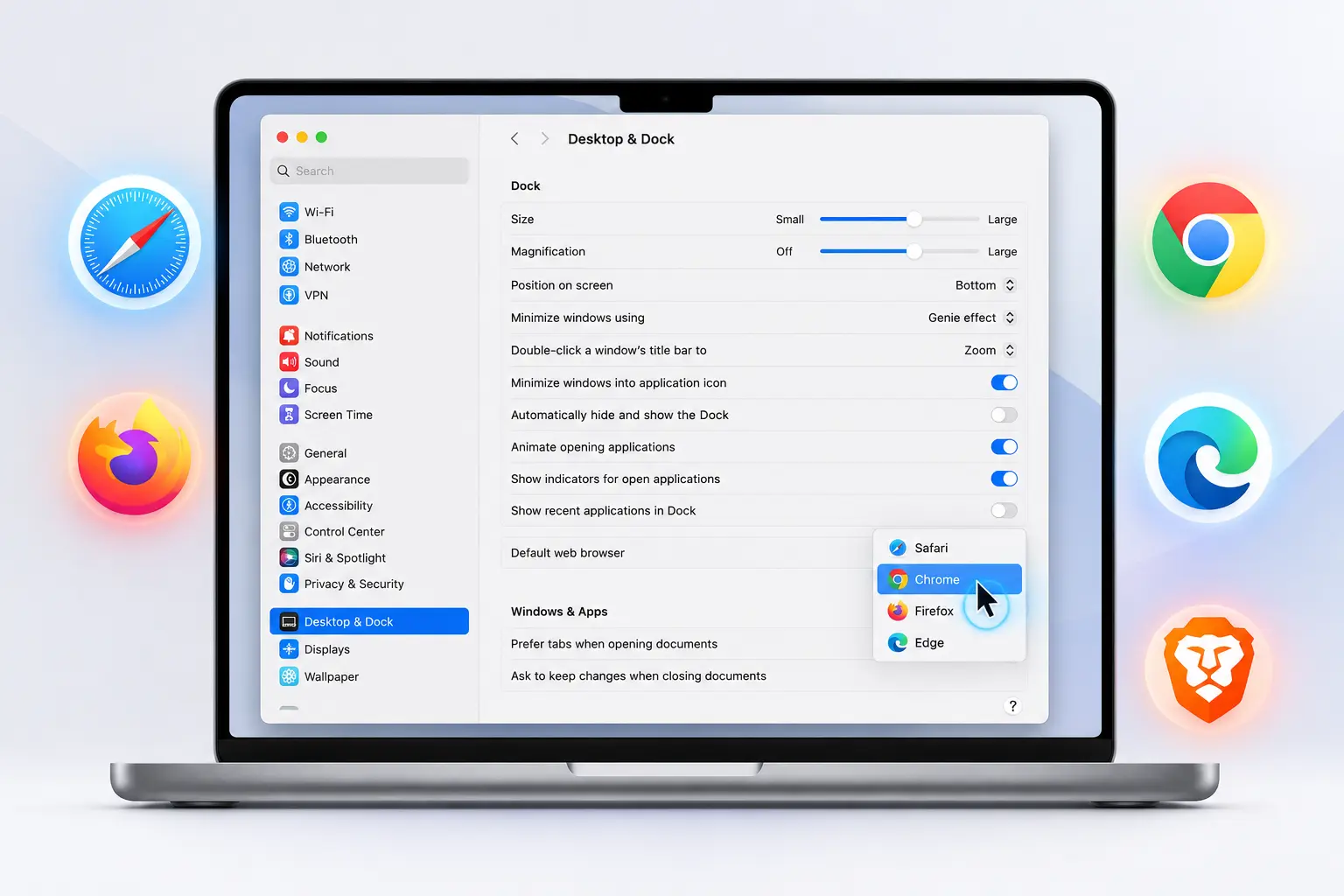
If your Mac is running macOS Ventura or newer, the default browser setting is in System Settings under Desktop & Dock. Apple moved the setting there in 2022 when they redesigned the interface, and the location has stayed the same through macOS Sonoma and macOS Sequoia. You can find Apple’s official documentation about changing your default browser on their support page here, which confirms this exact path.
Here’s the exact path.
Click the Apple menu in the top left corner of your screen. Select System Settings from the dropdown. On the left sidebar, scroll down and click Desktop & Dock. Now scroll down the right panel until you see the section labeled Default web browser. Click the dropdown menu next to it and choose your preferred browser from the list.
That’s the whole process. The change happens instantly.
One thing that catches people off guard is when their browser doesn’t appear in that dropdown at all. The browser has to be installed and launched at least once before macOS registers it as an option. So if you just downloaded Chrome or Firefox, open the browser first, let it load completely, then go back to System Settings and check the list again. The browser should show up now.
Most older guides still send people to General settings because that’s where the default browser option lived before macOS Ventura. If you’re on Ventura, Sonoma, or Sequoia and you open General, you won’t find the setting there. Apple moved it to Desktop & Dock, and that confused a lot of people in 2022 when Ventura first came out. The setting is still in the same spot as of 2026, so this method works on any current Mac.
And if the browser you want is already installed but still not showing in the dropdown, close System Settings completely and relaunch it. Sometimes the list doesn’t refresh until you do that.
Quick Tip: Use the Search Bar to Find the Setting Faster
You don’t have to navigate through the sidebar menus if you don’t want to. Open System Settings and look at the top of the window. There’s a search bar. Click it and type “default browser” without the quotes. macOS will show you the exact setting instantly and you can click it to jump straight there.
I use this shortcut every time because scrolling through the Desktop & Dock panel to find the default web browser dropdown takes longer than just typing two words. The search bar filters results as you type, so you usually don’t even have to finish the phrase before the right setting appears.
This works for any System Settings option, not just the default browser. If you can’t remember where a specific setting lives, the search bar saves you from guessing which menu to open.
How to Set Your Default Browser From Within the Browser Itself
Most browsers have a button somewhere in their own settings that says “Make Default” or “Set as Default.” Clicking that button doesn’t actually change the setting on its own. What happens is the browser opens a macOS system dialog asking you to confirm the change, and you have to click a second button to make it official.
This is just a shortcut. The browser can’t override macOS system settings without your permission, so it redirects you to the same confirmation screen you’d get if you changed the default browser manually through System Settings or System Preferences. The end result is identical either way.
I see people dismiss these browser prompts thinking they’re ads or annoying notifications. They’re not. Safari and Firefox especially will show a banner or popup asking if you want to make them your default browser, and that’s a legitimate offer to shortcut the process for you. You can ignore it and change the setting manually if you prefer, but the popup itself isn’t trying to trick you.
The one advantage of using the browser’s built-in option is you don’t have to remember where the macOS setting lives. If you’re already in Chrome and you see the banner, clicking it is faster than navigating to Desktop & Dock or General settings yourself.
Here’s how each major browser handles it.
How to Make Chrome Your Default Browser
Google Chrome gives you two ways to trigger the default browser prompt. The first is a banner that appears at the top of the Chrome window when you first open the browser. It says “Google Chrome isn’t your default browser” and has a blue button labeled “Set as default.” Click that button and macOS will open a confirmation dialog.
The second method is through Chrome’s settings. Click the three dots in the top right corner of the Chrome window. Select Settings from the dropdown. On the left sidebar, look for Default browser and click it. You’ll see a button that says “Make default.” Click it and the same macOS confirmation dialog appears.
Either way, macOS shows you a popup asking if you want to use Chrome as your default browser. Click “Use Chrome” to confirm. That’s the step that actually makes the change happen. The browser can’t do it without that confirmation.
How to Make Safari Your Default Browser
Open Safari and click Safari in the menu bar at the top of the screen. Select Settings from the dropdown. Inside the settings window, look for a banner near the top that says “Safari is not your default web browser.” If that banner is there, click the “Set Default” button next to it.
macOS will show you a confirmation popup. Click “Use Safari” to confirm the change.
If you don’t see the banner, Safari is already your default browser and there’s nothing to change.
How to Make Firefox Your Default Browser
Open Firefox and click Firefox in the menu bar. Select Settings from the dropdown. At the very top of the settings page, you’ll see a notice that says “Firefox is not your default browser” if Firefox isn’t already set as default. Next to that notice is a button labeled “Make Default.” Click it.
Firefox will trigger the macOS confirmation dialog. Click “Use Firefox” to finish the process.
How to Make Edge, Brave, Opera, or Arc Your Default Browser
Most browsers follow the same pattern Chrome and Firefox use. Open the browser, go to Settings or Preferences, look for a section called Default Browser, and click the button that says “Make Default” or “Set as Default.” The browser will open the macOS confirmation dialog and you’ll need to click the final confirmation button to apply the change.
Brave and Arc sometimes show an automatic prompt the first time you launch them asking if you want to make them your default. If you see that prompt and click yes, the same macOS confirmation dialog appears. You still have to confirm it there.
Microsoft Edge, Opera, and Brave all keep their default browser setting in the main settings menu under a section labeled something like General or Default Browser. The exact wording varies slightly, but the button always does the same thing. It asks macOS to open the confirmation screen, and you click the confirmation to finish.
Why Your Browser Isn’t Showing in the Default List (And How to Fix It)
The browser you want to set as default has to be installed in your Applications folder and launched at least once before macOS will show it in the default browser dropdown. If you just downloaded Chrome or Firefox and went straight to System Settings without opening the browser first, macOS hasn’t registered the app yet.
This catches people off guard because most assume macOS scans for installed apps automatically. It doesn’t work that way. Apps register themselves with the system when they launch for the first time, and until that registration happens, macOS doesn’t know the app exists as a potential default browser option.
Here’s the fix.
First, check where the browser is actually installed. Open Finder and click Applications in the left sidebar. Look for your browser in that list. If you don’t see it there, the browser probably downloaded to your Downloads folder and never got moved to Applications. Drag the browser from Downloads into the Applications folder to install it properly.
Second, launch the browser. Double click the icon and let the browser fully open and load. You don’t have to do anything inside the browser. Just open it, wait for the window to appear, and let it sit for a few seconds. That’s when the app registers with macOS.
Third, go back to System Settings and check the dropdown again. Open the Apple menu, select System Settings, navigate to Desktop & Dock if you’re on macOS Ventura or newer, scroll down to the Default web browser dropdown, and click it. Your browser should appear in the list now.
If the browser still doesn’t show up after those steps, close System Settings completely and reopen it. Sometimes the dropdown list doesn’t refresh until you do that. And if you’re on an older macOS version like Monterey or Big Sur, remember the setting is in System Preferences under General, not in Desktop & Dock.
One more thing that trips people up is seeing the browser icon sitting in the dock and assuming that means the app is installed correctly. The dock is just a shortcut. The browser icon can be in your dock even if the actual app is still sitting in your Downloads folder and hasn’t been moved to Applications. Always check the Applications folder directly to confirm the browser is in the right place.
Why Your Browser Isn’t Showing in the Default List (And How to Fix It)
The browser you want to set as default has to be installed in your Applications folder and launched at least once before macOS will show it in the default browser dropdown. If you just downloaded Chrome or Firefox and went straight to System Settings without opening the browser first, macOS hasn’t registered the app yet.
This catches people off guard because most assume macOS scans for installed apps automatically. It doesn’t work that way. Apps register themselves with the system when they launch for the first time, and until that registration happens, macOS doesn’t know the app exists as a potential default browser option.
Here’s the fix.
First, check where the browser is actually installed. Open Finder and click Applications in the left sidebar. Look for your browser in that list. If you don’t see it there, the browser probably downloaded to your Downloads folder and never got moved to Applications. Drag the browser from Downloads into the Applications folder to install it properly.
Second, launch the browser. Double click the icon and let the browser fully open and load. You don’t have to do anything inside the browser. Just open it, wait for the window to appear, and let it sit for a few seconds. That’s when the app registers with macOS.
Third, go back to System Settings and check the dropdown again. Open the Apple menu, select System Settings, navigate to Desktop & Dock if you’re on macOS Ventura or newer, scroll down to the Default web browser dropdown, and click it. Your browser should appear in the list now.
If the browser still doesn’t show up after those steps, close System Settings completely and reopen it. Sometimes the dropdown list doesn’t refresh until you do that. And if you’re on an older macOS version like Monterey or Big Sur, remember the setting is in System Preferences under General, not in Desktop & Dock.
One more thing that trips people up is seeing the browser icon sitting in the dock and assuming that means the app is installed correctly. The dock is just a shortcut. The browser icon can be in your dock even if the actual app is still sitting in your Downloads folder and hasn’t been moved to Applications. Always check the Applications folder directly to confirm the browser is in the right place.
Why Your Default Browser Keeps Reverting to Safari (It’s Not Your Fault)
If your default browser keeps switching back to Safari every few weeks or after a browser update, you’re not doing anything wrong. This is a known macOS bug that affects Chrome, Firefox, and Edge users, and it’s been happening consistently since at least 2024. When your browser updates to a new version, macOS treats the updated browser as a completely new app and resets your default back to Safari.
The technical reason this happens is tied to how macOS tracks apps. Every app on your Mac has a digital signature, and when a browser pushes out an update, that signature changes slightly. macOS sees the changed signature and assumes the app is new, not an updated version of the one you already had installed. Because the system thinks it’s a new app, it doesn’t carry over the default browser setting you had before.
This is documented in Apple Developer forums. Chrome, Firefox, and Edge users report the same pattern over and over. They set their preferred browser as default, everything works fine for a few weeks, the browser updates in the background, and the next time they click a link from Mail or Messages, Safari opens instead.
And this is exactly where people blame themselves. I’ve seen users assume they clicked something by accident or changed a setting without realizing it. That’s not what happened. The browser version update triggered the reset automatically, and there’s nothing you could have done to prevent it unless you disabled browser updates entirely, which creates its own problems.
Apple hasn’t fixed this bug as of 2026. The issue has been reported repeatedly, and it still happens on the latest macOS versions including Sequoia and Sonoma. There’s no permanent solution right now, just workarounds you can use to manage the frustration.
Here’s what you can do.
The simplest fix is to reset your default browser every time you notice it reverted. Open System Settings, go to Desktop & Dock if you’re on macOS Ventura or newer, scroll to the Default web browser dropdown, and select your preferred browser again. If you’re on an older macOS version, the setting is in System Preferences under General. This takes ten seconds and fixes the problem until the next browser update.
If resetting manually every few weeks feels annoying, you can use a Terminal command to set your default browser programmatically. There’s a command line tool called defaultbrowser that lets you script the change, and some users set up automated scripts that reapply their browser preference on a schedule. That’s a more technical solution and it’s probably overkill unless the reverting bug drives you crazy.
The other option is to wait for Apple to fix the bug. I can’t predict when or if that will happen, but the longer the issue persists without a patch, the less likely it seems that Apple considers this a priority.
One thing that doesn’t work is trying to lock the setting in place. macOS doesn’t have a way to prevent the default browser from changing, and even if you manually set it multiple times in a row, the next browser version update will reset it again. The problem is in how macOS handles app signatures during updates, not in how you’re configuring the setting.
So if your default browser keeps reverting to Safari, stop blaming yourself. The bug is real, it’s documented, and it affects a lot of people using third party browsers on Mac.
Why Some Apps Still Open Links in Safari (Even After You Changed the Default)
Changing your default browser in System Settings doesn’t guarantee that every single app on your Mac will respect that choice. Some apps have their own internal browser preference that overrides the macOS system setting entirely. Apple actually documents this behavior and states that some apps can open webpages in a browser other than your default browser. Most people have no idea this is possible, which is exactly why it causes so much confusion.
The system default browser setting is really more of a general instruction to macOS than an absolute command every app must follow. Most apps listen to it. But some apps, particularly third party email clients, document viewers, and productivity tools, have their own setting that tells them which browser to use when opening links. That app-level setting takes priority over whatever you set system-wide.
This is by design. Not a bug.
The most common place people notice this is with email apps. If you use a third party email client instead of Apple Mail, and links from that app still open in Safari, the first thing I check is the app’s own settings. Look for something labeled “Default browser,” “Open links in,” or “Browser preferences” inside the app’s preferences panel. If the app has that setting, whatever is configured there is what the app uses, regardless of your macOS system setting.
Apple Mail works differently. Apple Mail respects the macOS default browser setting and will open links automatically in whichever browser you have set as default. So if links from Apple Mail still open in Safari after you changed the system setting, the reverting bug from the previous section is the more likely cause there.
For other apps that keep opening links in the wrong browser, the fix is straightforward. Open the app, go to its Preferences or Settings, and look for any option that mentions browser or how links open. Change that setting to your preferred browser. The app will then use your chosen browser to open links automatically, even if the system default is different.
Not every app exposes this setting. Some apps give you no control over which browser they use. In those cases, the only real option is to make sure your system default browser is set correctly and accept that the specific app may not change.
Myth Busted: You Don’t Need to Open Safari to Change Your Default Browser
You do not need to open Safari to change your default browser on Mac. You never have to touch Safari at all. The setting lives in System Settings or System Preferences depending on your macOS version, and you can change it from there without opening any browser.
But here’s why so many people still think you have to open Safari first.
Before OS X Yosemite, which Apple released around 2014, that instruction was actually correct. Back then, the only way to change your default browser was to open Safari, go into Safari’s own preferences, and change the setting from there. Apple kept that control inside Safari itself, which made sense at the time since Safari was the only browser Apple shipped with the Mac.
When Yosemite launched, Apple moved the default browser setting out of Safari and into the system-level preferences where it belongs. That was over ten years ago. But the old advice never fully disappeared.
Long-time Mac users who learned that trick in 2010 or 2012 passed it on to others. Blog posts written before 2014 still rank in search results in some cases. And when someone tells you “just open Safari and change it from there,” they’re repeating something that was true a decade ago and is no longer accurate.
I still see this advice show up in forums and comment threads occasionally. It’s one of those Mac myths that outlived the reality by years.
The current method, which has been consistent since 2014, is straightforward. On macOS Ventura and newer, the setting is in System Settings under Desktop & Dock. On older macOS versions, the setting is in System Preferences under General. No browser needs to be open. No Safari required.
And for what it’s worth, even the old Safari method would have redirected you to the same system preference in more recent macOS versions. Safari stopped housing that setting internally a long time ago.
Advanced: Change Your Default Browser Using Terminal (For Power Users)
If you manage multiple Macs, run automated setup scripts, or just prefer doing things from the command line, there’s a way to change the default browser on Mac without touching System Settings at all. The tool is called defaultbrowser, and you install it through Homebrew.
Most people will never need this. But if you’re an IT admin deploying settings across a fleet of machines, or if the reverting bug from browser updates is driving you to find a more persistent solution, this approach is worth knowing.
Here’s how to get it set up.
First, you need Homebrew installed on your Mac. Homebrew is a package manager for macOS that lets you install command line tools that Apple doesn’t ship by default. If you don’t have Homebrew yet, go to brew.sh and follow the installation instructions on that page. The install process takes a few minutes and only needs to be done once.
Once Homebrew is installed, open Terminal and run this command:
brew install defaultbrowser
Homebrew will download and install the defaultbrowser tool. After that finishes, you can use it immediately.
To set Chrome as your default browser, run:
defaultbrowser chrome
To set Firefox as your default browser, run:
defaultbrowser firefox
To set Safari as your default browser, run:
defaultbrowser safari
The tool also works with Edge, Brave, and other browsers. To see the full list of browsers it recognizes on your specific Mac, run defaultbrowser with no arguments and it will display all the available options.
One practical use case I find genuinely useful for this tool is scripting. If you manage Mac onboarding for a team, you can add the defaultbrowser command to your setup script and it will configure the preferred browser automatically without requiring a user to go through System Settings manually. For IT environments where consistency matters, that saves time.
And if the browser update reverting bug is your main reason for looking at this, know that defaultbrowser doesn’t permanently prevent the bug from occurring. The macOS-level reset still happens after a browser update. But having the command ready in a script means you can reapply the setting programmatically rather than doing it manually each time.
Troubleshooting: Other Common Issues
Most of the time, changing your default browser on Mac takes ten seconds and works immediately. But occasionally something goes sideways in a way that doesn’t fit neatly into the scenarios above. Here are the less common problems I see come up and what actually fixes them.
The setting won’t save and keeps reverting to whatever was there before
If the default browser not changing is your issue and the reverting bug from browser updates isn’t the cause, the first thing to try is restarting your Mac. This sounds too simple, but macOS occasionally gets into a state where preference changes don’t write correctly to the system until a fresh boot clears things out. Restart Mac, open System Settings again after it loads, and check whether the setting now holds.
If restarting doesn’t fix it, check whether you have multiple user accounts on the Mac. The default browser setting is per user account, not system wide. If you changed it while logged into one account, switching to a different account will show the old setting. Make sure you’re changing the setting in the account you actually use day to day.
The default browser dropdown is grayed out and you can’t click it
This one surprises people.
When the dropdown in System Settings is grayed out entirely and you can’t interact with it, Screen Time restrictions are almost always the cause. Screen Time on macOS includes content and privacy restrictions that can lock certain system settings, including the default browser selection. To check this, open System Settings, go to Screen Time, and look for Content and Privacy Restrictions. If restrictions are turned on, you’ll need to disable them or enter the Screen Time passcode before the dropdown becomes interactive again.
This happens most often on Macs set up for children or in managed environments like schools or workplaces where an IT administrator has locked the setting intentionally.
An old browser still appears as the default even though you uninstalled it
macOS sometimes holds onto a reference to a browser that no longer exists on the system. If you uninstalled a browser but the system still shows it as the default, open System Settings and select a different browser from the dropdown manually. The old browser name should disappear from the list after you restart Mac and the system clears the stale reference.
If the uninstalled browser name keeps showing up across restarts, the app wasn’t fully removed from the Applications folder. Open Finder, go to Applications, and check whether any leftover files from that browser are still there. Remove them completely and restart again.
Your Default Browser, Your Choice
Knowing how to change your default browser on Mac is one of those things that takes thirty seconds once you know where to look, but costs twenty minutes of frustration when you don’t. Now you know exactly where to look.
Quick recap of what matters most.
On macOS Ventura, Sonoma, or Sequoia, the setting is in System Settings under Desktop & Dock. On Monterey and older versions, it’s in System Preferences under General. If your browser isn’t showing up in the dropdown, launch it at least once first. And if the setting keeps reverting to Safari after browser updates, that’s a known macOS bug — not something you caused.
A few apps will also ignore the system default entirely and use their own browser setting. If that happens, check the settings inside that specific app rather than changing anything system-wide.
As for which browser to pick, that’s genuinely a personal call. Chrome works well if you use Google services and want your browsing history synced across devices.
Safari is worth keeping as default if battery life on a MacBook matters to you, since Safari is still more efficient than most alternatives on Apple hardware. If you’re concerned about overall Mac performance and want to keep your system running smoothly, you might also want to learn how to clear RAM on Mac to free up memory resources..
Firefox is a solid choice if privacy is the priority. Brave blocks ads by default, which speeds up a lot of pages noticeably. Arc is worth trying if you want something that rethinks browser layout from scratch.
None of those are wrong answers. Pick the one that fits how you actually use your Mac day to day, and change it whenever your needs shift.
How do I change my default browser on Mac to Chrome?
On macOS Ventura or newer, go to System Settings → Desktop & Dock → Default web browser and select Chrome. On older versions, it’s System Preferences → General, or you can open Chrome → Settings → Default browser → Make default.
Why does my default browser keep changing back to Safari?
This is a known macOS bug where browser updates reset your default to Safari because the system treats the updated browser as a new app. It’s not something you did wrong, and the only current fix is to reset your preferred browser after each update.
Why isn’t my browser showing up in the default browser list?
The browser must be installed in your Applications folder and launched at least once before macOS registers it as an available option. Open the browser, let it fully load, then check System Settings again and it should appear in the dropdown.
Do I need to open Safari to change my default browser?
No, you don’t need to open Safari or any browser to change the default. This was true before OS X Yosemite in 2014, but Apple changed it over a decade ago and the setting now lives in System Settings or System Preferences.
Can I change the default browser for just one app, like Mail?
No, the default browser is a system-wide setting that applies to all apps on your Mac. However, some individual apps have their own browser preference that overrides the system default, so check that specific app’s settings if links from it still open in the wrong browser.


