
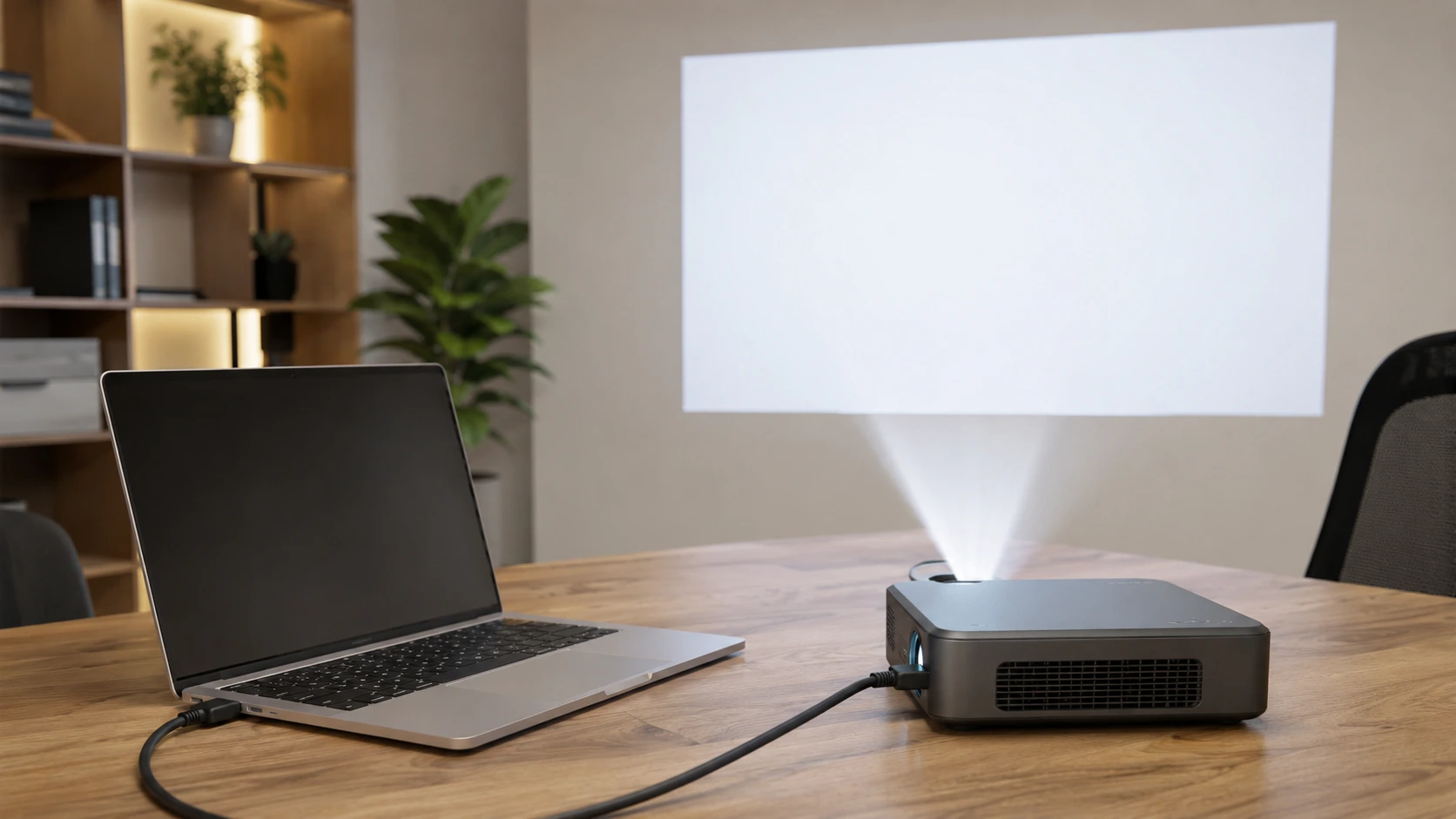
Why Most Projector Connection Problems Aren’t What You Think
Every time someone contacts me about a projector that won’t connect, the first words out of their mouth are almost always the same. The cable must be bad. The HDMI port is shot.
The projector itself is broken. I understand why people go there ‘No Signal’ feels like a hardware failure. But it almost never is. MIT’s IT support team documented that roughly 90% of projector trouble calls trace back to just two things: a laptop set to an unusual resolution, or a user who never enabled external display output. Not broken cables. Not dead ports. Wrong settings
Here’s the thing most people don’t realize until I explain it. Plugging in a cable is only half the job. The laptop has to actively send a signal out, and the projector has to be set to the right input to receive it. Neither device assumes the other is there. Most people plug in the cable and wait.
Nothing happens. Windows gives you four display modes: PC screen only, Duplicate, Extend, and Second screen only. If the laptop is sitting on ‘PC screen only,’ it is sending absolutely nothing to the projector. The projector shows ‘No Signal’ because that is literally true no signal is coming.
When someone tells me their laptop screen won’t appear on the projector, that mode setting is the first place I look. Nine times out of ten, that’s it. The cable is fine. The hardware is fine. The settings are just wrong.
What You Need Before You Connect Your Projector to Laptop
Before anything else, I look at the physical ports on both devices. That sounds obvious, but it determines which cable or adapter you actually need — and getting this wrong wastes time.
You need to match a laptop output port to a projector input port. Both have HDMI? You’re done. Grab a standard HDMI cable and skip ahead. But if your laptop has only USB-C and the projector only takes VGA, you’re looking at an adapter situation, and not all adapters handle that chain cleanly. The physical connection has to be correct before any software setting in the world will help you.
Most projectors have multiple input options labeled on the back panel. I’ve seen Sony projectors with Input A and B for VGA, plus Input C and D for HDMI.
Some commercial models also include LAN ports and RS-232 serial control ports that are only useful for IT administrators managing a building full of projectors. Smaller portable projectors often put everything on the side panel HDMI 1, HDMI 2, USB, AV jacks, and a headphone jack all crammed into a couple of inches.
The laptop side is simpler by comparison. Older machines have dedicated video ports. Newer ones from 2024 and 2025 often have nothing but USB-C, sometimes three or four ports with no HDMI in sight. That’s where the first real confusion starts.
HDMI Ports (Most Common)
HDMI is what I recommend first whenever both devices have the port. The HDMI connector is a thin trapezoid shape wider at the bottom than the top and it only fits one way, so you can’t plug it in wrong. On laptops it sits on the left or right edge.
On projectors it’s labeled on the back panel as HDMI, sometimes HDMI 1 and HDMI 2 if there are multiple ports. One cable does everything. Video and audio both travel through a single HDMI connection, so you don’t need a separate audio cable at all.
VGA Ports (Older Equipment)
VGA ports have three rows of five small pin holes fifteen total usually surrounded by a blue plastic frame on both the cable and the port itself. You’ll find this on older projectors and some older laptops, and it’s still common in classrooms and boardrooms with equipment that hasn’t been upgraded in a decade. VGA only carries video.
No audio. So if your presentation has sound and you’re on VGA, you’ll need a separate 3.5mm audio cable running from your laptop’s headphone jack to the projector or an external speaker. VGA is analog, which means signal quality can soften over longer cable runs — past about 15 feet, you’ll sometimes notice it.
USB-C Ports (Modern Laptops)
USB-C is a small oval-shaped port, and it’s become the default on most laptops released in the last two years. The problem is that USB-C is not a single standard — it’s a connector shape that covers several different technologies. Some USB-C ports send video. Some only handle charging and file transfers.
They look completely identical from the outside. Same port, same cable, completely different capabilities depending on which one you’re dealing with. The USB-C ports that support video output do so through DisplayPort Alternate Mode or Thunderbolt 3/4. Ports without those protocols cannot send a display signal no matter what adapter you attach.
I’ve watched people swap three adapters thinking they were defective when the port itself just didn’t have video capability built in.
How to Connect Projector to Laptop with HDMI (Fastest Method)
HDMI is the first method I reach for, and if both your laptop and projector have the port, there’s no reason to use anything else. One cable carries video and audio together no adapters, no extra audio cable running separately.
Because HDMI transmits a digital signal, the picture quality stays consistent across the full cable length, up to about 50 feet before you’d start to notice any degradation. Beyond that, you need either a fiber HDMI cable or an HDMI-over-ethernet extender, but for anything in a standard room, a regular HDMI cable handles it cleanly
But here’s what catches people. You can plug in the HDMI cable perfectly and still see nothing on the projector screen. About 30% of connection problems happen because the projector is set to the wrong input source. If your projector has HDMI 1 and HDMI 2, and you plugged the cable into HDMI 2 but the projector is looking at HDMI 1, you’ll get a blank screen every time.
Step 1: Turn Off Both Devices (Optional but Recommended)
I turn off the laptop and the projector before connecting anything. Strictly optional hot-plugging HDMI while devices are powered on is something the spec supports. But I’ve personally seen HDMI ports wear out and fail faster on devices where cables were regularly plugged and unplugged while running. Power everything down first. Takes five seconds and costs you nothing
Step 2: Connect the HDMI Cable
Plug one end of the HDMI cable into your laptop’s HDMI port. The connector only fits one way don’t force it. Then plug the other end into one of the projector’s HDMI input ports.
These are labeled on the back panel as HDMI 1 and HDMI 2, or on some projectors as Input C and Input D. Make a mental note of which port you used. That information matters in the next step
Step 3: Select the Correct HDMI Input on Projector
Power on the projector first and let it fully warm up don’t rush this step on older models, they need a few seconds to be ready for input. Then grab the projector remote and press the button labeled Source or Input. The exact label varies by brand: Epson uses Source, BenQ often uses Input, some remotes just say Menu. All the same function.
A list appears on the projector screen showing every available input. Navigate to the HDMI port you actually plugged the cable into. Used HDMI 2? Select HDMI 2. This is consistently where people get stuck when HDMI is not working on their projector they assume the projector auto-detects which port is active. Some models do this. Most don’t. The projector waits for you to tell it where to look.
Step 4: Configure Display Settings (Win+P)
Power on your laptop and let Windows load fully. Then press the Windows key and P together. A small menu slides out on the right side of the screen with four options: PC screen only, Duplicate, Extend, Second screen only. Select Duplicate. Both the laptop screen and the projector screen now show the same image simultaneously.
That’s what you want for presentations, movies, or any situation where an audience needs to see what you’re looking at. If the projector still shows no signal after selecting Duplicate, go back to Step 3 the input source selection on the projector is the most likely culprit, and it’s worth double-checking before anything else
How to Connect Laptop to Projector with VGA (Legacy Equipment)
VGA still shows up constantly in classrooms, conference rooms, and older office buildings. The projector might be a decade old. The laptop is brand new. And the only physical port that bridges them is that blue VGA connector. VGA carries video only — no audio, ever. That surprises people who have been using HDMI, because HDMI handles both and you stop thinking about audio as a separate problem. With VGA, audio is always a separate problem
Both ends of a VGA cable look the same — no wrong end to plug in, but orientation does matter since the connector is asymmetrical. Most VGA cables have small thumb screws on each connector that you tighten by hand once the cable is seated. Those screws matter more than people think.
A VGA cable that works itself loose mid-presentation will cut the signal completely. Tighten both ends. Connect one end to your laptop’s VGA port and the other to the projector’s VGA input. Power on the projector, then press Source or Input on the remote. Select VGA from the available inputs — some projectors label it RGB, PC, or Computer instead, but it’s the same physical port. Power on your laptop, press Win+P, and select Duplicate. The laptop screen appears on the projector. But there’s no sound. VGA doesn’t carry audio, and that’s not a setting you can change
VGA Audio Workaround: Connecting External Speakers
If you need sound, you need a separate audio cable there’s no way around it with VGA. The simplest fix is a 3.5mm audio cable running from your laptop’s headphone jack to a small portable speaker.
That’s what I keep in my bag for exactly this situation. Plug one end into the laptop headphone jack, the other into the speaker’s AUX input. Some projectors have a separate audio input on the back panel labeled Audio In or AUX. If yours has one, you can run the cable directly from the laptop into the projector and skip the external speaker entirely. Worth checking the back panel before you pack extra equipment.
VGA maxes out around 1920 by 1080 resolution. HDMI supports resolutions up to 8K and offers significantly better picture quality for modern displays. VGA is analog, so the signal degrades slightly over longer cable runs, especially past 15 feet. HDMI is digital and stays sharp.
Which is why I only use VGA when HDMI is not an option.
The USB-C Trap: Why Your Adapter Might Not Work
Most laptops shipping in 2024 and 2025 have dropped the dedicated HDMI port entirely. Sometimes there are two or three USB-C ports along the edge, and that’s it. So you pick up a USB-C to HDMI adapter, plug it into the projector, and the screen stays blank. You try a second adapter. Still nothing.
By the third attempt, you’re convinced you got a bad batch. But the adapters are almost certainly fine. The USB-C port is the actual problem. Not every USB-C port supports video output.
Some are strictly for charging and data transfer, and no adapter changes that. To send a video signal through USB-C, the port needs to support DisplayPort Alternate Mode, or it needs to be a Thunderbolt 3 or Thunderbolt 4 port. Without one of those protocols built into the port itself, a USB-C to HDMI adapter will not pass video no matter how much you paid for it..
What makes this particularly confusing is that two USB-C ports on the same laptop can have completely different capabilities. One supports video output. The other doesn’t. They look identical same size, same shape, same label. But plug your adapter into the wrong one and you’ll get nothing.
I’ve watched people spend forty dollars on a quality adapter only to find out that their specific laptop’s USB-C ports don’t support video output at all. The adapter works perfectly. The port simply doesn’t have the technology to do what they need
How to Check if Your USB-C Port Supports Video
Look at the symbols printed next to each USB-C port on your laptop. A small DisplayPort logo a D-shaped icon with a P inside means that port supports video output.
A lightning bolt icon means Thunderbolt 3 or Thunderbolt 4, which also handles video. No symbol at all? That port is likely charging and data only. If the physical inspection doesn’t give you a clear answer, check your laptop’s spec sheet. Search the manufacturer’s site for your model and look in the technical specifications under ports or connectivity.
The terms to look for are DisplayPort Alternate Mode, DP Alt Mode, or Thunderbolt support. When in doubt, try each USB-C port one at a time with your adapter. Some budget laptops include USB-C ports that only charge and transfer files no video capability, regardless of what adapter you attach. In that situation, wireless projection or a USB-to-HDMI capture device becomes the practical path forward
How to Connect Your Laptop to Projector Wirelessly
Wireless projection is genuinely appealing on paper. No cable to carry, no routing it across the floor, no hunting for the right adapter. The pitch writes itself.
In practice, the first setup almost never goes smoothly not because wireless projection is unreliable in general, but because there are configuration steps that practically no setup guide mentions upfront.
Wireless connections also drop more frequently than a wired HDMI connection, and lag is a real issue during video playback. So the honest framing is: wireless projection works well for static presentations and casual use. For video or anything timing-sensitive, a cable is still the better call.
Many newer projectors from 2024 and 2025 now include built-in AirPlay 2 or Miracast support, which eliminates the need for external wireless adapters. But even with that built-in support, you still need to configure your laptop correctly before wireless projection will work.
The Hidden Step Most Wireless Guides Skip
Windows does not enable wireless projection by default, and this is the step that trips up almost everyone. You have to manually install an optional feature called Wireless Display before your laptop can connect to any wireless projector.
Without it, pressing Win+K shows nothing — no projectors, no devices, just an empty list. Most people assume the projector doesn’t support wireless, or their laptop doesn’t.
The actual problem is a missing Windows component that Microsoft chose not to include in the default installation. To install it: open Settings, go to Apps, then Optional Features, and click Add a feature. Search for Wireless Display and install it. On Windows 11 the path is Settings → System → Optional Features.
On Windows 10 it’s Settings → Apps → Apps and Features → Optional Features. Restart if Windows asks you to. After that, wireless projection has everything it needs to actually function.
Wireless Connection for Windows (Miracast)
After installing the Wireless Display feature, confirm that both your laptop and projector are on the same WiFi network. The projector needs to be in Miracast mode — different manufacturers label this differently: wireless display mode, screen mirroring mode, or similar. Press Windows Key and K together.
A sidebar slides out on the right side of your screen listing available wireless displays. Select your projector. Give it a few seconds to establish the connection. If the projector shows a PIN on the screen, enter that code on your laptop. Some projectors prompt for this PIN every session; others only ask the first time. Either way it takes about ten seconds.
Win+K is for finding and connecting to wireless displays. Win+P, which I covered earlier for HDMI connections, is for choosing how your screen displays after the connection is already made. Two different shortcuts. Two different jobs.
Wireless Connection for Mac (AirPlay)
Mac laptops use AirPlay instead of Miracast. Click the Control Center icon in the top-right corner of your menu bar, select Screen Mirroring, and choose your projector from the list of available AirPlay devices. Both devices need to be on the same WiFi network.
The projector also needs AirPlay support built in this is worth checking before you commit to a wireless setup. Epson, BenQ, LG, and Optoma all have projector lines with native AirPlay 2 support as of 2024.
Older projectors generally don’t. If your projector doesn’t support AirPlay natively, plugging an Apple TV into its HDMI port gives you AirPlay capability on any projector with an HDMI input.
Wireless Connection Using Streaming Devices
If your projector doesn’t have built-in wireless support, you can add it with a streaming device plugged into one of the HDMI ports. Chromecast is the most straightforward option for laptop users: plug it in, connect it to your WiFi network, open Google Chrome on your laptop, click the three-dot menu in the top right, select Cast, and pick your Chromecast device. You can cast a specific browser tab or the entire screen.
The Amazon Fire Stick also supports screen casting through the Fire TV app on Windows. Roku devices support casting from certain apps but don’t have a general screen mirroring option for laptops. Any of these streaming devices costs roughly thirty to fifty dollars and works on any projector with an HDMI input.
Why 5GHz WiFi Makes Wireless Projection Actually Usable
Most laptops auto-connect to whatever WiFi band the router selects, which is usually the 2.4GHz band because it has better range. That’s the wrong band for screen mirroring. On 2.4GHz, video stutters, mouse movements lag behind what you’re doing on the laptop, and the whole thing feels like you’re working through molasses.
Switching both the laptop and the projector to the 5GHz band reduces wireless projection latency by roughly 30 to 50 percent in most environments.
Check your WiFi network list for a network with 5G or 5GHz in the name and connect to that one on both devices. The tradeoff is range 5GHz doesn’t travel as far through walls as 2.4GHz but if you’re presenting in the same room as the router, that doesn’t matter.
Check your WiFi network list on your laptop. If you see two networks with similar names, one labeled 5G or 5GHz, connect to that one. Do the same on your projector’s network settings menu.
The 5GHz band has shorter range than 2.4GHz, so you need to be relatively close to your router. But the performance improvement for wireless projection is worth the range limitation if you’re in the same room as the router.
Win+P: The Projector Shortcut Key Every Windows User Needs
Every time someone messages me about a projector showing no signal, the first question I ask is: did you press Win+P? The Windows key and P together.
That shortcut opens the display projection menu, and in my experience it resolves the majority of ‘no signal’ complaints before anything else needs to be touched no cable swap, no driver update, no restart required.
Win+P and Win+K do completely different things and people frequently mix them up. Win+P controls how your display behaves after a connection already exists whether to duplicate, extend, or switch to projector-only. Win+K is for finding and connecting to wireless displays before any connection is established.
Use Win+K first to connect. Use Win+P after you’re connected to adjust what the projector shows. Some laptops also have a function key shortcut usually Fn+F4 or Fn+F8 with a dual-screen icon that cycles through the same four modes as Win+P. Same result, different button
Duplicate: Mirror Your Laptop Screen (Recommended for Most Users)
Duplicate mode shows the exact same image on both your laptop screen and the projector screen at the same time.
This is what you want for presentations, sharing videos with a group, or displaying anything where the audience needs to see exactly what you see. Your laptop displays the content. The projector mirrors that display. Simple.
I recommend Duplicate as the default starting choice for anyone connecting a laptop to a projector for the first time. You can always change modes later if you need something different, but Duplicate covers most situations people actually use projectors for.
Extend: Use Projector as Second Workspace
Extend mode turns the projector into a separate second screen next to your laptop display similar to how you’d set up dual monitors on a laptop. You get two independent desktop spaces. Move your mouse to the right edge of your laptop screen, and the cursor crosses over onto the projector screen
Drag a window from your laptop to the projector. Open PowerPoint slides on the projector while keeping your speaker notes private on your laptop screen.
Desktop icons stay on your laptop screen by default. You have to manually drag windows and applications over to the projector side. This surprises people who expect everything to appear on both screens automatically. That’s Duplicate. Extend gives you control over what goes where.
Presenters who need private notes use Extend. Everyone else uses Duplicate.
Second Screen Only: Projector Only, Laptop Screen Off
Second screen only turns off your laptop display completely and shows everything on the projector screen instead.
This mode saves battery life during long presentations or movie watching. The laptop screen goes black. All content appears only on the projector.
I use this mode when the projector is directly in front of me and I don’t need to look at the laptop screen at all. Movie nights. Solo work on a large projected screen. Situations where the laptop display adds no value.
But for group presentations, Duplicate makes more sense because you can see what the audience sees without turning around to look at the projector screen.
Win+P vs. Win+K: Which Shortcut to Use?
Win+P controls display modes after your laptop and projector are already connected, either by cable or wirelessly.
Win+K searches for and connects to wireless displays before the connection exists. Use Win+K when you’re setting up a wireless connection for the first time. Use Win+P when you need to change how an already-connected display behaves.
Two shortcuts. Different jobs. Win+K finds devices. Win+P configures displays.
Some laptops also have a function key, usually Fn+F8 or similar, with a display icon showing two screens. Pressing that function key combination cycles through the same four display modes that Win+P shows. Same result. Different button. Use whichever method feels easier.
Projector Not Showing on Laptop? How to Fix Common Issues
The cable is in, both devices are on, and the projector still says No Signal. Before you start swapping cables or rebooting everything, run through these three checks in this exact order — display settings on the laptop first, input source on the projector second, cable condition third. I use this sequence because the first two are software issues that take ten seconds to rule out, and there’s no point pulling cables if the problem is a display mode setting
First Check: Win+P Display Settings
Press Windows Key and P together. Look at the four options that appear: PC screen only, Duplicate, Extend, Second screen only.
If “PC screen only” is selected, that’s your problem right there. Your laptop is deliberately not sending any signal to the projector. Click on Duplicate instead.
The projector should immediately show your laptop screen. If not, move to the next check.
Second Check: Projector Input Source
Grab the projector remote and press the button labeled Source or Input. Some remotes call this button Menu.
A list appears showing all the projector’s input options: HDMI 1, HDMI 2, VGA, USB, and whatever else the projector supports. Navigate to the input where you plugged your cable.
If you connected an HDMI cable to the port labeled HDMI 2 on the projector, make sure the projector is set to HDMI 2. Projectors don’t automatically detect which port has an active connection. You have to tell them where to look.
Third Check: Cable and Port Issues
Unplug the cable from both ends. Look at the connectors for bent pins or obvious damage. Plug the cable back in firmly on both sides.
Try a different cable if you have one available. HDMI cables can fail internally while looking perfectly fine from the outside. I’ve seen cables work fine for months then suddenly stop transmitting video while still passing audio.
If you’re using an adapter, like USB-C to HDMI, try plugging the adapter into a different USB-C port on your laptop. Not all USB-C ports support video output, and the adapter might work in one port but not another.
Power Cycle Reset
Turn off both the laptop and projector. Unplug the projector from power for 30 seconds. This resets the HDMI handshake between devices.
Plug the projector back in. Turn on the projector first. Let it warm up completely. Then turn on the laptop. Sometimes the order matters for older projectors that have trouble negotiating with laptops that boot up faster.
Resolution Mismatch Problems
Check whether your laptop’s graphics drivers are current. Outdated display drivers can cause projector detection failures that no amount of cable swapping will fix. Go to Device Manager, expand Display Adapters, right-click your graphics card, and select Update Driver.
Windows’ automatic search doesn’t always find the newest version — for NVIDIA, AMD, or Intel graphics, going directly to the manufacturer’s site and downloading the latest driver is more reliable. If the projector still won’t connect after all of this, test with a different laptop if you have access to one.
A persistent failure that survives every troubleshooting step usually points to hardware failure in the laptop’s video output circuit — something no software fix resolves
When Nothing Else Works
Check if your laptop’s graphics drivers are current. Outdated display drivers can cause projector detection failures that cable swapping won’t fix.
Go to Device Manager, expand Display Adapters, right-click your graphics card, and select Update Driver. Let Windows search automatically for updated driver software.
If the projector still won’t connect after all these steps, test with a different laptop if possible. Sometimes the issue is hardware failure in the laptop’s video output circuit, which cable troubleshooting can’t solve.
Display Settings for Windows 11, Windows 10, and macOS
Win+P handles the most common scenarios instantly, but there are times when you need more granular control. If you need to set a specific resolution for a finicky older projector, adjust the orientation of a display, or configure exactly where the projector screen sits relative to your laptop screen in extended mode, the full Display Settings menu is where that happens. I reach for the settings menu mostly in extended desktop setups where the position of the two screens needs to be configured precisely.
Windows 11 and Windows 10 Display Settings
Right-click anywhere on your desktop and select Display Settings from the menu that appears. This opens the main display configuration page.
In Windows 11, you’ll see System in the left sidebar with Display underneath it. Windows 10 shows the display options directly on the main settings page. Same controls, slightly different layout.
Look for the section labeled Multiple Displays. Click the dropdown menu that probably says “Duplicate these displays” or “Extend these displays” depending on your current setting.
The dropdown shows the same four options as Win+P: Duplicate these displays, Extend these displays, Show only on 1, and Show only on 2. “Show only on 1” means laptop screen only. “Show only on 2” means projector only.
You can also adjust the resolution for each display separately here. Click on the display icon you want to change, then scroll down to find the Resolution dropdown. This is where you’d lower the resolution to 1024 by 768 if the projector has trouble with higher resolutions.
macOS Display Settings
Click the Apple menu in the top-left corner and select System Settings. In older macOS versions, this menu item is called System Preferences instead.
Look for Displays in the list of settings categories. Click on Displays to open the monitor configuration options.
If you have a projector connected, you’ll see two display rectangles representing your MacBook screen and the projector. The Arrangement tab shows how the displays relate to each other spatially.
Check the box labeled “Mirror Displays” to make both screens show the same content. This is equivalent to Duplicate mode on Windows. Uncheck the box to use extended desktop mode, where you can drag windows between the MacBook screen and the projector independently.
For extended mode, you can drag the white menu bar from one display rectangle to the other to choose which screen shows the dock and menu bar. Most people prefer keeping the menu bar on the MacBook screen so they don’t have to look up at the projector for system controls.
The resolution options appear automatically based on what the projector supports. macOS usually picks appropriate settings, but you can click on each display to see resolution options if you need to change them manually.
How to Optimize Your Projector Display (Focus, Keystone, Audio)
Getting an image on the projector is step one. Getting a good image is step two, and most people skip it. A blurry projected screen looks worse than most people realize until they’re standing in front of an audience. Slanted or trapezoid-shaped images cause immediate eye strain. And missing audio turns a polished presentation into an awkward workaround. None of these are hardware failures — they’re calibration steps that take two minutes once you know where to look.
Adjust Focus for Sharp Image
If the projected image looks soft or blurry, locate the focus ring on your projector lens. Most projectors have a rotating ring around the front of the lens assembly that controls focus.
While projecting an image with text or sharp details, slowly rotate the focus ring clockwise and counterclockwise until the text appears crisp and clear. You’ll feel the sweet spot where everything snaps into sharpness.
Some projectors have the focus control on top of the lens housing instead of around the front ring. Look for a small wheel or ring that moves when you turn it. The location varies by manufacturer, but the function is always the same.
Focus one eye on the sharpest text you can see in the projected image while making adjustments. This gives you better feedback than trying to judge overall image quality.
Fix Keystone Distortion (Slanted/Trapezoid Image)
If the projected image looks like a trapezoid instead of a rectangle, you need keystone correction. This happens when the projector sits at an angle to the screen instead of perfectly perpendicular.
Look for a keystone adjustment ring at the rear of the lens housing. This ring corrects the trapezoid distortion electronically by adjusting the image geometry.
Rotate the keystone correction ring while watching the projected image. One direction makes the top of the image wider. The other direction makes the bottom wider. Adjust until the image forms a proper rectangle with parallel sides.
Some projectors have digital keystone correction in their menu settings instead of a physical ring. Press the Menu button on the remote, navigate to Display or Image settings, and look for Keystone or Geometry options.
Route Audio to Projector or External Speakers
Just because you see the image doesn’t mean you’ll hear audio through the projector. Windows often keeps audio routing to the laptop speakers even when the projector is connected.
Right-click the speaker icon in your system tray at the bottom right of your screen. Select Open Sound Settings. Click the dropdown under Output and change from your laptop speakers to the projector or HDMI audio device.
If your projector has weak built-in speakers, consider connecting external speakers. You can pair a Bluetooth speaker directly with the projector if it supports Bluetooth audio, or connect speakers to your laptop’s headphone jack with a 3.5mm cable.
VGA connections never carry audio, so external speakers or the projector’s separate audio input are your only options with VGA cables. HDMI carries audio automatically once the output routing is set correctly.
How to Connect a Chromebook to a Projector
Most guides skip Chromebook users completely, which is a mistake since Chromebooks are everywhere in schools and offices now.
Connecting a Chromebook to a projector works almost exactly like connecting any other laptop. Same cables. Same basic process. The main difference is that Chrome OS has some built-in features that make wireless projection easier than Windows or Mac.
Most modern Chromebooks have USB-C ports instead of traditional HDMI ports. Use a USB-C to HDMI adapter just like you would with any USB-C laptop. Plug the adapter into the Chromebook’s USB-C port, connect your HDMI cable from the adapter to the projector, then press Alt+Search+M to open the display settings.
Some older or budget Chromebooks still have dedicated HDMI ports. If your Chromebook has one, use it directly with an HDMI cable. No adapter needed.
The display settings on Chrome OS are simpler than Windows. You get Mirror mode, which shows the same content on both screens, or Extended mode, which gives you extra desktop space on the projector.
For wireless connections, Chromebooks have a huge advantage. Chrome OS has built-in screen mirroring through the browser. Click the three dots in Chrome browser, select Cast, and choose your wireless projector from the list. You can cast just the browser tab or your entire screen.
This works with any Chromecast-compatible device plugged into the projector’s HDMI port. Many newer projectors support this natively without needing a separate streaming device.
Chromebook audio routing happens automatically. When you connect a projector via HDMI, the audio switches to the projector speakers. When you disconnect, audio goes back to the Chromebook speakers. No manual settings changes needed.
Long-Distance and Cable Management Solutions
Setting up a projector connection from across a large room creates two problems that most guides ignore. How do you get the signal that far without degradation, and how do you keep people from tripping over cables stretched across walkways?
Standard HDMI cables start losing signal quality after about 50 feet. Push beyond that distance and you’ll see flickering, color shifts, or complete signal loss. But there are solutions that work reliably for much longer distances without the headaches of wireless connections.
Cable Solutions for 50+ Feet
Fiber optic HDMI cables solve the distance problem by converting the electrical signal to light and back again. These cables can run 100 feet or more without any signal degradation.
The trade-off is cost. Fiber HDMI cables cost significantly more than standard copper cables, but they deliver perfect signal quality over distances where standard cables would fail completely.
HDMI over ethernet is another approach for permanent installations. You install an HDMI transmitter near your laptop and an HDMI receiver near the projector, then connect them with standard Cat6 ethernet cable. This system can push HDMI signals over 300 feet using cable that costs much less than fiber HDMI.
The ethernet approach works best when you can run the Cat6 cable through walls or ceiling spaces. For temporary setups, the fiber HDMI cable is more practical.
Trip Hazard Prevention
Cable ramps are the safest solution for cables that cross walkways. These rubber or plastic covers create a smooth ramp over the cable so people can walk across without catching their feet.
For temporary setups, heavy-duty floor tape can secure cables to the floor along walls where foot traffic is lighter. The tape peels up cleanly after use without leaving residue on most floor surfaces.
Magnetic cable hooks work well for routing cables along ceiling edges in rooms with metal ceiling frames. Run the HDMI cable up the wall, across the ceiling perimeter, and down to the projector. This keeps cables completely out of foot traffic areas.
Remote Desktop as Wireless Control Alternative
Sometimes the solution is not moving the signal but moving the control. First, connect your phone to your laptop, then install remote desktop software like Chrome Remote Desktop on your laptop near the projector. Connect your laptop to the projector with a short HDMI cable. Then control that laptop wirelessly from your phone, tablet, or another computer anywhere in the room.
You get the reliability of a wired connection with the convenience of remote control.
This approach works especially well for presentations where you want to move around the room while advancing slides or switching between applications.
Frequently Asked Questions
Why does my projector show “No Signal” even though my HDMI cable is plugged in?
Your laptop display mode is probably set to “PC screen only” which blocks signal transmission. Press Windows Key + P and select “Duplicate” to mirror your screen to the projector.
Can I connect my laptop to a projector wirelessly without cables?
Yes, using Miracast (Windows) or AirPlay (Mac), but Windows requires installing the “Wireless Display” optional feature first. Alternatively, use a Chromecast plugged into the projector’s HDMI port.
What is the keyboard shortcut to connect a laptop to a projector?
Press Windows Key + P to open the projection menu. Choose “Duplicate” to mirror your laptop screen to the projector across Windows 7, 10, and 11.
Do I need an adapter to connect my laptop to a projector?
Only if your ports don’t match – use USB-C to HDMI adapter for USB-C laptops (if the port supports video), or HDMI to VGA for older projectors. Most modern setups need just an HDMI cable.
Why is there no sound coming from my projector when connected via HDMI?
Windows is routing audio to laptop speakers instead of the projector. Go to Settings → System → Sound → Output and select your projector or HDMI device.


1 comment