
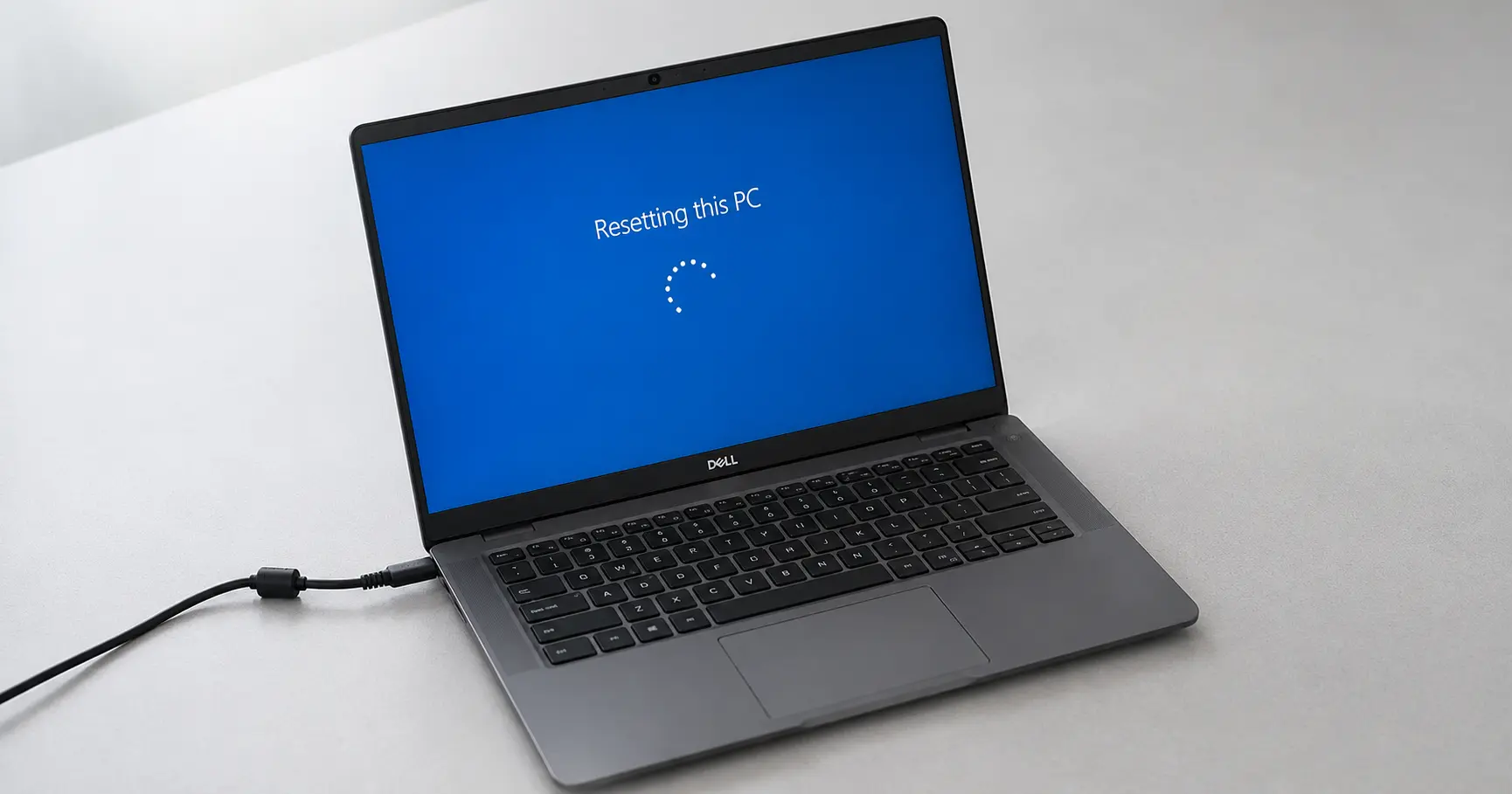
What You Need to Know Before Resetting (Pre-Reset Essentials)
Most people jump into a factory reset without understanding what actually happens. I see it constantly they click Reset, expect an hour of waiting, and assume the laptop sorts itself out. Then the power cord gets bumped mid-wipe. Or they lose files they were certain would stay. Or a BitLocker prompt appears with no recovery key in sight and the whole thing stops cold.
Those three problems are completely preventable. Everything here is about making sure none of them happen to you.
This section exists to prevent those exact problems.
A factory reset on your Dell laptop wipes everything and reinstalls Windows from scratch. Every personal file, every app, every saved password gone. And the process takes real time, not the 20 minutes some guides casually mention. Depending on what you choose, your laptop could be working through the wipe for 2 to 5 hours straight. You cannot unplug it during that window. You cannot restart it. Any power interruption mid-process can corrupt the Windows installation badly enough that the laptop will not boot at all afterward
Understanding this upfront changes everything about how you prepare.
What Factory Reset Actually Does (And Doesn’t Do)
Factory reset means your laptop returns to the exact state it was in the day you unboxed it. Nothing survives on the hard drive not your documents, not your photos, not installed programs, not browser history, not saved passwords. All of it goes. That is not a warning buried in fine print. That is exactly what the process is designed to do.
The wipe covers everything on the software side: personal files, custom settings, installed applications, every account you created. Windows itself gets pulled out and reinstalled fresh, either from Microsoft’s servers or from the recovery files stored on your hard drive.
What stays untouched is your hardware. The processor, RAM, screen, keyboard none of that changes. If your laptop had a broken speaker before the reset, it still has a broken speaker after. A factory reset cannot fix hardware problems.
Here is what does NOT get wiped: your laptop’s hardware is untouched. The processor, RAM, screen, keyboard all of it works exactly the same after reset as before. If your laptop had a broken screen before the reset, it still has a broken screen after. A factory reset cannot fix hardware problems. It can only fix software problems.
One misconception I run into constantly: people assume factory reset does not remove viruses. It does. When Windows gets wiped and reinstalled fresh, the malware goes with it. But the reset only cleans the software layer. If your hard drive itself is corrupted or physically failing, a factory reset does nothing for that. The problem is in the hardware, and the reset cannot reach it
Think of it this way. Your laptop is like a house. A factory reset is not renovating the foundation and walls. It is removing all the furniture, cleaning everything, and putting in new furniture and paint. The structure underneath stays the same.
How Long Does a Reset Take? (Timing Breakdown by Method)
Timing depends entirely on which method you choose and which options you select. I have watched people start a reset and shut the laptop down 20 minutes later thinking it froze because no one told them it would take 2 hours. The videos skip this. The guides skip this. So I will put it plainly here.
Resetting through Windows Settings while logged in takes about 30 minutes on average faster on an SSD, slower on an older spinning drive.
The Shift+Restart method from the login screen runs longer. Expect 45 minutes at minimum, sometimes closer to 2 hours. That method has to load the full recovery environment before it can even start the wipe, which is the extra work that pushes the timing out
But here is where timing can actually triple: if you choose the “Fully clean the drive” option instead of “Just remove files,” add another hour or two. The full clean option overwrites every sector on your hard drive to prevent data recovery. That takes significantly longer.
I have watched people start a reset, see the percentage stuck at 15% after 20 minutes, and immediately assume their laptop froze. It did not. A factory reset sits at low percentages for extended periods. The system is doing deep work even when the counter is not moving fast.
Budget at least 3 to 4 hours if you are doing a full clean reset. Longer if your hard drive is large or old. And you cannot interrupt it once it starts unplug mid-reset and you risk a partially wiped drive that will not boot. Set the laptop somewhere it will not be touched and let it run.
Critical Pre-Reset Checklist (7 Steps)
Go through every item on this checklist before you touch the reset menu. Not after. Not during. Each one of these exists because I have seen what happens when people skip it.
Step 1: Back up every file that matters. Use an external hard drive, OneDrive, Google Drive, or any cloud storage. Everything on your laptop is getting deleted, so if you have even one file you want to keep, back it up now. Not during the reset. Now.
Step 2: Write down your Windows product key. Most Dell laptops have the license embedded in the motherboard, which means Windows activates automatically after the reset when you connect to the internet. But I have seen people hit setup and freeze up because they think they need to type a key and cannot find one anywhere. Check your Microsoft account online or look on the bottom of the chassis. Have it written down somewhere even if you probably will not need it
Step 3: Save your Wi-Fi password somewhere safe. After the reset completes, Windows asks you to reconnect to Wi-Fi. If you cannot remember your password, you are stuck at that step.
Step 4: Check if BitLocker encryption is turned on. This is the one that stops people mid-reset. If your drive is encrypted with BitLocker, a prompt appears during the reset asking for a recovery key. You need this key before you start. Open Windows Defender, go to Device encryption or BitLocker, and if it is on, save your recovery key. You find the key by logging into your Microsoft account on a different device and looking under “My Devices.” Do this now.
Step 5: Make sure your laptop stays plugged in during the entire reset. Not plugged in sometimes. Plugged in the entire time. The one thing that corrupts Windows mid-reset is power loss. Set your laptop on a desk, plug it in directly to the wall, and do not unplug it for any reason until the process finishes.
Step 6: Document your current settings. You cannot easily restore these after reset. Note your monitor brightness settings, keyboard shortcuts, installed fonts, custom toolbars, or anything else you customized. After reset, these are gone and you rebuild from scratch.
Step 7: Check your recovery partition status if you want to know your options before the reset. Open Disk Management and look for a partition labeled ‘Windows RE’ or similar. If it is there, SupportAssist OS Recovery works through F12. If it is missing, you may need to use the hard interrupt method or a USB install instead. Not a blocker — just good to know now rather than during the reset
Hard Reset vs Factory Reset vs Master Reset: Which One Do You Need?
The names sound similar but these three operations do completely different things. I see the wrong choice made constantly — someone holds the power button for 15 seconds thinking they just factory reset their laptop, when all they did was force a restart. Or they open the reset menu looking for ‘master reset’ and cannot find it because it barely exists in modern Windows anymore. Using the wrong method wastes hours. In the worst case, it creates new problems on top of the old ones
This section exists to end that confusion.
A hard reset forces your laptop to shut down without saving anything. A factory reset wipes everything and reinstalls Windows. A master reset falls somewhere in between but is rarely useful anymore. They look similar in name. They accomplish totally different goals. Understanding which one you actually need changes everything about what happens next.
Hard Reset: Force Shutdown When Your Laptop Is Frozen
A hard reset forces your laptop to shut down without saving anything. A factory reset wipes everything and reinstalls Windows. A master reset sits somewhere between those two but is rarely the right choice anymore. Same word — reset — three completely different operations. What you pick determines everything about what your laptop looks like when it comes back on.
Here is what a hard reset actually is: you hold down the physical power button on your Dell laptop for about 10 to 15 seconds until the laptop forces itself to shut down. No saving. No graceful shutdown. The power cuts completely. The entire system goes dark. Then you wait a few seconds and press the power button normally to turn it back on.
A hard reset does not delete any of your files or data. Nothing is wiped. The laptop simply forces a restart by cutting power, which clears whatever is stuck in memory that is causing the freeze. This is why people call it a force restart or force shutdown.
The technical reason this works is called power drain. When your system freezes, residual power in the circuits keeps the frozen state locked in place. Holding the power button drains that residual electricity, which resets the circuit board to a clean state. Then when you power back on, the laptop boots fresh.
When to use hard reset: only when your laptop is completely frozen and unresponsive. Not when Windows is slow. Not when a single program is stuck. Only when the entire system will not respond to anything.
I have watched people use hard reset as a first response to every problem. That is a mistake. A hard reset should be your last resort when nothing else works, not your first response.
Factory Reset: Complete Wipe and Windows Reinstall
Where a hard reset just forces a restart, a factory reset wipes your entire hard drive and reinstalls Windows from scratch. Every file, every app, every setting you customized since the day you bought the laptop — permanently deleted. Not moved to a trash folder. Not recoverable with a simple tool. Gone
Factory reset means going into your Windows Settings or the recovery menu and selecting an option that says “Reset this PC” or “Reset this computer.” From there you choose whether to keep your files or delete everything. If you choose “Remove everything,” every personal file is gone. Permanently. This takes 45 minutes to 2 hours depending on which options you select.
The reason most people do a factory reset is to fix deep software problems that a hard restart cannot touch. A virus that hard reset will not remove. A corrupted Windows installation that will not let programs run. A laptop that crashes constantly despite trying everything else. A complete performance degradation where nothing helps. In those cases, wiping Windows and installing fresh actually fixes the problem because the problem is baked into Windows itself, not just frozen in memory.
Factory reset also solves a different problem: when you want to sell or give away your laptop and need to make sure no one can recover your deleted files. A factory reset removes the personal stuff. But if you choose “Fully clean the drive” as an extra option, the drive gets overwritten so thoroughly that even advanced data recovery software cannot pull your files back.
This is the big one. Most people searching “how to reset Dell laptop” are actually looking for a factory reset, not a hard reset.
Master Reset: Partial Wipe Without Full Windows Reinstall
Master reset sits in the middle. It removes apps and custom settings but leaves your personal documents and photos intact — sometimes called a soft reset.
In modern Windows, this is almost never the right call. When you do a master reset, Windows itself stays but all your apps vanish. You end up with a system that has your files but needs every program reinstalled. At that point you are doing the same cleanup work as a full factory reset anyway. You might as well start completely fresh and get a genuinely clean system
The only real use case for master reset is if you are keeping the laptop for yourself and want to clean out the mess of apps without starting completely from scratch. But even then, a factory reset usually serves you better because it gives you a truly fresh start.
I see master reset in the options when people go through the reset process. Most people skip it and choose the full reset instead. It exists for edge cases that do not come up very often.
Comparison Table: Hard Reset vs Factory Reset vs Master Reset
I want you to see these three side by side so the differences become obvious.
| Aspect | Hard Reset | Master Reset | Factory Reset |
|---|---|---|---|
| What Gets Deleted | Nothing. Zero data loss. | Apps and settings only. Files stay. | Everything. Complete wipe. |
| What Gets Reinstalled | Nothing. Just reboots. | Nothing. Stays as is. | Windows reinstalls from scratch. |
| Time Required | 1 to 2 minutes. | 30 minutes to 1 hour. | 45 minutes to 2+ hours. |
| When to Use It | Laptop completely frozen. Nothing responds. | You want to clean out apps but keep files. Rarely useful. | Deep software issues. Virus. Corruption. Performance collapse. |
| Will It Delete My Files? | No. | No (unless you choose full wipe). | Yes (unless you choose “Keep my files”). |
| Can It Fix a Virus? | No. | Unlikely. | Yes. Completely removes it. |
| How to Do It | Hold power button 10-15 seconds. | Windows Settings > Reset PC > Keep my files. | Windows Settings > Reset PC > Remove everything OR Shift+Restart from login screen. |
How to Factory Reset Your Dell Laptop via Windows Settings
This is the easiest way to reset a Dell laptop when Windows is still working and loading normally. No recovery USB. No boot menu. You open Settings, follow a few prompts, and the system handles the rest. The whole process takes about 30 minutes on Windows 11, slightly longer on Windows 10, depending on which options you pick
The entire process takes about 30 minutes on Windows 11 or slightly longer on Windows 10, depending on which options you choose. Your laptop restarts several times during this. That is normal. Just let it do its thing.
The steps are slightly different between Windows 10 and 11 because the menus are organized differently. But the actual reset process works the same way on both versions.
Factory Reset on Windows 11 (Step-by-Step)
Step 1: Open Windows Settings
Click the Windows Start button in the bottom left corner of your screen. In the search box that appears, type “settings” and press Enter. This opens the Settings app.
Once Settings opens, you should see “System” in the left sidebar. Click on it if it is not already selected.
Step 2 Windows 11
“In the left sidebar, scroll down to System if it is not already selected, then look for Recovery. Click it. That is where the reset options sit in Windows 11 — one of the few places where the menu layout between Windows 10 and 11 actually differs.”
Step 3: Click Reset This PC
On the right side of the screen, you will see a section called “Recovery options.” Under that, find the button that says “Reset PC” and click it. This launches the reset process.
A window pops up asking what you want to do. You have two choices here: “Keep my files” or “Remove everything.” I will explain the difference in the next subsection.
Step 4: Choose Your Data Removal Option
For a complete factory reset, select “Remove everything.” This wipes all personal files, apps, and settings. If you want to keep your documents and photos, select “Keep my files” instead.
Step 5: Choose How to Reinstall Windows
Windows asks how you want to reinstall itself. You see two options: “Cloud download” or “Local reinstall.” This matters.
Cloud download connects to Microsoft’s servers and downloads a fresh copy of Windows. This ensures you get the latest version with all current updates. But it requires good internet and downloads about 4GB of data.
Local reinstall uses the recovery files already stored on your hard drive. This is much faster and requires no internet. I recommend Local reinstall in most cases.
Step 6: Review and Confirm
A summary screen appears showing what will happen. Review it to make sure you have made the right choices. If everything looks correct, click “Reset.”
Your laptop begins the reset process. The screen goes dark. You see installation screens. Your laptop restarts multiple times. This is all normal. Just let it finish.
Step 7: Complete Windows Setup
After the reset finishes, your laptop boots into the Windows setup wizard. You choose your region, language, keyboard layout, and create a new user account. This takes about 10 minutes. After setup completes, your laptop is completely fresh and ready to use.
One important note: after the reset finishes and Windows setup completes, you should immediately download SupportAssist from the Dell website and run it to install missing drivers and restore your Dell recovery environment. This is covered in detail in the post-reset section of this guide.
Factory Reset on Windows 10 (Step-by-Step)
The process on Windows 10 is almost identical to Windows 11, but the menus are organized slightly differently. Here is how it works.
Step 1: Open Windows Settings
Click the Windows Start button. In the search box, type “settings” and press Enter.
Step 2: Navigate to Update and Security
In Settings, look for “Update and Security” in the main menu. Click on it. This section has changed in Windows 11, which is why the path is different between versions.
Step 3: Click Recovery
In the left sidebar under Update and Security, you will see “Recovery.” Click on it.
Step 4: Click Get Started Under Reset This PC
On the right side, under “Reset this PC,” click the “Get started” button. This launches the reset wizard.
Step 5: Choose Your Data Removal Option
A window appears asking “Keep my files” or “Remove everything.” For a complete factory reset, choose “Remove everything.” This deletes all personal data, apps, and custom settings.
Step 6: Choose Your Reinstallation Method
Windows asks how you want to reinstall. Choose “Local reinstall” if you have limited internet bandwidth. Choose “Cloud download” if you want the absolute latest version of Windows from Microsoft.
Step 7: Review and Begin
A summary screen shows what will happen. Click “Reset” to begin.
Your laptop restarts and enters the reset process. Multiple restart screens appear. The percentage counter starts at 0 percent. Do not interrupt this process. Let it run completely. On Windows 10, this usually takes 45 minutes to 1 hour.
Step 8: Windows Setup Wizard
After the reset completes, you go through the Windows setup wizard again, just like on Windows 11. Choose your region, language, keyboard, and set up your user account.
The main difference between Windows 10 and 11 is just where the menus are located. The actual reset process works the same way.
Keep My Files vs Remove Everything: Which Should You Choose?
This one choice determines what happens to your personal data. Get it wrong and you either lose files you meant to keep, or you keep files you intended to delete. The difference between these two options is bigger than most people realize before they click
Keep My Files: Faster Reset, Documents Stay
If you choose “Keep my files,” Windows deletes all your installed programs and custom settings but leaves your personal documents, photos, videos, and music alone. These files stay on the hard drive in a folder you can access after the reset.
The reset process takes about 15 to 30 minutes when you choose this option because Windows does not have to wipe the entire hard drive.
I choose this option when I want to fix software problems without losing my documents. A virus is infecting my system. My programs crash constantly. But my files are fine and I want to keep them. This is the time to use “Keep my files.”
The catch: you still have to reinstall all your programs. Microsoft Office, Chrome, Photoshop, everything you installed has to be installed again. So you are not saving that much time overall.
Remove Everything: Complete Wipe, Everything Deleted
If you choose “Remove everything,” Windows wipes the entire hard drive and reinstalls itself completely fresh. Every file, every app, every setting is gone. The laptop feels brand new.
This takes longer because Windows has to erase the entire drive. 45 minutes to 2 hours depending on which options you choose next.
I choose this option in three situations. First, I am selling or giving away my laptop and want to make sure no one recovers my files. Second, my system has a virus and I want a complete clean slate. Third, my laptop is so slow and broken that a partial reset will not help.
Here is the key difference: if you choose “Keep my files,” your documents stay but programs get deleted. If you choose “Remove everything,” your documents get deleted and programs get deleted. Everything is gone.
Most people choose “Remove everything.” They want the truly fresh start and are okay with losing old files because they backed up what mattered beforehand.
Local Reinstall vs Cloud Download: Bandwidth and Time Tradeoff
After you choose what to do with your files, Windows asks how you want to reinstall itself. This decision affects how long the reset takes and how much internet bandwidth you use.
Local Reinstall: Faster, No Internet Required
Local reinstall uses the recovery files already stored on your hard drive to rebuild Windows. Windows takes its own system files and reinstalls them fresh. This does not require downloading anything from the internet.
This method takes about 30 to 45 minutes total. It is the fastest option.
Local reinstall is your best choice if your internet is slow or unreliable. If you have limited data, this also saves bandwidth because no large downloads occur. I choose local reinstall in almost every situation because I want the fastest reset possible.
The only downside: you get the version of Windows that was originally on your laptop. If there have been major updates to Windows since your laptop was manufactured, you do not get those updates during the reset. But that is fine because you run Windows Update immediately after the reset finishes, and Windows Update brings you current anyway.
Cloud Download: Latest Windows, Requires Good Internet
Cloud download connects to Microsoft’s servers over the internet and downloads a fresh copy of Windows 11 or Windows 10. This ensures you get the absolute latest version with all current updates already included.
The download is about 4 to 5 gigabytes of data. On a fast internet connection (50 Mbps or faster), this takes 10 to 20 minutes. On slow internet (5 Mbps or slower), this takes 2 to 3 hours. The entire reset process takes 1 to 3 hours depending on your internet speed.
I avoid cloud download unless I have a specific reason to want the latest version before everything else is done. The local reinstall method gets you current anyway when you run Windows Update, so cloud download does not really save time overall.
Use cloud download if you have fast, reliable internet and you want to minimize your steps after reset. Use local reinstall if you want the fastest process or have internet concerns.
How to Factory Reset a Locked-Out Dell Laptop (Shift+Restart Method)
You forgot your password and now you are staring at the Windows login screen with no way in. Settings is locked behind that screen. Everything is locked behind it. But there is a keyboard shortcut that gets you into the recovery menu without ever logging in, and from there you can wipe and reinstall Windows completely.
Most people do not know this exists. It takes about two hours from start to finish and requires no password at any step
This is one of the most useful tricks people do not know about. A simple keyboard shortcut gets you into the recovery menu without ever logging in. From there, a factory reset wipes everything and gives you a fresh Windows installation where you create a new account.
The whole process works even if you have never recovered a password in your life.
Step-by-Step: Shift+Restart from the Login Screen
Before You Start
Look at the bottom right corner of your screen. There is a power icon there. Hold the Shift key down with one finger. While holding it, click that power icon with your mouse. A menu appears: Sleep, Shut down, Restart. Keep holding Shift.”
Representative rewrite (closing paragraph): “The Shift+Restart method works because the Windows recovery environment runs as a separate system that does not check your login credentials. It sits outside of Windows entirely. No password required. That is the gap in the wall, and this method walks straight through it
Step 1: Get to the Windows Login Screen
Power on your Dell laptop if it is off. Let it boot normally until you see the Windows login screen asking for a password. This is the screen where you would normally type your password to get in.
Do not type anything yet. Do not click the password field. Just let the login screen sit there.
Step 2: Find the Shift Key
Look at your keyboard. The Shift key is on the left or right side, usually below the Caps Lock key. You will hold this key down and keep holding it for the next several steps.
Step 3: Hold Shift and Click Power
Look at the bottom right corner of your screen. You see a power icon there. Here is the critical part: press and hold the Shift key on your keyboard with one finger. While continuing to hold Shift down, click the power icon with your mouse.
A menu appears with options. You see “Sleep,” “Shut down,” and “Restart.”
Step 4: Select Restart While Holding Shift
While still holding the Shift key down, click on “Restart.” Do not release the Shift key. Keep holding it.
Your laptop begins to restart. The screen goes dark. You see “Please Wait” messages. The screen turns dark again. And this is the part where people mess up: you must keep holding the Shift key the entire time.
Step 5: Keep Holding Shift Until the Blue Menu Appears
The laptop restarts. The Dell logo appears. Your screen goes dark again. You might see “Preparing automatic repair” or other boot messages. Keep holding Shift through all of this. Do not release it.
Finally, a blue screen appears with the words “Choose an option” at the top. Only now can you release the Shift key.
Step 6: Click Troubleshoot
On the blue menu, you see several options. Click on “Troubleshoot.” This takes you to another menu with more recovery options.
Step 7: Click Reset This PC
Inside the Troubleshoot menu, you see “Reset this PC” as an option. Click on it. This launches the factory reset process.
Step 8: Choose Remove Everything
A window appears asking what you want to do with your files. Since you are locked out and do not know the password, you cannot access your files anyway. Select “Remove everything.”
This completely wipes the laptop and reinstalls Windows fresh.
Step 9: Choose Your Reinstallation Method
Windows asks how you want to reinstall itself. Select “Local reinstall” to use the files already on your hard drive. This is faster and requires no internet.
Step 10: Begin the Reset
A final confirmation screen appears. Make absolutely sure your laptop is still plugged in. Review the settings one more time. When you are ready, click “Reset.”
Your laptop begins the reset process. A percentage counter appears and starts counting from 0 percent. The screen might go dark several times. Your laptop restarts multiple times. This is all completely normal.
The entire process takes about 1 to 2 hours depending on your hard drive speed and which options you selected.
Step 11: Windows Setup
When the reset finishes, your laptop boots into the Windows setup wizard. You choose your region, language, keyboard layout, and create a brand new user account with a password you will definitely remember this time.
The Shift+Restart method works because it accesses the recovery environment without needing to log in. Windows treats the recovery menu as a separate system that does not require a password. That is why you can reset even when you are locked out.
BitLocker Encryption: What to Do If a Recovery Key Prompt Appears
During the reset process, you might see a message asking for a BitLocker recovery key. This is not a failure. It is expected. And it is solvable.
BitLocker is Windows drive encryption. It protects your files by encrypting the entire hard drive so no one can read the data without the recovery key. If your Dell laptop has BitLocker enabled, the reset process cannot proceed without the recovery key.
The recovery key is a long string of numbers that looks like this: 123456-789012-345678-901234-567890-123456-789012-345678
This key was created when BitLocker was first turned on. You probably do not remember it. Most people do not. But it is stored in your Microsoft account in the cloud.
How to Find Your BitLocker Recovery Key
You need a different device for this step. A phone, tablet, or another laptop. Here is what you do.
On your other device, go to account.microsoft.com and sign in with your Microsoft account. The account you used on your Dell laptop.
Look for “My Devices” or “Devices” in the menu. Click on it.
You see a list of devices connected to your Microsoft account. Find your Dell laptop in the list. Click on it.
A page appears with device information. Look for “BitLocker keys” or “Recovery keys” on this page. You see a long number string. That is your recovery key.
Write this key down or copy it somewhere safe.
Entering the Recovery Key During Reset
When the reset process asks for your BitLocker recovery key, type or paste the full key into the box. Make sure you type it correctly. Extra spaces or wrong characters will not work.
After you enter the recovery key, the reset process continues. You do not need the key again. Just that one entry and you are good.
What If You Cannot Find Your Recovery Key?
If you cannot sign into your Microsoft account or cannot find the recovery key, you have a problem. BitLocker is preventing the reset and you cannot proceed without the key.
Your options at this point are limited. You might need to contact Microsoft support or Dell support to provide proof of ownership and get the key recovered. Or if the laptop belongs to you personally and you have documentation, you might be able to work with Dell directly.
This is rare, but it happens. Most people either remember their Microsoft password and can retrieve the key, or they do not have BitLocker enabled and never see this screen.
BitLocker is doing exactly what it was designed to do — preventing unauthorized people from wiping an encrypted drive. If you own the laptop and can prove it, Microsoft and Dell support can help you through the recovery process. It takes longer than just having the key ready, but it is not a dead end
How to Hard Reset Your Dell Laptop (Power Button Method)
Your Dell laptop is completely frozen. Nothing responds not the mouse, not the keyboard, not Ctrl+Alt+Delete. The screen is stuck on one image and nothing you do changes it. That is the exact situation where a hard reset applies. It cuts power and forces the system back to a clean startup
This is different from everything else in this guide. A hard reset does not delete your files. It does not wipe Windows. It just cuts the power and forces a restart. Think of it as pulling the battery out of a device, waiting a moment, then putting it back in.
A hard reset works only when your laptop is so frozen that nothing else matters. If Windows is still responsive at all, do not do this. Use a factory reset instead. But if your system is completely dead to input, a hard reset is the right move.
When to Use Hard Reset vs Factory Reset
Hard reset and factory reset solve completely different problems. Knowing which one you actually need saves you hours of wasted time.
Use a hard reset only when your laptop is completely unresponsive. The mouse does not move. The keyboard does not work. The screen is frozen on one image and will not change. Ctrl+Alt+Delete does nothing. Nothing works. Your Dell laptop will not respond to any input at all.
A hard reset in this situation forces a shutdown and restart. The frozen state breaks and the system boots fresh. This is an emergency-only move.
Use a factory reset when your system is still responding but has problems. Windows is sluggish. Programs crash constantly. You have a virus you want to remove completely. Your laptop is slow despite trying everything else. In these situations, Windows is still working enough to let you access the factory reset menu. You should use that instead of a hard reset.
Here is the key distinction: hard reset is for completely frozen systems. Factory reset is for systems that respond but have software problems.
I see people use hard reset as a first response to everything. That is a mistake. A hard reset should be your last resort when nothing else works. If your system is responsive at all, try factory reset first. Reserve hard reset for the moment when the laptop is 100 percent unresponsive.
Step-by-Step: Hard Reset on a Dell Laptop
Step 1: Find the Power Button
Look at your Dell laptop. The power button is usually on the top or side of the keyboard deck. On most Dell laptops, it is in the top right corner near the function keys. Some models have it on the side edge. Find it on your specific model.
Step 2: Press and Hold the Power Button
Press and hold the power button down with your finger. Do not tap it. Hold it continuously. Keep your finger on the button.
Step 3: Count to 10-15 Seconds
While holding the power button, count slowly. One one-thousand. Two one-thousand. Keep going until you reach 10 to 15 seconds. This is critical timing. You need to hold it long enough to force a shutdown.
Step 4: Watch for the Shutdown Signals
As you continue holding the power button, watch for physical confirmation that the shutdown is happening.
The keyboard backlight turns off. If your Dell has keyboard lighting, you will see it dim and disappear as the system loses power. The cooling fans inside stop running. You can usually hear them spinning down. By the 15-second mark, you should hear nothing. The fans have stopped completely.
These two signals mean the system has shut down. The keyboard backlight off and the fans stopping are your confirmation. This is the moment you know the hard reset is working.
Step 5: Release the Power Button and Wait
Once the keyboard backlight is off and the fans have stopped, release the power button. Your finger can come off now.
Do not press the power button again immediately. Wait about 5 seconds. Let the system sit there completely powered off. This allows the residual power to fully drain from the circuits. The hard reset is clearing that residual electricity that was keeping the frozen state locked in place.
Step 6: Press Power Normally to Restart
After waiting those 5 seconds, press the power button normally like you usually do to turn on your laptop. Just a regular button press, not a long hold.
Your Dell laptop powers back on. The Dell logo appears. Windows boots normally. The frozen state is gone. The system starts fresh.
The whole process from start to finish takes about 30 seconds of actual work, plus the 5-second wait. Much faster than a factory reset.
If your laptop boots normally after this and the freezing problem is gone, you are done. The hard reset solved it. If the freezing comes back later, that is when you move to a factory reset because the problem is in Windows itself, not just frozen in memory.
What to Expect After a Hard Reset (No Data Loss)
Nothing gets deleted during a hard reset. Your files, programs, and settings are exactly where you left them. The laptop just forced a restart. When it comes back on, the desktop looks identical to before because it is identical to before
A hard reset just forces a restart. The laptop shuts down and boots back up. That is it. You are not wiping anything. You are not reinstalling Windows. You are just forcing the system to stop what it is doing and start fresh.
After the hard reset finishes and your laptop boots back up, your Windows desktop looks exactly the same as before. All your files are there. All your programs work. Your passwords are still saved. Nothing changed except the frozen state is gone.
If the problem that caused the freeze is just a temporary glitch, the hard reset fixes it completely. The system boots normally and runs fine afterward. This happens more often than you might think. A program crashes hard, freezes the system, and a hard reset clears it.
But if the problem is deeper than a temporary glitch, the freezing might come back. Maybe you have a failing hard drive that occasionally locks up. Maybe a driver is corrupting and needs reinstalling. Maybe there is a virus that hard reset cannot touch. In these cases, the hard reset works temporarily but the problem returns.
When that happens, you move to a factory reset. The factory reset actually fixes the underlying problem by wiping Windows and reinstalling it fresh. But try the hard reset first. If it solves the problem permanently, you avoided hours of reset time and file restoration.
A hard reset is the fast test. Does the problem disappear? If yes, you are good. If no, now you know the problem is in Windows itself and you need a factory reset.
What to Do If Shift+Restart Doesn’t Work: The Hard Interrupt Method
The Shift+Restart method does not always work. Sometimes the laptop is so broken it will not reach the login screen at all stuck in a boot loop, restarting endlessly without ever loading Windows. Or Shift+Restart just does nothing when you try it.
There is a second method for exactly this situation. It is called the hard interrupt method, and it works by deliberately forcing Windows into automatic repair mode through repeated interrupted boots
Think of it as a backup plan that always works.
The Hard Interrupt Method: Force Shutdown During Boot (2-4 Times)
The hard interrupt method sounds complicated but it is actually simple. You are going to deliberately interrupt the boot sequence multiple times. Each interruption makes Windows think something went wrong during startup. After 2 to 4 intentional interruptions, Windows triggers automatic repair mode.
Step 1: Power On Your Laptop
Turn on your Dell laptop normally. Let it start booting up. You will see the Dell logo appear on the screen.
Step 2: Interrupt the Boot at the Right Moment
This is the critical part. The moment you see the Dell logo or the Windows logo appears during the startup process, immediately press and hold the power button until the laptop forces a shutdown.
You are not waiting for Windows to finish loading. You are cutting the power right in the middle of the boot sequence. This is intentional. You want to interrupt it.
Hold the power button for about 10 to 15 seconds until the screen goes dark and the laptop shuts down completely.
Step 3: Wait a Moment and Repeat
Once the laptop shuts down, wait about 5 seconds. Then power it back on again.
Again, the moment you see the logo appear during boot, immediately hold the power button and force another shutdown. Same timing as before.
Step 4: Do This 2-4 Times Total
You repeat this process 2 to 4 times total. Boot the laptop, interrupt mid-boot, shut it down, wait, repeat. By the second or third interruption, Windows starts to notice something is wrong. By the third or fourth, Windows recognizes that the boot sequence is failing repeatedly.
After 2 to 4 of these interrupted boot cycles, on the next boot Windows does not try to load normally. Instead, it triggers automatic repair mode.
Step 5: Let the Laptop Boot Without Interruption
After you have done 2 to 4 interruptions, do not interrupt the next boot. Let the laptop start up normally. Do not press the power button.
This time, instead of loading Windows, your screen displays “Preparing Automatic Repair” or “Diagnosing Your PC.” You are going to see text on a dark screen saying Windows is checking your system.
Let this run. It takes 2 to 5 minutes. The automatic repair process is running in the background. Windows is analyzing what went wrong.
The hard interrupt method works because Windows firmware recognizes repeated failed boots as a serious problem. When a laptop fails to boot normally multiple times in a row, Windows assumes the boot files are corrupted and automatically triggers repair mode.
That repair mode is exactly where you need to be to access the factory reset option.
What Happens After Hard Interrupts: Automatic Repair Protocol Starts
After you let the laptop boot without interruption following your hard interrupts, Windows detects the repeated failures and enters automatic repair mode. This is where things get interesting.
Your screen shows messages like “Preparing Automatic Repair” or “Diagnosing Your PC.” The system is running diagnostics. It is trying to figure out what went wrong during those interrupted boots. Let this process finish. Do not interrupt it again.
After 2 to 5 minutes of diagnostics, one of two things happens. Either Windows automatically fixes the problem it found and boots normally, or it determines that automatic repair cannot fix the issue and displays a message.
If Windows boots normally after automatic repair runs, you are done with this step. The hard interrupts triggered the automatic repair process which fixed whatever was causing the boot loop. You can now use the factory reset method via Windows Settings if you still want to reset.
But if Windows cannot auto-repair the problem, it displays a screen saying “Automatic Repair could not repair your PC” or similar. This is actually what you want. Below that error message is a button that says “Advanced options.”
Click on “Advanced options.”
Accessing the Recovery Menu
When you click Advanced options, you enter the Windows Recovery Environment. This is the same blue recovery menu you would see if Shift+Restart had worked. From here, you can click “Troubleshoot” and then “Reset this PC” to factory reset your laptop.
The hard interrupt method gets you to exactly the same place as Shift+Restart. The advantage is that it works even when Shift+Restart fails.
This is why having two methods matters. If one does not work, the other one does. Between these two pathways, you have multiple ways to access the factory reset menu. One of them will work for almost any situation.
Most people do not know about the hard interrupt method. They think that if Shift+Restart fails, they are stuck. They are not. This method provides the backup plan.
I have seen this method work when nothing else would. A laptop stuck in a boot loop, completely unresponsive to Shift+Restart, still responds to hard interrupts because you are literally forcing the system to behave the way you want.
Dell-Specific Reset Methods: SupportAssist OS Recovery & Boot Menu Access
SupportAssist is Dell’s built-in recovery system and it runs completely outside of Windows. If Windows will not boot and neither Shift+Restart nor the hard interrupt method got you into the recovery menu, SupportAssist OS Recovery is your next move. You access it directly from the boot menu using F12 before Windows even starts loading
This is where Dell ownership actually gives you an advantage over other brands. You have built-in recovery tools that work even when Windows is completely broken.
But here is the catch: these Dell-specific tools only work if your recovery partition still exists. If you deleted the recovery partition at some point, you need a different approach. Most guides skip this entirely and leave you stranded if the partition is gone.
SupportAssist OS Recovery: Reset from Boot Menu (F12)
If your Dell laptop will not boot into Windows at all, SupportAssist OS Recovery is your backup plan. It is a separate recovery system that lives outside of Windows. Even if Windows is completely corrupted or will not load, SupportAssist still works.
How to Access SupportAssist
Power on your Dell laptop. The moment you see the Dell logo appear on the screen during startup, press the F12 key repeatedly. Keep pressing it. Do not wait for Windows to load.
Pressing F12 opens the boot menu. This is a special menu that appears before Windows even loads. You see options like “BIOS Setup,” “Boot Order,” and other technical options. Look for an option that says “SupportAssist OS Recovery” or just “Recovery.”
Click on it.
What SupportAssist Does
SupportAssist OS Recovery launches a separate system that exists on a hidden partition of your hard drive. It is completely independent from Windows. Even if Windows is destroyed, SupportAssist still runs.
From here, you can choose to completely reset your Dell laptop to factory condition. The entire Windows installation gets wiped and reinstalled fresh. This is essentially a factory reset that happens outside of Windows itself.
The process is the same as a regular factory reset. You choose whether to keep files or remove everything. You choose your reinstallation method. Then SupportAssist handles the reset while you wait.
BitLocker During SupportAssist Reset
If your Dell laptop has BitLocker encryption enabled, a BitLocker recovery key prompt appears during the SupportAssist reset, just like during a regular factory reset. You need that recovery key to proceed. If you have it saved in your Microsoft account, you can retrieve it on another device and enter it here.
This is the same BitLocker situation you would face with any other reset method. SupportAssist does not bypass it. But if you have your recovery key saved, the process continues normally.
One advantage of SupportAssist is that it sometimes has a built-in option to bypass certain security prompts if you can provide proof of ownership. But the standard approach is to have your BitLocker recovery key ready.
Understanding Dell Recovery Partitions (When They Exist & What They Do)
A Dell recovery partition is a hidden section of your hard drive that stores recovery files separately from your main Windows installation. File Explorer does not show it — it is deliberately hidden from normal browsing. The partition holds SupportAssist, Dell boot files, and sometimes a compressed image of the original Windows that shipped on your laptop
Every Dell laptop comes with a hidden recovery partition built in from the factory. For detailed technical information about your specific Dell model’s partition structure, recovery options, and how SupportAssist manages these partitions, Dell provides comprehensive documentation in their official support center.
Understanding Your Recovery Partition and SupportAssist This resource explains partition types, storage requirements, and recovery procedures specific to your Dell laptop model.
What the Recovery Partition Contains
The recovery partition stores several critical things. It contains the SupportAssist recovery environment itself. It contains Dell drivers and system optimization software that loads during the reset. It sometimes contains a compressed image of the original Windows that was installed on your laptop from the factory.
Because of this, if the recovery partition is intact, a reset through SupportAssist is often faster and more complete than a standard Windows factory reset. You get not just Windows but also all the Dell-specific customizations and drivers preloaded.
When the Recovery Partition Disappears
The recovery partition can be deleted in several ways. If you manually deleted it thinking it was junk or bloatware, it is gone. If you did a complete hard drive wipe and partitioned the drive yourself, you probably removed it. If you used a third-party disk partitioning tool incorrectly, the partition might have been accidentally erased.
Once the recovery partition is deleted, you cannot use SupportAssist OS Recovery anymore. You cannot press F12 and boot into that system. The boot menu option simply does not appear because the partition no longer exists.
I have seen users accidentally delete recovery partitions while cleaning up disk space. They think they are removing bloatware but they actually remove critical Dell system files. Once it is gone, restoring it requires different steps.
What If Your Recovery Partition Is Deleted or Corrupted?
If your recovery partition is gone, you cannot use SupportAssist OS Recovery. Pressing F12 will not show that option anymore. But you are not completely stuck. There is still a path forward.
The Solution: Windows Media Creation + SupportAssist Post-Install
If your recovery partition is deleted, your best option is to use the Windows Media Creation Tool to do a clean Windows install from a USB drive. This is the same process advanced users use when they want complete control over the installation.
First, you need another computer with internet access. On that computer, go to Microsoft’s website and download the Windows Media Creation Tool. Create a bootable USB drive with Windows 11 or Windows 10 on it. Then boot your Dell laptop from that USB drive and perform a clean Windows installation.
This wipes your entire hard drive and installs a fresh copy of Windows. The process takes about 30 minutes to 1 hour.
The Critical Next Step: Download SupportAssist
Here is where most people make a mistake. After the clean Windows install finishes and you can boot into Windows normally, they think they are done. But you are not. You still need to rebuild your Dell recovery environment.
Go to the Dell website. Find your specific laptop model. Download SupportAssist and install it. Then run SupportAssist and look for the option to download and install “Dell OS Recovery” or “System Recovery Image.”
When you do this, SupportAssist rebuilds the recovery partition on your hard drive. It restores the Dell-specific drivers, BIOS updates, and system files that were on your original recovery partition. Even though you deleted the original partition, SupportAssist can recreate it from the files it downloads.
After SupportAssist finishes rebuilding your recovery environment, you are back to a fully functional Dell laptop. You have Windows installed. You have all Dell drivers. You have the recovery partition restored. If you ever need to reset again, SupportAssist OS Recovery is available again through F12.
This process sounds complicated but it is actually straightforward. Clean install Windows from USB. Then immediately run SupportAssist to rebuild the Dell environment. That is it.
This process comes from users in the Reddit laptop and Dell communities who hit this exact problem after cleaning disk space and discovered there was no official guide. The method works. Download Windows from the Media Creation Tool, do a clean install, then let SupportAssist rebuild the Dell environment from scratch. That sequence restores everything
5 Critical Mistakes That Will Ruin Your Reset (And How to Avoid Them)
Most people who mess up a factory reset do not fail because the process is too complicated. They make one preventable mistake that corrupts everything mid-reset. And it is almost always one of the same five mistakes, in the same situations, for the same reasons.
Every one of these is fixable before you start
I see the same five mistakes repeat constantly. The good news is that knowing about them means you will not make them. Once you understand what goes wrong, you can avoid it.
Mistake #1: Unplugging Your Laptop During Reset
This is the number one killer of successful resets. Your laptop is in the middle of wiping the hard drive and reinstalling Windows. You think it is frozen because the percentage has not moved in a few minutes. So you unplug it from the charger or the battery dies. The system loses power mid-process.
What happens next is bad. Windows installation gets interrupted. Files get corrupted. The operating system becomes unstable or will not boot at all. You now have a partially wiped hard drive with a corrupted Windows installation that does not work. It is much harder to fix than if you had just left it alone.
A factory reset takes 45 minutes to 2 hours depending on your options. During that entire time, your laptop must stay plugged into power. Not sometimes plugged in. Always plugged in. The percentage counter might sit at 15 percent for 20 minutes. That is completely normal. The system is working even when the counter is not moving fast.
I recommend plugging your laptop directly into the wall outlet, not into a power strip. Then physically sit near it or keep it somewhere you can see it. Do not let the power cable get bumped or unplugged. Do not work on anything else that might require moving the laptop.
The reset is more important than checking email for the next two hours. Your entire reset depends on continuous power.
Mistake #2: Releasing the Shift Key Too Early
The Shift+Restart method only works if you hold the Shift key continuously from the moment you click Restart until the blue recovery menu appears. Most people release it too early and ruin the whole thing.
Here is what happens when you release Shift too soon: the laptop just does a normal restart. Windows boots up normally. No recovery menu appears. The Shift+Restart method fails completely.
You are now back at your login screen or Windows desktop wondering why it did not work. You think the method is broken. It is not. You just released the key before the recovery menu loaded.
The blue “Choose an option” screen is your signal that you can finally release the Shift key. Not before. Only when you see that specific blue screen with those specific words. By that point, the system has already triggered recovery mode and you are safe to let go.
Here is the timing. You click Restart while holding Shift. The screen goes black. You see “Please Wait” text. The Dell logo appears. Another black screen. You might see “Preparing automatic repair” or other boot messages. Keep holding Shift through all of this. Your finger does not leave the Shift key.
Then the blue screen with “Choose an option” appears. Now you can release Shift. Now you are in the recovery environment where the reset process actually lives.
This mistake is pure timing. Get the timing wrong and nothing happens. Get it right and you access the reset menu. Most failed Shift+Restart attempts come down to this single mistake.
Mistake #3: Not Having BitLocker Recovery Key Before Starting
BitLocker encryption stops your reset dead in its tracks mid-process if you do not have the recovery key ready. Your laptop prompts you for the key. You do not have it. You are stuck. The reset cannot proceed.
BitLocker is Windows drive encryption. It protects your files by making them unreadable without a recovery key. If your Dell laptop has BitLocker enabled, the factory reset process cannot proceed without that key. The system will not let you past this point.
The recovery key is a long string of 48 numbers and hyphens. It looks like: 123456-789012-345678-901234-567890-123456-789012-345678. You probably do not remember it. Most people do not write it down anywhere accessible.
But the key is stored in your Microsoft account in the cloud. You can retrieve it on another device before you start the reset. Go to account.microsoft.com. Sign in with your Microsoft account. Look for “My Devices” or “Security” settings. Find your Dell laptop listed. Look for “BitLocker recovery keys” or just “Recovery keys.” You see your full recovery key there.
Write this key down before you start the reset. Or open it on another device and have it ready to type when the prompt appears.
If you cannot find the recovery key or cannot sign into your Microsoft account, you have a serious problem. The reset will block and you will be stuck. This is rare because most people can sign into their Microsoft account. But if you have a weak password or do not remember your account details, this becomes an issue.
Check your BitLocker status before you start. If encryption is enabled, get your recovery key. Simple as that.
Mistake #4: Choosing “Cloud Download” on Slow Internet
When you reach the point where Windows asks how you want to reinstall, you choose between “Cloud download” and “Local reinstall.” Pick the wrong one and the reset takes three times longer than it should.
Cloud download connects to Microsoft’s servers and downloads a fresh copy of Windows over the internet. The download is about 4 to 5 gigabytes of data. On a fast connection running at 50 Mbps or faster, this takes 10 to 20 minutes. On slow internet running at 5 Mbps or slower, this download takes 2 to 3 hours. Your entire reset now takes 3 to 4 hours instead of 45 minutes to 1 hour.
Local reinstall uses the recovery files already stored on your hard drive. No download. No internet required. The process runs entirely from your hard drive. Much faster. Much simpler.
If your internet speed is uncertain, use Local reinstall. This is the safe choice for almost everyone. Local reinstall gets you Windows installed quickly. Then you run Windows Update afterward to get the latest patches and updates. You end up at the same place either way. But local reinstall is faster and does not depend on your internet connection being stable.
The only reason to choose Cloud download is if you want absolutely the latest version of Windows without any subsequent updates. But even then, Windows Update brings you current anyway. Local reinstall is the practical choice.
I choose Local reinstall every time unless I have tested my internet and confirmed it is fast and stable. Saving 2 hours of reset time is worth using the drive’s local files.
Mistake #5: Not Choosing “Fully Clean Drive” When Selling or Gifting
When you select “Remove everything” during a factory reset, Windows deletes all your personal files. But delete does not mean gone forever. Data recovery software can still retrieve those deleted files from the drive. Someone determined enough with the right tools can recover your deleted photos, documents, and files even after factory reset.
If you are selling your Dell laptop or giving it to someone else, this is a serious privacy risk. The new owner could potentially recover your financial documents, personal photos, or other sensitive information.
The solution is the “Fully clean the drive” option. Most reset menus give you two choices for how aggressive to be. One option is “Just remove my files” which is fast. The other option is “Fully clean the drive” which overwrites every sector of the hard drive multiple times. After a full clean, data recovery becomes essentially impossible. The data is not just marked as deleted. The sectors are physically overwritten.
The trade-off is time. A full clean takes significantly longer. If you are removing everything anyway, add another hour or two to the reset process. But if you are preparing to sell or gift the laptop, this extra time is essential.
I see people hand over laptops they thought they completely wiped, only to have the new owner recover files and personal information. Do not be that person. If the laptop is leaving your hands, use fully clean the drive. Period.
Do not hand someone your laptop with files they can recover using a $30 piece of software. If the laptop is leaving your hands, use ‘Fully clean the drive.’ Period.
What Happens After Your Reset Completes: Post-Reset Setup & Driver Installation
Your reset just finished. The percentage counter hit 100 percent, the screen went dark, and now your laptop is booting into Windows for the first time since the wipe.
This is not the finish line. Your laptop has no drivers. No recovery partition. No Dell customizations. Just a bare Windows installation that needs to be built back out before it actually functions properly.
This is where most guides end. They tell you the reset is done and leave you hanging. But the reset finishing is not the end. It is just the beginning of the setup phase. Your laptop is now completely blank. No drivers. No recovery partition. No Dell customizations. Just a bare Windows installation.
The next steps determine whether your laptop runs smoothly or whether you have missing drivers and a broken recovery system. Most people skip these steps and wonder why their system feels incomplete.
Windows Setup Wizard: Initial Post-Reset Configuration
After your reset finishes and the laptop boots fresh, you do not land on a normal Windows desktop. Instead, you see the Windows setup wizard. This is the same screen you would see if you unboxed a brand new laptop straight from the factory.
The setup wizard walks you through initial configuration. First, it asks for your region. Choose the country or region where you are. This affects your language, date formats, and keyboard layout.
Next comes language selection. English, Spanish, French, or whatever language you speak. Choose your language.
Then keyboard layout. Most people use standard QWERTY. But if you have a different keyboard layout, select it now.
After that, Windows asks for your internet connection. Do you want to connect to Wi-Fi? Choose your network from the list and enter the password. This is where your saved Wi-Fi password comes in handy. If you did not write it down beforehand, you are stuck at this step.
Then comes the Microsoft account login. Windows wants you to sign in with your Microsoft account. Enter your email and password. This syncs your settings and allows Windows activation to happen automatically.
If you do not have a Microsoft account, you can create one during this wizard. Or you can skip it and create a local account instead. But a Microsoft account is better because it syncs your settings across devices and makes Windows activation simpler.
After you sign in or create an account, Windows asks a few more setup questions. Do you want Cortana? Do you want to share your activity with Microsoft? Do you want to use recommended settings or customize privacy? These are all optional. You can adjust them now or later in Settings.
Finally, Windows asks you to choose a user account picture and you are done with the wizard. Your laptop boots to the desktop. You now have a working Windows installation.
This entire setup process takes about 10 to 15 minutes. Then you have a bare Windows system with no drivers and no Dell customizations.
Critical Next Step: Download SupportAssist and Rebuild Dell Environment
After Windows setup finishes and you can access the desktop, your laptop is not actually ready yet. Windows is installed but your Dell drivers are missing. Your recovery partition is missing. Your system optimizations are missing.
This is where SupportAssist comes in. SupportAssist is Dell’s system utility that rebuilds your entire Dell environment after a reset. It downloads and installs all the Dell-specific drivers, firmware updates, and system files that make your laptop work properly.
Open your web browser. Go to dell.com. Find the support section and look for “SupportAssist.” Download it. Install it on your fresh Windows installation.
Once SupportAssist is installed, launch it. The program scans your system and recognizes your Dell laptop model. It checks what drivers and updates are available for your specific machine.
Click the button to run updates or run recovery. SupportAssist shows you a list of everything it is going to install. This includes the chipset driver, audio drivers, display drivers, Wi-Fi drivers, touchpad driver, and all the other hardware-specific software your laptop needs.
Accept the installation and let SupportAssist do its work. It downloads and installs everything automatically. Your laptop will restart several times during this process. That is normal.
When SupportAssist finishes, it has also rebuilt your recovery partition. Even though you wiped the hard drive during the reset, SupportAssist recreated the hidden recovery partition that stores your system files. Now if you ever need to reset again, pressing F12 and accessing SupportAssist OS Recovery will work.
This step is crucial. I have seen people skip it and wonder why their laptop is missing sounds or their Wi-Fi does not work properly or their touchpad feels wrong. All of those are missing drivers. SupportAssist fixes all of it. The entire SupportAssist process takes 20 to 45 minutes depending on your internet speed and how many drivers need installing. If your display has issues post-reset like black lines on screen, refer to our troubleshooting guide for Dell laptop screen issues before assuming it is a hardware problem.
The entire SupportAssist process takes 20 to 45 minutes depending on your internet speed and how many drivers need installing. But it is essential. Do not skip it.
Service Tag: Finding Your Dell Device ID for SupportAssist
When you run SupportAssist, it tries to identify your laptop automatically. Sometimes it does this perfectly. Sometimes it needs help. The easiest way to help it is by providing your Service Tag.
Your Service Tag is a unique identifier for your specific Dell laptop. It is a string of letters and numbers, usually 7 characters long. Every Dell machine has one.
Finding your Service Tag takes just a moment. Look under your laptop battery. Flip the laptop over if you need to. You see a small label or sticker with several numbers and codes. One of them is your Service Tag. It might be labeled “Service Tag” or “SVC Tag” or just be a random-looking code. Sometimes it is printed right on the bottom of the chassis.
If you cannot find it under the battery, check your original paperwork. The Service Tag is usually printed on your receipt or the documentation that came with your laptop.
Or you can find it in Windows Settings. Open Settings. Go to System. Click About. You see a section called “Device specifications.” Look for “System SKU” or “System Serial Number.” One of these is your Service Tag or related to it.
Once you have your Service Tag, open SupportAssist. Look for a field to enter your Service Tag or look for a “Device ID” option. Enter your Service Tag. SupportAssist uses this to identify your exact model and download the correct drivers for your machine.
With your Service Tag entered, SupportAssist can automatically select all the correct drivers for your specific configuration. No guessing. No wrong drivers. Everything is tailored to your exact laptop.
This is the fastest way to complete the post-reset setup. The Service Tag tells SupportAssist exactly what you have so it can download exactly what you need.
Run Windows Update After SupportAssist
After SupportAssist finishes installing all drivers and rebuilding your Dell environment, one more critical step remains. Windows Update.
SupportAssist installs the drivers specific to your hardware. Windows Update installs the operating system updates and security patches. You need both.
Open Settings. Click on “Update and Security” on Windows 10 or “Update and Security” on Windows 11. Click “Check for updates.” Windows connects to Microsoft’s servers and checks if any new updates are available.
Usually there are. Windows Update downloads and installs security patches, bug fixes, and OS improvements. This can take 10 to 30 minutes depending on how many updates are available and your internet speed.
Your laptop will restart during this process. That is normal. Let Windows Update run to completion. Do not interrupt it.
After Windows Update finishes, your laptop is now completely current. You have the latest drivers from Dell. You have the latest security patches from Microsoft. Your system is optimized and protected.
The sequence matters. SupportAssist first installs Dell-specific drivers. Windows Update second installs OS patches and security updates. If you do these in the opposite order, you might miss driver updates or security patches.
Most people do not realize Windows Update is still necessary after driver installation. They think SupportAssist is enough. But SupportAssist handles hardware drivers. Windows Update handles OS security and stability. You need both for a complete system.
Restoring Your Files From Backup
If you chose “Remove everything” during the reset, all your personal files are gone. This is where your backup becomes critical.
If you backed up your files to an external hard drive before the reset, plug that drive into your Dell laptop now. Copy your files from the external drive back to your laptop. Your documents, photos, videos, and whatever else you backed up are now restored.
If you backed up to cloud storage like OneDrive or Google Drive, sign in to those services on your fresh Windows installation. Download your files back to your laptop.
If you used an automatic backup service like Carbonite or Backblaze, sign in to that service on your fresh laptop. The service recognizes your new installation and allows you to restore your files from its cloud backup.
If you chose “Keep my files” during the reset instead of “Remove everything,” your files are already on your laptop. Windows stored them in a special folder during the reset. You can access them and copy them back to your normal locations. But they are there. You did not lose them.
The file restoration process takes as long as you have files to restore and how fast your backup method is. Restoring from an external hard drive is faster than downloading from cloud storage. But both work.
After your files are restored, your laptop is back to being yours. Fresh Windows. Fresh drivers. All your files and data back in place.
You have now completed a full factory reset and brought your Dell laptop back to a working state. From bare Windows to fully configured and backed up.
Dell Inspiron & Latitude Reset: Model-Specific Considerations
The most common question I get about model-specific resets: does an Inspiron reset differently than a Latitude? The answer is no. The reset process is identical across all Dell models same keyboard shortcuts, same menu navigation, same sequence
But the partition structures are different. The timing can be slightly different. And knowing your specific model helps you understand what to expect when you look under the hood.
This section is short because the reset itself does not change. But understanding your model-specific partition structure prevents confusion if you ever need to manually check your hard drive or rebuild your recovery environment.
Dell Inspiron Factory Reset (All Methods Apply)
Whether you own a Dell Inspiron 15, Inspiron 14, Inspiron 5000 series, or any Inspiron model, the reset process is identical to every other Dell laptop. Shift+Restart works. Windows Settings reset works. SupportAssist OS Recovery works.
There are no Inspiron-specific buttons to press. No special menus to navigate. No unique reset options hidden in Inspiron settings. The reset process is completely standard across all Dell models.
The timing is approximately the same. Expect 30 minutes for a Settings method reset. Expect 45 minutes to 2 hours for a full reset with drive cleaning. The speed depends on your hard drive and which options you select, not on your specific model.
I reset Dell Inspiron laptops exactly the same way I reset Dell Latitude or XPS models. Same keyboard shortcuts. Same menu navigation. Same sequence. The reset process does not change based on which Dell model you own.
What does change is the partition structure on your hard drive and the specific drivers available for your model. But those differences do not affect how you perform the reset. They only matter if you are manually managing your hard drive or checking what files exist after the reset.
Inspiron Partition Structure Reference
If you ever look at your hard drive in Disk Management or similar tools, a Dell Inspiron will show you specific partition names. These are worth understanding so you do not accidentally delete something critical thinking it is junk.
An Inspiron partition structure typically looks like this.
ESP partition. This stands for EFI System Partition. This is the boot partition that tells your computer how to start. Do not delete this. Your laptop will not boot without it.
MSR partition. Microsoft Reserved partition. Windows uses this for system files. Do not delete this either.
Primary partition. This is your main Windows operating system and all your files. This is what gets wiped during a factory reset.
WINERETOOLS partition. This contains Dell system recovery tools and diagnostics. If you delete this, you lose access to some Dell-specific utilities. But SupportAssist can rebuild it post-reset.
DELLSUPPORT partition. This stores Dell drivers and update files. If deleted, SupportAssist rebuilds it after installation.
Image partition. Sometimes there is an image partition that contains a compressed copy of the original Windows and drivers. This is optional and not present on all Inspiron models.
During a factory reset, the Primary partition and sometimes the Image partition are wiped. The other partitions stay intact. After the reset, SupportAssist rebuilds the DELLSUPPORT and recovery partitions with fresh files from Dell servers.
If you accidentally delete one of these partitions before a reset, do not panic. A clean Windows install followed by SupportAssist will recreate the necessary partitions. This is the same process covered in the recovery partition section earlier in this guide.
Understanding these partition names helps you avoid accidentally deleting something important. But if you do delete something, SupportAssist is your recovery solution.
Other Dell Models (Latitude, XPS, Studio): Are Reset Steps Different?
No. Every Dell model uses the same reset methods. A Latitude reset works the same as an Inspiron reset. An XPS reset follows the same steps. A Studio model, if you can still find one, resets identically.
The keyboard shortcuts are the same. Shift+Restart works on all of them. The Windows Settings method is the same. The SupportAssist recovery method is the same. The hard interrupt method works the same way.
The only variation is minor timing differences. A newer model might reset slightly faster. An older model might take a bit longer. But we are talking minutes of difference, not hours. The general timeline of 45 minutes to 2 hours applies to all Dell models equally.
The partition structures vary slightly between models and manufacturing batches. But that variation does not affect how you reset. You use the same process regardless of whether your Dell has six partitions or eight.
The drivers that SupportAssist installs are model-specific. An Inspiron 15 gets Inspiron 15 drivers. A Latitude 5000 series gets Latitude drivers. But the process of installing those drivers through SupportAssist is identical across all models.
If you own a Dell Latitude, XPS, Precision, or any other Dell line, this entire guide applies to you. The methods are universal. The process is standardized. Dell made sure that regardless of which model you own, the reset experience is consistent.
I have reset Inspirons, Latitudes, XPS models, older Studios, and newer Precisions. Every single reset follows the same procedure. The model name does not matter. The reset process is what it is.
Frequently Asked Questions About Resetting Your Dell Laptop
How long does a factory reset actually take on a Dell laptop?
30 minutes using Windows Settings method. 45 minutes to 2 hours from the login screen with a full drive clean. The timing varies based on whether you choose “Keep my files” (faster) or “Remove everything” (slower), and whether you select “Fully clean the drive” option (adds significant time).
Does factory reset delete all my files and data?
If you choose “Remove everything,” yes—all files, apps, and settings are permanently deleted. If you choose “Keep my files,” your documents and photos stay but apps and settings are removed. Choose based on whether you need a complete wipe or just a Windows reinstall.
Is there a way to reset without losing my personal files?
Yes. Select “Keep my files” during the reset process. Your documents, photos, and videos stay on the laptop. Apps must be reinstalled, but your personal data is preserved.
My reset is frozen at the same percentage. What should I do?
Wait at least 2 more hours. A stuck percentage counter is normal during heavy drive operations. If nothing changes after 4+ hours total, force shutdown by holding the power button for 15 seconds, then restart and try the hard interrupt method instead.
Will I need to enter my Windows product key after resetting?
No. Dell laptops store the Windows license in motherboard firmware. After reset, Windows automatically activates when you connect to the internet. No product key entry required.


