
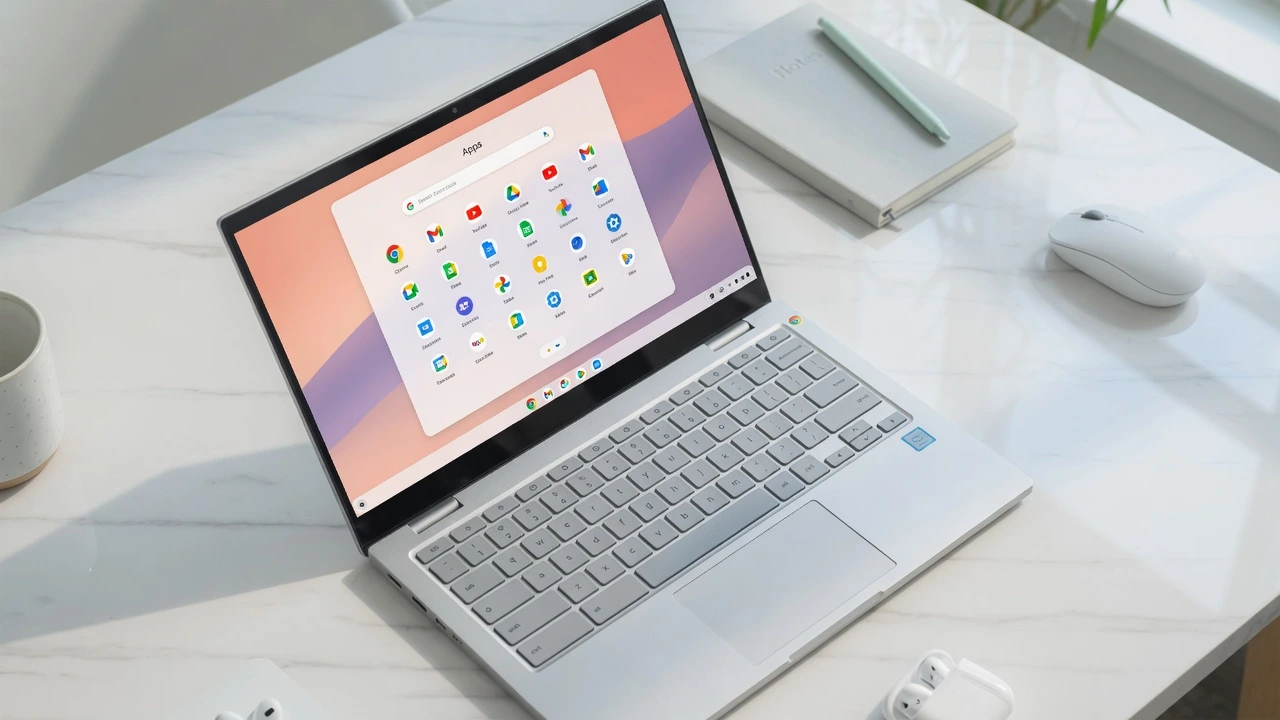
What You Need to Know Before You Start Deleting
Over the last three years, I’ve assisted dozens of users as they have tried to troubleshoot their Chromebooks and the process of removing apps from a Chromebook is actually quite easy
if you understand the peculiarities of app management in Chrome OS. The confusion arises because Chrome OS treats Android apps, Linux apps and Chrome Web Store apps differently. Most of the time it takes to remove an app from Chrome is less than 30 seconds.
Chrome apps, Android apps, Linux apps and Chrome extensions are the four types of apps that you will find on a Google Chromebook. Every one is taken off differently and that’s why it’s important to choose the right method. Confirming an uninstall removes the app right away from your App launcher on your chromebook.
Waiting and restarts are not needed. These are all the steps you can take how to remove apps from your Chromebook, whether it’s an Android app, chrome extensions, Linux apps using the terminal or when the uninstall button is greyed out in Chromebook scenarios.
Chrome App, Android App, or Extension? Here’s How to Tell the Difference
Before you start removing anything, it helps to know what type of app you are actually dealing with. Chrome OS supports four distinct app types, and using the wrong removal method for the wrong app type is the most common mistake I see beginners make. The good news is that identifying your app type takes about five seconds once you know what to look for.
Chrome Web Store Apps
A Chrome Web Store app is an application designed for Chrome OS, and installed from the Chrome Web Store. The easiest way to determine which one is the fastest is to right click on the icon in the app launcher on the chromebook.
If the menu says “Remove from Chrome” instead of “Uninstall”, you’re viewing a Chrome Web Store App. It is not a glitch; that’s how chrome os app types are distinguished.
This guide describes how to delete apps that have been installed via the Chrome Web Store by someone using a Chromebook.
Android Apps (Google Play Store)
An Android app on a Chromebook is a full mobile app downloaded through the google play store chromebook integration, the same way you would install apps on an Android phone.
When you right-click an Android app icon in the app launcher, the menu will show “Uninstall” instead of “Remove from Chrome.” That single word difference tells you exactly what kind of app you have. Methods 1 and 2 in this guide both work for delete android apps chromebook scenarios
Linux Apps (Linux Beta / Crostini)
A Linux app is installed through the Linux development environment on your Chromebook, sometimes called Linux Beta or Crostini.
Linux apps live in their own dedicated folder inside the app launcher, so if you cannot find an app in the main launcher view check the Linux apps folder specifically. Because Linux apps run inside a separate container, removing them requires a different approach entirely. Method 3 covers Linux app removal using the terminal.
Chrome Extensions
A Chrome extension is a browser add-on that runs inside the Chrome browser rather than as a standalone app on your Google Chromebook. Extensions show up in your browser toolbar, not in the app launcher, which is why people often confuse them with regular apps.
If you are looking for something in the launcher and cannot find it, there is a good chance it is actually an extension living in your browser. Method 4 in this guide walks through chrome extensions removal and how to disable extension chrome completely.
How to Delete Apps on Chromebook from the Launcher (Fastest Method)
Deleting apps that users wish to delete is the fastest method to do this on the chromebook, and it only takes about 30 seconds total. I do this nearly all the time as it works for chrome web store apps as well as Android applications without having to open the chromebook settings menu.
People often miss the up arrow step in the chromebook app launcher. You’re only looking at the pinned apps if you simply open the launcher and take a quick look at it.
On click of the up arrow, it expands the full App library, where all installed apps reside, including those from the google play store integration on the Chromebook. For a visual guide to the whole deletion process on a real Chromebook, check out this quick video.
Step-by-Step: Delete an App from the Launcher
- Click the circular launcher icon in the bottom left corner of your screen, or press the Search key on your keyboard.
- Click the upward arrow to expand the full app launcher view. This is the step most people miss.
- Find the app you want to remove. You can scroll through the grid or type the app name to search for it.
- Right-click the app icon. On a trackpad, place two fingers on the trackpad and tap once to get the same menu.
- Select “Uninstall” if it is an Android app, or “Remove from Chrome” if it is a Chrome Web Store app. Both options do the same job for their respective app type.
- A confirmation box will appear. If the app was behaving suspiciously before you decided to remove it, check the “Report abuse” checkbox before confirming. Then click “Uninstall” or “Remove” to confirm.
After you confirm, the app disappears from the launcher instantly. If the icon is still sitting there after confirmation, something else may be preventing the deletion, and the troubleshooting section later in this guide covers exactly what to do.
When This Method Works Best
This launcher method works reliably for Android apps from the Google Play Store and apps installed from the Chrome Web Store. It is the fastest route for everyday app removal and covers the majority of apps most people have on their Chromebook.
The launcher method does not work for Linux apps. Linux apps run inside a separate environment on Chrome OS, so they need their own removal process covered in Method 3. If you are on a touchscreen Chromebook without a mouse or trackpad, the method is slightly different and I cover that separately in the dedicated touchscreen section.
How to Uninstall Apps on Chromebook Through Settings (When the Launcher Isn’t Enough)
The Settings method for uninstalling apps on Chromebook is the one I reach for when an app simply refuses to show up in the launcher. Sometimes apps get buried, stop appearing properly, or just behave oddly after an update.
Going through the Chromebook settings menu bypasses all of that and gives you a clean, reliable list of everything installed on your device.
This approach works across all Chromebook brands. Whether you are on a Lenovo, Acer, HP, or Samsung, the path through Settings is identical.
Step-by-Step: Uninstall via Chromebook Settings
- Click the clock in the bottom right corner of your screen to open the quick settings panel.
- Click the gear icon to open the full Settings menu.
- In the left sidebar, click “Apps.”
- Click “Manage your apps.” This opens a complete list of every app currently installed on your Chromebook.
- Use the search bar at the top of the app list to type the name of the app you want to remove. This is the fastest way to find it without scrolling through a long list, especially if you have many apps installed.
- Click the app name to open its details page.
- Click “Uninstall” in the top right area of the app details screen.
- Confirm the removal when the dialog box appears.
The app will be removed immediately after you confirm. If you cannot find a particular app even in the Settings list, there is a chance it was installed through the Google Play Store under a slightly different name than you expect. Try searching by a shorter version of the app name to catch alternate listings.
One more thing worth knowing: if an app appears in the list but the Uninstall button is greyed out, that tells you the app is either a system app or managed by an administrator. The troubleshooting section later in this guide explains what to do in that situation.
Delete Android Apps on Chromebook via Google Play Store
If you have an Android app buried somewhere in a cluttered launcher, there is a third way to remove it that most people never think to try. You can uninstall an Android app directly from its Google Play Store page on your Chromebook, without ever hunting for the app icon in the launcher at all.
This method only works for Android apps. If the app does not appear in the Google Play Store, it is either a Chrome Web Store app or a Linux app, and you will need a different method from this guide.
Step-by-Step: Uninstall from the Play Store
- Open the Google Play Store from your app launcher.
- Tap the search bar at the top and type the name of the app you want to remove.
- Tap the app in the search results to open its store page.
- On the app page, you will see an “Uninstall” button next to the “Open” button. Tap “Uninstall.”
- Confirm the removal when prompted.
The Android app will be removed from your Chromebook immediately after confirmation.
I find this method especially useful when I know an app is installed but I just cannot locate the icon anywhere in the launcher. Searching by name in the Google Play Store is faster than scrolling through dozens of app icons looking for something that may have ended up on a back page of the launcher grid.
How to Delete Linux Apps on Chromebook (Including When the Right-Click Method Fails)
Deleting Linux apps on a Chromebook works differently from removing Android or Chrome Web Store apps, and this is where most people get stuck.
Linux apps run inside a separate container on Chrome OS called Linux Beta, also known as Crostini, which is essentially a full Debian Linux environment living inside your Chromebook. Because of that separation, the standard launcher methods do not always apply.
The first thing to know is where Linux apps actually live. Linux apps do not appear in the main app launcher grid alongside your Android and Chrome apps. They have their own dedicated folder called “Linux apps” inside the launcher. Open the launcher, click the up arrow to expand everything, and look for that folder specifically.
Method 1: Right-Click Uninstall (Works for Most Linux Apps)
For many Linux apps, the right-click method works perfectly well once you find the app in the Linux apps folder.
- Open the app launcher and expand the full view.
- Open the “Linux apps” folder.
- Right-click the app you want to remove.
- Select “Uninstall” from the menu.
- Confirm the removal.
You will see a small progress notification while Chrome OS removes the Linux app. The process usually takes a few seconds longer than removing an Android app because of how the Linux Beta container handles application removal.
Method 2: Linux Terminal Command (When Right-Click Gives an Error)
Some Linux apps will throw an error when you try to right-click uninstall them. This is not a device problem and it does not mean your Chromebook is broken. It simply means that particular app needs to be removed through the Linux terminal instead.
Open the Terminal app from the Linux apps folder in your launcher, then type this command:
sudo apt-get purge remove [app-name]Replace [app-name] with the actual name of the app you want to remove, then press Enter. If the terminal asks you to confirm by typing y, type y and press Enter again.
I always recommend using purge rather than just apt remove on its own. The reason matters for your storage: apt remove uninstalls the app but leaves its configuration files behind on your Chromebook. Those leftover files still take up chromebook storage space even though the app itself is gone.
The purge command removes both the app and all its associated configuration files in a single step, giving you a genuinely clean removal.
Removing Flathub Apps (flatpak remove command)
If you installed a Linux app through Flathub rather than through the standard apt package manager, the apt command above will not find it. Flathub apps use a different system called Flatpak, and they need their own removal command.
Open the Linux terminal and type:
flatpak uninstall [app-id]If you are not sure of the exact app ID, type flatpak list in the terminal first and press Enter. This command displays every Flatpak app currently installed in your Linux Beta environment along with its full app ID. Find the app you want to remove in that list, copy its ID, then run the uninstall command with the correct ID.
How to Remove Chrome Extensions (They’re Not Apps But Here’s Why They Matter)
A Chrome extension is a browser add-on that runs inside the Chrome browser rather than as a standalone app on your Chromebook. Extensions do not live in the app launcher the way Android or Chrome Web Store apps do. They live in your browser toolbar, which is exactly why so many people go looking for them in the wrong place.
The confusion makes sense because Chrome OS uses the phrase “Remove from Chrome” for both Chrome Web Store apps and extensions. Same words, different things. Once you know where to look, removing a Chrome extension takes about three clicks.
How to Remove an Extension in 3 Clicks
The fastest method is directly from the Chrome browser toolbar:
- Look at the top right of your Chrome browser window. You will see a row of small icons next to the address bar. These are your active extensions.
- Right-click on the icon of the extension you want to remove.
- Select “Remove from Chrome” and confirm.
If the extension icon is not visible in the toolbar, it may be hidden in the extensions menu. Click the puzzle piece icon near the top right of Chrome to see all installed extensions, then right-click from there.
You can also manage extensions by typing chrome://extensions directly into the Chrome address bar and pressing Enter. This page shows every extension installed in your browser. Find the one you want to remove and click the “Remove” button beneath it.
Why Your Extension Keeps Coming Back (and What to Do)
If you remove an extension and it reappears shortly after, the extension is almost certainly being managed by a school or work administrator through a device policy. Chrome OS allows administrators to push extensions to managed Chromebooks automatically, and those extensions will reinstall themselves even after a user removes them.
In this situation, you cannot fully remove the extension without administrator access. However, you do have one practical option. On theHow to Remove Chrome Extensions (They’re Not Apps — But Here’s Why They Matter)
A Chrome extension is a browser add-on that runs inside the Chrome browser rather than as a standalone app on your Chromebook. Extensions do not live in the app launcher the way Android or Chrome Web Store apps do. They live in your browser toolbar, which is exactly why so many people go looking for them in the wrong place.
The confusion makes sense because Chrome OS uses the phrase “Remove from Chrome” for both Chrome Web Store apps and extensions. Same words, different things. Once you know where to look, removing a Chrome extension takes about three clicks.
Right-Click Not Working? How to Delete an App on Chromebook Without a Mouse
If right-clicking on your Chromebook opens the app instead of showing the menu, you are not doing anything wrong. This is one of the most commonly reported Chromebook frustrations, and it comes down to how the trackpad is configured or what mode your device is running in. The good news is there are three reliable alternatives that work just as well.
All three methods take you to the same uninstall menu in the Chromebook app launcher. The right approach depends on what kind of Chromebook you have and how you are using it.
Method 1: Two-Finger Tap on the Trackpad
This is the standard right-click equivalent on every Chromebook with a trackpad, and it works across all brands including Acer, Lenovo, HP, and Samsung.
- Open the app launcher and expand the full app view using the up arrow.
- Move your cursor over the app icon you want to remove.
- Place two fingers side by side on the trackpad and tap once with both fingers at the same time.
- The context menu will appear. Select “Uninstall” or “Remove from Chrome.”
- Confirm to complete the application removal.
The key detail most people miss is that both fingers need to tap at the same moment, not one after the other.
Method 2: Ctrl+Alt+Click (When Two-Finger Tap Also Fails)
If the two-finger tap still opens the app rather than the menu, this keyboard and trackpad combination solves the problem. This method was specifically confirmed on Samsung Chromebook models but works as a general fallback on other devices too.
- Open the app launcher and locate the app you want to delete.
- Hold down the Ctrl key and the Alt key on your keyboard at the same time.
- While holding both keys, click the trackpad once with a single finger on the app icon.
- The right-click context menu will appear. Select your removal option and confirm.
This Ctrl+Alt+click approach for right-click uninstall on Chromebook is something most guides never mention, but it is a genuine fix when the trackpad settings are not responding to the two-finger method.
Method 3: Touchscreen Long-Press
For Chromebooks used in tablet mode or convertible models where the keyboard is folded away, the touchscreen long-press is the most natural option.
- Open the app launcher and expand the full view.
- Find the app icon you want to remove.
- Press and hold your finger on the app icon for about one to two seconds without lifting or moving your finger.
- A context menu will appear on screen. Tap “Uninstall” or “Remove from Chrome.”
- Tap to confirm and the app will be removed immediately.
The long-press is the touchscreen equivalent of a right-click. Two independent sources confirm this works on Chromebooks in both tablet mode and standard laptop mode with the touchscreen active.
Why Your Deleted Apps Keep Coming Back (And the Fix That Actually Works)
You deleted an app, you confirmed the removal, and a day later it is sitting right back in your launcher like nothing happened. This is one of the most frustrating experiences Chromebook users report, and it has come up repeatedly in Chromebook community forums with hundreds of people describing exactly the same thing. The cause is almost always one of three things, and each one has a specific fix.
Reason 1: Play Store Auto-Reinstall Is Turned On
During the initial Chromebook setup, many users accept a prompt to install “recommended apps” without realising that the Google Play Store can be configured to reinstall certain apps automatically. If an app keeps coming back on its own, this setting is the most likely culprit.
Here is how to turn it off:
- Open the Google Play Store from your app launcher.
- Tap your profile icon in the top right corner.
- Tap “Settings.”
- Look for an option related to auto-updates or automatic app installs for recommended apps.
- Disable the setting and save your changes.
Once you turn off auto-reinstall in the Google Play Store, the app should stay gone after your next deletion.
Reason 2: Your Google Account Sync Is Restoring Apps
Chrome OS includes a sync feature that keeps your apps, settings, and preferences consistent across multiple devices linked to the same Google account. If you have the same app installed on another device and sync is active, Chrome OS may interpret the deletion as an error and restore the app automatically.
To check whether account sync is the cause:
- Click the clock in the bottom right corner of your screen.
- Click the gear icon to open Settings.
- Select “You and Google” or “Sync and Google services.”
- Review what sync is set to restore and adjust the settings to reduce what Chrome OS synchronises across devices.
If you only use your Google account on one Chromebook, this is probably not your issue. But if you use the same account on a phone, tablet, or another Chromebook, sync is worth checking first.
Reason 3: A School or Work Policy Is Controlling Your Device
A managed Chromebook is a device where an organisation such as a school or employer controls which apps are installed through a tool called the Google Admin Console. Administrators can use enterprise device policy to push specific apps to every device in their network, and those apps will reinstall automatically whenever a user removes them.
If the Uninstall button appears greyed out when you try to remove an app, this is almost certainly the reason. The device management system is preventing removal at the user level.
Unfortunately there is no workaround for this from the user side. The only solution is to contact your school IT department or workplace administrator and ask them to remove the app from your device policy.
Explaining which app and why you need it removed will give them the context to act on the request. If you are also dealing with other access restrictions on your laptop, our guide covering how to unlock an HP laptop walks through several device lock and access scenarios that may be relevant to your situation.
Other Apps You Cannot Delete (And What You Can Do Instead)
Some apps on your Chromebook genuinely cannot be removed, and understanding why makes it much less frustrating when you encounter them. Chrome OS includes a set of system apps that are built directly into the operating system itself. These apps are not optional extras. They are part of what makes Chrome OS run, and removing them would break core functions of your Chromebook. There is no workaround for truly built-in system apps, and no method in this guide will remove them.
The more useful question is whether the app you are trying to remove is actually a system app, or whether it just feels that way because the Uninstall button is missing or greyed out.
The Difference Between “Can’t Delete” and “Won’t Delete”
These two situations look identical on screen but have completely different causes and solutions.
“Can’t delete” means the app is a genuine Chrome OS system app, baked into the operating system at a level the user cannot access. Examples include the Files app, the Camera app, and certain core Chrome OS utilities. These preinstalled apps have no Uninstall option at all because the option was never designed to exist. If you right-click one of these apps, you will notice the menu either shows no removal option or only offers a “Pin” or “Open” choice.
“Won’t delete” is a different situation entirely. The Uninstall button exists but appears greyed out, or the app disappears and then comes back. This is almost always caused by an administrator policy or an auto-reinstall setting, both of which have specific fixes covered in the previous section of this guide.
For preinstalled apps that fall somewhere in between, some Chrome OS devices offer a “Disable” option rather than Uninstall. Disabling a preinstalled app stops it from running and hides it from your launcher without fully removing it from the system. This is a practical middle ground when you cannot delete an app but do not want it taking up space in your view.
If your Chromebook has accumulated too many apps, files, and settings that feel impossible to clean up, a full Powerwash or chromebook factory reset will restore the device to its original state. A Powerwash erases everything including your personal files stored locally, so it is a last resort rather than a routine fix. Before doing a Powerwash, make sure anything important is backed up to Google Drive and review Google’s complete Powerwash guide for step-by-step instructions
Free Up Even More Space After Deleting Your Apps
Deleting an app removes the app itself, but it does not always remove everything the app left behind. Android apps in particular can leave cached data, saved files, and temporary storage on your Chromebook even after the app is gone.
Taking a few extra minutes after uninstalling apps makes a real difference to your available storage space and can noticeably improve your Chromebook’s performance. If you use other devices alongside your Chromebook, you might find our guide on how to clear RAM on Mac useful for keeping all your devices running smoothly.
None of these follow-up steps are complicated. Each one takes under two minutes and together they give you a much cleaner result than deletion alone.
Clear Leftover App Data from Settings
Even after you uninstall an app, Chrome OS sometimes retains the data that app stored locally. This is especially common with Android apps that saved login information, offline content, or settings files.
Here is how to clear any remaining app data:
- Click the clock in the bottom right corner and open Settings.
- Go to “Apps” and then “Manage your apps.”
- Find the app you recently removed, or any app you want to clear data for.
- Click the app name to open its details.
- Select “Storage” and then tap “Clear Data.”
Running a chromebook app data clear this way removes what the app stored without requiring you to reinstall anything.
Remove Files Left in Your Downloads Folder
Some apps save documents, images, or other files directly to your Downloads folder during normal use. Those files stay on your Chromebook long after the app itself is gone, and most people never realise how much storage space they can quietly take up.
To check for leftover files:
- Open the Files app from your app launcher.
- Click on “Downloads” in the left sidebar.
- Look for any folders or files named after apps you have recently removed.
- Select and delete anything you no longer need.
Good chromebook storage management means treating the Downloads folder as a temporary space rather than permanent storage. Moving important files to Google Drive and deleting the rest keeps your local storage from filling up over time.
Clear Your Browser Cache
If you removed Chrome extensions or used web-based apps heavily, clearing your browser cache recovers additional space and often gives Chrome OS a small but noticeable speed boost.
In the Chrome browser, go to Settings, then “Privacy and security,” then “Clear browsing data.” Select “Cached images and files” and choose a time range. For storage optimization purposes, selecting “All time” gives the most thorough result.
If your Chromebook still feels cluttered after all of these steps, a full Powerwash remains the most complete reset option, though it will erase all locally stored files and return the device to its original factory state.
Deleted the Wrong App by Mistake? Here’s How to Get It Back
Accidentally removing an app from your Chromebook is not a permanent problem. Every app you can delete can also be reinstalled, usually in under a minute.
If you removed a Chrome Web Store app, open the Chrome Web Store in your browser, search for the app by name, and click “Add to Chrome” to reinstall it. The process takes the same amount of time as installing it the first time.
If you removed an Android app, open the Google Play Store, search for the app, and tap “Install.” The Google Play Store remembers your download history, so previously installed apps are easy to find.
If you removed a Linux app using the terminal, reinstalling is just as straightforward. Open the Linux terminal and type:
sudo apt install [app-name]Press Enter and the Linux app will reinstall automatically.
Nothing about knowing how to delete apps on Chromebook needs to feel risky. The whole process is reversible, and getting an app back is always as simple as finding it in the right store and tapping install again.
Frequently Asked Questions
Why does my right-click just open the app instead of showing an Uninstall option?
A single-finger click on a Chromebook trackpad opens the app rather than showing the menu. To get the right-click context menu, place two fingers on the trackpad and tap once at the same time, or hold Ctrl and Alt together while clicking. Both methods bring up the Uninstall option in the app launcher.
Why does my app keep reinstalling itself after I delete it?
The three most common causes are the Google Play Store auto-reinstall setting being turned on, your Google account sync restoring apps from another linked device, or a school or work administrator policy pushing the app back automatically.
Each of these has a specific fix covered in the troubleshooting section of this guide. If the Uninstall button is greyed out, an admin policy is almost certainly the reason.
Why does the right-click menu say “Remove from Chrome” instead of “Uninstall”?
This is not a glitch and both options work correctly for their app type. Chrome Web Store apps display “Remove from Chrome” while Android apps from the Google Play Store display “Uninstall.” Both options fully remove the app from your Chromebook and the different wording simply reflects the different app systems Chrome OS uses.
Does deleting apps actually make my Chromebook faster?
Yes, particularly when you remove Android apps, which can continue running background processes even when you are not actively using them. Many Chromebook users report a noticeable speed improvement after clearing out unused Android apps from the Google Play Store.
If you rarely use Android apps at all, disabling the Play Store environment entirely can give an even more significant performance boost.
If I delete an app by mistake, can I get it back?
Yes, every app you can delete can be reinstalled. Android apps are available again through the Google Play Store, Chrome apps and extensions through the Chrome Web Store, and Linux apps through the terminal using sudo apt install [app-name]. Nothing is permanently lost and reinstalling typically takes under a minute.


