Before You Clear Cache on iPad: Find Out What’s Really Using Your Storage Space
Here’s something I learned the hard way: if you’re wondering how to clear cache on iPad to fix storage problems, clearing cache won’t always solve a “storage full” iPad issue. I’ve seen too many people waste time clearing Safari and app cache, only to find their storage meter barely moved. The real culprit? Usually photos and videos.
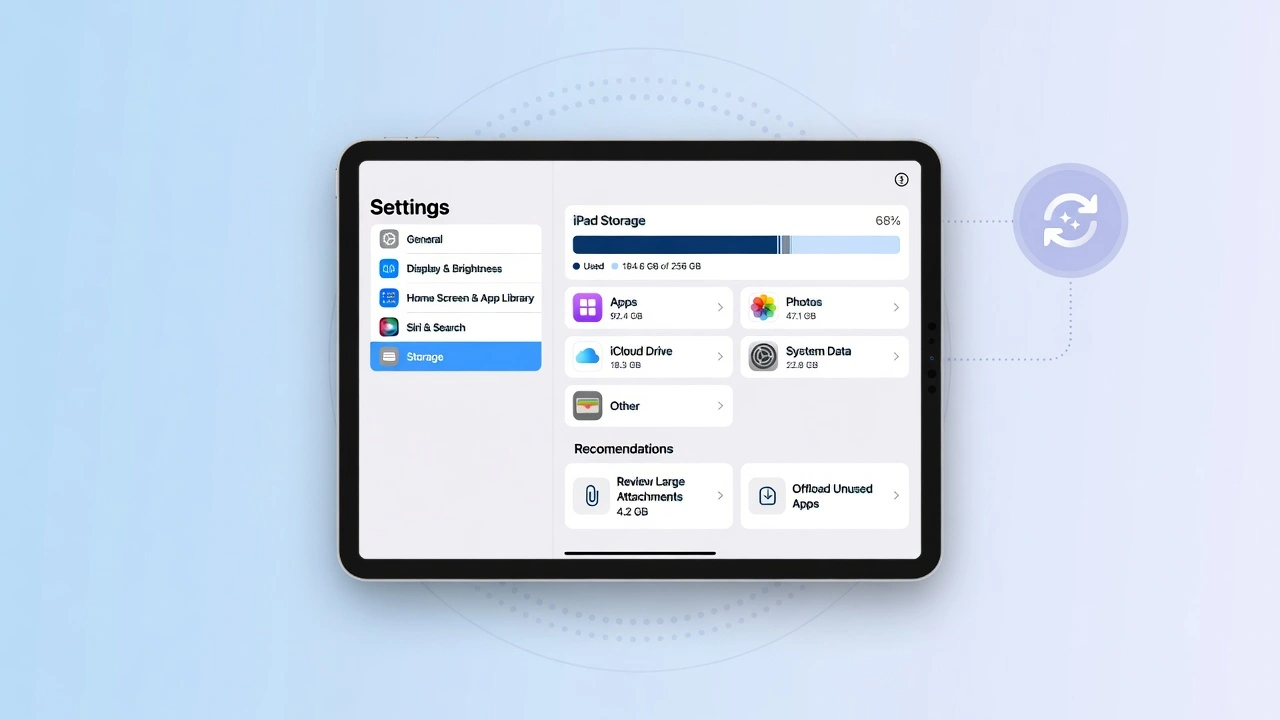
Before you start clearing anything, I always check what’s actually eating up my iPad storage space. This simple diagnostic step saves a ton of frustration and helps you focus on what really matters when your iPad storage is full
How to Check iPad Storage Breakdown
Checking your iPad storage breakdown is straightforward. Open the Settings app, tap General, then tap iPad Storage. Once you’re there, give it a minute. Seriously, wait 30 to 60 seconds.
The iPad settings menu needs time to calculate everything through the iPadOS settings system. I know it feels like nothing’s happening, but the system is scanning all your apps, photos, videos, and stored data. If you’re impatient like me, you’ll be tempted to tap around, but just let it load completely
Once it finishes, you’ll see a colorful bar at the top showing how your storage breaks down. Below that, you’ll find a full list of apps sorted by how much space they use. Sometimes, the iPad will even suggest helpful actions like offloading unused apps or clearing old message attachments. I’ve found those suggestions surprisingly useful.
What to Look For (Photos, Videos, Apps vs. Cache)
When I first checked my storage breakdown, I expected apps and cache to be the problem. I was completely wrong. Photos took up nearly 40% of my storage.
Here’s what usually happens: Photos and Videos dominate your iPad storage, often consuming 10 to 30 GB or more. App cache, on the other hand, typically takes up just a few hundred megabytes per app. Clearing cache might free up 500 MB to 2 GB total, but if you have 25 GB of photos, cache clearing won’t solve your storage problem.
Look at the list carefully. Apps at the top of the list are your biggest storage hogs. If you see Photos, Videos, Netflix, or large games like Roblox near the top, those are your real targets. Sometimes you’ll also spot unfamiliar apps you don’t remember downloading if you’re an Android user dealing with this issue, my guide on how to find hidden apps on Android can help identify mystery storage culprits.
One feature I wish I’d known about earlier is the Photos app’s “Similar Photos” tool. One of my friends cleared 7 GB just by deleting duplicate and similar photos using this built-in feature. You’ll find it under Albums > Utilities > Duplicates in the Photos app. It’s a game changer if you take a lot of pictures
If app data or app cache storage is consuming multiple gigabytes, then clearing cache makes sense. But if Photos and Videos are the culprits, you’ll want to tackle those first by deleting old videos, moving files to iCloud, or using the optimize storage feature I’ll cover later.
This diagnostic step takes less than two minutes, but it completely changes how you approach freeing up space on your iPad. I always start here now, and I recommend you do the same before clearing a single cache file.
What Is Cached Data on iPad and Why Should You Clear It?
Cached data on an iPad is basically a collection of temporary files that your browsers and apps store to make things load faster. Think of browser cache as little shortcuts your iPad creates so it doesn’t have to download the same images, videos, or web page elements every single time you visit a site or open an app.
When you visit a website in Safari, your browser saves parts of that page like images, scripts, and style files in something called browser cache. The next time you visit that same site, Safari pulls those saved files from local storage instead of downloading them again. This makes the page load almost instantly.
Apps do the same thing. YouTube caches video thumbnails. Instagram saves profile pictures. Even your weather app stores icon files and background images. It all happens automatically to speed things up and reduce data usage.
Here’s the problem: cached data builds up over time. What starts as a few megabytes of temporary files can balloon into gigabytes of stored data after months of browsing and app use. I’ve seen Safari alone accumulate over 1 GB of browser cache, and social media apps like Instagram or Facebook can easily hit 2 to 3 GB each.
When cached data piles up, it eats into your available storage. Your iPad might start showing “storage full” warnings even though you haven’t downloaded anything new. Worse, too much cached data can actually slow down your iPad because the system has to manage and search through all those junk files.
That’s why clearing cached data periodically makes sense. You’re not deleting anything important. You’re just removing outdated temporary files that your iPad will recreate as needed.
The trade off is that websites and apps might take an extra second or two to load the first time after you clear the cache, but that’s a small price for freeing up storage space and improving overall performance.
Some people call cached data “junk files,” and honestly, that’s a pretty accurate description. These files served a purpose once, but over time they become clutter.
Deleting cached data on your iPad is like cleaning out your closet. You’re making room for new stuff and getting rid of things you don’t need anymore.
Cache vs. Cookies vs. Storage: What’s the Difference?
I used to think cache, cookies, and storage were all the same thing. They’re not, and understanding the cache vs cookies difference actually matters when you’re clearing data, especially if you want to clear cache without losing data you care about.
Cache refers to temporary files like images, videos, scripts, and page layouts that browsers and apps save to speed up loading times. Cache is purely about performance. When you delete cached data, you’re removing those saved files, but you won’t lose any personal information or settings.
Cookies are small data files that websites store on your iPad to remember who you are. Cookies keep you logged into websites, save your preferences, and track your activity for things like shopping carts or personalized ads. When you clear cookies, you’ll usually get logged out of websites and lose saved preferences.
Storage or local storage is permanent data that apps save on your iPad. This includes your downloaded videos, saved game progress, app settings, and documents. Storage is meant to stick around unless you manually delete it. Clearing cache doesn’t touch this data, but deleting an app completely will erase its stored data.
Here’s a simple way I think about it. Cache is like scrap paper with quick notes. Cookies are like name tags that identify you. Storage is like a filing cabinet with important documents.
You can throw away the scrap paper anytime without losing anything important, but you need to be more careful with the name tags and filing cabinet.
When you clear Safari cache or app cache on your iPad, you’re mostly removing the scrap paper. Your login cookies might get cleared too depending on which method you use, which is why some people have to log back into websites after clearing their browser cache.
But your actual photos, videos, and app data stay safe in storage unless you deliberately delete them.
Knowing this difference helps you clear cache confidently without worrying about losing something critical.
How to Clear Cache on iPad in Safari Browser (2 Methods)
Safari is the default browser on every iPad, and clearing Safari cache through the Safari settings on iPad is usually the first place I start when my browsing feels sluggish or websites aren’t loading correctly.
The good news is that Apple gives you two ways to do this, and each one serves a slightly different purpose depending on what you want to keep or remove.
Method 1: Clear Safari History and Website Data (Standard)
This is the method most people use to clear history and website data, and it takes less than a minute. Here is how to clear browsing history on iPad step by step.
Open the Settings app on your iPad. Scroll down the left side until you see Safari, then tap it. On the right side of the screen, scroll down until you find the option that says Clear History and Website Data. Tap that.
Safari will ask you to choose a time range. You can select the last hour, today, today and yesterday, or all history. For a full cache clear that will also clear website data in Safari, I always choose All History. Then tap Clear History to confirm.
Here is the part that catches most people off guard. Safari will show you a second prompt asking whether you want to Keep Tabs or Close Tabs.
If you have important tabs open that you want to come back to, tap Keep Tabs. If you do not mind losing your open tabs, tap Close Tabs. I always tap Keep Tabs because I usually have several pages open.
Once the clear history and website data button turns gray, the process is complete. Safari has removed your browsing data, cached images, and cookies in one quick action.
Method 2: Remove Only Website Data (Keep Your History)
Want to clear your Safari website data and cache without losing your browsing history? There is a way to do exactly that, and most people have no idea this option exists.
Go to Settings and tap Safari. This time, instead of tapping Clear History and Website Data, scroll all the way to the bottom of the Safari settings page and tap Advanced. On the Advanced screen, tap Website Data at the top.
You will see a full list of every website that has stored data on your iPad. To remove everything at once, scroll to the bottom of that list and tap Remove All Website Data. Confirm by tapping Remove Now.
This method clears website data and browser cache from Safari without touching your browsing history. Your visited pages stay intact, but all the cached files and local storage from those sites get wiped clean.
I use this method when I want to free up storage but still want to keep my search and browsing history for reference.
What Gets Deleted (And What Stays Safe)
This is the question I hear most often and the one that stops people from clearing their Safari cache in the first place. People worry they will lose something important, so let me clear this up properly.
When you clear Safari cache using either method above, here is what gets removed:
- Cached images and files from websites you visited
- Cookies and website data including tracking information
- Browsing history (Method 1 only)
- Website preferences and temporary login sessions
Here is what stays completely safe:
- Your Safari bookmarks and saved favorites
- Passwords saved to iCloud Keychain (these are stored separately and are never affected by a cache clear)
- Open tabs if you selected Keep Tabs during Method 1
- Your iCloud synced data including contacts, calendar, and notes
Clearing Safari cache on your iPad does not delete your saved passwords, photos, or any personal files. Passwords stored in iCloud Keychain remain fully intact because Apple keeps Keychain data separate from browser cache. I clear my Safari cache regularly and have never lost a single saved password.
The only thing to expect afterward is that websites might load a tiny bit slower the first time you visit them. Safari will simply rebuild the browser cache fresh as you browse, and everything will feel normal again within minutes.
How to Clear Cache in Google Chrome on iPad
If you use Google Chrome as your main browser on your iPad, clearing Safari cache won’t touch Chrome’s data at all. Google Chrome on iPad stores its own separate browser cache, browsing data, and cookies completely independently from Safari, which is why you need to clear Chrome’s browsing data separately.
A lot of people miss this. They clear Safari and wonder why Chrome still feels sluggish. The two browsers operate independently, and each one manages its own cached images and files.
Here is the good news: clearing Google Chrome cache on iPad is straightforward and takes under two minutes.
Step-by-Step: Clear Chrome Cache on iPad
Follow these steps to clear your Chrome browsing data:
- Open the Google Chrome app on your iPad.
- Tap the three dots in the bottom right corner of the screen. This opens Chrome’s main menu.
- Tap Settings from the menu options.
- Scroll down and tap Privacy.
- Tap Clear Browsing Data.
- You will see a list of data types you can remove. Make sure the Cached Images and Files option is checked to clear cached images and files from Chrome.If you also want to remove cookies, check Cookies and Site Data as well.
- At the top of the screen, set your time range. I usually select All Time for a complete cache clear, but you can choose a shorter range if you prefer.
- Tap Clear Browsing Data at the bottom and confirm when Chrome asks you again.
Chrome will clear the selected browsing data within seconds.
One thing worth knowing before you start: if you check Cookies and Site Data along with cached images and files, Chrome will log you out of websites you were signed into. If you only check Cached Images and Files, your login sessions stay active.
I usually clear both when I want a full reset, but if staying logged in matters to you, just stick to cached images and files only.
Google Chrome on iPad stores browser cache separately from iPadOS system storage, which means clearing Chrome cache only affects Chrome.
Your Safari data, app data, and photos remain completely untouched. After clearing, Chrome might take a second or two longer to load familiar pages, but the browser cache rebuilds automatically as you browse normally.
How to Clear App Cache on iPad (No One-Tap Button Here’s the Workaround)
Here is something that surprises a lot of people, especially those switching from Android: iPadOS settings do not include a system-wide “Clear Cache” button.
On Android, you can go into Settings and clear the cache for any app in seconds. iPad simply does not work that way.
This is not a flaw exactly. Apple manages app cache automatically in the background, and iPadOS is designed to free up space on its own when needed.
But automatic management does not always keep up with heavy app usage, and sometimes you need to take matters into your own hands.
The good news is that clearing app cache on iPad is still very doable. You just need to know which method to use and when. I follow a three-step approach that goes from least disruptive to most thorough. Start with Step 1 and only move to Step 3 if you really need a full reset.
Step 1: Check If the App Has Built-In Cache Clearing
Before doing anything complicated, I always check whether the app itself has a built-in cache clearing option. You would be surprised how many popular apps include this feature right inside their own settings.
Apps like Instagram, Snapchat, WhatsApp, and Messenger all have internal storage or data settings where you can clear cached files without deleting the app or losing any personal app data on your iPad.
The location varies slightly by app, but you usually find it under the app’s own Settings menu, then look for Storage, Data, or Account options.
For Instagram, go to your profile, tap the menu icon, go to Settings and Privacy, then Account, then Storage. You will find a Clear Cache option right there. WhatsApp keeps a similar option under Settings then Storage and Data.
Checking app-specific settings first is always worth doing. Clearing app cache storage this way is fast, safe, and keeps everything else intact including your login, messages, and preferences.
Step 2: Offload the App (Keeps Your Data)
If the app does not have a built-in cache option, my next move is to offload unused apps on iPad. Offloading an app on iPad removes the app itself from your device but keeps all the app’s documents and personal data safely stored.
Here is how to offload an app on iPad:
- Open the Settings app and tap General.
- Tap iPad Storage.
- Find the app you want to clear cache for and tap its name.
- Tap Offload App and confirm.
Once the app is offloaded, you will see a Reinstall App button on the same screen. Tap that to download the latest version of the app fresh from the App Store. This process clears the accumulated app cache and hidden junk files while keeping your personal app data untouched.
Offloading and reinstalling also has a bonus benefit I appreciate. Because you are installing the latest version of the app, any minor bugs or performance issues caused by corrupted cached data often get fixed in the process.
iPadOS actually recommends offloading unused apps automatically when storage runs low, which tells you Apple trusts this method.
The offload method is ideal for games where you want to keep your progress, or productivity apps where you have saved documents and settings you do not want to lose.
Step 3: Delete and Reinstall (Full Cache Wipe)
When offloading is not enough and you want a completely fresh start, the delete app and reinstall method is the most thorough way to clear app cache on iPad.
This wipes everything including cached data, stored files, login information, and any locally saved content.
Here is how to delete and reinstall an app:
- Open Settings and tap General, then iPad Storage.
- Find the app you want to remove and tap its name.
- Tap Delete App and confirm. The app and all its local data are now removed.
- Open the App Store, search for the app, and reinstall it.
One important thing to know before you do this: after reinstalling, you will need to log back into the app. Any data that was stored locally and not backed up to a cloud account will be gone permanently. I learned this the hard way with a gaming app once. If you accidentally delete the wrong app while clearing cache, check out my guide on how to recover deleted apps on iPhone the same methods work for iPad.
Before deleting, check whether the app backs up your data to a cloud account. Apps like YouTube, Instagram, and Spotify tie your data to your account, so reinstalling just means logging back in and everything syncs back automatically. Other apps that store data locally without cloud backup will lose that data when you delete them
For large social media apps and streaming apps, delete and reinstall is honestly one of the best ways to clear out the hidden junk files that build up over months of use. You would be surprised how much space comes back after reinstalling an app you have had on your iPad for a year or more.
How to Clear Cache for Specific Apps (YouTube, Instagram, Roblox and More)
Generic advice is helpful, but sometimes you just want to know exactly what to do for the specific app causing you problems. Each app handles cache storage a little differently on iPad, so I want to walk through the most common ones individually. This is the section most guides skip entirely, which is exactly why I wanted to include it.
YouTube Cache on iPad
YouTube does not give you a built-in cache clearing option inside the app itself. There is no Settings menu inside YouTube that lets you tap “Clear Cache” the way some other apps do.
The most effective way to clear YouTube cache on iPad is to offload the app and reinstall it. Go to Settings, tap General, then iPad Storage, find YouTube in the list, tap it, and select Offload App. Once offloaded, tap Reinstall App to get a fresh version. Your YouTube account, watch history, and subscriptions all tie to your Google account, so everything comes back the moment you sign in again.
One thing I always check in the YouTube app before offloading: any videos downloaded for offline viewing. YouTube Premium lets you save videos to watch without internet, and those downloaded videos can take up several gigabytes of app cache storage on their own. Inside the YouTube app, go to your Library tab and tap Downloads to see what is saved. Delete any downloads you no longer need before offloading.
Instagram Cache on iPad
Instagram is one of the friendlier apps when it comes to cache management because it actually gives you a built-in option to clear cache without deleting the app.
Here is how to clear Instagram cache on iPad:
- Open the Instagram app and go to your profile by tapping your photo in the bottom right.
- Tap the three lines in the top right corner to open the menu.
- Tap Settings and Privacy.
- Tap Account, then tap Storage.
- Tap Clear Cache and confirm.
Instagram will clear its stored temporary files immediately. Your photos, messages, followers, and account settings stay completely intact. I clear Instagram cache every couple of months and it usually frees up anywhere from 300 MB to over 1 GB depending on how actively I use the app.
Roblox Cache on iPad
Roblox does not include a built-in cache clearing option inside the app on iPad. If Roblox is running slowly, taking up too much app cache storage, or behaving unexpectedly, the fix is to delete and reinstall the app.
Go to Settings, tap General, then iPad Storage, find Roblox, and tap Delete App. Then open the App Store, search for Roblox, and reinstall it.
Here is the reassurance most Roblox players need before doing this: your Roblox account data including your avatar, purchased items, Robux balance, and game progress all sync to your Roblox account in the cloud. Deleting and reinstalling the Roblox app on iPad does not erase any of that. You simply log back into your account after reinstalling and everything is exactly as you left it. The only thing that gets wiped is the locally cached game data, which is exactly what you want to clear.
Don’t Forget Streaming App Downloads (Netflix, Spotify, Disney Plus)
This is one of the biggest hidden storage drains on iPad that almost nobody thinks about, and it catches people off guard regularly.
Streaming apps like Netflix, Spotify, and Disney Plus let you download content for offline viewing or listening. That is a genuinely useful feature, but downloaded movies, shows, and playlists store that content as local data on your iPad, and the file sizes add up quickly. A single HD movie from Netflix can take up 3 to 4 GB of stored data. A few downloaded seasons of a show can easily consume 10 GB or more.
I have seen people clear cache from every app on their iPad and still wonder why their storage barely changed, only to discover they had gigabytes of forgotten streaming downloads sitting untouched for months. It is an easy thing to overlook.
Here is how to delete downloads from the major streaming apps:
Netflix: Open Netflix, tap Downloads at the bottom, then tap Edit in the top right corner and select Delete All.
Spotify: Open Spotify, go to Your Library, find any downloaded playlists or albums, tap the green download arrow to toggle it off and remove the downloaded files.
Disney Plus: Open Disney Plus, go to Downloads, tap Edit, and remove any titles you no longer need offline.
YouTube Premium: Inside the YouTube app, go to Library, tap Downloads, and delete any saved videos individually or all at once.
I make it a habit to check these streaming app downloads every month or so. Clearing out forgotten downloads regularly is one of the fastest and most satisfying ways to free up serious storage space on your iPad without touching any of your personal files or important app data.
How to Clear System Cache on iPad (Restart Method)
Most people focus entirely on Safari and app cache, but there is another type of cache that builds up quietly in the background: system cache. iPadOS handles system-level memory management automatically, but temporary files and RAM usage can still accumulate during a long session of heavy app use, multitasking, or gaming.
The simplest and most effective way to clear system cache on an iPad is to restart it. A full restart flushes the iPad’s RAM, clears temporary system files, and gives iPadOS a clean slate to work from. I restart my iPad at least once a week, and the difference in responsiveness is noticeable every single time.
Restarting an iPad is not the same as just locking the screen or pressing the Home button to leave an app. A proper restart completely shuts down the system and starts it fresh. This is what clears the system-level temporary cache that builds up during normal use.
The button sequence for restarting an iPad depends on which model you have. Apple changed the restart method when newer iPad models removed the Home button, so I want to cover both separately to avoid any confusion.
Restart Instructions for iPads Without Home Button (iPad Pro and iPad Air 4th Generation and Later)
If you have a modern iPad Pro or iPad Air without a physical Home button, follow these steps to restart and clear your system cache:
- Press and quickly release the Volume Up button.
- Press and quickly release the Volume Down button.
- Press and hold the Top button (also called the Side or Power button) on the top right edge of your iPad.
- Keep holding the Top button until the screen goes completely black.
- Release the button when you see the Apple logo appear on the screen.
Your iPad Pro or iPad Air will restart fully within about 30 seconds. Once the home screen loads, iPadOS will have cleared its RAM and flushed temporary system files, giving the system a fresh start.
This button sequence is a force restart, which is slightly different from the standard shutdown and power-on method. The force restart works even when your iPad is frozen or unresponsive, which makes it especially useful when system cache buildup is causing serious slowdowns.
Restart Instructions for iPads With Home Button (iPad 9th Generation and Older, iPad Mini 5th Generation and Earlier)
If your iPad has a physical Home button on the front, the restart process is different. This includes older iPad models like the iPad 9th generation, iPad Mini 5th generation, and any earlier iPad with a circular Home button on the front face.
To restart an iPad with a Home button:
- Press and hold both the Home button on the front and the Top button at the same time.
- Keep holding both buttons until the screen goes black.
- Release when the Apple logo appears.
Your iPad will restart completely within about 30 seconds. This clears the system RAM and temporary cache files the same way the newer method does on iPad Pro and iPad Air models.
I find this method especially helpful after long gaming sessions or after using memory-heavy apps like video editors or large creative tools. The iPad Mini responds particularly well to a fresh restart when apps start feeling sluggish or unresponsive after extended use. A simple restart costs you nothing and often makes a bigger difference than any other cache-clearing method on this list.
How Often Should You Clear Your iPad Cache?
There is no single perfect answer that works for everyone, but after using iPads regularly and paying attention to how cache buildup actually affects performance, I have settled on a simple rule: light users should clear cache once a month, and heavy users should do it every one to two weeks.
Most people wait until their iPad is already running slow or throwing up storage warnings before they think about clearing cache. By that point, the buildup has already affected performance. Treating cache clearing as a regular habit rather than an emergency fix keeps your iPad running smoothly without ever reaching that frustrating point.
Light users are people who mostly browse the web, check email, watch videos, and use a handful of apps casually. For this kind of usage, clearing Safari cache and restarting the iPad once a month is usually plenty to free up space and keep things responsive.
Heavy users are a different story. If you use your iPad for creative work, gaming, social media, streaming, or you constantly switch between many apps throughout the day, cached data accumulates much faster. Clearing cache every one to two weeks makes a real difference in how your iPad feels day to day.
Beyond the schedule, there are specific warning signs that tell me it is time to clear cache right away regardless of when I last did it:
- Your iPad is running slow even after closing all apps
- You keep seeing a “storage almost full” notification
- Safari or Chrome is taking longer than usual to load pages
- Apps are crashing or freezing more frequently than normal
- Your iPad feels warm even during light tasks
- Apps are taking noticeably longer to open than they used to
I also recommend doing a quick storage check at the start of each month. Open Settings, tap General, then iPad Storage, and glance at the bar at the top. If your free space is dropping below 10 to 15 percent of your total storage, that is a clear sign to run through the cache clearing steps in this guide.
One thing I have noticed from reading through experiences shared by other iPad users is that severe storage buildup almost always comes from neglect over many months, not overnight. Small, regular maintenance prevents the kind of situation where your iPad storage fills up completely and nothing seems to fix it. A monthly check takes less than five minutes and saves a lot of frustration down the line.
5 Tips to Keep Your iPad Running Smoothly (And Avoid Future Storage Issues)
Clearing cache fixes the problem you have today, but these five habits prevent the problem from coming back. I started following these tips after watching my iPad storage fill up repeatedly, and I have not hit a storage warning in over a year since. They take almost no effort once they become routine.
Tip 1: Enable iCloud Photo Optimization
This is the single most impactful iPad performance tip I can give to anyone who takes a lot of photos or videos. Open Settings, tap your name at the top, tap iCloud, then tap Photos, and turn on Optimize iPad Storage.
When Optimize iPad Storage is enabled, your iPad keeps lightweight compressed versions of your photos locally while storing the full-resolution originals safely in iCloud. If you need the full-quality version of a photo, your iPad downloads it automatically when you open it. For anyone with a large photo library, this one setting alone can free up space on your iPad by several gigabytes almost immediately.
Tip 2: Use the Photos App’s Built-In Duplicate Finder
Most people have no idea this feature exists, and it is genuinely impressive. Open the Photos app, tap Albums at the bottom, scroll down to the Utilities section, and tap Duplicates. The Photos app scans your entire library and groups together photos that are identical or nearly identical.
You can then merge or delete the duplicates with just a few taps. I have seen people recover 5 to 7 GB of iPad storage space just from clearing out duplicate photos they never knew were piling up. If you take burst photos, screenshots, or photograph similar things repeatedly, the Duplicates folder will likely have a lot for you to clean out.
Tip 3: Check Your Offline Downloads Every Month
Streaming apps are silent storage eaters. Netflix, Spotify, Disney Plus, and YouTube Premium all let you download content for offline use, which is a great feature until you forget those downloads are sitting on your device taking up gigabytes of space.
I set a monthly reminder to open each streaming app I use and check the Downloads section. It takes two minutes. One downloaded season of a TV show can easily consume 3 to 5 GB of iPad storage space. Deleted offline content does not disappear permanently from your account; you can always re-download it later when you need it again.
Tip 4: Keep iPadOS Updated
Keeping your iPad on the latest iPadOS version is an easy win for performance that most people overlook. Apple regularly includes storage management improvements, memory optimization fixes and bug patches in iPadOS updates that help prevent unnecessary cache buildup and improve how the system handles background processes. You can check which iPadOS version you’re running and see release notes to understand what optimizations each update brings
To check for updates, open Settings, tap General, then tap Software Update. If an update is available, install it. Staying current with iPadOS settings and system updates is one of the lowest-effort ways to maintain good iPad performance over the long term.
Tip 5: Skip the Third-Party Cleaner Apps
I want to be straightforward about this because the temptation to download a “cleaner app” is real when your iPad storage feels out of control. Apps marketed as iPad cleaners often promise dramatic results, but the reality is much more mixed.
Many of these apps are built primarily as iPhone apps and run on iPad in compatibility mode, which means they display with black bars on the sides and sometimes behave unexpectedly. Others use a freemium model where basic cleaning is free but the features that actually matter are locked behind a subscription. Some run long scans, serve frequent ads, and deliver results you could have achieved faster using the built-in methods covered in this guide.
The built-in iPad storage tools, Safari cache clearing, app offloading, and iCloud optimization are all free, reliable, and designed specifically for iPadOS. I always recommend starting with those before considering any third-party solution.
Frequently Asked Questions
These are the questions I get asked most often about clearing cache on iPad. I want to give you straight, honest answers rather than vague responses that leave you more confused than before.
Will clearing cache delete my passwords, photos, or apps?
No. Passwords saved to iCloud Keychain, your photos, and your apps are completely safe when you clear Safari or Chrome cache on iPad.
What is the difference between clearing cache and clearing cookies?
Cache stores temporary files like images to speed up loading, while cookies store login sessions and preferences. Clearing cache affects speed; clearing cookies logs you out of websites.
Why is my iPad still slow after clearing cache?
Cache may not be your real problem. Check iPad Storage first because photos, videos, and large apps are usually the bigger culprit behind a slow iPad.
Is there a way to clear all cache at once on iPad?
No. Unlike Android, iPadOS has no single clear all cache button, so you need to clear Safari, Chrome, and individual apps separately.
Will I have to log back into apps after clearing cache?
Clearing Safari or Chrome cache usually keeps you logged in unless you also clear cookies. Deleting and reinstalling an app will require you to log back in.