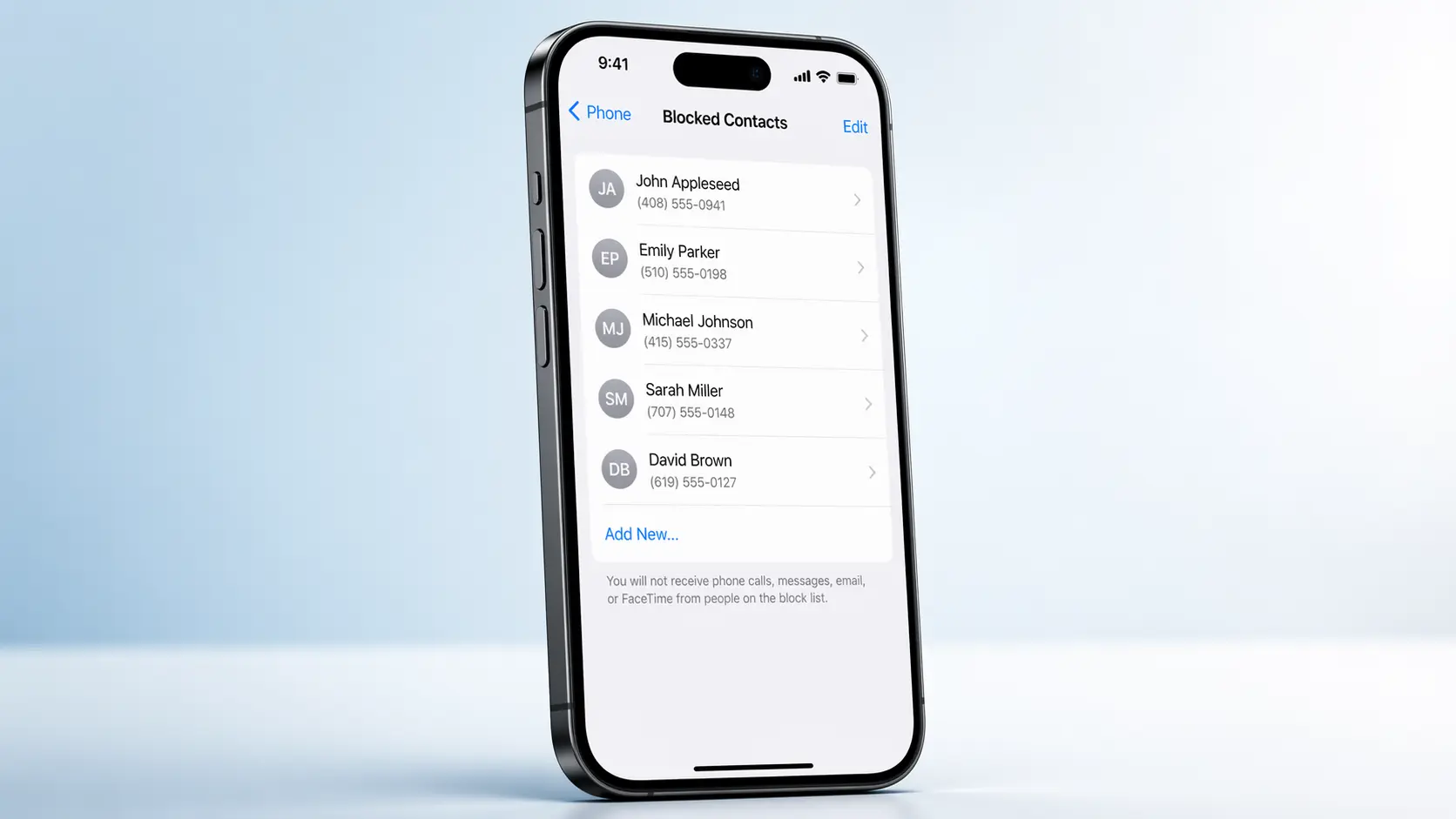
Want to see blocked numbers on iPhone? I’ll show you exactly how to find blocked numbers on iPhone and view them all in one place. Open Settings, scroll all the way to the bottom, tap Apps, then select Phone and finally tap Blocked Contacts. That’s your complete blocked numbers list right there.
If you’ve been hunting for this and couldn’t find it, you’re not alone. Apple moved the Phone settings in iOS 18, which is why the old path stopped working for so many people. In this guide I’ll walk you through how to view blocked numbers using every available method, what actually happens to blocked calls and messages, and how to check voicemails from blocked numbers that most people don’t even know exist.
What Your iPhone Actually Stores in the Blocked List
Your iPhone’s blocked contacts list shows you exactly who you’ve blocked, but it does not keep any history of their attempts to reach you. The blocked list is simply a record of numbers and contacts currently prevented from calling, texting, or making FaceTime calls to you.
Here’s what I want you to understand before you open that list. iOS does not record specific dates or times of when a blocked caller tried to contact you. You won’t see how many times someone called or when they last sent a message. The Blocked Contacts screen is purely a list of names and numbers.
One thing that genuinely surprised me the first time I checked this was that every block you create across all apps ends up in the same place. Whether you block someone through the Phone app, Messages, or FaceTime using phone numbers, contacts, and emails all those entries feed into one single master list. You don’t have three separate blocked lists to manage
How to See Blocked Numbers on iPhone with iOS 18 (The Path Changed Here’s the New Way)
If you’re looking for “Phone” in the main Settings list and not finding it, that’s because Apple moved it in iOS 18. I know how frustrating this is because I spent way too long scrolling through Settings the first time I tried to check blocked numbers iPhone after updating.
If you’re looking for Phone in the main Settings list and not finding it, that’s because Apple moved it in iOS 18. I know how frustrating this is because I spent way too long scrolling through Settings the first time I tried to find my blocked contacts after updating.
The Phone settings are now buried a level deeper than they used to be. Unless you know the new path, you’ll keep missing it. Let me show you exactly where it is now, plus the old path for older iOS versions and a shortcut that works on any iPhone regardless of which software version you’re running.
New Path (iOS 16 and Later): Settings → Apps → Phone
Here’s the step-by-step process for iOS 18 and later:
Open the Settings app on your iPhone.
Scroll all the way to the bottom of the Settings menu.
Tap Apps.
Select Phone from the list of apps. Tap Blocked Contacts.That’s it.
Your full blocked list will appear on the screen.
One thing I noticed is that you cannot access the blocked list directly inside the Phone app. You have to go through Settings first, which feels counterintuitive. But that’s how Apple set it up in the current iOS, and once you know it, you’ll never forget it.
Old Path (iOS 15 and Earlier): Settings → Phone
If you’re still on an older iOS version, the path is much simpler. Open Settings on your iPhone, scroll down until you see Phone, tap it, and then tap Blocked Contacts.
This was the original location, and honestly, I wish Apple had kept it here. It was so much easier to find
The Fastest Shortcut: Search Your Settings
Here’s a trick that works on every iOS version and I wish I had known this sooner the fastest way to find blocked numbers. Open Settings on your iPhone, and at the very top you’ll see a search bar. Type Blocked Contacts into that search bar and tap the result that appears
This skips all the menu hunting and takes you straight to your blocked list in seconds. A Reddit user mentioned this tip and said it took them forever to discover. Now it’s honestly the only method I use because it’s just so much faster than navigating through menus.
Two More Ways to Find the Same Blocked List (Messages and FaceTime)
You can also view blocked numbers on iPhone through Messages and FaceTime settings, and here’s the key thing to know: all three paths lead to the exact same list
There is no separate Messages blocked list or FaceTime blocked list. When you block someone on iPhone, that block applies across Phone, Messages, and FaceTime at the same time. Everything feeds into one single master list in your Settings.
I’m showing you these alternate paths because if you’re already inside Messages or FaceTime settings for another reason, you can jump straight to your blocked contacts from there without navigating back to the main Settings menu
Via Messages Settings
If you want to get to your blocked contacts through Messages settings, here’s how it works on both iOS versions:
On iOS 18 or newer: Open Settings, scroll to the bottom, tap Apps, select Messages, scroll all the way down, and tap Blocked Contacts.
On older iOS versions: Open Settings, find Messages in the main list, tap it, scroll down, and tap Blocked Contacts.
Either way you’ll land on the same complete list of everyone you’ve blocked
Via FaceTime Settings
The FaceTime path works exactly the same way. On iOS 18, go to Settings, scroll to Apps, tap FaceTime, scroll down, and tap Blocked Contacts.
On older iOS versions, go to Settings, tap FaceTime directly from the main list, scroll down, and tap Blocked Contacts.
You’ll see the same list either way. Apple keeps all your blocked contacts in one centralized place regardless of which app you use to get there
The Method Nobody Talks About Find Blocked Contacts Visually in the Contacts App
Here’s a feature I discovered that most people have no idea exists—a visual way to find blocked contacts without opening Settings. Open your Contacts app and look through your contact list. Any blocked contact will show a small red circle with a slash icon right next to their name.
This visual indicator makes it easy to spot who you’ve blocked without digging through Settings at all. You can scan your contacts list and immediately see which names have that red circle next to them. It’s a fast way to check your entire block status at a glance.
You can also unblock someone from this view. Tap on the contact with the red circle icon, scroll to the bottom of their profile, and tap Unblock this Caller. This is genuinely faster than navigating back through Settings when you’re already in your Contacts app
How to Unblock a Number on iPhone (Saved Contacts and Unknown Numbers)
If you want to unblock a number on your iPhone, you have two main options depending on whether the person is saved in your contacts or not. You can either go through the Blocked Contacts list in Settings or search for the person directly in the Contacts app. Both take less than a minute once you know where to look.
One thing worth knowing before the steps: blocking someone on iPhone does not delete them from your Contacts app. Their name and number stay exactly where they were, and that detail matters a lot for the second method below
Unblocking via the Settings Block List
This method works best when the number is not saved in your contacts, like a spam caller you blocked months ago.
Here is how to do it:
- Open the Settings app on your iPhone
- Scroll to the bottom and tap Apps
- Tap Phone
- Tap Blocked Contacts
- Find the number you want to unblock
Once you see the number, swipe left on it and tap Unblock. That is the fastest way to remove blocked numbers. If swiping feels awkward, tap the Edit button in the top right corner instead. Red minus icons will appear next to each entry. Tap the one next to the number you want to remove, confirm by tapping Unblock, then tap Done.
Fair warning about the iPhone block list: it has no search bar and the numbers appear in no logical order. If you have blocked a lot of numbers over time, finding a specific one can take a while. I have seen people mention having over 150 blocked numbers with no quick way to scan through them. If that sounds like your situation, the next method will save you a lot of time
Unblocking a Saved Contact via the Contacts App
If the person you want to unblock is saved in your contacts, skip the Settings block list entirely. This approach is much faster.
Here is what to do:
- Open the Contacts app on your iPhone
- Use the search bar at the top to type the person’s name
- Tap on their contact card
- Scroll down to the bottom of their profile
- Tap Unblock this Caller
That is it. The contact is removed from your block list immediately and they can reach you again through calls, messages, and FaceTime.
The reason this method is so useful is exactly what I mentioned earlier. Blocking someone on iPhone does not remove them from your Contacts app. Their name and number stay in your contacts the whole time. So even if you cannot find their number buried in your iPhone block list, you can still search for them by name in Contacts and unblock them from there. I find this approach far less stressful than scrolling through a long unsorted list.
How to Add a New Number to the Block List
While you are managing your blocked contacts, you might also want to block phone numbers. There are two quick ways to do this.
The first way is from the Blocked Contacts screen itself. Once you are inside that screen in Settings, you will see an Add New option at the top of the list. Tap it and either search for a saved contact or enter a number manually.
The second way is directly from a recent call. Open the Phone app and go to the Recents tab. Find the call from the number you want to block. Tap the small i icon next to that number. Scroll to the bottom of that screen and tap Block this Caller. Confirm by tapping Block Contact. This is the fastest method right after receiving an unwanted call because the number is already right in front of you.
Can You See Messages from Blocked Numbers on iPhone? The Honest Answer
No, you cannot see messages from blocked numbers on your iPhone. When a number is on your blocked contacts list, any message that person sends never reaches your device at all. There is no hidden folder, no secret inbox, and no way to retrieve those messages through the iPhone itself.
I know that is not what most people want to hear, so let me explain exactly what happens so the full picture is clear.
What Actually Happens to Blocked Messages
When someone you have blocked sends you a message, the iPhone stops that message at the software level before it ever reaches your Messages app. The message is never delivered to your device storage, which means there is nothing to view, recover, or uncover.
Here is something that surprises a lot of people: from the sender’s side, the message appears to have been sent. Their iPhone shows it as sent but it never shows as delivered. The sender has no obvious notification that anything went wrong, which is one reason people sometimes wonder if they accidentally blocked someone who seems to have gone quiet.
The bottom line is this: once a number is blocked on an iPhone, every message that person sends during the blocked period is gone. Unblocking them later will not recover those messages. Unblocking only means you start receiving new messages from that point forward.
One Partial Workaround Through Your Carrier
If you specifically need to know whether a blocked number sent you messages and when, there is one option worth trying. Your mobile carrier keeps activity logs on their end, and these records exist independently of what your iPhone stores.
By logging into your carrier account online, whether that is AT&T, Verizon, T-Mobile, or another provider, you can sometimes check your usage history and see a record of incoming text activity. These logs may show the date, time, and phone number of messages that were directed at your number, even for messages your iPhone blocked.
I want to be upfront about one limitation here: what your carrier stores and how long they keep it varies by provider. Some carriers show this detail clearly in their usage logs, while others have more restricted records. If you cannot find the information online, contacting your carrier’s support team directly is worth a try. In some cases they can pull a more detailed activity report on your behalf.
This carrier route is not a way to read the actual content of blocked messages. It is simply a way to confirm whether contact was attempted and when. For most people that is enough to answer the question they actually have.
Can You See Missed Calls from Blocked Numbers on iPhone?
Your iPhone does not keep a log of calls from blocked numbers. When a blocked caller tries to reach you, the iPhone filters that call out silently and never records it in your call history. So if you open your Phone app and check your recent calls, you will only see calls that actually reached your device.
This surprises a lot of people because most assume the calls must be stored somewhere. They are not, at least not on the iPhone itself.
Why the iPhone Does Not Show Blocked Call History
The way iPhone blocking works is that blocked calls are intercepted before the iPhone ever processes them as an incoming call. iOS does not create a timestamp, a missed call entry, or any kind of notification for these attempts. The blocked calls list in your iPhone settings only shows you who is currently blocked, not when that person tried to call you or how many times.
This is simply a design decision Apple made. The Blocked Contacts list is a management screen, not a call log. Many people expect it to function like one and feel frustrated when it does not.
The Only Way to Check Blocked Call Records
Even though your iPhone does not track blocked calls, your mobile carrier does. Every call attempt, including ones your iPhone blocks, still passes through your carrier’s network before being filtered. This means your carrier’s records can show you calls that your iPhone never logged.
To access these records you have two options.
The first option is to log into your carrier account online. Providers like AT&T, Verizon, and T-Mobile all have online portals where you can view your call and data activity. Look for a section called call history, usage details, or activity log. In many cases you will find a record of incoming call attempts, including calls from blocked numbers, with dates and times listed.
The second option is to contact your carrier’s support team directly. If you cannot find the detail you need through the online portal, a customer service representative can often pull a more complete activity report for your account.
I want to set realistic expectations here. Carrier logs show you that a call was attempted from a specific number at a specific time. They do not reveal anything beyond that. But if your main question is whether a blocked number has been trying to reach you and when, your carrier is genuinely the only place to find that answer.
How to Find Voicemails Left by Blocked Numbers
Here is something most people do not know: blocked numbers can still leave you a voicemail on your iPhone. Unlike calls and messages, voicemails from blocked numbers are actually delivered to your device. The catch is that your iPhone stores them separately and never sends you a notification about them.
This is one of the most overlooked details about how iPhone blocking works, and it is genuinely useful to know.
Where Blocked Voicemails Are Stored
When a blocked number leaves a voicemail, the iPhone does not mix that voicemail in with your regular ones. Instead, iPhone stores blocked voicemails in a separate section so your main inbox stays clean.
To find voicemails from blocked numbers, follow these steps:
- Open the Phone app on your iPhone
- Tap the Voicemail tab at the bottom right
- Scroll down past your regular voicemails
- Look for a section labeled Blocked Messages at the bottom of the screen
- Tap any entry there to listen to the voicemail
That section will only appear if a blocked number has actually left a voicemail. If you have never received one, the Blocked Messages section simply will not show up.
What This Means for You
The fact that blocked voicemails are stored separately rather than deleted entirely is actually a thoughtful design choice by Apple. Your iPhone keeps the voicemail accessible without it interrupting your regular experience at all.
One important thing to keep in mind: your iPhone gives you zero notification when a blocked number leaves a voicemail. No banner, no badge count on the Phone app icon, nothing. The only way to know a blocked voicemail is waiting is to check that Blocked Messages section yourself. If you have been wondering whether a blocked number tried to reach you and left a message, this is worth checking.
For more detailed information about how iPhone blocking integrates with other privacy features like Communication Safety and Contact Poster settings, Apple’s official Support website provides comprehensive documentation on blocking calls, messages, and FaceTime requests.
Their guide explains how blocks sync across your Apple devices (iPhone, iPad, and Mac) and clarifies how native iPhone blocking differs from related features like Silence Unknown Callers and Do Not Disturb modes.
If you’ve recently updated to iOS 18 and notice changes to your blocked list or experience syncing issues with iCloud, Apple’s iOS 18 release notes and privacy feature documentation can help troubleshoot those situations. For users managing unwanted calls and spam,
Apple’s official guidelines on reporting spam text messages and phone calls explain how your reports feed into their broader fraud prevention system, working alongside your blocked contacts list.
Understanding these official resources helps you make informed decisions about which blocking method (native iPhone blocking, Silence Unknown Callers, or third-party apps) works best for your specific situation.
iPhone Blocked Numbers vs WhatsApp They Are Not the Same List
If you blocked someone through your iPhone settings, that block does not carry over to WhatsApp. These are two completely separate systems and one has no effect on the other.
Blocking a contact via iPhone settings stops native phone calls, regular SMS and iMessage texts, and FaceTime calls. WhatsApp runs on its own platform and maintains its own independent block list entirely within the app. So if you want to block someone on WhatsApp, you need to do that separately inside WhatsApp itself.
The same is true in reverse. Blocking someone inside WhatsApp does nothing to their ability to call or text you through your regular iPhone dialer or Messages app.
I mention this because it is a genuinely common source of confusion. People block a number in Settings and then wonder why that person is still messaging them on WhatsApp. Now you know why.
To check or manage your WhatsApp blocked numbers on iPhone, open WhatsApp, go to Settings, tap Privacy, and then tap Blocked Contacts. That list is completely separate from anything in your iPhone Settings.
What Silence Unknown Callers Does (and How It Differs from Blocking)
Silence Unknown Callers is a built-in iPhone feature that is worth knowing about, especially if spam calls are your main concern.
When you turn on Silence Unknown Callers in your iPhone settings, calls from numbers that are not saved in your contacts get silenced automatically. Those calls still go to voicemail and appear in your Recents list, but your iPhone never rings for them. Your saved contacts always ring through normally.
This is different from blocking. When you block a specific number, that person cannot reach you through calls, messages, or FaceTime at all. Silence Unknown Callers is a broader filter for all unfamiliar numbers rather than a targeted block on one specific person.
To turn on Silence Unknown Callers, go to Settings, tap Apps, select Phone, and toggle the Silence Unknown Callers switch to on.
“Blocked Contacts” Has Disappeared From My iPhone Here’s Why and How to Fix It
If you’re looking for Phone in the main Settings list and not finding it, that’s because Apple moved it in iOS 18. I know how frustrating this is because I spent way too long scrolling through Settings the first time I tried to find blocked numbers iPhone after updating.
Reason 1: iOS 18 Moved the Phone Settings
This is the most likely cause for most people. Apple moved the Phone settings to a different location starting with iOS 16 and later versions including iOS 18. The old path was Settings and then Phone directly in the main list. That no longer works on newer software.
The correct path on iOS 18 is: open Settings, scroll all the way to the bottom, tap Apps, find Phone in the app list, and then scroll down to Blocked Contacts.
If you updated your iPhone recently and suddenly cannot find the option, this change is almost certainly the reason.
Reason 2: No SIM or eSIM Is Installed
The Phone section in iPhone settings is tied to your cellular connection. If your iPhone does not have a SIM card or an active eSIM installed, the Phone menu may look different or certain options including Blocked Contacts may not appear at all.
If you recently switched carriers, received a new device, or are using a Wi-Fi only setup, check whether your SIM is properly installed or your eSIM is active. Once your iPhone has a valid cellular connection, the full Phone settings should appear normally.
Reason 3: Your iOS Version Needs an Update
In rare cases, running a very old iOS version can cause settings menus to display incorrectly or hide options that should be there. Updating usually fixes it.
To check for an update, open Settings, tap General, and then tap Software Update. If an update is available, install it and then look for Blocked Contacts again
The Universal Fix That Works Every Time
Regardless of which reason applies to you, there is one shortcut that bypasses all the navigation confusion entirely. Open the Settings app and use the search bar at the very top of the screen. Type Blocked Contacts and the option will appear directly in the search results. Tap it and you are there instantly.
I find this search bar method to be the most reliable approach on any iPhone running any iOS version. If you are ever unsure where Apple has moved a setting, the search bar is always the fastest way to find it.
Frequently Asked Questions
Does the iPhone blocked list show numbers that aren’t saved in my contacts?
Yes, your iPhone blocked list shows all blocked numbers whether they are saved in your contacts or not. Apple labels everything as “Contacts” in the interface even when the entry is just a raw phone number with no name attached. Unknown numbers that are not saved anywhere appear in a separate section within the Blocked Contacts screen.
Can I search my blocked list for a specific number?
No, the iPhone Blocked Contacts list has no search function and the numbers appear in no particular order. If you have a long list, use the Settings app search bar and type Blocked Contacts to navigate there quickly, then scroll manually. For saved contacts, searching by name in the Contacts app is the fastest way to find and manage a specific person.
Does blocking someone on iPhone also block them on WhatsApp?
No, iPhone blocking and WhatsApp blocking are completely separate systems with no connection to each other. Blocking a number through iPhone Settings only stops native phone calls, iMessages, and FaceTime. To block someone on WhatsApp you need to do it separately inside the WhatsApp app itself.
Do blocked callers know they have been blocked?
Apple does not send any notification to a person when they are blocked. Their calls are quietly sent to voicemail and their messages appear as sent on their end but never show as delivered. They may eventually suspect something but iOS gives them no direct confirmation they have been blocked.
If I unblock someone, will I get the messages they sent while they were blocked?
No, messages sent while a number is blocked are permanently gone from your iPhone. Those messages were stopped at the network level before ever reaching your device, so unblocking only allows future messages to arrive going forward. Your mobile carrier’s usage logs may show that messages were sent but will not contain the actual message content.
How do you find out blocked numbers on iPhone?
To find out blocked numbers on iPhone, open Settings, scroll to the bottom and tap Apps, select Phone, then tap Blocked Contacts. This shows your complete blocked list. For a faster route, use the Settings search bar and type ‘Blocked Contacts’ to jump directly to the list without navigating through menus.