What Does It Mean When Google Deletes Apps From the Play Store?
You wake up, search for an app you’ve used for years, and suddenly it’s gone from the Google Play Store. Your heart sinks. Does this mean the app vanishes from your phone too? Will you lose access to everything you paid for?
I’ve seen this panic happen to countless Android users and the confusion is completely understandable because Google’s app deletion process isn’t something most people think about until it happens to them.
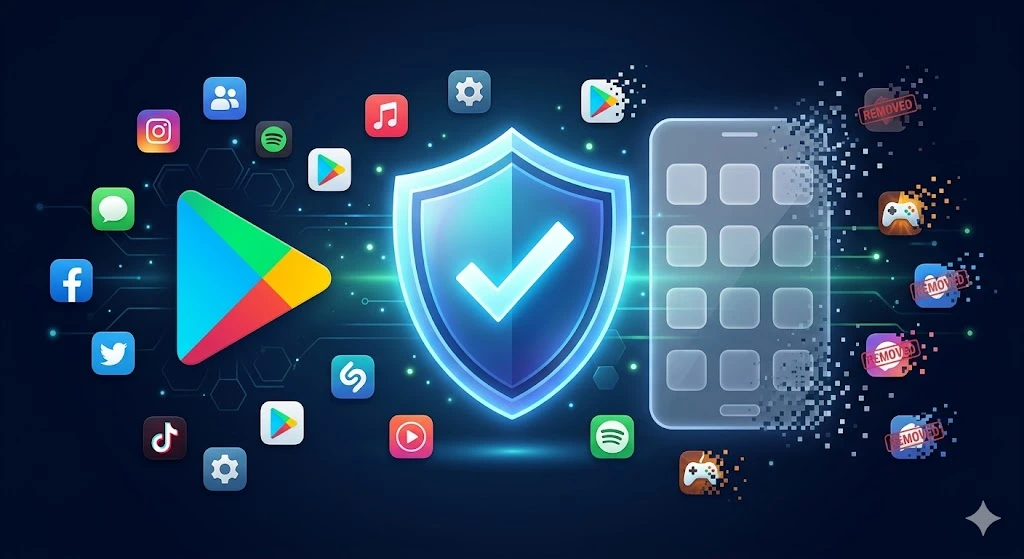
Let me clear this up right away: when Google deletes an app from the Play Store, it does not automatically disappear from your phone. That’s the most important thing to understand first.
Here’s What Actually Happens
Google Play Store app removal happens when the app gets pulled from the store’s public listings. Once an app is removed this way, new users can no longer search for it, find it in categories, or download it for the first time.
The app essentially becomes invisible on the platform. Think of it like a bookstore taking a title off the shelves people walking in won’t find it anymore, but if you already own a copy at home, you keep it.
The distinction matters because it affects you differently depending on whether the app is already on your device.
If you installed the app before Google removed it from the Play Store, that copy of previously installed apps stays on your phone, functioning just as it did before. You can still use it, open it, and access your data within it.
However, you won’t receive updates anymore because the app no longer exists in the store’s update system.
You can still use it, open it, and access your data within it. However, you won’t receive updates anymore because the app no longer exists in the store’s update system.
Why Google Does This
Google maintains standards for every app on its platform through the Google Play Developer Program Policy.
When an app violates these standards whether through malicious behavior, policy violations, security issues, or deceptive practices Google LLC takes action to protect its users.
These removals aren’t random or sudden from Google’s perspective; they’re part of an ongoing enforcement process that happens constantly across millions of apps.
What makes it seem sudden to users is that sometimes Google conducts large-scale enforcement waves. You might hear about a “Google Play purge” or a “Google app crackdown” when hundreds or thousands of apps get removed at once, usually due to a specific violation pattern like ad fraud or outdated code.
These mass removal events grab headlines and create the impression that something dramatic just happened, even though Google removes apps regularly throughout the year
What You Should Know Right Now
Your existing apps stay safe. The apps currently installed on your Android device won’t be deleted from your phone just because Google removes them from the Play Store.
You maintain full access to the app, your data within it and any features it offers at least for now. The real consequence comes later, when the app can’t update and gradually becomes less compatible with newer versions of Android.
If you’re worried about a specific app or wondering whether an app you use has been affected by a recent removal, don’t worry.
The rest of this guide walks you through exactly how to check, what it means for your subscriptions and purchases and what your options are if you need to find an alternative.
The Real Reasons Google Removes Apps From the Play Store
Google doesn’t wake up one day and decide to delete random apps just to cause chaos. Every removal has a reason, and understanding why Google LLC takes these actions helps you make sense of whether your favorite app might be at risk.
I’ve researched the enforcement patterns behind hundreds of Play Store removals, and the reasons fall into five clear categories that Google enforces consistently.
Google removes apps when they violate the Google Play Developer Program Policy or pose a genuine threat to user safety and data.
These aren’t arbitrary decisions they’re systematic enforcement actions driven by documented policy violations and security concerns.
Let me walk you through each reason so you understand what actually triggers a removal
Let me walk you through each reason so you understand what actually triggers a removal.
Play Store Policy Violations The Most Common Removal Reason
This is the biggest category by far. The Google Play Developer Program Policy is essentially Google’s rulebook for apps on the platform, and when developers break the rules their apps get removed due to Play Store policy violations.
What kinds of violations am I talking about? Misleading advertisements top the list. If an app promises one thing but delivers something else, or if it uses dark patterns to trick users into actions they didn’t intend, Google flags it as deceptive apps.
I’ve seen apps removed because they advertised as “free” but then demanded payment immediately upon opening, or apps that used click-bait notification tactics to drive engagement.
Unnecessary permissions are another common violation. When an app requests access to your contacts, location, or camera but has no legitimate reason to need that data, it raises red flags. An app that asks for SMS access
when it’s just a note-taking tool? That’s a violation. Google’s enforcement here protects users from apps that are fishing for data they shouldn’t have.
Impersonation and misleading branding create problems too. If an app pretends to be a legitimate service like your bank or a popular social media platform when it isn’t, Google removes it quickly.
The stakes are high because these dangerous apps often steal credentials or money from confused users.
Malware, Spyware and Security Threats
Here’s where things get serious. Google Play Protect is an automated scanning system that constantly analyzes apps for malicious code.
When Play Protect detects malware or spyware in an app, Google removes it immediately to protect the millions of users on the platform.
The tricky part about dangerous apps Android is they often look completely legitimate on the surface. I’ve seen beautiful, well-designed apps that functioned normally but secretly collected banking information in the background.
Others harvested contacts without permission or installed additional software that couldn’t be removed easily. These threats aren’t obvious until security researchers dig into the code.
When Google performs a Google Play security update focused on malware threats, entire categories of malware apps removed from the platform can disappear at once.
This happens when security researchers discover a new attack vector and Google discovers hundreds of apps exploiting it. The removal is preventative Google acts before widespread damage occurs.
The difference between a policy violation and a security threat is intent and danger. A policy violation might be a careless mistake or a gray area in the rules.
A malware threat involving spyware Android is intentionally harmful code designed to compromise user security.
Ad Fraud The Reason Behind the Biggest Purges
Ad fraud might sound like a technical term, but it’s simple: apps generate fake clicks or impressions on advertisements to make money fraudulently. Here’s how it works. An app developer can earn money when ads get clicked or displayed inside their app.
To maximize earnings, some developers create fake click patterns or invisible ad clicks that generate revenue without any real user actually seeing or interacting with the ad.
From 2024 into 2025, Google conducted massive enforcement waves targeting ad fraud, and hundreds of apps disappeared in single sweeps. These weren’t small indie apps either some well known applications with millions of downloads were caught and removed.
The scale of these removal events is why you might hear about a “Google Play purge” or “Google app crackdown” in the news.
Ad fraud hurts advertisers, who pay for legitimate clicks that never happened. It undermines the entire mobile advertising ecosystem.
When Google discovers networks of apps committing ad fraud, it removes them all at once, which creates the impression that something dramatic happened overnight. In reality, Google was conducting routine enforcement that finally caught up with the violators.
The reason these purges affect so many apps at once is that fraudsters often use the same deceptive techniques or tools. Once Google identifies the pattern, it can scan millions of apps and remove every one using that same technique in a coordinated wave.
Outdated Apps That No Longer Meet Google’s Standards
Google regularly updates its technical requirements for apps on the platform. The most significant requirement is the target API level, which essentially means the app needs to support recent versions of Android.
If an app was built for Android 9 years ago and never updated, outdated apps Play Store gradually fall below Google’s minimum standards.
Unlike policy violations or security threats, apps removed from Android due to technical reasons aren’t being punished for wrongdoing.
The developer simply abandoned the app and never maintained it. Google removes these apps because they create compatibility problems for users and risk security vulnerabilities accumulating over time.
When a developer doesn’t update an app for years, it can’t access modern Android features, it loses compatibility with newer phones, and security patches never get applied.
From Google’s perspective, keeping broken outdated apps on the Play Store provides a poor user experience and potential risk.
App suspension for technical inadequacy is different from permanent removal initially. Google sometimes gives developers a warning period to update their apps to meet current standards. Only if they ignore the warning does Google move to removal..
Privacy Policy Violations and User Data Mishandling
Every app that collects any personal data must have a legitimate privacy policy explaining how that data gets used.
This is a non-negotiable requirement under the Google Play Developer Program Policies, and privacy policy violation app removals enforce this standard strictly.
I’ve seen thousands of small utility apps get removed in enforcement waves simply because they had no privacy policy or a fraudulent one.
A calculator app that’s harmless but collects location data and has no privacy policy explaining why? That’s a violation. A flashlight app that gathers user contact information without disclosure? That’s also a violation.
The user data policy exists to protect your privacy. Google enforces it because users deserve to know what happens to their information.
When developers handle personal data without transparency, Google removes the app regardless of whether the app is otherwise functional or well-designed.
During enforcement periods focused on privacy, Google sometimes removes hundreds of apps that have been on the store for years.
These aren’t always malicious apps many are just old apps from developers who didn’t stay current with Google’s evolving privacy requirements
How Google Actually Finds and Removes These Apps
Google doesn’t have a team of people manually reviewing every single app on the Play Store every single day.
That would be impossible with millions of apps constantly being uploaded. Instead, Google uses a combination of automated systems, user reports and targeted manual reviews to identify apps that violate policies or pose security risks.
Understanding how this enforcement actually works gives you insight into why removals can seem random when they’re actually part of a systematic process.
Google uses Play Protect, an automated security scanning system, to continuously analyze apps for violations and threats.
When an app triggers alerts in this system, Google flags it for further investigation or immediate removal depending on the severity.
Let me break down how this enforcement machinery actually operates.
Automated Detection with Play Protect
Play Protect is the backbone of Google’s enforcement system. This automated scanner constantly monitors every app on the Play Store, checking for malware signatures, policy violations, suspicious code patterns and deceptive behaviors.
The system runs in the background continuously, not just once when an app launches. To learn more about how Play Protect works and what it scans for, you Google’s official Play Protect documentation which explains the complete security scanning process in detail.
What makes Play Protect effective is that it learns. When security researchers discover a new type of malicious code or fraud technique, Google updates Play Protect’s detection rules through a Google Play security update.
The system then scans millions of existing apps against this new knowledge to enforce the app store removal policy.
This is why you sometimes see massive removal waves happen suddenly Play Protect just discovered a new threat pattern and is systematically removing every app using that same malicious technique.
The scanning happens at multiple levels. When a developer uploads an app to the Play Store, Play Protect analyzes it before it goes live.
If you install an app and it starts exhibiting suspicious behavior, Play Protect can detect that too. Google even scans apps already installed on your Android device,
which is why you might get a notification that an app on your phone has been flagged as potentially harmful.
User Reports and Community Flagging
Beyond automated systems, millions of users help police the Play Store by reporting suspicious apps. When you find an app that seems fraudulent, has inappropriate content, or behaves unexpectedly, you can report it directly to Google.
A single report doesn’t remove an app, but patterns of reports get investigated by Google’s security team.
I’ve seen apps removed surprisingly quickly when enough users report the same issue. If an app developer suddenly changes the app’s behavior after an update to do something users didn’t agree to, multiple reports come in fast.
Google’s team reviews these patterns and takes action. This crowdsourced feedback works as an early warning system that catches problems automated scanning might miss..
Manual Review and Developer Status Tracking
When an app gets flagged by Play Protect or accumulates user complaints, Google’s human reviewers examine it closely.
These specialists understand developer tactics and can spot sophisticated violations that automated systems might miss.
They check whether claims in the app description match reality, whether permissions align with functionality, and whether the app follows Google’s developer policies.
Here’s where the enforcement becomes systematic and documented. In the Google Play Developer Console, when Google takes action against an app, the app’s production status changes from “Active” to “Inactive.”
This status change isn’t random or temporary it’s a documented record that Google’s enforcement system has taken that specific action.
The developer can see exactly when the change happened and what policy violation triggered it. This creates accountability and a clear audit trail that proves enforcement isn’t arbitrary.
When a developer repeatedly violates policies, their account status changes too, potentially leading to developer account suspension.
Google tracks developer behavior over time, and repeated violations can result in app suspension or even complete developer account suspension.
This systematic tracking means Google isn’t just removing individual apps in isolation it’s monitoring which developers keep breaking the rules and taking escalating action.
Google Play Security Updates and Enforcement Waves
Occasionally Google announces a Google Play security update focused on a specific threat category.
During these enforcement actions, the company identifies all apps matching a particular violation pattern and removes them in a coordinated wave. This is what creates headlines about “hundreds of apps removed” in a Google Play purge happening overnight.
These aren’t random purges they’re the result of Google’s security research team discovering a widespread problem, updating detection systems to find all instances, and then executing coordinated removal.
From a user perspective, it looks sudden because the news hits at once, but from Google’s perspective it was a planned enforcement operation.
The system works because it’s layered. Automated Play Protect catches most violations immediately. User reports identify edge cases automated systems miss. Manual review handles sophisticated violations.
Status tracking creates accountability and historical records. Together, these mechanisms mean app removal on the Play Store isn’t haphazard it’s a coordinated, documented and systematic process designed to protect users while giving developers opportunities to comply or appeal.
Does Google Deleting an App Remove It From Your Phone Too?
This is the question that keeps people up at night. When they hear that Google deleted an app from the Play Store, the immediate fear is that everything disappears the app vanishes from their phone, their data gets wiped out and they lose access to whatever they paid for.
The good news is that’s not how it works, but the situation is a bit more nuanced than a simple yes or no answer.
When Google deletes an app from the Play Store, the app stays on your phone if you already installed it, but you stop receiving updates and the app becomes riskier over time. Your installed copy doesn’t magically vanish, but its long term viability starts to decline.
Let me explain what actually happens and why it matters for you.
Your Installed App Stays But Here’s the Catch
The first relief: your app doesn’t disappear from your device. If you have a removed app installed on your phone right now, it continues to work exactly as it did before Google took it off the store. You can open it, use all its features, and access your data within the app.
This applies whether you paid for the app or downloaded it free removal from the Play Store doesn’t trigger automatic uninstallation.
The problem appears later. When Google removes an app from the Play Store, that app stops receiving updates. No bug fixes.
No security patches. No new features. The app is frozen in time at whatever version you have installed. This matters because security vulnerabilities discovered after removal never get patched in your copy.
Think of it like owning a house. When Google deletes the app from the Play Store, it’s like the construction company stops maintaining the house.
The house still stands and you can live in it, but the roof isn’t getting repaired and the locks aren’t getting upgraded.
Eventually, small problems compound. A vulnerability discovered months or years later won’t be fixed because the developer has moved on and the app no longer receives updates from Google’s infrastructure.
An app still works after removal from the Play Store, but without updates its security and compatibility gradually deteriorate.
Over time, newer versions of Android might introduce features or requirements that previously installed apps can’t handle.
You might experience crashes, performance issues, or compatibility problems with newer devices.
The timeline varies depending on the app. Some removed apps remain functional for years. Others become incompatible within months as Android evolves.
The older the app at the time of removal, the faster problems typically emerge. An app last updated two years before removal is more vulnerable than an app updated just weeks before
What Happens to Your Active Subscription
If you were paying a monthly subscription through an app that got removed, here’s the reassuring part: your subscription doesn’t automatically cancel.
The billing relationship continues through Google Play, not through the app itself. You keep getting charged at your normal billing cycle until you manually cancel the subscription.
This is important to understand because it protects you in a way. Google doesn’t want app removal to turn into a situation where people get surprised cancellations.
However, it also means you need to be proactive about managing or canceling subscriptions for removed apps.
To manage your Google Play billing subscription after an app removal, you need to access it through your Google Play account rather than the app itself, since the app is no longer on the store.
Go to your Google Play account settings, find the subscription section, and look for the app in your active subscriptions list.
From there, you can cancel, pause, or modify the subscription just like normal. The fact that the app no longer exists on the Play Store doesn’t change your ability to manage the subscription.
One important point: if you relied on the app itself to manage your subscription or cancel it, you’ve lost that option.
But you still have full control through your Play account settings, so losing the app doesn’t trap you in an unwanted subscription
Can You Get a Refund for a Removed App?
The refund situation depends on when the app was removed and what you paid for. Google Play’s general refund policy allows you to request a refund within 48 hours of purchase for apps, games, and in app purchases.
If more than 48 hours have passed since your purchase, you’re generally outside the standard refund window.
However, if Google removed an app that you purchased, you have a stronger case for requesting an app refund Google Play even after 48 hours. The logic is simple: you paid for a product that Google no longer provides.
You can request a refund through your Google Play order history by finding the purchase and selecting “Report a problem.”
For subscriptions, the situation is slightly more complicated. Google handles subscription refunds on a case by case basis. If you’ve been charged for a subscription to an app that was just removed, you can request a refund for recent charges.
However, if months have passed and you didn’t cancel a subscription to a removed app, Google is less likely to refund the full accumulated charges. Your best case is getting a refund for the current billing period.
When you request a refund, be clear about why you’re requesting it. “This app was removed from the Play Store and no longer receives updates” is a legitimate reason that Google’s support team understands.
While not every refund request is approved, a straightforward explanation of the situation improves your chances. Sometimes it takes a few attempts or communication with Google Play support to get a decision.
The bottom line: apps stay on your phone, subscriptions continue billing unless you cancel, and refunds are possible but depend on timing and the specific circumstances of your purchase.
How to Check Your Google Play History for Removed Apps (Step by Step)
If you’re wondering whether an app you loved actually got removed by Google or just disappeared from your device, there’s a way to check.
Your Google Play account keeps a complete history of every app you’ve ever downloaded, and you can access that uninstalled apps history Play Store anytime. I’ll walk you through exactly how to find it and what you’ll see when you get there.
Your Google Play app history shows every app you’ve ever downloaded across all your Android devices, not just your current phone.
This is a crucial detail many people don’t realize, and it changes how you understand your app history
How to Find Every App You’ve Ever Downloaded
Finding your complete app history takes just a few steps, and the process is the same whether you’re using a recent Android phone or an older device.
First, open the Google Play Store app on your Android device. At the top right corner, tap your profile icon—this is usually your initial or profile picture.
From the menu that appears, select “Manage apps & device.”
Next, look for the “Manage” tab at the top of the screen and tap it. You’ll see a list of apps currently installed on your device.
Here’s where it gets interesting: look for a button or option that says either “Installed” or “This device.” Tap that button to reveal a dropdown menu or filter options.
In that menu, select “Not installed.” This is the magic filter that shows you everything. Once you tap it, Google Play displays every single app you’ve ever downloaded on your Google account, including apps you’ve uninstalled apps that were removed by Google, and apps from any of your other Android devices.
This cross device visibility surprises most people the list includes apps from old phones you haven’t used in years.
Scroll through this list and you’ll see apps you completely forgot about. Some will have a small “Install” button next to them, meaning they’re still available on the Play Store.
Others won’t have any button at all, or they might show as unavailable, which indicates Google removed them from the store.
If the app appears in your “Not installed” history but has no install button, that’s a strong signal Google deleted it.
How to Clean Up Your App History in Bulk
Once you’re viewing your “Not installed” apps, you can remove entries you no longer want cluttering your history. Google Play lets you select multiple apps at once using checkboxes next to each app name.
Tap the checkbox next to the apps you want to remove from your history, then look for a trash can icon or delete button. Tap it to remove those apps from your account history.
Here’s an important warning: if any of those apps are still actually installed on your current device, Google Play will uninstall the app first before clearing the history entry.
Make sure you’ve already uninstalled any apps you want to remove from history; otherwise, you’ll accidentally uninstall an app you meant to keep
How to Get a Removed App Back on Your Android Phone
Lost an app you loved? The good news is that you might be able to get it back, depending on whether Google completely removed it from the store or just from your device. The process is straightforward, and I’ll show you exactly how to attempt restoration and what to expect along the way.
If an app was removed from the Play Store but you previously installed it, you can often reinstall it from your account history using the “Not installed” filter. Not every removed app can be restored this way, but many can, and it’s always worth checking.
The Restoration Process
Start by opening the Google Play Store and navigating to your profile icon in the top right corner. Select “Manage apps & device,” then tap the “Manage” tab.
Look for the button showing “Installed” or “This device” and tap it to reveal the filter menu. Select “Not installed” to see your complete app history.
Find the app you want to replace deleted app Android in this list. If the app still appears here with an “Install” button or arrow next to its name, you’re in luck.
That button means the app is still available on the Play Store, just not currently on your phone. Tap the install button to begin the restoration process.
When you tap install, the app will show a “Pending” status as it downloads and installs. This is completely normal and doesn’t mean anything went wrong.
The pending status simply means Google Play is processing the download in the background. You’ll see this for several seconds to a few minutes depending on the app size and your internet connection. Don’t close the Play Store or interrupt the process during this time.
Once the installation completes, the app will automatically appear on your home screen or in your app drawer.
You can open it immediately and access all your previous data within the app. Your account credentials and any saved preferences should remain intact since the app data was never deleted from your device
When an App Can’t Be Restored
Here’s the important distinction: if Google completely delisted an app from the Play Store, it will still appear in your “Not installed” history, but there won’t be an install button next to it. This means the app is no longer available for download through any official means.
If an app no longer has an install button in your account history, Google has fully removed it from the Play Store and you cannot reinstall it through normal means.
This happens to apps removed for serious violations like malware, fraud, or severe policy breaches.
In this situation, your only option is finding an alternative app after Play Store removal that serves the same purpose. Look for similar apps on the Play Store that offer comparable features.
Many removed apps have legitimate replacements available, often from different developers or updated versions from the original developer if they fixed the violation.
The key takeaway is that not every removed app is gone forever. If it still appears installable in your history, restoration takes just a few taps.
But if it’s completely delisted, moving to an alternative is your best path forward.
Should You Sideload the APK? Read This First
When your favorite app disappears because Google deletes apps from Play Store, the temptation is strong. You search online for the APK file the installation package hoping to get the app back without waiting for Google to restore it.
I understand the impulse, but I need to be direct with you: APK sideloading from unofficial sources is risky, especially for apps that Google removed in the first place.
Sideloading an APK means installing an app directly from a file outside the Google Play Store, bypassing Google’s security checks entirely. When you do this, you lose all the protection that the official platform provides.
Why Sideloading Removed Apps Is Dangerous
Here’s the critical issue: if Google deletes apps from Play Store, there’s usually a reason. Apps get removed for malware, fraud, privacy violations, or deceptive behavior.
The app you’re trying to sideload might have been removed specifically because it contained malicious code or was stealing user data.
Just because it worked fine on your phone before doesn’t mean the code is safe it might have been secretly harmful the entire time.
When you download an APK from a third-party website, you’re trusting that site to provide a legitimate copy. Many APK download sites repackage apps with malware added to them.
They inject code that steals passwords, harvests contacts, or displays unwanted advertisements. Some websites pose as legitimate sources but are actually designed to distribute compromised versions of popular apps.
Play Protect, Google’s security system, continuously scans apps on the Play Store for threats and malicious code, but this protection does not extend to sideloaded apps.
Once you install an APK directly, Google’s scanning system no longer monitors what that app does. Any malicious behavior happens on your device without detection.
This matters because your phone stores sensitive information: banking credentials, personal messages, photos, location data, and more.
An infected app with dangerous apps Android can access all of this depending on the permissions you grant during installation
The Safe Alternative
If you absolutely need to replace deleted app Android, contact the original developer directly. Check their official website to see if they offer the app through an alternative distribution method.
Some developers maintain their own websites where you can download apps securely. This bypasses unofficial APK sites and gives you a version directly from the source.
Better yet, find a legitimate alternative app after Play Store removal on the Google Play Store that serves the same purpose.
Search for apps with similar features from reputable developers. Read reviews, check the developer’s history, and verify the app has regular updates. A newer alternative from the Play Store is infinitely safer than a sideloaded APK.
The app marketplace integrity depends on users choosing security over convenience. When Google deletes apps from Play Store, that removal is protecting you, even if it feels frustrating in the moment.
Respect that protection by avoiding sideloaded versions of removed apps. Your device security is worth the inconvenience of finding a legitimate alternative.
Can You Actually Remove Google Play Store From Your Phone?
A lot of people ask me this question, and I can understand why. You get frustrated with the Google Play Store, or maybe you want to simplify your phone, so you go to Settings looking for an uninstall button.
You find the app, tap it and expect to see the same removal option you see for other apps. But it’s not there. You can only disable it, not uninstall it completely. That’s not a glitch or a limitation of your specific phone it’s by design, and there’s a good reason why.
You cannot completely uninstall Google Play Store from your Android phone because it’s a system app, not a regular downloadable app.
System apps are built into Android’s core functionality and are protected from full removal to keep your device stable.
Understanding System Apps
Think of system apps like the foundation of a house. Regular apps are like furniture you can move in and out freely. But system apps are structural removing them can break things.
Google Play Store is deeply integrated into how Android manages apps, downloads, and security updates. If you could completely uninstall it, your phone might not function properly.
What you can do instead is disable the Google Play Store. When you disable it, the app disappears from your app drawer and stops running in the background. From a user perspective, it’s almost like removing it. However, the app files remain on your device as part of the system, which protects your Android installation from becoming corrupted.
How to Disable Google Play Store Properly
If you want to disable the app, start in your phone’s Settings and navigate to Apps or Application Manager. Find Google Play Store in the list. Before you tap the disable button, do this important step first: tap “Storage,” then select “Clear Cache” and “Clear Data.”
This prevents corrupted data from causing problems after you disable the app, protecting your app store removal policy and system integrity.
After clearing cache and data, return to the app info page and tap the Disable button. Your phone will show a warning message asking you to confirm the action. Tap “Disable” again to proceed. The Google Play Store will immediately disappear from your app drawer and stop running on your device.
This preliminary step of clearing cache and data is crucial and often overlooked by users who rush through the process.
If you change your mind later, you can re enable Google Play Store through the same Settings menu by finding the disabled app and tapping “Enable.”
The app will reactivate immediately and function normally. Your device won’t have suffered any damage from the temporary disabling period.
How Developers Remove Their Own Apps From the Play Store
Not every app disappearance is Google’s doing. Sometimes developers choose to remove their own apps from the Play Store voluntarily. This distinction matters because it changes what the removal means and what options users have. Understanding this developer-side process helps you see the full picture of why apps vanish from the platform.
Developers can unpublish their apps to hide them from new users, or they can permanently delete them from their console entirely, but each action requires meeting specific conditions.
Unpublishing vs Permanently Deleting What’s the Difference?
When a developer unpublishes an app, it disappears from the Play Store’s listings. New users cannot find or download it anymore.
However, anyone who already installed the app before unpublishing keeps full access to it. The app continues working normally on their device.
Permanent deletion is different. This removes the app from the developer’s console entirely. The process requires meeting three strict conditions under the Google Play Developer Program Policies.
The developer must have a good standing account, the app must have zero lifetime installs, and the app must have been unpublished for a minimum of 24 hours before the deletion request can even be submitted.
Unpublishing hides an app from new downloads while keeping it accessible to existing users, whereas permanent deletion removes it from the developer console entirely.
The 3 Conditions for Permanent App Deletion
Google enforces these three requirements to prevent developers from carelessly deleting apps with active users. First, the developer account must be in good standing with no policy violations that would lead to developer account suspension.
Second, the app must have never been installed by any user ever. This restriction means only test apps or apps that were never publicly released can be deleted permanently.
Third, the app must remain unpublished for at least 24 hours before the deletion request is submitted. This waiting period gives developers time to change their minds.
Once you meet all three conditions and submit the deletion form through Google Play Console Help, the process takes approximately one hour to complete.
The most common mistake developers make is submitting a deletion request before the 24-hour unpublish wait expires. Google automatically rejects these requests. Developers must wait the full period before resubmitting
Quick Action Checklist If One of Your Apps Just Disappeared
Your app is gone and you need answers fast. Instead of scrolling back through this entire guide, here’s a quick step-by-step checklist you can follow right now. Work through these actions in order, and you’ll have a clear picture of what happened and what to do next.
Step 1: Check Your Play Store History
Open Google Play Store, tap your profile icon, select “Manage apps & device,” then tap “Manage.” Switch to “Not installed” to see all your downloaded apps. Find the missing app in this list.
Step 2: Verify If the App Still Exists
If your app appears in the “Not installed” list with an install button, it’s still on the Play Store and you can restore it immediately. If there’s no install button next to it, Google has fully removed it—this is why Google deletes apps from Play Store in the first place. The app no longer exists for download.
Step 3: Check If the App Is Still on Your Device
Search your home screen or app drawer for the missing app. If it’s still there, it continues working despite the Play Store removal. You just won’t receive updates anymore.
Step 4: Handle Subscriptions and Refunds
If you were paying for the app, go to your Google Play account settings and find your subscriptions. Cancel any active subscriptions tied to the removed app. For refunds, check your order history and request a refund if eligible.
Step 5: Find a Safe Replacement
Search the Play Store for apps with similar functionality. Read reviews and check the developer’s history before installing. A legitimate alternative is infinitely safer than sideloading an APK.
Step 6: Avoid Unsafe APK Downloads
Never download APK files from third-party websites, especially for apps Google removed. These files often contain malware. Stick to the Play Store or the official developer website.
The key to maintaining app marketplace integrity is making informed choices when Google deletes apps from Play Store. Your device security matters more than getting one specific app back.
If Google deletes an app from the Play Store, will it disappear from my phone too?
No, your installed apps stay on your device even after Google removes them from the Play Store. The app continues working normally, but you won’t receive updates anymore, which means it gradually becomes less secure and may develop compatibility issues over time as Android evolves.
Why did Google suddenly remove hundreds of apps at once?
Mass removals happen when Google discovers a widespread violation pattern, like ad fraud or outdated code affecting hundreds of apps simultaneously.
Google’s Play Protect automated scanning system identifies all apps matching that violation pattern and Google removes them in a coordinated enforcement wave to protect users at scale.
Can I get my money back if an app I paid for gets removed?
Yes, you can request a refund through your Google Play order history by finding the purchase and selecting “Report a problem.” Google approves refunds for removed paid apps more readily than normal refund requests, though subscription refunds are evaluated case by case depending on how long you’ve been charged.
Is it safe to download an APK of an app Google removed?
No, it’s risky because if Google removed the app for malware or fraud, the APK file may contain even more dangerous code. Play Protect doesn’t scan sideloaded APK files,
so malicious code runs undetected on your device only use official developer websites if you absolutely must get the app outside the Play Store.