First Is That White Line Actually a Screen Problem?
I don’t want you to panic about costly repairs, but I need you to do something before you do that which will save you a lot of stress.
Not all the white lines you see on your phone are true and real problems. I’ve run into many times where someone goes to a repair shop and finds that their phone had never been broken or damaged, but they were misled by a repair worker’s promises. Let me explain what you really have.
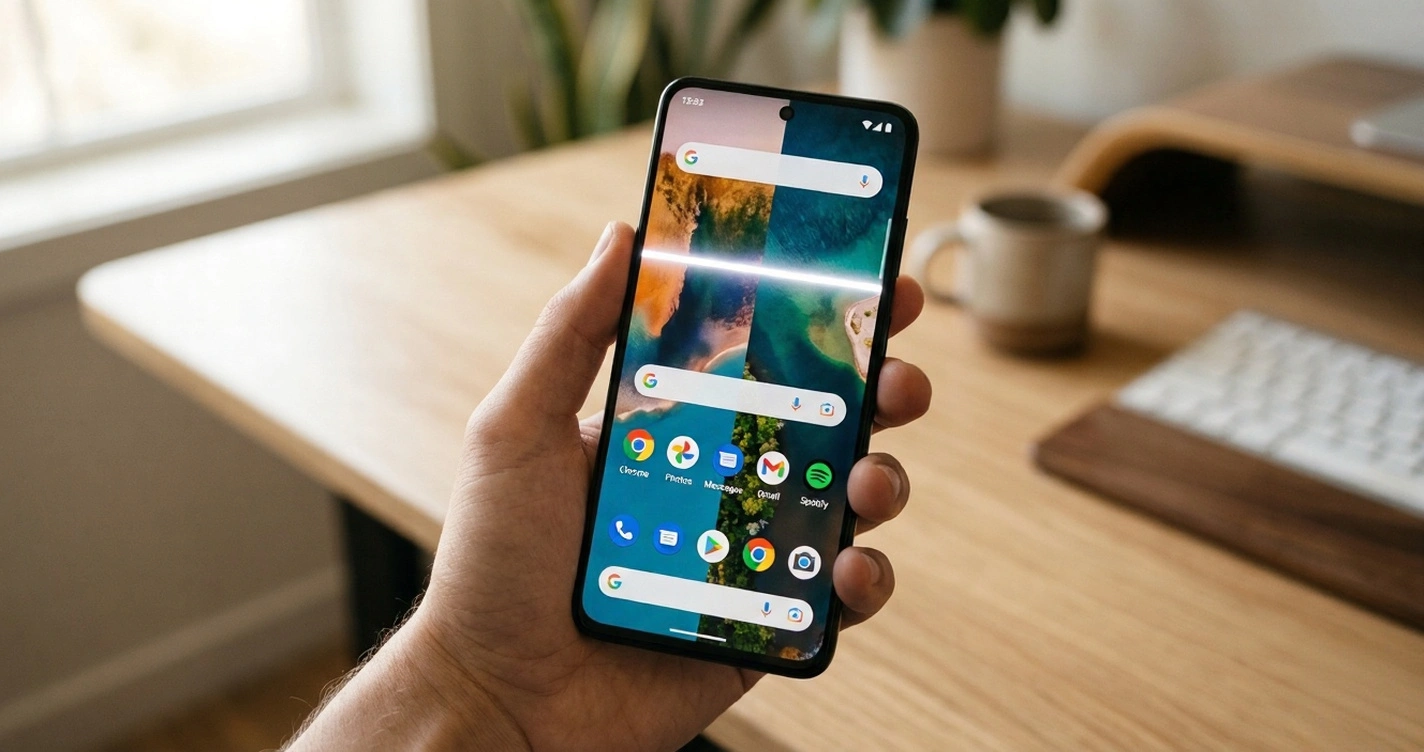
If the White Line Is at the Very Bottom of Your Android Screen
A thing that surprises many Android users when they realize that their phones have an issue with their display.
If you see a thin white bar on the very bottom of your screen, then it’s most likely not a screen problem. It’s likely only the gesture navigation hint.
This little UI element seems to get people wrong all the time and I know it sounds like a no-brainer, but it does. Android phones have gesture navigation, rather than the 3-button navigation, and this white line is merely a visual reminder to swipe up.
It is supposed to be helpful, but really, it’s just a broken thing. The good news? Can be turned off in approximately 30 seconds. Simply head into Settings > Display > Navigation Bar and find Gesture Hint and turn it off.
The white line is immediately gone. No tools, no repairing, just a quick setting change. Congratulations if it worked, that’s fixed it. You saved yourself a repair cost!
According to Google, this gesture indicator is part of the system UI and can be customized or disabled in settings official Android gesture navigation guide. It’s meant to help you, but honestly, it mostly just looks like something’s broken.
The good news? It can be turned off in about 30 seconds. Simply navigate to Settings > Display > Navigation Bar and turn OFF something called Gesture Hint.
If the line is in a different place on your screen or the line is in motion and flickering, however, then something else is going on. Keep reading
What Do Real White Horizontal Lines Look Like?
The navigation hint works differently on phone screens than real white horizontal lines. The important thing is that I want you to look carefully at what is happening on your screen, so that you can see the details. For the most part,
lines that flicker on the screen are on the middle or upper part of the screen, not at the bottom. These may turn on and off, particularly when you change the brightness or open some apps. Some people only see one bright line that remains stationary.
Others see several thin lines on top of each other resembling static interference. Here’s what I have found out through personal experience and from others that are experiencing the same challenges. If your lines that were white are flickering or changing in brightness,
or appearing and disappearing randomly, that usually points to a software glitch or a loose internal connection. If you’re seeing bright glowing spots instead of lines, that’s a different but related display issue that requires different troubleshooting steps. White lines and bright spots can sometimes appear together when your display panel has multiple types of damage
If the line remains in the same position at all times, and does not move, it’s likely a hardware issue with dead pixels or a damaged screen panel.
Other horizontal line across screen problems can also manifest as faint white lines that you’ll notice on some backgrounds but not others.
They may be completely invisible in dark mode, However, they are clearly visible on white or bright screens.
Pulsing and flickering lines occur in synchrony with the screen refresh rates for some lines. Others simply remain stuck there, as if a scar would be sewn across your screen. The black and white lines on the phone screens are somewhat different from true white lines.
When you see both white and black lines or when the lines are grayish, the issue is likely more severe, and the problem will likely need to be repaired.
If the lines are pure white, it is likely they are caused by backlight bleeding or failure of the pixel column. Dead Pixel rows or connector problems are marked by black lines.
I have one more thing to double check. Compare what you’re seeing to vertical lines on phone screen problems. The vertical lines go up and down.
Horizontal lines are across the screen, from left to right. I say that as I have heard people get the names of the two confused and there can be very different reasons. Vertical lines can be caused by damage to the digitizer or touch layer.
Typical horizontal lines will be found to run back to LCD panel itself or back to the display driver electronics. If you are experiencing this with your lines being flickering, moving around or only appearing occasionally, you have a real possibility of fixing this yourself for free!
If the line doesn’t move, fade or go off the screen, however, that could be a hardware issue or it could be a software glitch. Nonsense, I’m going to tell you what to do next.
What Actually Causes White Horizontal Lines on Phone Screens
White horizontal lines on phone screens happen for two main reasons: hardware damage to the display panel itself or software glitches affecting how your phone renders the image. I’m going to break down both so you understand exactly what’s going on with your screen.
Understanding what causes horizontal lines on phone screen is essential because it helps you figure out whether you’re looking at a quick software fix or a trip to the repair shop. Let me walk you through the most common culprits I’ve seen
Hardware Causes (Physical and Internal)
The bit that most people don’t expect. Screen damage doesn’t have to result from a dramatic fall of your phone. I’ve spoken to dozens of users who say they have never dropped their device, but are looking at a bright white line running across the screen.
OLED screen lines and LCD damage lines can occur for reasons you would never imagine. A tremendous physical pressure is one.
Regularly sitting down while keeping the cell phone in the back pocket may cause the display panel to be stressed over time.
The screen is only slightly curved with the body and eventually, the internal parts begin to fail. It’s not uncommon for a manufacturing defect to occur as much as companies would like to think. OLED displays are more likely to have a manufacturing defect that is noticeable as a bright horizontal bar.
The problem may not occur for weeks or even months after purchasing and then suddenly emerge one day for some reason. It’s not your fault. Just poor quality control!
The problem with loose display connector is it occurs when the ribbon cable that connects the LCD screen to the logic board of the phone is moved or loosened.
This might be caused by small impacts that you can’t even recall or just from the phone flexing in your pocket over time. If the display connector is not properly seated, you will experience a variety of display problems, such as white lines.
Another hidden cause is water damaged phone screen lines. It is not necessary to drop the cell phone into a pool in order for it to be water damaged.
Moisture can penetrate the phone from any where it’s stored, including from the humidity in the air, steam from a hot shower, or water from your gym bag.
Corrosion begins when moisture is present in the display circuitry. This corrosion disrupts the electronic signals which are regulating your pixels, and white lines will form. Overheating really damages phone screens.
I have witnessed this when people have left their phones in cars in the summer. The adhesive which joins the layers of the screen softens and moves in the high heat. It can even harm the sensitive transistors that control each pixel.
This is usually how dead pixels phone screen problems begin: as white dots, which gradually turn into complete lines.
Software Causes (No Physical Damage Needed)
Not all white lines indicate hardware failure. Display lines on phone screens due to software issues can appear as if they are physically damaged, but they’re not and can be easily repaired without needing to touch the phone screen.
An important reason that isn’t talked about enough is third-party apps. You are also putting yourself at risk of malicious software that is able to interact with your display drivers if you download applications from sources other than the official app store.
These cheats or rogues disrupt the rendering of images by your phone’s graphics processing unit (GPU), causing effects such as white lines and flickering. Display Driver Errors occur when the computer’s screen display driver software is corrupted.
The display driver acts similar to a translator that communicates between your phone’s processor and the actual display. If it messes up that translation, you get glitches. When there are screen glitch lines due to driver trouble, they tend to flicker or fade, and may even vanish when you start the phone up again.
Android display issue problems are common in beta versions of software. If you are using a beta version of the operating system, you are running unstable code and using it for testing the new features earlier than the release version.
Most bugs that affect the screen rendering occur in beta builds. The white lines you are seeing may disappear altogether when the stable version of software is released. When updating a system, it is possible that bugs are introduced, rather than fixed.
The phone has worked fine, the user has done an update and all of a sudden white lines appear. It is a software issue in which there is a conflict between the new OS and the display hardware for your phone. Sometimes the problem is not a hardware problem,
but a deeper one stemming from software or app conflicts that manifests itself in the form of white lines or even unexpected screen glitches.
This is similar to situations where apps suddenly stop working or even get removed from the Play Store due to policy violations or security concerns. I’ve explained this in detail in my guide on why Google deletes apps from the Play Store where you can understand how system-level decisions and app behavior can sometimes indirectly affect your device’s performance
Will the White Line Get Worse Over Time?
This is the question everyone asks, and the answer depends entirely on what’s causing the line in the first place.
If your white horizontal line comes from a hardware fault like cracked screen lines or a damaged display connector, yes, it will almost certainly get worse. Hardware damage is progressive.
A single line today can turn into multiple lines next week. Some users report their entire screen eventually becomes unusable as the damage spreads.
Phone screen flickering lines that come and go are particularly concerning because intermittent problems usually become permanent. If the line disappears for a few hours or days and then comes back, that tells me you’re dealing with a loose connection or failing component.
The problem will stabilize into a constant visible line as the component fully fails.
Software caused lines behave differently. They might disappear completely after a restart, then show up again days later under specific conditions.
If your line only appears when using certain apps or after your phone heats up from heavy use, software is the likely culprit. These issues don’t typically worsen in the same way physical damage does.
The honest truth is this. If your line appeared suddenly without any drops or impacts and it’s getting brighter or spreading, you’re likely looking at a manufacturing defect or internal hardware fault.
If the line flickers, changes behavior, or only shows up sometimes, you have a better chance of fixing this with software solutions.
Hardware or Software? Do This Quick Test Before Anything Else
You can figure out whether phone screen lines hardware or software is causing your problem in about 60 seconds using a simple screen recording test.
This trick saves you from wasting time on fixes that won’t work for your specific situation.
Here’s how the test works. Start a screen recording on your phone while the white line is visible. Let the recording run for about 10 seconds, then stop and play it back. Watch carefully.
If the white line shows up in the recording playback, you’re dealing with a software issue. The line is being created by your phone’s GPU graphics processor or display driver, which means the image itself is corrupted before it reaches your physical screen. Software problems can usually be fixed at home without spending money on repairs.
If the white line is visible to your eyes right now but does not appear anywhere in the screen recording, that points directly to a hardware fault.
The physical screen panel itself is damaged. Screen recordings capture the digital image your phone generates, not what the physical display shows. When those two don’t match, the problem lives in the screen hardware.
I’ve used this test myself and recommended it to others countless times. It’s remarkably accurate for separating screen glitch lines caused by software from actual physical display damage.
Here are a few more quick checks that help narrow down the cause:
Did the line appear right after you dropped your phone or got it wet? Physical trauma almost always means hardware damage. Even if you don’t see cracks, internal components can shift or break from impacts.
Does the line only show up in one specific app? If the white line disappears completely when you switch to a different app, that specific app has a rendering bug. The screen itself is fine.
Did the line appear immediately after a software update? Timing matters. If your screen was perfect yesterday and the line showed up right after you installed a system update, software is the likely culprit.
Does the line change behavior when you adjust screen brightness? Hardware damage usually looks the same at all brightness levels. Software glitches often get worse or better when brightness changes because the display driver recalculates pixel values.
Is your touch screen not working lines in the same area as the white line? If you can’t tap buttons or swipe in the area where the line appears, that’s almost always hardware damage affecting both the display panel and the touch digitizer layer.
Take a minute right now to do the screen recording test. Knowing whether you’re dealing with hardware or software changes everything about how you approach the fix. Software issues give you options.
Hardware damage means you need professional repair or replacement. Better to know for sure before you start trying random solutions.
How to Fix White Horizontal Lines on Android (Start Here)
If you want to know how to fix lines on phone screen issues on Android, start with the simplest solutions first and work your way up to more intensive fixes. Most Android display issues come from software glitches, which means you can often resolve white horizontal lines without ever visiting a repair shop.
I’m going to walk you through how to fix white horizontal lines on phone screen android devices using methods that go from quickest to most thorough.
Follow these steps in order because each one builds on the last. These techniques range from quick restarts to more technical fixes, so you’ll have options no matter what’s causing your problem.
Step 1: Check Your Screen Protector First (Takes 30 Seconds)
Before you do anything else, remove your screen protector and phone case completely. I know this sounds too simple to matter, but you’d be surprised how often display lines on phone screens turn out to be nothing more than a cracked screen protector or trapped debris.
Look closely at your screen protector after you peel it off. Tiny cracks in the protector layer can create perfectly straight lines that look identical to internal screen damage. Dust particles, lint, or even a single hair trapped between the protector and the glass can also appear as a thin white line from certain angles.
While you have the case off, pop out your SIM card tray too. Some phone cases apply constant pressure to the edges of the screen, and that pressure can cause temporary display glitches. Removing external pressure lets the phone relax back to its normal shape and sometimes makes lines disappear immediately.
Turn your phone on without the case and protector. If the white line is gone, congratulations. You just saved yourself a repair bill. If the line is still there, keep going through these steps.
Step 2: Restart Your Phone
A soft reset phone fix is the most basic troubleshooting step, but it works more often than you’d think. Restarting your Android clears temporary memory, resets the display driver, and forces all system processes to start fresh.
Here’s something most guides don’t mention. Charge your phone to 100% before you restart. Low battery levels can cause weird display glitches on some Android devices because the processor throttles performance to save power. When the display driver doesn’t get enough resources, visual artifacts including white lines can appear.
To restart most Android phones, press and hold the power button until you see the restart option on screen. Tap restart and wait for the phone to fully power down and boot back up. Give the restart about two full minutes to complete.
Once your phone is back on, check whether the white line is still visible. If the line disappeared, your Android display issue was probably a temporary software glitch. If the line is still there, move to the next step.
Step 3: Uninstall Recently Downloaded Apps
Third-party apps, especially ones you downloaded from websites instead of the Google Play Store, are a huge cause of display glitches that most people never consider. Apps downloaded outside the official store can contain malware or buggy code that interferes with your phone’s graphics rendering.
Think back to when the white line first appeared. Did you install any new apps in the day or two before the line showed up? If yes, uninstall those apps immediately.
Go to Settings > Apps, scroll through your installed apps, and look for anything you don’t recognize or anything you downloaded recently from a browser link. Tap the app, then tap Uninstall. Don’t just disable the app. Fully uninstall it.
Here’s an extra step that helps clear out app related glitches. Go to Settings > Apps > See all apps, find the Settings app itself in the list, tap Storage, then tap Clear Cache. This removes temporary files that can sometimes corrupt display rendering. Also tap Force Stop on the Settings app, then restart your phone again.
Check your screen after uninstalling suspicious apps and clearing the Settings cache. If the line is gone, one of those apps was the culprit.
Step 4: Check for Software Updates
Android system updates frequently include patches that fix display driver bugs and graphics rendering issues. If your white horizontal line appeared after a previous update introduced a bug, a newer update might contain the fix.
Go to Settings > System > Software Update (the exact path varies slightly by manufacturer, but it’s always under Settings). Tap Check for updates and let your phone search for available updates.
If an update is available, download and install it while your phone is connected to WiFi and charged above 50%. Software updates can take 10 to 20 minutes to complete, and your phone will restart automatically when finished.
After the update installs, check whether the white line is still present. System updates resolve a surprising number of display glitches, especially on newer Android devices where bugs are still being ironed out through regular patches.
Step 5: Boot Into Safe Mode
Safe mode Android temporarily disables all third-party apps and only runs the core system software. If your white line disappears in safe mode, you know for certain that a third-party app is causing the problem.
To boot into safe mode on most Android phones, press and hold the power button until the power menu appears. Then press and hold the Power Off option on screen. You’ll see a prompt asking if you want to reboot in safe mode. Tap OK.
Your phone will restart with “Safe Mode” displayed in the corner of the screen. Use your phone normally for a few minutes and check whether the white line is gone.
If the line disappears in safe mode, the problem is definitely an app you installed. Exit safe mode by restarting normally, then start uninstalling apps one by one until you find the one causing the display glitch.
Start with the most recently installed apps first. Some problematic apps deliberately hide themselves from your regular app drawer, making them harder to find and remove. If you suspect hidden apps might be causing your display issues, use these methods to find hidden apps on Android before continuing with the troubleshooting steps.
Step 6: Back Up Your Data, Then Factory Reset
A factory reset phone wipe is the most drastic software fix, but it’s also the most thorough. Factory resetting your Android erases everything and reinstalls the operating system from scratch. This removes any corrupted system files, buggy drivers, or hidden software conflicts causing display issues.
Before you factory reset, back up everything important. A factory reset deletes all your photos, apps, messages, and settings permanently.
Save your photos to Google Photos or a computer. Write down any important app login information. Make sure you know your Google account password because you’ll need it to set up the phone again. If your phone is locked and you can’t access the normal factory reset option in settings, here are alternative methods to reset your Android phone when locked that work even when you’ve forgotten your PIN or password.”
To factory reset, go to Settings > System > Reset options > Erase all data (factory reset). Read the warning carefully, then tap Erase all data. The process takes about 10 to 15 minutes.
After the reset completes, set up your phone as new without restoring any apps yet. Check whether the white line is gone. If the screen is clean after a factory reset, the problem was definitely software related. You can start reinstalling your apps one at a time, but avoid any apps you downloaded from sources other than the Play Store.
If the white line is still visible even after a factory reset, you’ve confirmed the issue is hardware damage, not software. At that point, professional repair or screen replacement is your only option
Advanced Android Fixes Most Guides Never Mention
If the standard fixes didn’t work, you might need to dig into your Android’s deeper settings to resolve display driver issues and screen glitch lines that are still showing up on display lines on your phone. These advanced techniques target the technical layer underneath your phone’s display system, where most basic troubleshooting can’t reach.
I’m going to show you fixes that most Android guides skip entirely because they require accessing Developer Options. These aren’t dangerous if you follow the steps carefully, but they are definitely more technical than anything we covered before
Disable HW Overlays in Developer Options (Android)
Hardware overlays are a rendering system your phone uses to display graphics efficiently. When they malfunction, they create display lines on phone screens that restart and safe mode can’t fix. Disabling hardware overlays forces your Android to use a different rendering method that sometimes resolves persistent lines.
First, you need to unlock Developer Options on your Android. Go to Settings > About Phone and scroll down until you find Build Number. Tap Build Number seven times rapidly. You’ll see a message saying “You are now a developer.” Go back to the main Settings screen.
Now go to Settings > System > Developer Options. Scroll down until you find Hardware Accelerated Rendering section. Look for an option called Disable HW Overlays (some phones call it slightly different names like “Disable hardware overlays” or “Force GPU rendering”).
Toggle this setting to the ON position. Your screen might flicker for a second. That’s normal. Restart your phone and check whether the white line is still visible.
Here’s what’s happening behind the scenes. Your GPU graphics processor normally uses hardware overlays as a shortcut to display certain elements quickly. When the overlay system gets corrupted, those display glitches show up as lines. By disabling overlays, you’re telling your GPU to render everything the slow but reliable way instead.
Some users also find success turning off Show Surface Updates and GPU View Updates in the same Developer Options menu. These settings display debugging information onscreen. Turning them off can help if the lines are related to rendering lag or frame rate issues.
If disabling HW Overlays fixes your white lines, great. Leave it disabled. The only downside is slightly lower battery life because your GPU works harder. If it doesn’t fix the issue, toggle the setting back on before trying the next fix.
The Samsung Always On Display Fix (OLED Panels)
This one is specific to Samsung phones with OLED screens, and it’s honestly one of the strangest workarounds I’ve come across. A Samsung user discovered accidentally that activating Always On Display resolved their white horizontal lines, especially lines that got worse when screen brightness was low.
If you have a Samsung Galaxy or Samsung Note phone with an OLED screen and white lines that seem to pulse or flicker, try this. Go to Settings > Lock Screen > Always On Display and toggle it to the ON position. Then tap Tap to show underneath to set how the Always On Display activates.
The theory is that Always On Display keeps a constant power flow to specific areas of your OLED panel, preventing the pixel degradation that sometimes causes horizontal lines. By keeping those pixels active even when your screen is locked, the display maintains better stability.
This fix won’t work for everyone and it’s not a permanent solution, but some Samsung users report their lines disappeared or became much less visible after enabling Always On Display. It’s worth trying if you own a Samsung OLED device because it takes 30 seconds and costs nothing.
Use Dark Mode as a Temporary Workaround
Dark mode isn’t a fix, but it’s a practical workaround while you figure out your next steps. White horizontal lines become significantly less visible on dark backgrounds because there’s less contrast between the line and the surrounding pixels.
Enable dark mode by going to Settings > Display > Dark theme and toggle it ON. Set your apps to use dark mode as well. Your white lines will still be there technically, but they’ll be much harder to notice during daily use.
This gives you breathing room if you’re waiting for a software update, considering repair options, or trying to decide whether the issue is serious enough to address immediately. The lines won’t affect your ability to use most apps because dark mode reduces the visual prominence of the lines dramatically.
Just know that dark mode is a temporary visual fix, not a solution to the underlying problem. If the lines are caused by software corruption, they might reappear if you switch back to light mode. If they’re caused by hardware damage, dark mode just hides them temporarily.
White Horizontal Lines on iPhone? Here’s What to Do
iPhone screen lines need different fixes than Android because Apple’s iOS operating system works completely differently. If you’re seeing white horizontal lines on phone screen on your iPhone, you’re probably frustrated because every guide you’ve found covers only Android. Let me give you the iPhone-specific solutions that actually apply to your situation.
Most iPhone screen line issues come from either a software glitch in iOS or an OLED display failure, which is a common phone display problem on premium models. The good news is that software fixes are worth trying first before you assume you need a repair
Force Restart Your iPhone (Do This First)
A force restart is different from a normal restart. It’s more aggressive and clears deeper system processes that a regular restart might miss.
For iPhone screen flickering lines caused by iOS bugs, a force restart often works better than powering off and back on normally.
The button sequence depends on which iPhone you have, but if you have an iPhone 8 or newer, here’s exactly what to do. Press and release the Volume Up button quickly.
Then press and release the Volume Down button. Finally, press and hold the Side button on the right edge of your phone.
Keep holding the Side button even after the power off slider appears on screen. Don’t slide it. Instead, wait until you see “Force your device to restart” appear, then keep holding the Side button until your screen goes black and the Apple logo appears. This takes about 10 to 15 seconds total.
Your iPhone will restart and you’ll see the Apple logo. Let it boot up completely and check whether the white line is still visible.
If you have an older iPhone like an iPhone 7 or earlier, press and hold the Top (or Side) button along with either Volume button until you see the power slider, then slide to power off. But most iPhone users reading this have iPhone 8 or newer, so the button sequence I described above is what you need.
Check If You’re on a Beta iOS Version
This is a cause that most guides completely miss. If you enrolled your iPhone in Apple’s beta testing program to try new iOS features early, you’re running unstable software.
Beta versions of iOS frequently have bugs that cause display glitches including phone screen flickering lines.
Check your iOS version by going to Settings > General > About. Look at the version number. If it says something like “17.2 beta 3” or has the word “beta” anywhere in it, you’re running beta software.
Beta software is the most common cause of temporary display problems that appear and disappear randomly. The lines might flicker, change intensity, or vanish completely for hours before coming back. This pattern is classic beta software behavior.
If you’re on a beta version and you don’t need to test new features, you have two options. You can wait for Apple to release the stable version, which usually fixes the bugs.
Or you can unenroll from the beta program by going to Settings > General > Beta Updates and turning off beta updates. Your next available stable iOS update will automatically downgrade you back to official software.
After you downgrade or update to stable iOS, check whether your iPhone screen lines disappeared.
Update to Latest iOS
Apple releases iOS software update fixes regularly, and these updates frequently include patches for display driver bugs and rendering issues. If a previous iOS version introduced a glitch that causes white horizontal lines on phone screen, a newer iOS update might contain the fix.
Go to Settings > General > Software Update. Your iPhone will check for available updates. If an update is available, connect to WiFi and make sure your battery is above 50% before you install it.
Tap Download and Install and wait for the update to complete. This can take 10 to 20 minutes depending on the update size. Your iPhone will restart automatically when the installation finishes.
After the update installs completely, check whether the white line is gone. iOS updates resolve a surprising number of display issues, especially on newer iPhone models where occasional software bugs need patching.
If software fixes don’t resolve your white horizontal lines, the problem is likely an OLED display failure. That’s when you need to contact Apple for warranty service or repair options.
How to Get Your iPhone Fixed for Free (What the Warranty Actually Covers)
If your iPhone has white horizontal lines and no visible physical damage, Apple’s warranty covers the repair or replacement completely for free. The catch is knowing where to go and what Apple actually expects from you during the process. I’m going to walk you through the real experience based on what iPhone users have actually encountered.
Apple’s one year limited warranty covers manufacturing defects in the display, which is exactly what white horizontal lines usually are.
This warranty is valid regardless of whether you bought your iPhone directly from Apple, from a carrier like Verizon or AT&T, from a retailer like Best Buy, or anywhere else. The phone itself is warrantied by Apple, not by the store.
Go to Apple, Not Your Carrier Here’s Why
Here’s where most people make a critical mistake. When their iPhone has a problem, they think about calling their carrier first. Don’t do that. Go straight to Apple.
If you contact your carrier about an iPhone screen replacement for phone screen repair, they typically send you a refurbished replacement phone instead of fixing your original device.
A refurbished phone is used, has an unknown history, and comes with a shorter warranty than a brand new device.
Apple, on the other hand, repairs your screen with new parts or replaces your phone with a brand new one if the damage is severe.
The difference matters. When you go to an Apple Store directly, the Genius Bar technicians run diagnostics on your phone.
If they confirm the white lines are a manufacturing defect with no physical damage to the phone body, they either repair the display right there or issue you a brand new iPhone.
You keep your original phone’s warranty and get the peace of mind that comes with a genuine Apple repair.
Your carrier’s warranty and Apple’s warranty are separate things. Apple’s warranty covers the hardware. Your carrier’s insurance is different from Apple’s warranty and usually requires a deductible fee. Make sure you’re using Apple’s warranty, not paying for your carrier’s insurance unless you damaged the phone yourself
What to Do Before Your Genius Bar Appointment
The most important thing you can do right now is document the problem with clear photos and video. Take photos of the white line from different angles and in different lighting conditions. Record a 30 second video showing the line flickering or moving if it does that.
Why does documentation matter this much? Because white lines that flicker intermittently sometimes disappear on their own for hours or days. If your line disappears before your appointment and you have no proof it existed, Apple may not warranty the repair. The Genius Bar techs can only fix what they can see and reproduce.
Save your photos and video to your computer and email them to yourself as backup. Bring these files on your phone or printed on paper to your appointment.
Book your appointment through the Apple Support app or at apple.com, not through Best Buy or your carrier. Best Buy’s Geek Squad will just redirect you to Apple anyway, and your carrier doesn’t handle Apple device repairs. Go straight to the source.
Open the Apple Support app, select your device, describe the issue, and request a Genius Bar appointment.
Expect your appointment to take 1.5 to 2 hours, especially if the store is busy. Bring your iPhone, your Apple ID password, and your documentation.
The Genius Bar will run diagnostics and check for physical damage. If the screen failure is clearly a manufacturing defect with no physical damage, they’ll arrange a repair or replacement on the spot.
Be honest during your appointment about how the lines appeared. If you can’t remember dropping it or getting it wet, just say that. Manufacturing defects happen without any external cause, and Apple knows this. Don’t make up a false story trying to hide an accident.
The diagnostics tools will show physical damage if it exists, and honesty builds trust with the technician.
If the appointment doesn’t fully resolve your issue on the first visit, you may need to return. Sometimes Apple needs to order parts or the initial diagnostic misses something. Be patient and document every visit.
Keep records of appointment dates, technician names, and what they told you. If you have to escalate your case, this documentation helps.
Sometimes display issues like white lines or unexpected screen glitches are not caused by hardware at all, but by deeper software or app-related conflicts.
This is similar to situations where apps suddenly stop working or even get removed from the Play Store due to policy violations or security concerns.
I’ve explained this in detail in my guide on why Google deletes apps from the Play Store, where you can understand how system-level decisions and app behavior can sometimes indirectly affect your device’s performance.
When Software Fixes Don’t Work Your Repair and Replace Options
If you’ve tried every software fix and the white lines are still there, you’re dealing with physical screen damage that requires professional phone screen repair or replacement. Before you commit to spending money, I’m going to help you figure out whether repair makes financial sense or whether buying a new phone is actually the smarter choice.
Hardware damage to your screen means the LCD screen panel, OLED display, or the circuitry controlling those panels has failed. Professional repair shops can replace these components, but the cost adds up fast. Here’s what you need to know before you book an appointment
What Screen Replacement Actually Costs
Display replacement for phones isn’t cheap. For most smartphones, a professional phone screen replacement cost runs between 20% and 30% of what you originally paid for the phone. If you bought a flagship phone for $1,000, expect to pay somewhere between $200 and $300 for a screen replacement.
The exact price depends on several factors. OLED display replacements cost more than standard LCD screen repairs because OLED technology is more expensive to manufacture. Newer phones have higher repair costs than older models.
Authorized repair centers charge more than independent repair shops, but they use genuine parts and provide better warranties.
Here’s the honest math you need to do right now. Look up what your phone model currently sells for used or refurbished. If a used version of your phone is available for less than the repair cost, buying a replacement phone might be smarter than fixing the screen damage on your current one.
For example, if your phone originally cost $800 but now sells used for $250, and the screen replacement costs $240, repairing makes sense.
But if a used version of your phone sells for $150 and screen repair costs $240, you’re better off buying the used phone.
Authorized vs Third Party Repair
Authorized repair centers like Apple Stores or Samsung service centers use genuine parts and provide full warranties on their work. If something goes wrong with the screen replacement, they’ll fix it for free. The trade off is that authorized repairs cost more.
Third party repair shops charge significantly less, sometimes 30% to 50% lower than authorized centers. The risk is that third party shops may use aftermarket parts instead of genuine components.
Aftermarket parts sometimes have compatibility issues or fail sooner than genuine parts. You also don’t get the same warranty protection.
I recommend getting quotes from both authorized and third party shops before you decide. Compare the cost difference, ask what parts they use, and check their warranty terms. Sometimes the authorized center’s warranty is worth the extra cost.
Other times, a reputable independent shop offers the same quality at a much better price.
Never attempt DIY screen replacement yourself. Professional technicians have specialized tools and training that prevent damage to internal components. One mistake during disassembly can cost you far more than professional repair ever would.
The Real Decision Framework
Before you pay for phone screen repair, ask yourself these three questions:
First, how much longer do you plan to keep this phone? If you’re planning to upgrade in the next year anyway, spending $200 to $300 on a screen repair doesn’t make sense.
If you want to keep this phone for another two or three years, repair becomes worth considering.
Second, what’s the current resale value of your phone? If your phone is worth less than the repair cost, the repair doesn’t increase its value.
You’re just spending money to use an older device longer. That might still be okay if you love your phone, but it’s good to understand you’re not making a financially smart investment.
Third, do you have another phone you can use while waiting for repair? Screen replacement takes anywhere from a few hours to several days depending on whether parts are in stock.
If you need your phone for work or emergencies, this waiting period creates real inconvenience. Sometimes a used replacement phone costs less than repair plus the cost of living without your phone.
The decision is ultimately yours, but make it based on honest math, not just the desire to fix your screen. Sometimes repair is the right choice. Sometimes starting fresh with a new or used phone makes more sense.
How to Stop Screen Lines from Coming Back
Once you’ve fixed your white horizontal lines, the last thing you want is to deal with the same problem again. Prevention is way easier than repair, and these simple habits protect your screen from developing cracked screen lines or other display damage in the future.
Most screen damage comes from preventable causes. I’ve seen people go through expensive phone screen repair, then make the same mistakes that caused the original damage. Don’t be that person. These tips take almost no effort but make a huge difference.
Avoid Keeping Your Phone in Your Back Pocket
This is the single most common cause of pressure related screen damage that people overlook. When you sit with your phone in your back pocket, your body weight applies constant pressure to the display. That pressure stresses the screen panel and can eventually cause internal connections to loosen or pixels to fail.
Keep your phone in a front pocket, a crossbody bag, or on a table instead. I know back pockets feel convenient, but the few seconds you save isn’t worth risking water damage phone screen lines or cracked screen lines from pressure damage.
Use a Quality Phone Case and Screen Protector
A thick, cushioned phone case absorbs impacts and reduces pressure on your screen from everyday bumps. Screen protectors add an extra defensive layer that can prevent minor scratches and impacts from reaching your actual display.
Don’t cheap out on these. A $5 case won’t protect your screen like a $25 case will. Good cases have reinforced corners and shock absorbing materials. Good screen protectors are made from tempered glass or hardened plastic that breaks instead of your actual screen.
Keep Your Phone Cool
Heat damages OLED and LCD panels. Never leave your phone in a hot car, direct sunlight for extended periods, or in other high temperature environments. Even moderate overheating causes pixel degradation that can lead to white lines appearing weeks or months later.
Let your phone cool down if it gets hot during heavy use. If you’re gaming or streaming video and notice your phone getting warm, take a break and let it rest.
Only Download Apps from Official App Stores
Malicious apps downloaded from browser links and sketchy websites introduce bugs and viruses that affect your display rendering. These cause software related screen glitch lines that might appear intermittent at first, then become permanent.
Get all your apps from Google Play Store if you use Android or the Apple App Store if you use iPhone. That’s it. Never download apps from links in emails, text messages, or random websites.
For Samsung Users: Maximize Your Screen Resolution
If you own a Samsung Galaxy or Samsung Note phone and you notice intermittent white lines starting to appear, immediately change your screen resolution to maximum. Go to Settings > Display > Screen Resolution and select the highest available option, usually WQHD+ or 3088×1440.
Running at maximum resolution keeps your OLED panel fully engaged and can prevent intermittent pixel failures from becoming permanent damage. It uses slightly more battery, but it’s worth it for prevention.
These prevention habits cost you nothing and take minimal effort. The small changes you make today prevent expensive phone screen repair and replacement costs tomorrow.
Frequently Asked Questions
My phone was never dropped why do I have white horizontal lines?
White lines can appear without any visible damage because OLED and LCD panels develop internal faults from manufacturing defects, constant pressure in your pocket, electrostatic discharge, or software glitches.
Physical damage to the screen isn’t required. Many users report lines appearing suddenly with zero explanation, which is completely normal for display panel failures.
Should I go to the Apple Store or my phone carrier to fix this?
Go to Apple directly, not your carrier. Apple’s one year warranty covers hardware defects regardless of where you bought the phone. Carriers typically send refurbished replacements.
Apple repairs your screen with new parts or replaces your phone with a brand new device. You get better service and warranty protection going straight to Apple.
The white line disappeared on its own does that mean it’s fixed?
No. Intermittent lines that disappear and reappear almost always return and worsen over time, especially if hardware is the cause. Document the line with clear photos and video immediately, before it disappears again. Seek warranty service soon, because once lines become permanent they’re harder to warranty.
How much does it cost to fix white lines on a phone screen?
Under warranty, it’s free. Out of warranty, display replacement typically costs between 20% and 30% of your phone’s original price. Before you pay for repairs, get a quote and compare it to the current resale value of your used phone. Sometimes buying a used replacement phone costs less than fixing the screen.
Do Developer Options fixes actually work for screen lines?
Yes, for software caused display glitches. Disabling HW Overlays in Developer Options resolves rendering issues that restart and safe mode cannot fix. This method doesn’t work for hardware damage. If your lines persist after disabling HW Overlays, the problem is physical screen failure requiring professional repair.