
If you’ve been searching for how to change default apps Android you landed in the right place. I’ve tested this process across a dozen different Android phones, and I can tell you it’s simpler than most guides make it seem. Whether you’re trying to switch your browser, your messaging app, or something more specific, I’ll show you exactly where to go on your phone
Your Phone Picks Apps for You — Here’s How to Take That Control Back
Have you ever tapped a link and watched your Android phone automatically open it in the wrong app? Maybe you installed a new browser, but every link still opens in Chrome. Or you downloaded a better messaging app, but your phone ignores it completely and keeps using the old one.
The reason your phone keeps using the wrong app is because your Android operating system has something called default applications. A default app is simply the app your phone automatically chooses to handle a specific action, like opening links, sending texts, or viewing PDFs. Your phone picks these defaults for you, often sticking with whatever came pre-installed in the box
The good news? You’re not stuck with those choices.
Android lets you override factory-installed apps whenever you want. If a third-party app you’ve downloaded isn’t opening automatically, the reason is that Android’s system defaults haven’t been updated yet. Your phone doesn’t know you want to use the new app until you manually tell it to switch
I’ve found that dedicated apps almost always work better than the default options that come pre-installed. Once you know how to adjust your Android app preferences, small changes like switching your browser or messaging app can genuinely improve how you use your phone every day
What I want you to know before we start is that these steps work on every Android phone. Whether you’re holding a Samsung Galaxy, a Google Pixel, a Xiaomi, or any other brand, I cover the exact path for each one.
Changing default apps is one of the most common ways to customize how your Android phone behaves. If you’re also looking to add privacy controls to specific apps, I’ve written a separate guide on how to lock apps on Android that walks through every security method available
How to Change Default Apps on Android — The Steps That Work on Every Phone
Changing your default app settings on Android is genuinely straightforward once you see the path. The process works the same way on nearly every Android phone, and most people can make the switch in under a minute once they find the right menu.
Here’s how to set your preferred app as the default on Android:
Step 1: Open Your Settings
Unlock your phone and tap the Settings icon. You’ll usually find this on your home screen or in your app drawer.
Step 2: Navigate to the Android Settings Apps Menu
Scroll down and look for an option labeled Apps, Applications, or Apps & Notifications. The exact name varies slightly by phone, but the concept stays the same. Tap on this option to open the app settings panel.
Step 3: Find the Default Apps Menu
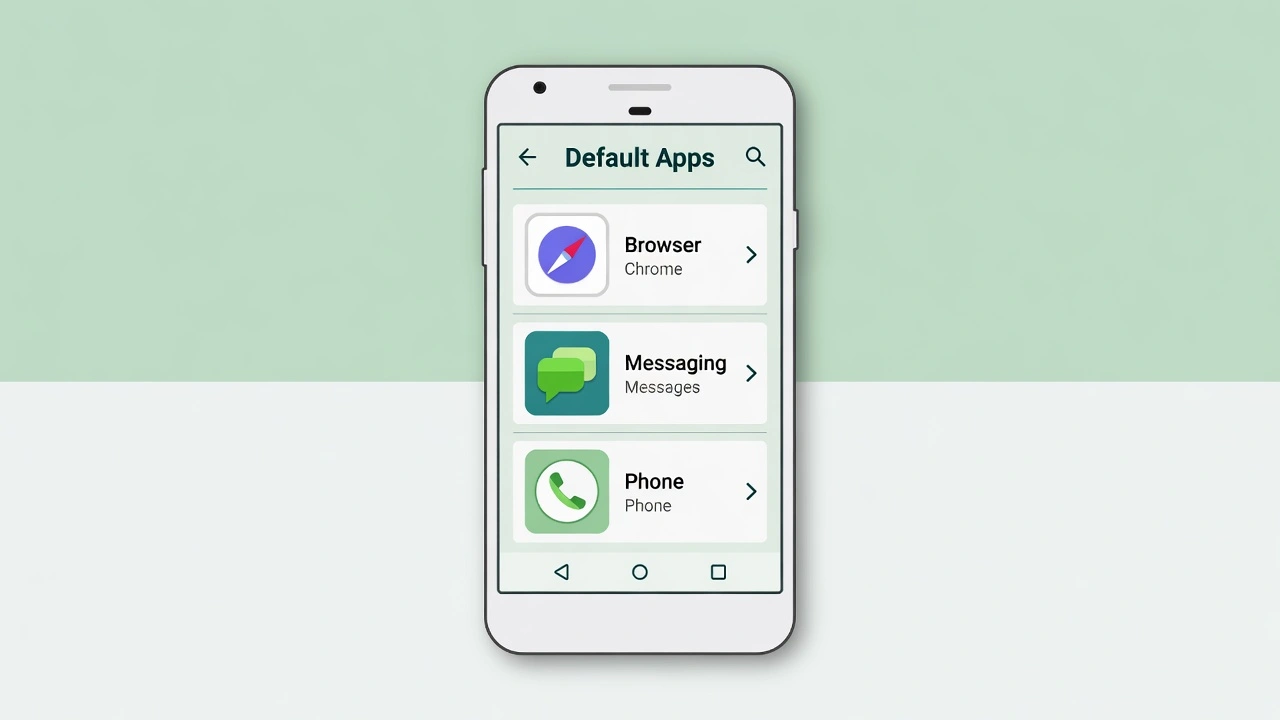
Inside the Apps section, look for an option called Default Apps. On most phones, this appears near the top of the screen or within a submenu. When you tap Default Apps, you’ll see a list of categories like Browser, Messaging, Phone, and Home.
Quick Tip: If you can’t find the Apps section right away, tap the magnifying glass icon at the top of your Settings screen and type ‘default apps.’ Your phone jumps straight to the setting without you having to dig through every menu manually.
I use this shortcut all the time, especially on phones where manufacturers hide the option in unexpected places
The process works the same way across every category. Tap the one you want, choose your preferred app from the list, and your phone sets it as the new default right away. There is no Save button and no confirmation screen
Step 5: Choose Your Preferred App
You’ll see a list of apps installed on your phone that can handle that function. Tap the app you want to use as your new default. The process is consistent across different categories—enter the category, select the desired application, and the phone automatically sets it as the new default.
There’s no Save button to press. Once you tap your choice, android changing default app settings happens instantly.
Important Detail: Your new app needs to be fully installed before it shows up in the Default Apps menu. If you just downloaded something and don’t see it listed, close the menu, reopen it, and check again. On the flip side, if you want to remove an app that’s currently set as a default, you’ll need to change the default first before uninstalling it. I cover the complete uninstall process in my guide on how to delete apps on Android.
The selection saves automatically, and from that moment forward, your Android phone will use your chosen app every time you perform that action.When you manage your app settings this way, you’re telling your phone exactly how you want it to behave.
If you’re more of a visual learner or want to see these steps in action, this video walkthrough demonstrates the entire process on a real Android device. You’ll see exactly how the menus look and how quickly you can make the switch:
Samsung, Pixel, or Something Else? The Path Is Different on Every Brand
The core idea of changing default apps stays the same across all Android phones, but the actual menu path depends entirely on which brand made your device. Stock Android and Samsung settings look noticeably different, and brands like Realme, Vivo, and Oppo hide the option in places you’d never think to check.
I’ve tested this on multiple devices, and I can tell you the frustration is real when you follow a guide written for a Pixel and you’re holding a Samsung Galaxy. The menus don’t match, the names change, and you end up wondering if your phone even has the feature.
Here’s exactly where to find default app settings based on your phone’s brand.
Stock Android (Google Pixel) — Android 12, 13, and 14
If you own a Google Pixel, you’re using the cleanest version of Android without any manufacturer customization. The path is straightforward and exactly as I described in the previous section.
Go to Settings, tap Apps and you’ll see Default Apps right there. On Android 14 specifically, the option sits right at the very top of the Apps screen, so you spot it immediately without scrolling
Google Pixel phones running stock Android give you the most direct route to these settings, and the interface stays consistent across updates.
Samsung Galaxy (One UI) — Galaxy S, A, and Note Series
Samsung handles default apps differently because of the One UI interface. The setting isn’t immediately visible when you open the Apps menu, which is why so many Samsung users can’t find it
Here’s how to find default app settings on a Samsung Galaxy phone:
- Open Settings and tap Apps
- Look in the top right corner of the screen for a three-dot menu icon
- Tap the three dots, and a dropdown menu appears
- Select Default Apps from the list
On some Samsung Galaxy models like the Note 10, the option labeled “Choose default apps” appears at the top of the Apps menu without needing the three-dot menu. Samsung has adjusted this slightly across different versions of One UI, so if you don’t see it in one place, check the other.
One thing I’ve noticed on Samsung devices is that the menu says “Default applications” instead of “Default apps” like stock Android uses. The wording is different, but the function is identical.
Samsung Galaxy phones running One UI across the S series, A series, and Note series all follow this same general pathway. Whether you’re using a Galaxy S23 Ultra or an older Galaxy A model, the three-dot menu method works consistently.
Realme, Vivo, Xiaomi (Redmi) and Oppo — The Hidden Path
If you own a Realme, Vivo, Xiaomi (including Redmi), or Oppo phone, the path is completely different from both stock Android and Samsung. These brands customize Android heavily, and they bury default app settings under a section most people would never think to check.
Here’s the exact path for Realme, Vivo, Redmi, and Oppo devices:
- Open Settings
- Scroll down and tap Application and Permission (or App Management on some models)
- Tap Permission Management
- Tap Default App Settings
This menu structure exists because these manufacturers use their own custom Android skins that prioritize permissions and app management differently. Android version compatibility varies across these brands, but the menu structure stays remarkably similar whether you’re on Android 11, 12, or 13.
I tested this on a Realme device, and the option was exactly where the path above describes. The interface looks different from stock Android, but once you know where to look, the process is just as simple.
One More Thing to Remember
No matter which brand you own, these settings are not permanent. If you make a change today on Android 13 or Android 14 and decide tomorrow you want something different, you can return to the same menu and pick a new app. Nothing is locked in.
The key is knowing where your specific phone hides the option. Once you find it the first time, you’ll remember the path and changing defaults becomes second nature.
Changing Default Apps for Specific Functions: Browser, Messaging, PDF and More
Now that you know where to find the default apps menu on your phone, let’s talk about the most common changes people make. Each category works the same way, but knowing exactly what to look for makes the process faster.
Here’s how to change default apps for the functions you use most.
How to Set Your Default Browser (Chrome, Firefox, Brave)
To set a default browser on Android, open the Default Apps menu and look for an option labeled Browser App or Default Browser
You might see Google Chrome, Firefox, Brave, Microsoft Edge, or any other browser you’ve downloaded. Simply tap the one you want to use as your primary browser, and the selection saves immediately.
From that moment forward, all future links you tap in emails, messages, or other apps will open in your chosen browser. If you want to android default browser change later, just come back to this same menu and pick a different option.
How to Change Your Default Messaging App
Changing your default messaging app android follows the exact same pattern. In the Default Apps menu, look for SMS App, Messaging App, or Text Messaging.
Tap that category, and you’ll see a list of messaging apps installed on your phone. Common options include Google Messages, Samsung Messages, and sometimes third-party apps that support SMS.
If you’re wondering how to change default messaging app on android specifically to switch from Samsung Messages to Google Messages, this is exactly where you do it. Tap Google Messages from the list, and your phone will now use Google Messages for all your text conversations.
The change happens instantly, and your existing messages stay exactly where they are. Only new messages and future texts will open in the newly selected app.
How to Change Your Default PDF Reader
Here’s where things get slightly different. If you want to change default PDF reader android, you won’t always find a dedicated PDF category in the main Default Apps menu.
PDF reader defaults usually require a different method because Android doesn’t include PDF Reader as one of the standard six categories most phones show. You’ll need to use the per-app method I’ll explain in detail in Section 6 below.
The short version is this: you’ll go into the settings for your current PDF app (like Adobe Acrobat or any other PDF viewer), clear its defaults, and then the next time you open a PDF, your phone will ask which app to use. That’s when you select your preferred PDF reader and tap Always.
I know changing your default PDF app on Android seems like it should be more straightforward, but the workaround I’ll cover next takes less than a minute once you know the steps.
How to Change the Default Navigation App, Music Player, and Home Screen
Some phones include additional categories in the Default Apps menu that give you even more control.
Navigation App: If you want to set Google Maps as your default navigation app on Android or switch to Waze, look for a category labeled Navigation, Maps, or Directions.
Music Player: To change your default music player on Android, look for a Music or Audio category
Home Screen Launcher: This one is unique. Your android home screen launcher controls the entire look and feel of your home screen. To change this, install a third-party launcher first (like Nova Launcher, Microsoft Launcher, or Action Launcher). Then go to Default Apps, find the option labeled Home App or Launcher, and select your newly installed launcher from the list.
The launcher must be installed before the option appears in the menu. If you just downloaded a launcher and don’t see it listed, close the Default Apps menu and reopen it. The new launcher should appear after a quick refresh.
Each of these categories works the same way: tap the category, choose the app you prefer, and your phone immediately switches to using that app for the function. The process is consistent no matter which specific app you’re changing.
How to Clear a Default App (So Android Asks You Again Next Time)
Sometimes you don’t want to replace one default app with another. Instead, you want Android to stop assuming and ask you every single time which app to use. That’s where clearing a default comes in.
To clear default apps android means removing the automatic choice entirely. When you clear defaults android app settings, your phone goes back to showing you the open with dialog android every time you perform that action.
Here’s the difference: changing a default replaces one app with another. Clearing a default removes the automatic choice completely.
How to Clear Defaults for a Specific App
If you want to undo a default app assignment for a particular app on Android, you need to go into that app’s individual settings
Here’s the exact path:
- Open Settings and tap Apps
- Tap See All Apps or All Apps to view your complete app list
- Scroll through the list and find the app that’s currently set as the default
- Tap the app to open its details page
- Scroll down until you see a section labeled Open by Default or Set as Default
- Tap Clear Defaults or Remove Defaults
Once you clear the default setting for that app, the app will no longer automatically open files, links, or actions associated with that category. The next time you open a relevant file or link, Android will prompt you to choose an app.
This is the moment most people find confusing, so let me explain what happens next.
What Happens After You Clear a Default
When you clear a default and then try to open a link, file, or perform an action that previously had a default app assigned, Android shows you a popup. This popup is the open with dialog android, and it lists all the apps on your phone that can handle that action.
You’ll see two buttons at the bottom of the dialog: Just Once and Always.
Here’s what each option does:
Just Once means Android will use the app you select right now, but the next time you perform the same action, Android will ask you again. This keeps android always ask which app behavior active indefinitely. If you like being asked every time, keep tapping Just Once.
Always means Android will use the app you select right now and remember that choice as the new default. The always open with app android option stops the popup from appearing again and locks in your selection.
I use Just Once when I’m not sure which app I prefer yet, or when I want different apps to handle the same type of file depending on the situation. I use Always when I’ve made up my mind and want the phone to stop asking.
Once you tap Always and select your preferred app, Android sets that app as the new default. You’ve essentially just created a new default assignment, which you can clear again anytime using the same steps above.
Clearing defaults gives you flexibility. You’re not stuck with any choice permanently, and you can reset the behavior whenever your preferences change.
When the Default Apps Menu Only Shows 6 Options — Here’s What to Do
If you’ve opened the Default Apps menu on your Android phone and noticed it only lists six or seven basic categories, you’re not imagining things. Most phones limit the main menu to Browser, Phone, Messaging, Home, and a few others. But what happens when you want to change which app opens files android, like PDFs, music files, or specific document types? Those options simply aren’t listed.
This is one of the most frustrating gaps in Android’s settings, and it’s the exact problem that leaves people searching for answers. The good news is there are two hidden methods that let you change app associations android for file types and links that don’t appear in the main menu.
Method 1: Use the Per-App “Opening Links” Settings
Every app on your Android phone has its own settings page, and buried inside that page is a section called Opening Links or Open by Default. This section shows you which file types, URLs, or actions that specific app is set to handle.
Here’s how to access android open with settings for a specific app:
- Go to Settings and tap Apps
- Tap See All Apps to view your complete app list
- Find and tap the app you want to manage (for example, a PDF reader or a specific social media app)
- Scroll down and look for a section labeled Opening Links, Open by Default, or Set as Default
- Tap that section to see which links or file types the app currently handles
Inside this menu, you’ll see a list of supported web addresses or file associations. If you want to change which app opens files for a specific file type, tap Clear Defaults here. The next time you open that type of file, the open with dialog android will appear, letting you select default app for link or file and choose a different app.
This method works perfectly when you want to change which app handles PDFs, music files, video files, or any file type that doesn’t have its own category in the main Default Apps menu.
Method 2: Toggle Supported Web Addresses for Apps Like Facebook
Some Android phones include an advanced option at the bottom of the Default Apps menu called Set as Default or a similar label. This section lists all installed applications and gives you more specific control over how each app handles links.
For apps like Facebook, Instagram, or Twitter, you’ll see a toggle labeled Supported Web Addresses. When you enable this toggle, clicking a facebook.com link will automatically launch the Facebook app instead of opening the link in your browser.
This feature is incredibly useful if you’re tired of links opening in the wrong place. When the toggle is on, Android recognizes the link pattern and routes it directly to the app. This is called intent resolution in technical terms, but all you need to know is that it lets you change which app opens files or links based on the web address.
Not every phone includes this option, but if yours does, it’s usually found by scrolling to the very bottom of the Default Apps menu and looking for a section that lists all your installed apps individually.
Method 3: Clear Defaults Through the All Apps List
On some Android phones, especially those running custom skins like Realme, Vivo, Xiaomi, or Oppo, there’s another pathway.
Navigate to Settings, then Apps, then tap Additional Settings or Application Management. From there, go to the All Apps tab, find the app currently handling the file type you want to change, tap the app, and scroll down to Clear Defaults.
Once you clear the defaults, android always ask which app to use the next time you open that file type. That’s your opportunity to select a different app and tap Always to lock in the new choice.
These three methods cover nearly every situation where the main Default Apps menu doesn’t give you the control you need. Whether you’re trying to change a PDF reader, switch which app handles music files, or route specific website links to their dedicated apps, one of these approaches will get you there.
The “Always” vs “Just Once” Choice — What It Actually Means
If you’ve ever cleared a default app or opened a file type for the first time, you’ve probably seen a popup asking you to choose an app. At the bottom of that open with dialog android, you’ll see two buttons: Just Once and Always.
I’ve watched people tap Just Once over and over, confused about why their Android phone keeps asking the same question every single time. Here’s what each button actually does.
Just Once means your phone will use the app you select right now, but only for this one action. The next time you open the same type of file or link, Android will show you the same popup again. This keeps android always ask which app behavior active permanently. Your phone never remembers your choice, so the question keeps coming back.
Always means your phone will use the app you select right now and remember that choice as the permanent default. When you tap Always, you’re telling Android to always open with app android that you just picked. The popup stops appearing, and your phone uses your chosen app automatically from that point forward.
When should you use each option?
Use Just Once when you’re not sure which app you prefer yet, or when you want flexibility to choose different apps depending on the situation. For example, maybe you want to open some PDFs in one app and other PDFs in a different app. Tapping Just Once keeps your options open.
Use Always when you’ve made up your mind and want your phone to stop asking. Once you tap Always, Android sets that app as the new default, and the open with dialog android disappears for that file type or action.
The reason this confuses so many people is simple: tapping Just Once feels safer in the moment, but it creates repetitive friction. If you find yourself tapping Just Once on the same app ten times in a row, that’s a clear sign you should have tapped Always the first time.
And if you ever change your mind after tapping Always, you can always go back into the app’s settings and clear the default. That brings the popup back, giving you another chance to choose.
How to Change Default Apps on Samsung vs Stock Android Side by Side
If you own a Samsung Galaxy phone, the path to changing default apps looks a bit different from what you’ll find on a Google Pixel or other stock Android devices. I’ve used both, and I can tell you the difference isn’t huge, but it’s enough to confuse you if you’re switching between brands or following a guide that doesn’t match your phone.
Samsung has its own support page that covers default app settings specifically for Galaxy devices running One UI, and the steps there are tailored to Samsung’s menu layout. If you’re on a Galaxy phone and want manufacturer-specific guidance alongside what I’ve covered here, the Samsung official support page is a reliable place to check for your exact model.
Let me break down exactly where to go on each type of device so you can find the setting in under 30 seconds.
Stock Android (Google Pixel, Motorola, Nokia)
On stock Android devices like the Pixel series, the path is straightforward. Open your Settings app, scroll down and tap Apps, then look for Default apps right at the top of the list. Tap it, and you’ll see all the categories laid out clearly—browser, messaging, phone app, and more.
On Android 14, which I’m currently running on my Pixel, the Default apps option sits right at the top of the Apps screen, so you don’t even need to scroll. Google made it easier to find in recent versions, which is a nice touch if you’re someone who switches apps often.
If you’re on Android 13 or an earlier version, you might need to scroll a bit further down the Apps menu, but the option is still clearly labeled.
Samsung Galaxy (One UI Interface)
Samsung does things a little differently with its One UI interface. When you open Settings and tap Apps, you won’t immediately see “Default apps” listed like you do on a Pixel. Instead, you need to tap the three-dot menu icon in the top-right corner of the screen. Once you do that, a dropdown appears, and you’ll see Default apps as one of the options.
I’ve tested this on a Galaxy S23, Note 10, and even an older A-series phone, and the three-dot menu method works the same way across all of them. Samsung keeps this layout consistent, so once you know where to look, it becomes second nature.
The Universal Shortcut That Works on Both
Here’s a tip that works on both Samsung and stock Android devices: instead of navigating through menus, just tap the search icon (the magnifying glass) at the top of your Settings app and type “default apps.” Your phone will jump straight to the setting, no matter which brand or Android version you’re using.
I use this shortcut all the time on my Samsung phone because it’s faster than tapping through the menu, and it works just as well on my Pixel when I need to make a quick change.
Quick Comparison Table
Stock Android (Pixel, Motorola, Nokia):
Settings → Apps → Default apps
Samsung Galaxy (One UI):
Settings → Apps → ⋮ (three dots) → Default apps
Universal Shortcut (Any Android):
Settings → Search “default apps”
Both methods get you to the exact same place a menu where you can switch your default browser, messaging app, phone app, and more. The only real difference is how you get there, and once you know the path for your specific device, it takes just a few seconds to make the change.
Common Mistakes That Stop Your Default App Change From Working
I’ve seen people install a new app expecting it to take over automatically, only to get frustrated when their phone keeps using the old one. Changing default apps on Android isn’t always as automatic as it should be, and a few common mistakes can make the process feel broken when it’s really just a matter of knowing where to look.
Let me walk you through the mistakes I’ve made myself and seen others make, so you can avoid the same headaches.
Installing an App but Not Actually Setting It as the Default
This is the most common mistake. If a third-party app you’ve downloaded isn’t opening files or links automatically, it’s because the system defaults haven’t been updated. Android doesn’t replace your old default app just because you installed a new one. You have to go into your Android app opening settings and manually assign the new app as the default.
I installed a new PDF reader once and kept wondering why my documents still opened in the old app. Turns out, Android was still using the original default because I never told it to switch. Once I went into Settings and changed the default PDF app, everything worked as expected.
Tapping “Just Once” Instead of “Always”
When Android asks which app you want to use, you’ll see two options: “Always” and “Just once.” If you keep tapping “Just once,” Android will ask you the same question every single time. That’s why some people feel like their phone never remembers their choice.
Tapping “Always” tells Android to use that app permanently for that action. Once you select “Always,” your phone stops asking and starts opening links or files in your preferred app automatically. If you’ve been tapping “Just once” out of habit, that’s why your default app change isn’t sticking.
Accidentally Setting the Wrong Default Through an App Prompt
Sometimes when you open a file or click a link, Android shows you a list of apps and asks which one to use. If you’re in a hurry and tap the first option without thinking, you might accidentally set an app as the default that you didn’t actually want.
Once you tap “Always” on the wrong app, Android remembers that choice and keeps using it. If you realize you picked the wrong one, you’ll need to go back into Settings and either clear the default for that app or manually switch to a different one.
Not Knowing You Can Clear Defaults for Individual Apps
A lot of people don’t realize that once you set a default app, you can clear it without going through the main Default Apps menu. If you go to Settings, tap Apps, find the specific app, and look for “Open by default” or “Clear defaults,” you can remove that app’s default status.
Once cleared, the app will no longer be the automatic choice. The next time you perform a relevant action, your phone will prompt you to select an app again, and you can choose a different one. This is especially useful if you’ve customized too many apps and want to return to a fresh start state without resetting everything.
Forgetting That Some Apps Don’t Appear in the Default Apps Menu
Not every app shows up in the standard Default Apps menu. If you’re trying to set a specific file type to open with a particular app and you don’t see it listed, you’ll need to use the per-app method I mentioned earlier.
Sometimes the app you want to set as default is installed but hidden from your normal app drawer. If you suspect an app is installed but you can’t find it anywhere, check out my guide on how to find hidden apps on Android to locate it first. Once you’ve confirmed the app is visible and active, go into its individual settings and look for the ‘Open by default’ section
Android always asks which app to use when no default is set, so if you clear an old default and choose your preferred app the next time a file opens, you can set the new default that way instead of searching through menus.
These mistakes are easy to make, but once you know how Android handles default apps, you can avoid the frustration and get your phone working exactly the way you want.
Frequently Asked Questions About Changing Default Apps on Android
Why isn’t my newly downloaded app showing up in the Default Apps menu?
The app needs to support the specific system function before Android recognizes it as an option in the Default Apps menu. Try closing the menu completely and reopening it after installation. If the app still doesn’t appear, it may not be registered as a handler for that category on your device.
What’s the difference between “Always” and “Just Once” when Android asks which app to use?
Tapping “Always” permanently sets that app as your default for that action, so Android never asks again. Tapping “Just Once” opens the file or link in that app one time only, and Android will ask you again the next time. If your default app choice keeps reverting, tapping “Just Once” repeatedly is usually the reason.
Does resetting app preferences delete anything from my phone?
Resetting app preferences on Android does not delete any apps, photos, contacts, messages, or personal data. The reset only clears disabled app states, notification permissions, default app links, background data restrictions, and battery settings. Your phone stays exactly as it is, just with app preferences returned to factory defaults.
How do I change the default app for opening PDF files on Android?
PDF readers usually don’t appear in the standard Default Apps menu, so you need to use the per-app method instead. Go to Settings, tap Apps, find your current PDF app, scroll down to “Open by default,” and tap “Clear defaults.” Open any PDF file, select your preferred PDF reader from the list, and tap “Always” to set it permanently.
Why do links keep opening in my browser instead of the app?
Android defaults to opening web links in a browser unless you tell it otherwise through the app’s settings. Go to Settings, tap Apps, tap Default apps, scroll to the bottom, find the specific app, and toggle “Open supported links” or “Supported web addresses” to on. Once enabled, Android will automatically launch that app whenever you tap a matching link.




1 comment