Why Is Your Mac Screen Flickering? Software vs Hardware Causes
I know that sinking feeling when your Mac screen starts flickering out of nowhere. Your first thought is probably about repair costs — and whether this is going to ruin your week. Here’s what most repair shops won’t tell you: mac screen flickering almost always traces back to one of two completely different problem types, and identifying which one you’re dealing with can save you hundreds of dollars before you ever walk into a repair shop.
Mac screen flickering splits into two completely different categories and they’re handled in completely different ways. Software problems cost nothing and often take minutes to resolve. Hardware failures mean real money, real repair time, and sometimes a tough decision about whether fixing the machine is worth it. The frustrating part? Both types can produce symptoms that look absolutely identical on the outside
This isn’t only about the money, though that matters more than most people admit. I’ve watched too many people sprint to the Apple Store convinced their screen is dying when the actual problem was a setting buried two clicks deep in System Settings that takes thirty seconds to change. And I’ve watched people spend weeks exhausting every software fix imaginable on a MacBook where the display cable had been quietly failing the whole time.
The software side is where I always start: macOS display bugs, corrupted display drivers, misconfigured settings, app conflicts. These tend to show up suddenly — right after a system update or a new app install — which is actually your biggest diagnostic clue. Annoying, yes. But most of the time, solvable without spending a dollar.
Hardware is a different story. Damaged ribbon cables, failing backlights, loose internal connections, worn display components — these either build up slowly through everyday use or hit you all at once from a drop. And once hardware starts failing, no software setting in the world is going to change that.
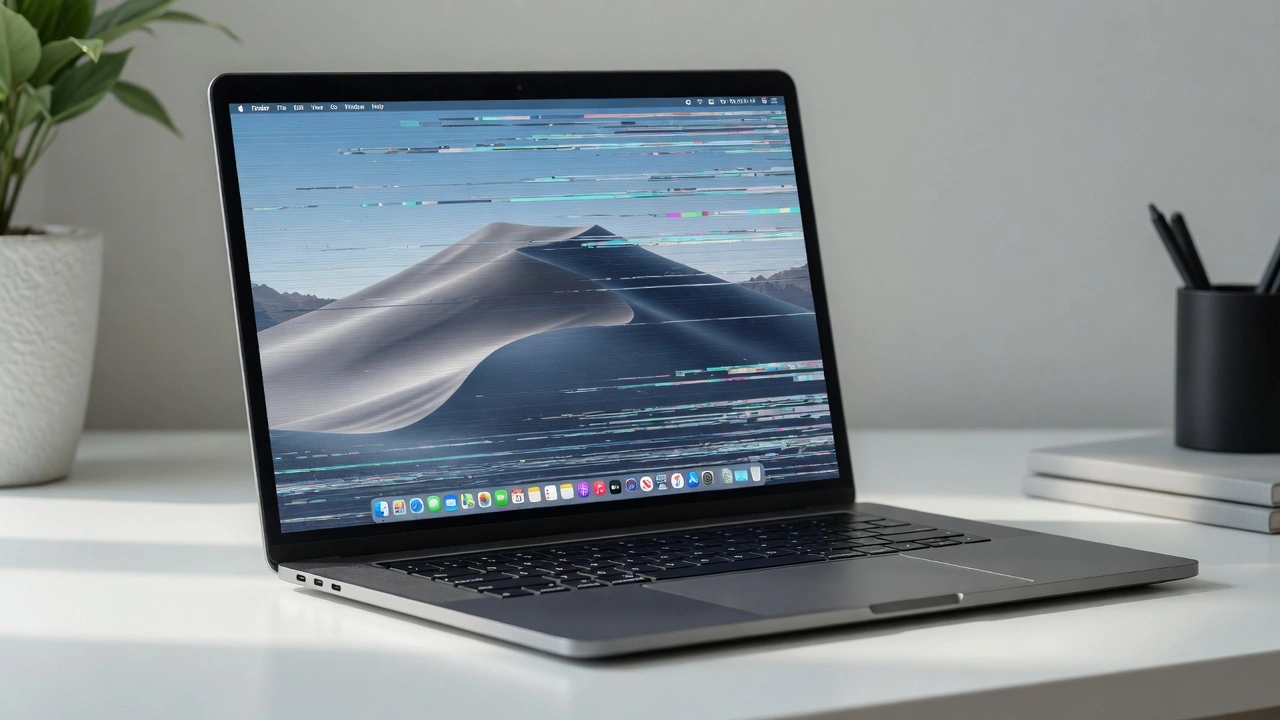
The thing that trips people up most: software and hardware problems produce identical symptoms. You can have random flashing, lines cutting across the screen, brightness that jumps on its own, or a display that just goes black and any of those could be a $0 settings fix or a $500 hardware repair. Looking at the symptom alone tells you almost nothing. You need to run actual tests.
There’s one more thing worth knowing before you start troubleshooting. macOS Tahoe (version 26.0) has actually introduced new screen flickering bugs for some users — bugs that updates 26.1 and 26.2 still haven’t fixed. If your flickering started right after a recent macOS update, that update might be the problem rather than your hardware. That’s a completely different situation than the usual causes, and it changes your approach.
Run the diagnostic tests before you touch a single setting. Software tests are free and take minutes so there’s no reason to skip them. Hardware diagnosis only makes sense after software testing fails. I’ve seen both failure modes up close: someone pays $400 for a display assembly when True Tone was the problem, and someone else burns three weeks on settings changes when their ribbon cable was visibly frayed. Both situations are avoidable if you follow the right sequence.
Most screen flickering ends up being software related. Which means most people can fix it themselves without spending a time.
The 30-Second Test: Is Your Mac Screen Flickering From Software or Hardware?
Two tests. That’s all it takes to separate a software problem from a hardware failure. I’ve run this diagnostic sequence more times than I can count, and the results are almost always clear within thirty seconds.
People blow past these tests. They go straight to reinstalling macOS or calling Apple without doing any basic checks first. Which is exactly backwards because the tests tell you whether any of those expensive next steps are even necessary.
Here’s what actually works. Test your external connections first, then test Safe Mode. These two tests separate software problems from hardware failures with near-perfect accuracy. And they cost you nothing but time.
The External Monitor Test
Grab any external monitor or TV with an HDMI port. Connect your Mac and watch what happens.
If the external display looks normal while your built-in screen still flickers, your Mac’s graphics system is working. The problem lives somewhere in the internal display path the screen itself, or the ribbon cable connecting it to the motherboard. Either way, it’s hardware.
If both screens flicker identically, you’re dealing with a system-wide software issue. Graphics drivers, app conflicts, or corrupted display settings are causing the problem across every connected display.
This test works because it isolates display hardware from graphics processing — two things that look identical when they fail but need completely different fixes. I’ve personally watched people spend weeks trying software fixes when this single test would have pointed them toward a cable swap in thirty seconds.
One user on Reddit described the pattern exactly: their 2019 MacBook Pro flickered randomly, but everything stopped the moment they plugged in an external monitor. That’s a textbook internal display hardware problem not a software bug.
One Reddit user described this exact pattern: “My 2019 MacBook Pro flickers randomly, but it stops completely when I plug in an external monitor.” That’s a textbook internal display hardware problem, not a software bug.
The Safe Mode Test
Safe Mode is one of the most useful diagnostic tools Apple built into macOS, and almost nobody uses it. Boot into Safe Mode by holding the Shift key during startup on Intel Macs, then watch whether the flickering continues.
Safe Mode shuts down third-party apps, login items, and non-essential system processes. It’s running your Mac on just the core Apple software — nothing extra, nothing that shouldn’t be there. If screen flickering disappears in Safe Mode, some piece of software is causing the conflict. That narrows your problem down enormously.
If flickering continues even in Safe Mode, the problem is hardware. No app setting or system preference is going to fix it. Time to think about repair costs instead of troubleshooting steps.
Boot once. Check the screen. You’ll know which direction to go within sixty seconds.
Put the two tests together and the diagnostic path becomes clear. External monitor fine, Safe Mode stops the flickering: software problem. External monitor fine, Safe Mode doesn’t help: internal hardware failure. Both monitors flicker: system-wide software issue that Safe Mode testing should resolve.
Screen Flickering Fix Mac: 6 Solutions That Work (Try These First)
Most mac screen flickering gets resolved by changing one setting. One. And it usually takes under thirty seconds. I’ve ranked these fixes by how often they actually work — based on consistent user reports and what I’ve seen play out in practice across different Mac models and macOS versions.
Don’t skip ahead. Start with fix one. Work down the list. Each fix takes under two minutes, and one of them is probably your answer.
People waste hours trying complex fixes when the solution is usually hiding in plain sight. The biggest mistake? Assuming your Mac needs major repair before testing these basic settings that cause flickering more often than actual hardware problems.
Start with fix number one. If that doesn’t work, move down the list. Each fix takes under two minutes, and one of them will probably solve your problem.
Fix #1: Disable True Tone [Most Successful]
True Tone mac flickering is the number one cause I run into. On Macs from 2018 and newer, True Tone automatically adjusts screen colors based on ambient lighting. When the color management system gets stuck in a transition loop or conflicts with another display process, you get a flicker that ranges from barely noticeable to genuinely maddening.
Go to System Settings, click Displays, and toggle True Tone off. You can also reach this through Control Center in your menu bar.
A Reddit user who fixed their flickering this way later wrote that disabling True Tone in display settings was the only thing they remembered doing they fixed it, forgot about it, and only recalled the solution when someone else asked. That’s how common this fix is. People try it, it works, and they move on.
True Tone causes flickering because the automatic color temperature adjustments can conflict with other display processes or get stuck in transition loops. Disabling True Tone eliminates these conflicts entirely.
Fix #2: Turn Off Automatic Graphics Switching
Automatic graphics switching on dual-GPU MacBook models causes flickering during the handoff between graphics chips. Your MacBook Pro switches between integrated and dedicated graphics to preserve battery life, but that switch can produce brief screen flickers or freezes as the system negotiates which chip handles the display.
Go to System Settings, then Battery, then Options. Uncheck ‘Automatic graphics switching.’ Restart your Mac for the change to take effect.
Here’s the trade-off worth knowing: disabling this setting forces your Mac to run the high-performance dedicated GPU constantly. The flickering stops, but your battery drains faster and your fans may run more than usual.
One user who resolved their flickering this way explained that alternating between two graphics chips was causing things to break, and unchecking that one box stopped the MacBook screen flashing immediately after restart.
This fix only applies to MacBook Pro models with both integrated and dedicated graphics. If you don’t see the automatic graphics switching option in Battery settings, your Mac has a single GPU and this fix doesn’t apply to your situation.
Fix #3: Restart Your Mac (Yes, Really)
A full restart clears temporary graphics glitches and memory leaks that accumulate during normal use. I know that sounds basic — and it is. But a full restart fixes more display problems than people expect, precisely because most people never actually do one. They close the lid and call it a night.
When your Mac restarts, it completely reloads all display drivers and flushes any corrupted graphics cache files that built up during the session. Background processes interfering with display output get terminated and start fresh.
Click the Apple logo and select Restart. Not sleep. Not closing the lid. An actual, complete restart. If your Mac has been running hot, try Shut Down instead, let it sit for a few minutes to cool down, then power back on. Overheating causes temporary display glitches that vanish once the system temperature drops.
When you restart your Mac, the system completely reloads all display drivers and clears any corrupted graphics cache files. Background processes that might be interfering with display output get terminated and restarted fresh.
Click the Apple logo in the top left corner and select Restart. Not sleep, not just closing the lid. Full restart.
If your Mac has been running hot, try Shut Down instead and let it cool for a few minutes before powering back on. Overheating can cause temporary display glitches that disappear once the system cools down.
Fix #4: Disable Auto-Brightness (Separate from True Tone)
Auto-brightness is a separate setting from True Tone, and it causes its own category of screen flickering when the ambient light sensor starts misbehaving. Go to System Settings, then Displays, and turn off ‘Automatically adjust brightness.’
The ambient light sensor sits near your webcam and monitors room lighting to match your screen brightness automatically. When that sensor gets dirty, blocked, or starts sending bad readings, it triggers constant micro-adjustments that show up as flickering — especially in rooms where lighting changes throughout the day.
A Reddit user posted about this fix recently: going to System Settings, selecting Display, and deactivating automatic brightness adjustment was what finally resolved their flickering after other methods failed. Recent post, same old problem — which tells you this is still affecting people right now.
Fix #5: Disable Dark Mode
Dark Mode can create rendering conflicts with certain graphics processes, particularly during app transitions or when scrolling through content. It’s not the most common cause of mac screen flickering, but it’s worth testing because the fix takes about ten seconds.
Go to System Settings, then Appearance, and switch to Light. Give your screen a few minutes scroll around, switch between apps, do whatever normally triggers the flickering — and see if it stops.
If Light Mode fixes the problem, you’ve identified a Dark Mode rendering conflict. That’s useful diagnostic information even if you eventually want your Dark Mode back. Some macOS updates handle the Dark Mode rendering engine better than others, so a future update might resolve the underlying conflict.
Go to System Settings, then Appearance, and select Light instead of Dark or Auto. Test your screen for a few minutes to see if the flickering stops.
Dark Mode uses different rendering methods for interface elements, and some graphics drivers handle these transitions poorly. Switching to Light mode eliminates these rendering conflicts entirely.
This isn’t a permanent solution for most people since Dark Mode is easier on the eyes. But it’s a useful diagnostic test to confirm whether display mode rendering is causing your flickering problem.
Fix #6: Clear Login Items
Background apps that launch automatically when you log in can strain your graphics system and cause display conflicts. Too many startup items running simultaneously can overwhelm your GPU macbook processing.
Go to System Settings and search for “Login Items.” You’ll see a list of apps that start automatically when you boot your Mac. Select any apps you don’t need at startup and click the minus button to remove them.
Focus on removing graphics-intensive apps, screen recording software, and apps you don’t use daily. Each background process consumes graphics resources that could interfere with normal display output.
After removing login items, restart your Mac to see if the flickering stops. You can always add apps back to login items later if you need them to start automatically.
When Your Mac Screen Flickering Shows Lines (The Flexgate Test)
Mac screen flickering lines that shift or change when you adjust the screen angle almost always point to a worn display cable not a broken screen. That distinction matters enormously when it comes to repair costs.
The most expensive mistake I see in this situation: people walk into a repair shop, get quoted for full screen replacement, and pay for it — when only the cable needed attention. That’s the difference between roughly $100 and $475 or more. The tests below take seconds and can tell you which situation you’re actually in
The biggest repair mistake I see? People get quoted for full screen replacement when only the cable needs work. That’s the difference between a couple hundred dollars and five hundred plus.
The 90-Degree Angle Test
Set your MacBook screen at exactly 90 degrees to the keyboard and hold it there for thirty seconds. This position reduces stress on the display cable and often stops flickering if the cable is worn.
Adjust your screen so it sits perfectly perpendicular to the keyboard base. Not tilted back toward you like normal use. Straight up. Watch for any change in the flickering pattern or lines.
If the mac screen flickering lines disappear or significantly reduce at this angle, you’ve just diagnosed a cable issue. The 90-degree position takes mechanical stress off the ribbon cable that’s causing your display problems.
This test works because the display cable runs through the hinge area and flexes every time you open and close your MacBook. When the cable wears down, certain angles put more stress on damaged portions.
The Flex Cable Movement Test
Gently adjust your screen angle while watching the display closely. Move the screen slowly through different positions and note exactly where lines appear, disappear, or change intensity.
Start with the screen nearly closed, then slowly open it to fully open position. Pay attention to specific angles where the flickering behavior changes. This movement test reveals cable damage patterns that static testing misses.
If flickering lines appear at certain angles but disappear when you move to different positions, the internal display flex cable or motherboard connector is damaged. The cable itself is fine in some positions but fails when bent or stretched in others.
Here’s what to look for. Lines that come and go based on screen position. Flickering that gets worse when you barely touch the screen bezel. Or stable display that only acts up when you adjust the lid angle. All of these point to cable wear.
When you take your Mac for repair, specifically ask them to inspect the display cable and connector before replacing the entire screen assembly. This saves you substantial money because cable replacement costs much less than full display replacement.
What Flexgate Actually Is (And Why It Happens)
Flexgate MacBook refers to a design flaw where Apple made the display ribbon cable too short on certain MacBook Pro models from around 2016 through 2019. The cable experiences excessive stress from normal lid movement and wears out faster than it should.
This isn’t user error or rough handling. Apple literally saved a few millimeters on cable length, and that tiny cost-cutting decision created a major reliability problem. The ribbon cable that carries display signals from the logic board to the screen gets stretched and bent beyond its design limits every time you open and close your laptop.
The cable develops micro-fractures and connection problems over time, leading to flickering, backlight issues, and the characteristic lines across the screen. What started as a minor manufacturing tolerance became a widespread repair problem affecting thousands of MacBooks.
iFixit documented this as a known hardware design flaw, calling out the insufficient cable length as the root cause. The repair industry sees these cable failures regularly, especially on MacBook Pro models from the affected years.
The irony is brutal. A cable that probably costs less than a dollar in manufacturing leads to repair bills that can hit four figures if you replace the whole display assembly. But the actual fix is often just cable replacement, which costs a fraction of screen replacement. While Flexgate primarily affects MacBooks, similar display cable and horizontal line issues occur across laptop brands, as seen in Lenovo laptops with comparable screen flickering problems.
MacBook Screen Flickering When Connected to External Monitor? Here’s Why
MacBook screen flickering when connected to an external monitor happens because the connection between your Mac and a modern display involves a lot more negotiation than people expect refresh rates, sync protocols, cable bandwidth, adapter processing. Any one of those can break the handshake.
The assumption I see constantly: ‘My Mac is broken.’ But in most cases I’ve diagnosed, the real problem is a setting or a cable not the Mac. The flickering stops the moment you make the right adjustment, which tells you the hardware was never failing
I see this constantly. Someone connects their Mac to what should be a simple external display, and suddenly they’re dealing with flickering, black screens, or signal dropouts. The assumption is always “my Mac is broken” when the real problem is usually settings or cable compatibility.
External monitor flickering has completely different causes than built-in screen flickering. Different diagnosis, different fixes. Even Apple acknowledges that certain display technologies can cause flickering issues that aren’t hardware failures.
Fix Refresh Rate and VRR Issues
Set your external monitor to a fixed refresh rate of 60Hz and disable Variable Refresh Rate. This single change stops most external monitor flickering on Mac systems.
Go to System Settings, then Displays, select your external monitor, and look for refresh rate options. If you see anything above 60Hz or any mention of Variable Refresh Rate or Adaptive Sync, change it.
Here’s something most people miss. Apple’s own support documentation acknowledges that Adaptive Sync can produce a flickering or stuttering effect in non-gaming applications. That’s Apple officially stating their software doesn’t handle VRR cleanly for general use. High-definition video playback and gaming can demand refresh rates that not all external monitor and Mac combinations handle consistently — your monitor might list 144Hz support, but the actual real-world performance between your specific Mac and that specific display might be unstable.
The fixed rate works because it locks in a consistent signal that both your Mac and monitor process without constant renegotiation. Most non-gaming work looks identical at 60Hz anyway. The trade-off between smoother scrolling and a display that actually functions reliably isn’t much of a trade-off at all
High-definition video playback and gaming demand high refresh rates that not all external monitors can handle consistently. Your monitor might advertise 144Hz support, but the actual implementation between your Mac and that specific display might be buggy.
The refresh rate fix works because it forces a stable, consistent signal that both your Mac and monitor can handle reliably. No more negotiating refresh rates every few seconds. No more sync failures that cause flicker.
Cable Quality Matters More Than You Think
Not all USB-C and HDMI cables can handle the bandwidth modern monitors demand, and cheap cables are the number one cause of external monitor mac test failures. Cable quality affects signal integrity in ways that aren’t obvious until you start getting flickering.
I recommend USB-C to DisplayPort as the most stable connection for external monitors. DisplayPort handles high resolutions and refresh rates more reliably than HDMI, especially on Mac systems.
Avoid routing video through USB-C hubs whenever possible. Hubs introduce additional signal processing, power sharing with other connected devices, and often use cheaper internal components that can’t maintain clean video signals.
If you must use HDMI, make sure you’re using HDMI 2.0 or higher rated cables. The old HDMI cable that came with your TV five years ago probably doesn’t have the bandwidth for your 4K monitor at 60Hz.
Test this by swapping cables before changing any settings. I’ve seen hours of troubleshooting solved by a different cable that costs fifteen dollars.
Emergency External Monitor Setup by Mac Generation
Different Mac generations require different cable approaches for reliable external monitor connections. Knowing which cable type works best with your specific Mac can save you from buying the wrong adapters.
Older MacBooks with built-in HDMI ports can connect directly with standard HDMI cables. But check your HDMI version compatibility because newer monitors might demand more bandwidth than older HDMI ports provide.
Mid-generation MacBooks often have Mini DisplayPort connectors that work well with dedicated Mini DisplayPort to DisplayPort adapters. These connections tend to be more stable than USB-C passthrough for video.
Modern MacBooks with only USB-C ports work best with direct USB-C to DisplayPort cables. Skip the multi-port adapters and hubs for your primary display connection. Use those adapters for secondary peripherals, not your main monitor.
If your built-in display is completely unusable and you need to use your Mac immediately, connecting an external monitor lets you work normally while you plan your repair. This temporary setup can keep you productive for weeks if needed.
Advanced Mac Screen Flickering Fixes (When Quick Fixes Don’t Work)
When the quick fixes don’t work, the next level gets more technical and it requires knowing exactly which Mac you own. The NVRAM and SMC reset procedures that appear in older guides don’t apply to Apple Silicon Macs at all. Browser fixes only matter if your flickering is browser-specific. Cache clearing only helps if software corruption is the underlying cause.
Each fix here targets something specific. Match the fix to your situation. And if none of these resolve the problem, that’s actually useful information it means hardware is the likely culprit and software troubleshooting has reached its limit.
Reset NVRAM and SMC (Intel Macs Only)
Reset NVRAM mac flickering only works on Intel-based Macs because Apple Silicon Macs handle these resets automatically on every restart. If you have an M1, M2, M3, or M4 Mac, skip this section entirely.
Here’s what most guides don’t tell you. On Apple Silicon Macs, manually trying to reset NVRAM accomplishes absolutely nothing. The system already resets these settings every time you restart your Mac. Holding those key combinations is just finger exercise.
For Intel Macs, NVRAM stores display resolution, brightness, and color settings. When these get corrupted, screen flickering can result.
To reset NVRAM on Intel Macs, shut down completely, then turn on while holding Option + Command + P + R for about 20 seconds. Keep holding until you hear the startup chime play twice, then release the keys.
SMC reset mac procedures also differ by Mac type. For Intel MacBooks with non-removable batteries, shut down, then hold Shift + Control + Option + Power for 10 seconds. Release all keys and restart normally.
SMC controls thermal management and power delivery to components including the display backlight. Corrupted SMC settings can cause display brightness fluctuations that look like flickering.
But here’s the critical part. NVRAM and SMC resets only fix corrupted low-level settings. They won’t resolve app conflicts, cable damage, or most other causes of screen flickering. They’re one tool, not a magic cure.
Turn Off Browser Hardware Acceleration
Browser hardware acceleration causes flickering specifically during web browsing because it puts extra load on your Mac’s graphics processing. If your screen only flickers while using Chrome or Firefox, this is probably the cause.
Chrome users go to the three-dot menu in the top right, click Settings, then System, and toggle off “Use graphics acceleration when available.” Restart Chrome after making this change.
Firefox users click the three-line menu button, select Settings, scroll to Performance, uncheck “Use recommended performance settings,” then uncheck “Use hardware acceleration when available.”
Hardware acceleration shifts graphics rendering from your Mac’s main processor to the graphics system. This usually improves performance, but on some Mac configurations it creates display conflicts that manifest as flickering during scrolling or video playback.
Safari doesn’t have a user-accessible hardware acceleration toggle because Apple controls both the browser and the operating system. For users experiencing persistent Safari-related display issues, Apple’s official troubleshooting documentation provides additional browser-specific diagnostic steps beyond what third-party browsers offer. If Safari flickering persists after other fixes, the problem is usually system-level rather than browser-specific.
The acceleration fix works because it removes the graphics processing load that’s causing the conflict. Your browsing might feel slightly less smooth, but the flickering should stop immediately.
Clear System Cache Files
Corrupted display cache files can cause flickering that persists through restarts and settings changes. Manual cache clearing removes these corrupted files and forces macOS to rebuild them cleanly.
Open Finder, then press Shift + Command + G to bring up the “Go to folder” dialog. Type ~/Library/Caches and press Enter. Look for folders with names that include “display,” “graphics,” or app names like “com.apple.windowserver.”
Delete cache folders that seem related to display processing, then empty the Trash and restart your Mac. The system will recreate these cache files automatically with fresh, uncorrupted data.
System cache files store temporary display data, color profiles, and graphics processing information. When these files become corrupted through software conflicts or interrupted updates, they can cause persistent display problems. If cache clearing doesn’t resolve your flickering but you’re still experiencing performance issues, your Mac’s RAM might also need attention clearing RAM can resolve related display performance conflicts.
This fix targets software-level corruption that simpler restarts don’t clear. Some cache corruption survives normal restart cycles, which is why manual clearing sometimes works when restart doesn’t.
Reset Display Color Profile
Corrupted or duplicate color profiles can cause subtle flickering and color shifts that look like hardware problems. Color profile mac reset removes these problematic profiles and restores default display behavior.
Go to System Settings, then Displays, click the dropdown next to Color Profile, and select “Customize” if available. Look for duplicate profiles with identical names like “Color LCD” appearing twice.
Delete any duplicate profiles using the minus button, then set the remaining profile to the default “Color LCD” option. Some Macs won’t show the customize option if no duplicate profiles exist.
Display color profiles control how macOS interprets and displays colors on your screen. Third-party apps, external monitor connections, and software updates can sometimes create conflicting or corrupted profiles that interfere with normal display output.
This is one of those fixes that sounds minor but can resolve flickering that seemed like a serious hardware problem.
Unusual Fix: Adjust Pointer Size
Changing the pointer size in Accessibility settings fixes a specific graphics driver conflict that causes screen flickering on some Mac configurations. Yes, it sounds like it shouldn’t work. But it does, and the reason is stranger than you’d expect.
Go to System Settings, then Accessibility, then Display, then Pointer. Move the pointer size slider to the third position from the left.
One Reddit user who solved persistent flickering this way described how adjusting the pointer size resolved a driver conflict — the flicker disappeared because adding pixels to the pointer changed how macOS was rendering the cursor graphics, which had been conflicting with another graphics process.
Try it. It takes ten seconds and costs nothing
The pointer size adjustment changes how macOS renders cursor graphics, which can resolve conflicts between the cursor display system and other graphics processes. This fix targets a very specific driver interaction problem that affects some Mac configurations.
Most people would never think to try this, which is exactly why it’s worth mentioning. Sometimes the solution to a technical problem comes from an completely unexpected direction.
The Reddit user who shared this fix said: “It seems crazy how I solved it. The driver conflict ends. It’s a problem with the pointer size, which is solved by adding pixels to the pointer.”
macOS Update Causing Screen Flickering? The 2026 Reality
If your flickering screen after a macOS update started appearing recently, the timing is probably not a coincidence. macOS Tahoe has introduced a widespread screen flickering bug, and the usual advice — keep your software updated — has actually made things worse for some users instead of better.
I normally tell people that updating macOS is one of the first things to try when display problems appear. With Tahoe, the update is the problem. And that completely changes how you approach troubleshooting mac screen flickering after update.
This contradicts everything we usually tell people about software updates. Usually, updating macOS fixes display problems. But with Tahoe, the update IS the problem. And that changes how you should approach troubleshooting your mac screen flickering after update.
The standard advice to “just update your Mac” has backfired spectacularly for Tahoe users. Some people who updated thinking it would solve their flickering ended up with worse flickering than they started with.
The macOS Tahoe Flickering Crisis
macOS Tahoe version 26.0 introduced new screen flickering bugs that primarily affect Apple’s Studio Display but also impact built-in MacBook displays. Tech news sites like 9to5Mac have documented this extensively, and user reports continue to pile up months later.
What makes this particularly frustrating is that updates 26.1 and 26.2 were supposed to fix the problem. Instead, many users report that these updates made the flickering worse or more frequent.
Apple has not publicly acknowledged the macOS display bug or provided any official timeline for a fix. This radio silence from Apple is unusual for a display issue affecting their own hardware products.
The flickering typically happens when switching between apps with stark white backgrounds, during scrolling on light-colored websites, or seemingly at random during normal use. Users describe it as brief flashes or rapid bursts of screen distortion.
If you’re running macOS Tahoe and experiencing new flickering that wasn’t there before, this is likely the documented bug rather than a hardware failure. The timing correlation between the update and the flickering is your biggest diagnostic clue.
Workarounds While Waiting for Apple’s Fix
Disabling Night Shift helps some Tahoe users reduce flickering frequency, though it rarely eliminates the problem completely. Go to System Settings, then Displays, and turn off Night Shift to test this workaround.
Some users report that switching to Light Mode instead of Dark Mode reduces flickering episodes. The theory is that Dark Mode’s interface rendering conflicts with whatever’s causing the Tahoe display bug.
Reducing screen brightness to around 75% or lower seems to minimize flickering for some affected users. This isn’t a real solution, but it can make the flickering less disruptive while you wait for Apple to release a proper fix.
And here’s the reality that nobody wants to hear. Downgrading from macOS Tahoe to an earlier version is technically possible but requires a complete system wipe and reinstall from a bootable installer. Apple doesn’t provide an easy rollback option, so most people are stuck waiting for Apple’s fix.
The most practical approach for most Tahoe users is accepting that this is a temporary software bug and using the workarounds that reduce flickering frequency. Unless the flickering is severe enough to prevent normal work, waiting for Apple’s eventual fix is usually easier than attempting a complex macOS downgrade.
When to Stop DIY and Seek Mac Screen Repair
Stop trying DIY fixes once you’ve tested Safe Mode, run the external monitor test, and worked through the basic software settings — all without the flickering stopping. At that point, you’re almost certainly dealing with hardware, and no setting change is going to reach it.
What most people don’t realize is how wide the repair cost range actually is. We’re talking anywhere from nothing if the problem turns out to be software after all to $600 or more for logic board issues. Knowing what you’re likely dealing with before you walk into any repair shop changes the conversation significantly
But here’s what most people don’t know about Mac screen repair costs. The price range is enormous depending on what’s actually broken. Software fixes cost nothing. Cable issues might run you around $100. Full screen replacement can hit $475 or more. Logic board problems can exceed $600.
The biggest mistake? Not doing proper diagnosis before walking into a repair shop. People assume screen flickering equals expensive repair, then get shocked by quotes that could have been avoided with fifteen minutes of systematic testing.
Run Apple Diagnostics First
Apple Diagnostics is your final software-based diagnostic tool before committing to hardware repair. This official Apple utility can detect many hardware failures that aren’t obvious from external symptoms.
Shut down your Mac completely, then turn it back on while holding the D key. For Apple Silicon Macs, hold the power button until you see startup options, then press Command-D. The diagnostic will run automatically and provide reference codes for any detected hardware issues.
Apple Diagnostics tests memory, storage, sensors, and display components for failures that might cause screen problems. If the diagnostic returns clean results but you’re still experiencing flickering, you’re probably dealing with an intermittent hardware issue or a software problem that the basic fixes couldn’t resolve.
Document any error codes the diagnostic provides. These codes help repair technicians focus on the specific component that’s failing rather than guessing, which can save you money on unnecessary part replacements.
The diagnostic doesn’t catch every possible hardware failure, especially intermittent cable issues like Flexgate. But it eliminates the most common hardware problems and gives you confidence that your logic board and major components are functioning correctly.
Repair Cost Reality Check (2026 Pricing)
Most Mac screen repairs fall into three cost categories based on what’s actually broken. Understanding these categories helps you make informed decisions about repair versus replacement.
Software issues cost zero dollars if you follow the diagnostic steps in this article. This includes True Tone conflicts, graphics switching problems, corrupted cache files, and most macOS-related flickering. Many people pay nothing because their problem is software.
Display cable replacement typically costs between $100 and $250 for professional service. This covers Flexgate issues, loose connections, and ribbon cable wear. When you take your Mac for repair, specifically ask them to inspect the display cable and connector before replacing the entire screen assembly, as one repair expert noted this approach saves substantial money.
Full display assembly replacement runs $475 and up for most MacBook models. This is necessary when the LCD panel itself is cracked, the backlight system fails, or cable damage has extended into the display housing. The exact cost depends on your MacBook model and whether you use Apple or third-party service.
Logic board repairs for GPU or display controller failures typically start around $600 and can exceed that significantly. These are the most expensive repairs because they require component-level work or logic board replacement.
AppleCare+ reduces these costs substantially if your issue qualifies as a manufacturing defect. But even with AppleCare, you’ll pay a service fee for most repairs. The coverage is worth checking before paying out-of-pocket rates.
When Apple Can’t Diagnose It
Intermittent screen flickering can stump even Apple’s diagnostic tools, leaving you with a “no defect found” result despite obvious problems. This doesn’t mean you’re imagining the flickering or that your Mac is fine.
One Reddit user shared exactly this experience. Their 2019 MacBook Pro had clear screen flickering issues, but Apple’s analysis found no hardware or software defect. The user eventually traded the MacBook for a newer model at a loss rather than continuing to fight the problem.
When Apple Diagnostics shows no errors but flickering continues, document the problem with photos or video before visiting a repair shop. Intermittent issues are notoriously difficult to reproduce on demand, so visual evidence helps technicians understand what you’re experiencing.
Consider whether the flickering pattern matches known software bugs like the macOS Tahoe issue. If your flickering started after a recent update and Apple can’t find hardware problems, you might be dealing with a software bug that will eventually get patched rather than a repair issue.
Sometimes the most honest answer is that certain intermittent hardware problems are too expensive to chase down relative to the Mac’s value. That’s a frustrating reality, but it’s better to understand it upfront than spend hundreds of dollars on speculative repairs.
Browser-Specific Mac Screen Flickering Fixes
Most people never consider that screen flickering only during web browsing points to a browser problem, not a Mac hardware issue. If your display flickering macOS only happens while using Chrome or Firefox, the solution is probably in the browser settings rather than your system preferences.
I see this pattern constantly. Someone gets screen flicker while scrolling through websites or watching videos online, then spends hours trying to fix their Mac’s display settings. But if the screen is stable in every other app and only acts up during browsing, the browser’s graphics processing is overloading your GPU MacBook system.
Browser hardware acceleration shifts graphics rendering from your Mac’s processor to the graphics system to improve performance. But on some Mac configurations, this creates conflicts that show up as screen flickering during scrolling, video playback, or when switching between browser tabs.
The fix is straightforward once you know where to look. Turn off hardware acceleration in your browser settings and restart the browser. The flickering should stop immediately.
For Chrome users, click the three-dot menu in the top right corner, select Settings, then System, and toggle off “Use graphics acceleration when available.” You need to restart Chrome completely after making this change for the setting to take effect.
Firefox users follow a similar path but with slightly different menu names. Click the three-line menu button, select Settings, scroll down to Performance, uncheck “Use recommended performance settings,” then uncheck “Use hardware acceleration when available.”
Safari handles graphics acceleration differently because Apple controls both the browser and the operating system. Safari doesn’t offer a user-accessible toggle for hardware acceleration. If Safari flickering persists after trying other fixes in this article, the problem is usually system-level rather than browser-specific.
Why does turning off acceleration work? The hardware acceleration feature puts extra load on your Mac’s graphics processing, and some GPU MacBook configurations can’t handle this additional demand without creating display conflicts. Disabling acceleration removes this graphics processing load entirely.
Your web browsing might feel slightly less smooth after disabling hardware acceleration, especially during video playback or graphics-heavy websites. But the trade-off between smooth browsing and no screen flickering is usually worth making.
What Actually Worked: Real User Success Stories
The best way to know what really works is hearing from people who actually fixed their mac screen flickering using these exact methods. These aren’t theoretical solutions from tech articles. These are real outcomes from real Mac users who had the same problem you’re dealing with right now.
What surprises me is how often the simplest fixes solve problems that seemed serious. People expect Mac screen flickering to need expensive repairs or complex troubleshooting, but the reality is usually much simpler.
One Reddit user put it perfectly: “I fixed it a while ago but don’t remember exactly how. The only thing I recall is disabling True Tone in display settings.” That’s typical. True Tone causes so much MacBook screen glitching that people fix it, forget about it, then only remember when someone else asks for help.
Another user shared their graphics switching success story: “If you enable Automatic graphics switching, your Mac will alternate between 2 different graphics chips. But things often break. I unchecked that box and restarted, and the MacBook screen flashing stopped.” They specifically noted that their flickering happened on a MacBook Pro with dual GPUs, which matches exactly what we’d expect from graphics switching conflicts.
The auto-brightness fix came from a user just weeks ago: “Here’s what finally worked for me: System Settings > Display > Deactivate Automatically adjust brightness.” That recent timing shows this problem is still affecting people right now, and the simple fixes are still working.
But here’s the most unusual success story. One user solved persistent flickering by adjusting their pointer size in Accessibility settings. They said: “It seems crazy how I solved it. The driver conflict ends. It’s a problem with the pointer size, which is solved by adding pixels to the pointer.” Most people would never think to try this, which is exactly why real user stories matter more than official troubleshooting guides.
These success stories prove that Mac screen flickering often has surprisingly simple causes that expensive repairs can’t fix. The users who solved their problems spent zero dollars and a few minutes changing settings that they didn’t even know existed.
FAQ: Mac Screen Flickering Questions
Why does my Mac screen stop flickering when I connect an external monitor?
If the external monitor displays correctly while your built-in screen flickers, the problem is with the internal display path such as the cable or panel, not your GPU or system-wide software. This diagnostic pattern indicates an internal hardware issue that affects only the built-in display components. The external monitor test isolates the problem to your Mac’s internal display hardware rather than graphics processing.
Will resetting NVRAM fix my Mac screen flickering?
For Apple Silicon Macs with M1, M2, M3, or M4 chips, NVRAM resets automatically on every restart, so manual reset is impossible and unnecessary. For Intel Macs, NVRAM reset can help with corrupted display settings but won’t fix hardware issues like Flexgate or damaged cables. The reset only addresses software-level display configuration problems, not physical hardware failures.
Why is my Mac screen flickering when watching videos but not other times?
Browser hardware acceleration during video playback can overwhelm your Mac’s graphics processing and cause flickering during streaming or video content. Try disabling hardware acceleration in Chrome or Firefox settings, or enable “Optimize video streaming while on battery” in System Settings > Battery > Options. This removes the extra graphics load that causes the flickering during video playback.
How much does it cost to fix a flickering Mac screen?
Repair costs range from $0 for software fixes to $100-200 for cable replacement, $475+ for full screen replacement, and $600+ for logic board repair. Many users pay nothing because screen flickering is often software-related and can be fixed by changing settings like True Tone or graphics switching. The actual cost depends entirely on whether the cause is software, cable damage, screen failure, or logic board problems.
Can I fix MacBook screen flickering myself?
Yes, if the flickering is software-related, you can fix it by disabling True Tone, turning off automatic graphics switching, testing Safe Mode, and resetting NVRAM on Intel Macs. If these software fixes don’t work and the angle test shows cable wear or movement affects the flickering, professional repair is needed. Most MacBook screen flickering can be resolved with simple setting changes that cost nothing to try.