
What Are Hidden Apps on Android and Why Do They Exist?
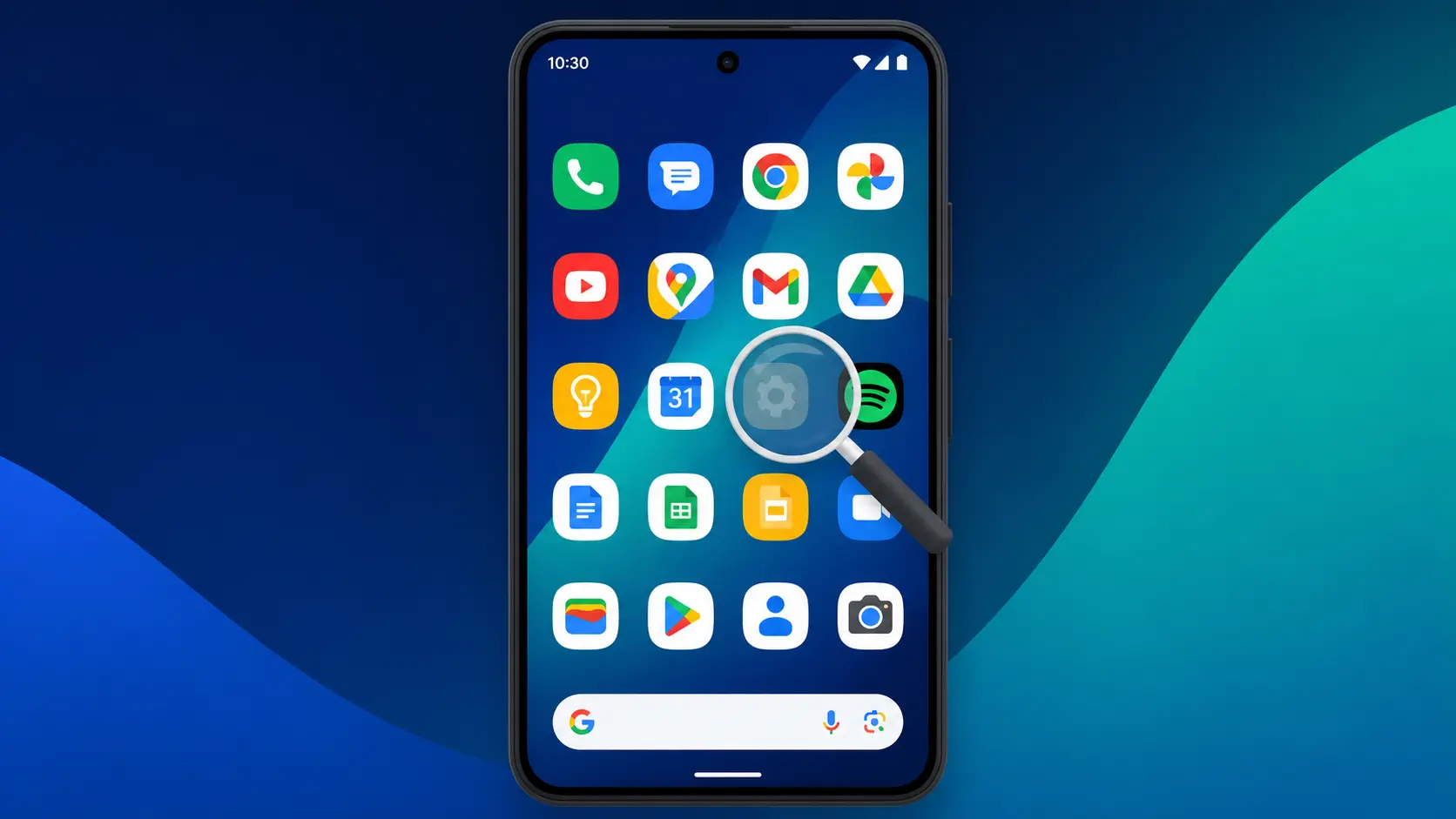
Hidden apps on Android are apps that don’t show up on your home screen or in your app drawer, even though they’re still fully installed and running on your device. I’ve helped a lot of people who thought an app was deleted when it was actually just hidden these are two completely different things.
There are three main reasons apps end up hidden, and knowing which category you’re dealing with tells you exactly where to look.
The first reason is personal privacy. A lot of Android users intentionally hide apps to keep sensitive information away from other people who use their phone banking apps, private photos, or messaging apps they don’t want visible when someone else picks it up. Android OS and many manufacturers now include built-in features like Private Space for exactly this purpose, and that’s completely fine.
The second reason is bloatware. Your phone almost certainly came loaded with pre-installed apps you’ll never use. Hiding them cleans up your home screen without needing root access or any technical workarounds.
The third reason is the one worth paying attention to. Sometimes an app gets hidden on your phone by someone else — and not always with good intentions. Hidden applications on Android installed without your knowledge can run silently in the background, collecting data you’d never know was leaving your device.
Not every hidden app is a problem. But if you didn’t hide it yourself, it’s worth finding out what it is. That’s what this guide covers every method to find hidden apps on your Android phone, for every situation
Signs Your Android Phone Might Have Hidden Apps
Your phone can tell you a lot about what’s running on it even when you can’t see the apps themselves. I’ve found that invisible apps on Android almost always leave traces, and once you know what to look for, the signs are hard to miss.
Unusual battery drain is the most common one. If your phone is losing charge significantly faster than it used to and nothing about your usage has changed, background running apps are a likely cause. Hidden apps with access to your camera, microphone, location, or contacts can actively transmit data around the clock, and that constant activity burns through battery fast.
Your phone stays warm when you’re not using it. Phones cool down quickly when they’re idle. If yours stays warm for long stretches especially overnight something is working in the background that shouldn’t be.
Unexplained data usage spikes. Go to Settings and check which apps have been using your mobile data. If you see app names you don’t recognize, or apps you don’t remember downloading, investigate them. Spy apps on Android have to send the data they collect somewhere, and that transmission uses your data allowance.
Notifications from apps you don’t recognize. Hidden app icons on Android may not appear on your home screen, but their notifications can still break through. If you’re seeing alerts from unfamiliar apps especially messaging or location apps that’s a sign worth taking seriously. This is also how some cheating apps on Android get discovered.
General slowdowns with no clear cause. Multiple invisible apps running simultaneously drain your processing power. If your phone has become noticeably sluggish and you haven’t installed anything new, that’s worth investigating.
One thing to keep in mind: not every unusual phone behavior is caused by hidden apps.
If you’re also seeing visual glitches like white horizontal lines on your phone screen, that’s a separate hardware or display issue that needs its own diagnosis — not something a hidden app removal will fix.
If several of the behavioral signs above apply to your situation, the security checks in the spy app section later in this guide are your next step.
How to Find Hidden Apps on Android 6 Methods That Work
Not all hidden apps are hidden the same way, and that’s why there are six methods here instead of just one. Some apps are simply missing from your home screen but sitting right in the app drawer. Others are buried in system privacy settings. And some are hidden so deliberately that you need to know exactly where to look based on your phone brand.
Start with Method 1 or 2 if you just can’t find an app. Start with the spy app checks in Section 7 if you’re worried about security. And if you own a Samsung or Xiaomi phone, the brand-specific sections later in this guide have steps that are different from what’s here.
One thing I’ve confirmed across dozens of Android devices: while the menu names look slightly different depending on your manufacturer, the Settings > Apps path works consistently across all of them Samsung, Pixel, Motorola, and everything else.
Method 1: Check the App Drawer First
The app drawer holds every app installed on your phone, whether it’s pinned to your home screen or not. Most of the time when someone tells me their app has disappeared, it’s actually just sitting in the drawer untouched.
To open the app drawer properly: place your finger on the Google search bar at the bottom of your home screen, hold it without tapping, and slowly drag it upward. This gesture works far more reliably than the quick swipe most people try which often just scrolls the home screen instead.
Once you’re in, scroll through the alphabetical list. Apps hidden from your home screen almost always appear here normally. If you find what you’re looking for, long press its icon and drag it back to your home screen to pin it there permanently.
This catches the most common version of a ‘missing app’ one that was never actually hidden at all, just unpinned from the home screen
Method 2: View the Full App List in Settings (Most Reliable)
TThis is the method I trust most, and for good reason nothing can hide from it. The Android settings apps list shows every single application on your phone: system apps, disabled apps, user-installed apps, and anything hidden through privacy settings.
Steps to access your full installed apps list:
- Open your Settings app
- Scroll down and tap Apps or Application Manager (the name varies slightly by phone)
- Look for See all apps or App Management and tap it
- Your complete installed apps list appears
Scroll through carefully and look for anything you don’t recognize. You’ll see technical-sounding system names like “com.android.settings” those are normal. What you’re looking for are apps with regular names, especially ones you don’t remember installing.
One thing worth knowing: if an app appears here as “Disabled” rather than as a normal app, that means it’s been turned off at the system level not hidden through privacy settings. Tap it and hit Enable to bring it back. Disabled apps and hidden apps are handled differently, and I cover that distinction in detail later in this guide.
This approach works on every Android phone because the core Settings structure stays consistent across all manufacturers
Method 3: Use the Privacy/Hide Apps Setting
Many modern Android phones include a built in feature specifically designed to hide apps. This feature Most modern Android phones include a built-in hide apps feature that lives inside your Privacy or Security settings, protected by a password or fingerprint. This is the first place to check if you think someone deliberately concealed an app.
The path varies slightly by manufacturer, but on most Android phones:
- Open Settings
- Tap Privacy or Security and Privacy
- Look for Hide Apps, Hidden Apps, or App Lock
- Enter your password or use your fingerprint to unlock it
- You’ll see the complete list of invisible apps on Android currently hidden on the device
Some phones split this into two tabs — one for visible apps and one for hidden apps. Tap through both to get the full picture.
A practical tip worth knowing: if you’re a parent checking a child’s phone, enable the option that still shows you notifications from hidden apps. This way, you’ll see when a hidden app receives a message or alert, even though the app itself stays out of sight. It’s a subtle but useful way to stay informed
Method 4: Search via Google Play Store (Installed Apps)
The Google Play Store maintains a permanent record of every app installed on your account, regardless of how well hidden that app might be on your home screen. It’s one of the most reliable ways to see what’s actually on your device.
Every app tied to your Google account appears here including apps hidden through privacy settings or launcher modifications. Sort by name, size, or last updated to make searching faster.
One thing worth knowing: if an app you installed previously no longer appears in your Play Store history at all, Google may have removed it from the platform entirely.
We cover exactly why Google deletes apps from the Play Store and what it means for apps already on your device.
This method is particularly useful when you want an objective list of everything installed, bypassing any home screen or app drawer hiding completely.
If your phone uses a custom launcher like Nova Launcher, Apex Launcher, or ADW Launcher instead of If your phone uses a custom launcher like Nova Launcher, Apex Launcher, or ADW Launcher instead of the default Android interface, hidden apps may be stored inside the launcher’s own settings — not the system-level Android settings. This is why some apps don’t show up even after you’ve checked Settings > Apps.
Third-party app hiders work differently because these launchers build their own app management layer. Android phone settings won’t detect apps hidden this way because the hiding happens at the launcher level, completely separate from system checks.
Method 6: Spot Apps Disguised as System Tools (Calculator Vault)
This method addresses a clever hiding technique that catches many people off guard. Calculator vault apps and similar disguised apps on Android look like innocent utilities but actually function as secret storage vaults.
A calculator vault app appears as a normal calculator on your app list and home screen. When you open the app and enter a special PIN code into the calculator interface, the app transforms into a hidden storage area containing apps, photos, and videos.
Here’s how to identify these disguised apps:
Look through your installed apps list for utility apps you don’t remember installing. Common disguises include calculators, notepads, file managers, and weather apps with generic names.
Open any suspicious utility app. If the app asks for a PIN or password immediately, or if the calculator interface looks more complex than necessary, you’ve likely found a vault app.
These apps aren’t necessarily dangerous, but they do indicate someone is actively trying to hide content on the device. Calculator vault apps are popular for privacy reasons, but finding one you didn’t install yourself raises obvious questions about who put it there and why.
The way to handle these apps is simple. Check the full app details in your Android settings apps list, note when the app was installed, and decide whether to keep or remove the app based on that information.
How to Find Hidden Apps on Samsung Android
Samsung phones handle hidden apps differently from stock Android. If you own a Galaxy S series, Galaxy Note, or Galaxy A series phone running Samsung One UI, the path to hidden apps is in a completely different place than what the earlier methods showed.
Samsung One UI has a dedicated built-in hide apps feature that other manufacturers don’t replicate. I’ve verified these steps across multiple Samsung models, so follow along exactly as written
Samsung One UI: Step by Step Path to Hidden Apps
Samsung One UI stores hidden apps in a location you won’t find on stock Android devices. There are two ways to get there:
Path 1: Through the Settings App
- Open the Settings app
- Scroll down and tap Home screen
- Tap Hide apps on Home and App screens
- Enter your PIN, password, or fingerprint if prompted
- Hidden apps appear at the top of this screen
To unhide an app, tap the minus (−) icon on the app’s thumbnail. It immediately returns to your home screen and app drawer.
Path 2: Directly from Your Home Screen (Faster)
- Tap and hold an empty area on your home screen
- Tap Settings in the menu that appears at the bottom
- Scroll down to Hide apps on Home and App screens
- Your hidden apps list appears at the top
Both paths reach the same screen Path 2 is just faster if you’re already on your home screen. These steps work across all Samsung Galaxy phones running One UI: S24, S23, S22, Note series, and A series.
What About Motorola and LG Android Phones?
Motorola and LG phones follow stock Android much more closely, which means the Samsung-specific steps above won’t apply here.
For Motorola hidden apps: go to Settings > Apps and view your complete installed apps list. Motorola doesn’t include a dedicated Hide Apps feature the way Samsung One UI does.
For LG phones: open Settings, tap General, then look for App Manager to see your full app list. The interface varies slightly across models, but the path stays consistent.
If the app isn’t showing up through the standard list on either of these devices, try Method 3 from earlier — some newer Motorola and LG models do include a privacy-based hide apps feature, and it typically lives under Security or Privacy in Settings
How to Find Hidden Apps on Xiaomi and Redmi Android Phones
Xiaomi and Redmi phones hide apps in a place that surprises almost everyone: inside the App Lock menu, not in Privacy or Home Screen settings like every other Android brand.
The first time I looked for hidden apps on a Xiaomi phone, I wasted several minutes checking the wrong menus before realizing the feature was built directly into App Lock. Samsung uses Home Screen settings. Stock Android uses Privacy. Xiaomi chose a completely different approach and if you don’t know that going in, you’ll spend a while going in circles.
Here’s the exact path to find hidden apps on Xiaomi and Redmi phones:
Step 1: Open Settings
Tap the Settings app on your Xiaomi or Redmi phone. This looks the same as any other Android phone’s settings menu.
Step 2: Navigate to Apps
Scroll down and tap Apps. You’ll see a list of app management options.
Step 3: Enter App Lock
Look for App Lock in the menu and tap it. The system will ask you to enter your App Lock password or use your fingerprint to proceed. App Lock is Xiaomi’s security feature that protects both app access and hidden apps.
Step 4: Find the Hidden Apps Tab
Once you’re inside App Lock, look at the top of the screen. You’ll see multiple tabs. Tap the Hidden Apps tab to view all apps that have been hidden on your device.
Step 5: Unhide Apps
To unhide an app, simply toggle off the switch next to the app’s name. The app will immediately reappear on your home screen and become visible in your installed apps list.
The hidden apps on Xiaomi phones are genuinely hidden at the system level, so finding them requires accessing this specific menu. Unlike methods that work across multiple Android devices, this approach is exclusive to Xiaomi and Redmi phones running MIUI.
If you don’t see a Hidden Apps tab inside App Lock, your phone might not have any hidden apps, or the feature might be named differently in your version of MIUI. In that case, go back and try the general Settings > Apps method from earlier in this guide to view your complete installed apps list.
How to Find Hidden Spy Apps on Android and Tell If One Is Tracking You
Finding a hidden app is step one. Knowing whether that app is actively spying on you is a completely different question and the answer isn’t always obvious.
Not every hidden app is malicious. Someone might have hidden a personal app for privacy reasons. But if you found an app you definitely didn’t install, or one with permissions that make no sense for its stated purpose, the three checks below will tell you what it’s actually doing.
These steps go beyond just locating apps they reveal whether any app on your phone is accessing your camera, microphone, location, or data without your knowledge.”
(Move the Google Help Center reference to the end of Section 15 as a trust signal, not mid-intro)
Relocated Google reference place at the END of Section 15 after the Play Protect scan: “If these checks raise serious concerns, Google’s Android Security & Privacy Help Center has detailed documentation on how each permission type works and what apps can access. It’s worth reading if you want to understand the full picture of what a suspicious app might be doing.
Google’s official Android Security & Privacy Help Center provides comprehensive resources on app permissions, device security settings, and best practices for protecting your personal information from malicious apps.
Their documentation explains in detail how Android’s permission system works and what each permission type allows apps to access, giving you authoritative information directly from the source.
Check App Permissions for Camera, Microphone, and Location
The most telling sign of a spy app isn’t the app itself. It’s what permissions the app has been granted. A hidden calculator app with access to your camera and microphone is clearly suspicious.
Here’s how to review every app’s permissions:
- Open Settings on your Android phone
- Tap Security and Privacy or Privacy
- Look for Permission Manager or App Permissions
- You’ll see a list of sensitive permissions like Camera, Microphone, Location, Contacts, and Messages
Tap on Camera first. You’ll see every app that has camera access. Go through the list and note any apps you don’t recognize. Do the same for Microphone and Location. An unknown app with access to all three of these permissions is a major red flag.
Here’s what matters. Check which apps have access to Camera, Microphone, Location, or Contacts. If an unknown app has these permissions, it could be transmitting your data without your knowledge. This is especially true if you find an app you definitely didn’t install.
Legitimate apps need these permissions for real reasons. Your camera app needs camera access. Your messaging app needs contacts access. But a utility app like a flashlight or calculator should never request your location or microphone. If it has these permissions, something is wrong.
Check Device Administrator Apps — The Hidden App Red Flag Most People Miss
Device admin apps have a level of control over your phone that most people don’t know exists — and that’s exactly why spy apps and stalkerware sometimes try to embed themselves here.
To check for suspicious device administrator apps:
- Open Settings
- Tap Security and Privacy or Security
- Search for Device admin or Device administrator
- Review the list carefully
Most phones will show one or two legitimate entries — a corporate email app, or an MDM app if your employer requires it. These have recognizable brand names. Watch for anything with a generic or vague name like “System Update,” “Security Check,” or “Device Manager” that you don’t remember installing.
Important: If you find a suspicious device admin app, do NOT try to uninstall it through normal means first. Apps with admin rights can block uninstallation or reinstall themselves. The correct order is: tap the app in the device admin list, select Deactivate or Revoke, and only then go to Settings > Apps to uninstall it.
Run a Google Play Protect Scan
Google Play Protect is Android’s built-in security scanner, and most users don’t realize they can trigger a manual scan anytime — not just wait for the automatic one.
To run a manual Play Protect scan:
- Open the Google Play Store app
- Tap your profile icon in the top right corner
- Tap Play Protect
- Tap the Scan button
The scan takes about 60 seconds. If Play Protect detects anything flagged as potentially dangerous or known malware, it alerts you immediately with options to remove it.
For ongoing protection, make sure both ‘Scan apps with Play Protect’ and ‘Improve harmful app detection’ are turned on in your Play Protect settings. These run automatically in the background and catch the vast majority of known stalkerware.
One honest limitation worth mentioning: Play Protect works from a known threats database. A very new or custom-built spy app might not be in that database yet. It’s a strong first line of defense, but not an absolute guarantee
How to Find Hidden Messaging and Tracking Apps Specifically
Some spy apps don’t go for full device access — they focus specifically on messaging or location tracking. These are sometimes harder to spot because they look like tools people actually use legitimately.
Hidden messaging apps to watch for include Telegram (which has a stealth or secret chat mode), private messaging vault apps, or any messaging app you don’t remember installing. Look through Settings > Apps for messaging apps that don’t belong to you. Also watch for cheating apps on Android that present as innocent utilities but contain built-in private chat features.
Tracking apps are trickier because they actively request location permissions and blend into the background. Common disguises include names like “Family Locator,” “GPS Tracker,” or “Location Finder.” These apps drain battery steadily because they’re constantly reporting location data — which is also how they often get caught.
One distinction that matters: parental monitoring apps installed with the child’s knowledge are a legitimate use case. The same app installed secretly on an adult’s device without their consent crosses into stalkerware territory. If you find a location tracking app you didn’t install and didn’t agree to, treat it as a security threat.
Check installation dates in Settings > Apps. If a tracking or messaging app appeared recently without your action, that’s your clearest signal that something is wrong.
Found a Hidden App You Didn’t Install Here’s What to Do
You’ve found a suspicious hidden app on your phone. Now what? The next steps matter because removing a hidden app isn’t always as straightforward as clicking uninstall. I’m going to walk you through the exact process I’ve learned works reliably, even when an app tries to resist removal.
The first thing to understand is that some apps have been given special privileges that prevent normal uninstallation. If you try to uninstall before removing those privileges, the app will either block the removal or quietly reinstall itself. That’s why the order of these steps matters.
Step 1: Revoke App Permissions Immediately
Open Settings, navigate to Security and Privacy, then Permission Manager. Find the suspicious app and review its permissions. If an unknown app has camera, microphone, or location permissions, revoke them immediately as your first step.
Go through each sensitive permission and tap the app name. Select Don’t allow or Revoke to remove access. This stops the app from transmitting your data while you work on removal. Even if the app remains on your phone temporarily, it can no longer access your camera, microphone, or location.
Step 2: Check for Device Administrator Rights
Search for Device admin in your Android security settings. If the suspicious app appears in this list, tap it and select Deactivate or Revoke. This removes the app’s high-level control over your phone. Revoke device admin privileges before attempting to uninstall because otherwise the app may block removal or reinstall itself.
This step is critical because apps with device admin rights can prevent their own uninstallation. Once you revoke these rights, the app loses its shield and becomes removable like any other application.
Step 3: Force Stop the App
Go to Settings > Apps, find the suspicious app, and tap it. Select Force Stop. This immediately halts any background processes the app is running. Force stopping doesn’t remove the app, but it stops its activity right now.
Step 4: Uninstall Through Settings
Return to the app’s page in Settings and tap Uninstall. Confirm the removal. The app should uninstall without resistance now that you’ve revoked its permissions and device admin rights.
If the uninstall button is greyed out or the app refuses to uninstall, it still has elevated privileges you missed. Go back and check for device admin rights again first.
And if you’re running into stubborn apps that simply won’t budge through the standard uninstall process, our complete guide on how to delete apps on Android covers every removal method including force-removal techniques for apps that resist standard uninstallation
Step 5: Change Your Important Passwords
After uninstalling the suspicious app, change the passwords for your most critical accounts. Start with email, banking, and social media. Use a secure computer or another trusted device to change these passwords, not your phone. A hidden app that was accessing your data might have captured login credentials, so changing them prevents unauthorized access to your accounts.
Step 6: Consider a Factory Reset If the App Persists
If the app keeps reappearing after uninstallation, something more serious is happening. Some sophisticated malware can reinstall itself even after removal. In this situation, a factory reset becomes necessary.
Before doing a factory reset, back up your important files and photos to cloud storage. Then open Settings, go to System, and select Reset Options or Factory Reset. This completely wipes your phone and reinstalls the operating system, removing anything persistent.
Factory reset is the nuclear option and should only be your last resort. It works, but it erases everything on your device. For most hidden apps, the steps above should be sufficient.
After completing these steps, your phone should be free of the suspicious app. You’ve revoked its access, removed its privileges, and uninstalled it completely. Take this experience seriously and consider digital privacy going forward. Change your passwords regularly, keep your Android security settings updated, and stay cautious about which apps you grant permissions to.
The Play Store Trick Open a Hidden App Without Knowing the Password
If an app has been hidden behind a privacy password and you don’t know the code, there’s a way around it that works on any Android phone. The Play Store maintains its own record of installed apps that operates completely independently from privacy hiding settings.
A quick note on context: this is useful on a shared family device not for accessing someone else’s private phone without permission. Use this responsibly.
A quick note on context: this is useful on a shared family device not for accessing someone else’s private phone without permission. Use this responsibly.
Steps:
- Open the Google Play Store app
- Tap the search icon at the top
- Type the exact name of the hidden app
- When the app appears in results, tap on it
- Look for the Open button (instead of Install)
- Tap Open to launch the app directly
The Open button appears because Play Store recognizes the app is already installed on your device. This bypasses home screen and privacy hiding completely because privacy hiding only affects where the app appears, not whether the app itself can run.
One requirement: the phone needs an active internet connection. Without it, the Play Store can’t verify your installed apps and the Open button won’t appear.
After launching the app this way, you can explore it normally, check its permissions, or decide whether to uninstall it using the steps from the previous section.
Here’s exactly how to find and open a hidden app using the Play Store:
- Open the Google Play Store app on your Android phone
- Tap the search icon at the top
- Type the exact name of the hidden app you want to access
- When the app appears in the search results, tap on it
- Look for the Open button instead of Install
- Tap Open to launch the app directly
The Open button appears instead of Install because the Play Store recognizes the app is already installed on your device. Tapping Open bypasses the privacy password completely and launches the app immediately.
One important requirement: this method needs an active internet connection on the device. If your phone doesn’t have data or WiFi access, the Play Store can’t connect to verify your installed apps, and the Open button won’t appear.
This bypass works because privacy hiding only affects your home screen and app drawer visibility. It doesn’t actually prevent the app from running or being accessed through other means. The Play Store represents the master record of installed apps on your device, and it operates independently from privacy settings.
After you open the app this way, you can use it normally. The app won’t ask for a password because you’ve accessed it through an authorized pathway. This is particularly useful if you’ve forgotten a privacy password yourself, or if you need to check what a hidden app does without waiting for someone to remember the security code.
Once you’ve found hidden apps on Android using this method, you can decide whether to unhide them permanently, delete them, or investigate their permissions more closely using the security checks from earlier in this guide.
Hidden vs. Disabled Apps What’s the Difference and Why It Matters
I’ve noticed that people often confuse hidden and disabled apps, and this confusion leads them to think their search methods aren’t working. These are two completely different things, and understanding the distinction will save you frustration.
A hidden app is intentionally removed from your view but stays fully functional and active on your device. The app still runs, still receives notifications, and still uses battery and data. You just don’t see it on your home screen or app drawer. A disabled app is different. A disabled app on Android is system-level deactivation where the entire application stops working until you turn it back on.
Here’s the key difference. Hidden apps are hidden by choice, usually through privacy settings or launcher options. Disabled apps are shut down at the system level and won’t launch at all, even if you try to open them manually.
Why does this matter? If you’re looking for a hidden app and instead find a disabled app, you might think the hidden app doesn’t exist. But they’re separate categories, and you need to check both.
How to find disabled apps on Android:
- Open Settings on your phone
- Tap Apps or Application Manager
- Look for a Show system apps toggle or See all apps option
- Enable it to display disabled apps
- Scroll through the complete android settings apps list
- Disabled apps often appear greyed out or marked as “Disabled”
How to re-enable a disabled app:
If you find an app you want to turn back on, tap the disabled app. You’ll see an Enable button. Tap it and the app becomes active and visible again immediately. The app reappears in your app drawer and can be launched normally.
A practical example. Some phones come with pre-installed apps you don’t want. Instead of uninstalling them, users often disable them to free up space and clean up the interface. These disabled apps take up storage but don’t run or appear anywhere. If you’re looking for one of these apps later, the android app manager will show it as disabled rather than hidden.
You can also disable apps you do not want to appear or run on your phone through the same Settings menu. This is a cleaner approach than hiding because disabled apps consume fewer resources than hidden apps.
The same menu in Settings can be used to disable apps you do not want to appear or run on your phone. Just open the app page and tap Disable instead of Uninstall.
Understanding this distinction matters because it clarifies what you’re actually looking for. If you’re searching for a specific app and can’t find it anywhere, check if it’s disabled. If you find it disabled and want to use it, enabling takes seconds. If you’re looking for hidden apps specifically, now you know disabled apps are a separate category that won’t show up in privacy or launcher hiding settings.
Quick Summary Which Method Should You Use?
The right method depends on your situation. Here’s how to decide:
If you just can’t find an app on your home screen: Start with the app drawer swipe up and scroll through. Nine times out of ten, the app is right there and was never hidden at all. If it’s not in the drawer, go to Settings > Apps for the complete installed list.
If you think someone intentionally hid an app: Go to Settings > Privacy > Hide Apps and enter the password if you know it. Samsung users: Settings > Home Screen > Hide Apps on Home and App Screens. Xiaomi users: Settings > Apps > App Lock > Hidden Apps tab.
If you’re worried about spy apps or stalkerware: Skip the finding methods and go straight to the security checks Settings > Permission Manager for camera/mic/location access, then the Device Administrator check, then a Play Protect scan. Knowing whether an app is tracking you matters more than just finding it.
Different situations call for different approaches. The steps are all here use whichever section fits what you’re dealing with and don’t hesitate to work through more than one if you’re still not finding answers.
Frequently Asked Questions
Why is an app not showing up on my Android home screen?
An app can disappear for three reasons: it was manually hidden via Privacy settings, it’s in your app drawer but not pinned to your home screen, or it was disabled through system settings. Check your app drawer first, then Settings > Apps to see your complete installed apps list.
Can hidden apps still run in the background and use data?
Yes. Hiding an app from your home screen or app drawer doesn’t stop it from running. Hidden apps continue to use battery, data, and access permissions unless you force stop or uninstall them completely.
How do I unhide apps on Android?
The method depends on how it was hidden. For Samsung, go to Settings > Home Screen > Hide Apps. For other brands, try Settings > Privacy > Hide Apps. If you use a third-party launcher like Nova, check the launcher’s app-hiding settings instead.
What is a Calculator Vault app and should I be worried?
A Calculator Vault is an app disguised as a utility tool that secretly stores hidden apps, photos, or videos behind a PIN code. It’s not inherently dangerous but is commonly used to hide content from partners or family members.
I found a suspicious hidden app can I delete it without it coming back?
First, check if the app has Device Administrator rights in Settings > Device admin. If yes, revoke those rights first. Then go to Settings > Apps, find the app, and tap Uninstall. If it persists, run a Google Play Protect scan.




1 comment