
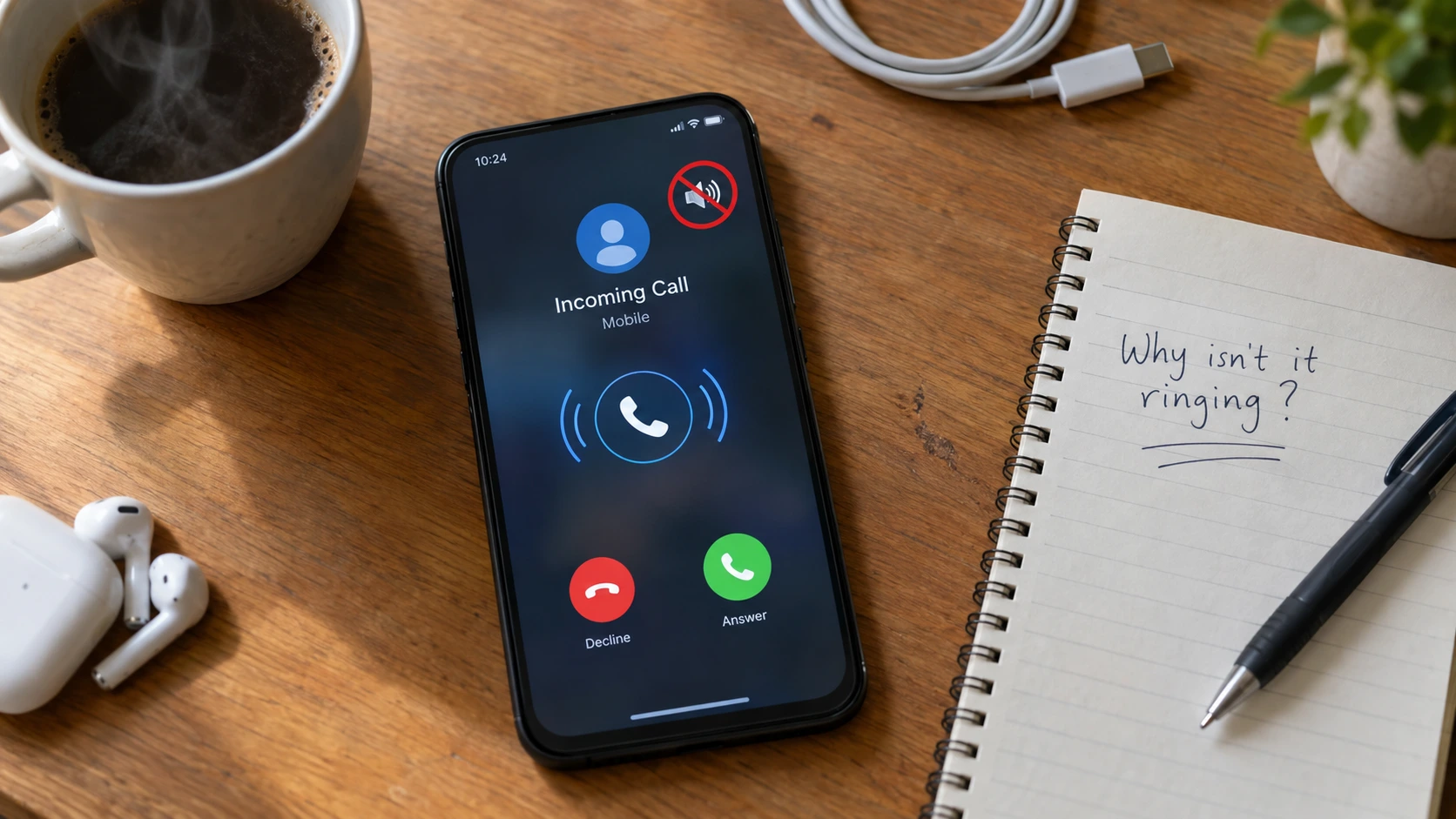
First—Which Version of This Problem Do You Actually Have?
I see people asking, “Why is my phone not ringing when I call someone?” almost every week, and the first thing I need to know is this: which version of the problem are you actually dealing with?
Because there are three completely different scenarios hiding behind that search.
One: you call someone and hear no ringing on your end. Two: you hear ringing, but the person says their phone never made a sound. Three: your phone doesn’t ring when people call you.
Each one has different causes.
Here’s something most people don’t know: nearly 39% of mobile users experience phantom ringing. They think their phone rang when it didn’t. Sometimes the phone is working fine.
Before you assume your cell phone is broken, I need you to know this. The overwhelming majority of ringing failures are simple settings issues, not hardware problems. Asurion—a company that repairs millions of phones every year—sees this constantly. Settings you can fix yourself in under two minutes.
So which scenario matches yours?
Can’t hear ringing when you call someone? Section 2. Phone won’t ring for incoming calls? Section 4 for iPhone or Section 5 for Android. Only happens with certain callers? Section 6.
Let’s figure out exactly what’s happening.
Phone Not Ringing When You Call Someone? These Are the Causes on Your End
When you dial someone and hear complete silence, the problem is almost always on your end, not theirs.
Here’s what most people don’t realize. That ringing sound you hear when calling someone—the ringback tone—is generated by the network. Not by the other person’s phone actually ringing. They’re two completely separate sounds generated independently.
This is why you can hear a ringback tone while their phone sits silent. Or hear nothing while their phone rings normally on their end.
If you don’t hear the ringback tone, the issue is either your phone’s audio routing or the network connection failing to establish properly.
The most common causes: your in-call volume is at zero, Bluetooth is stealing the audio and playing it somewhere else, or your phone hasn’t registered properly with the network after losing signal.
And here’s the mistake I see constantly. People assume that if they can’t hear ringing, the other person’s phone must be off or they got blocked. That’s rarely what’s happening. The ringback tone failing is usually a local audio problem or a network glitch, nothing to do with the recipient.
The phone doesn’t ring when I call someone? Check these causes first.
Start with in-call volume. Then check if Bluetooth is connected. Then force your phone to reconnect to the network using Airplane Mode.
That sequence fixes outgoing calls not ringing about 80% of the time.
The In-Call Volume Problem Nobody Talks About
Your phone has two completely separate volume systems. Ringer volume and in-call volume.
You can have your ringer cranked to maximum and your in-call volume at zero. They don’t affect each other at all.
Most people adjust ringtone volume settings before making a call and assume they’re done. Wrong system. That only controls how loud your phone rings when someone calls you. It does nothing for the volume you hear during an active call.
Here’s how to check in-call volume correctly.
Make a test call. Any number works—your voicemail, a friend, even a number that doesn’t exist. While the call is connecting or ringing, press the volume up button on the side of your phone. Watch the volume bar on screen.
If that bar is low or at zero, that’s your problem right there.
Press volume up until the bar reaches maximum. End the call. Try calling someone again.
You’ll hear the ringback tone now.
The phone ringer not working for outgoing calls is almost always this exact issue. In-call volume was muted, and nobody knew to check it during an active call.
Try This Before Anything Else: Airplane Mode Reset
Airplane mode forces your phone to drop its connection to the cell tower and reconnect from scratch.
This resets your network registration. And network registration failure is the top cause of silent outgoing calls when volume isn’t the issue.
Here’s the exact sequence that works.
Swipe down from the top of your screen and tap the Airplane Mode icon. Wait a full 10 to 15 seconds. Not 3 seconds. A full 10 to 15.
Then tap Airplane Mode again to turn it off.
Now wait another 10 to 15 seconds before you make a call.
That second wait is critical. Your phone needs time to fully re-register with the network. If you dial immediately, the call can fail again because registration hasn’t finished.
This fixes carrier network issues and weak network signal strength problems instantly. Every time I troubleshoot silent outgoing calls, this is the first thing I try after confirming volume is up.
And it works more often than it doesn’t.
Is Your Phone Ringing—In Your Car? The Bluetooth Trap
Your phone might be ringing right now. Just not where you can hear it.
If Bluetooth is connected to any device—car stereo, wireless earbuds, a speaker in another room—the entire audio path gets rerouted. The ringtone. The ringback tone. Everything.
Your phone sits completely silent in your hand while the audio plays through the Bluetooth device.
I see this constantly, and the scenario that catches people every single time is car Bluetooth. You drove somewhere earlier. Parked. Walked away. Your phone is still connected to the car even though the car is off and you’re inside your house.
Someone calls. Your phone doesn’t make a sound. Because the ringtone is playing in your parked car outside.
This is Bluetooth audio routing. And it doesn’t just affect in-call audio like most people think. When Bluetooth connects, it takes over the complete audio system. Ringtone, ringback tone, call audio, everything.
The phone doesn’t ring when calling someone? Check if Bluetooth is on. Because even if you don’t see a device name, you might still be connected.
Here’s the fix that actually works.
Don’t just disconnect the specific device. Toggle Bluetooth completely off.
Swipe down from the top of your screen. Find the Bluetooth icon. Tap it to turn Bluetooth off entirely.
Why not just disconnect the one device? Because you might have multiple paired devices. Disconnecting your car doesn’t stop your earbuds from capturing the audio if they’re also paired. Another device can still grab the routing.
Asurion—the repair company that handles millions of devices—lists Bluetooth routing as one of their top causes of phones not ringing. Their fix? Turn Bluetooth off. Not disconnect. Off.
That forces all audio back to your phone speaker immediately.
And here’s the invisible part most people never realize. Auto-connect means your phone can pair with a device without you doing anything. You walk near your car. It connects. No notification. No alert. Just silent connected devices stealing your audio.
The phone won’t ring when someone calls because the audio is somewhere else entirely.
Toggle Bluetooth off. Make a test call. You’ll hear the ringback tone instantly.
How to Fix Phone Not Ringing on iPhone (Step by Step)
If your iPhone doesn’t ring when called, it is almost always a configuration setting rather than a hardware failure. I start by checking physical controls before moving into software settings like focus modes or volume configurations, as these are the most common culprits for silent devices.
Check the Ring/Silent Switch (or Action Button on Newer iPhones).
This is the very first thing I check whenever an iPhone is acting up. Most iPhones feature a physical switch on the upper left side of the device. If you see an orange strip, the phone is in Silent Mode. Flip that switch toward the screen until the orange color disappears. Watch your screen closely when you do this, as it should display a “Silent Mode Off” message as visual confirmation the fix worked. If you are using an iPhone 15 Pro or later, there is no physical switch. Instead, you have an action button. Because this button lacks a physical position indicator, you must check your Control Center to see if the bell icon indicates your phone is silent.
Why Your Volume Buttons Might Not Be Controlling Your Ringtone
I see people constantly mistake their media volume for their actual ringtone volume. When you press the side volume buttons, the bar on the screen often only changes the volume for music, videos, or apps. If “Change with Buttons” is disabled in your settings, those side buttons won’t adjust your ringtone at all. You have to go to Settings, then Sounds & Haptics, and drag the Ringer and Alerts slider manually. That slider is the only way to be certain your ringtone volume is set to a level you can actually hear.
Do Not Disturb and Focus Mode: More Complex Than You Think
Focus Mode is not just a simple on-and-off toggle anymore. In iOS 26, it involves complex scheduling, specific contact groups, and app whitelisting. If you have “Do Not Disturb” enabled, your phone will stay silent for almost every caller. I always check the Control Center to ensure no Focus modes are active. Crucially, don’t assume emergency calls will bypass this automatically. You must manually enable “Allow Repeated Calls” in the settings, or that second urgent call will go straight to voicemail. If you are running an early version of iOS 26, update your software immediately. Some early builds had specific notification bugs that caused this ringing silence.
iPhone-Specific Fix for Outgoing Calls That Don’t Ring
Sometimes the issue isn’t incoming calls but outgoing calls that never produce a ringback tone. This usually points to a carrier registration failure. I fix this by going to Settings, then Cellular, and toggling the SIM or eSIM line off and back on. This forces the iPhone to re-register with your carrier network. If that fails, enable Wi-Fi Calling in the Phone app settings. This provides a backup route for the audio signal, which is essential if you are in an area with weak cellular reception. If the problem persists, resetting your network settings is the final, most reliable step I recommend.
This same registration hiccup sometimes shows up right after switching devices, which is why I always tell people to double check their line setup if they recently got a new phone. If you’re in the middle of that process, my guide on how to transfer your phone number to a new iPhone covers the exact steps for making sure your line registers correctly the first time, which prevents this ringing issue before it even starts.
How to Get Your Android Phone Ringing Again
Most of the time, an Android phone not ringing comes down to a configuration setting that got flipped by accident, rather than a hardware failure. Unlike an iPhone, Android devices have no physical silent switch, which means you have to dig into the software to find the culprit. I usually see this happen after a software update or a stray touch in the notification shade.
The 30-Second Android Sound Profile Check
This is the absolute first thing I check when a device goes silent. Swipe down from the top of your screen twice to fully expand your quick settings panel. Look for the volume icon or sound profile tile. If it shows “Mute” or “Vibrate,” your phone is likely set to ignore incoming calls. Tap the icon until the profile switches back to Sound. This is the fastest way to rule out a simple user-error mistake before you start poking around in deeper system menus.
Check All Four Volume Sliders—Not Just the Ringtone
Many people make the mistake of assuming the volume button controls everything. On almost every Android device, audio is split into four distinct, independent streams: Ringtone, Media, Notifications, and System. You can have your volume at max, but if the Ringtone slider is low, you will still miss calls. Navigate to Settings, select Sounds and Vibration, and then tap Volume. You will see all four sliders there. Drag the Ringtone slider to the maximum level. If you struggle to find this menu on your specific device, just open the Settings app and type “Sound” into the search bar at the top. It saves a lot of time.
Samsung’s Hidden Mute That Overrides Everything
If you are using a Samsung device and everything else looks correct, this is the hidden setting you need to find. Samsung internal research suggests that roughly 25% of silent call incidents on Galaxy devices stem from the phone automatically modifying its own sound profile, often due to software bugs or accidental toggles.
Go to Settings, then tap Accessibility, and look for Hearing Enhancements. Inside that menu, check if “Mute All Sounds” is toggled ON. If it is, your phone will stay silent regardless of your volume settings or Do Not Disturb status. Switch this OFF. This setting is the last thing most people check, but it is effectively a “master mute” that overrides every other volume control on the device.
App Notification Settings and Third-Party Interference
Sometimes a third-party app is to blame for your phone not ringing. Spam-blocking tools, call-screening apps, or even certain voice-over-IP services can intercept incoming calls and suppress the ringtone to categorize the contact. I recommend booting your phone into Safe Mode if you cannot find the issue. Hold the physical power button, then tap and hold the on-screen “Power Off” option until the Safe Mode prompt appears. If your phone rings normally while in Safe Mode, a third-party app is causing the interference. You will need to check the notification settings within your installed calling or security apps to find out which one is silencing you.
Why Your Phone Rings for Some Callers But Not Others
The most baffling version of this problem is when your phone works perfectly for your friends but goes completely silent for a specific caller. I see people constantly blame their speakers or assume the phone is broken, but the issue is almost always a digital gatekeeper you inadvertently turned on.
Another subtle cause is duplicate contacts. If you have two different entries for the same person—perhaps one with an old work number and one with a cell number—and you have custom ringtones or blocking rules applied to only one of those entries, your phone might react inconsistently depending on which specific record the network pulls.
Silence Unknown Callers: The iPhone Feature That Blocks Your Doctor
Many iPhone users enable “Silence Unknown Callers” to stop telemarketers, forgetting that it has no intelligence to distinguish between a spam bot and your doctor’s office. When this feature is active, your phone remains silent for every single incoming call from a number not currently saved in your Contacts, Recent Calls, Mail, or Messages. According to Apple’s own support documentation on Silence Unknown Callers, the feature checks exactly these four sources and nothing else, which means it cannot tell the difference between a spam call and a legitimate one calling from a new number. It does not matter if the caller is a legitimate business or someone you need to hear from; if they aren’t in your specific databases, they get silenced the same way.
If you find yourself missing calls from delivery services, new business leads, or urgent medical offices, you need to turn this off. Go to Settings, then Phone, and toggle “Silence Unknown Callers” to the off position. I only recommend leaving this on if you are certain you never need to receive calls from anyone outside your existing address book.
If you suspect a specific number is being silenced because you accidentally blocked it rather than because of the Unknown Callers setting, the fix is different. I’ve covered exactly how to see blocked numbers on iPhone in a separate guide, including how to spot a number you blocked months ago and forgot about. It’s worth checking both settings since they produce the exact same symptom but require completely different fixes.
Call Forwarding: Sending Your Calls Straight to Voicemail?
If your calls are going straight to voicemail without your phone ever lighting up, you might have unconditional call forwarding active. I often see this occur when people install third-party voicemail apps like YouMail or Google Voice. During the setup process, these apps often automatically trigger call forwarding settings on your carrier’s network.
If you have checked your standard settings and still experience issues, verify your carrier’s specific codes or app settings to disable any active forwarding. Keep in mind that carrier networks can sometimes take a few minutes to process these changes, so if you toggle it off, wait five minutes before testing the line again.
Getting Missed Call Notifications But Your Phone Never Rang?
This one trips people up because it feels like a contradiction. You look at your screen, see a missed call notification staring back at you, and think, “But it never rang.” Here is the actual answer. Your phone did receive the call. It just failed to alert you about it in real time, which is a completely different problem than a phone that never gets the call at all.
This distinction matters more than most people realize. If a missed call shows up in your call history, the signal reached your device successfully. The breakdown happened somewhere between the call arriving and your phone actually making noise or lighting up your screen. That is a settings problem, not a network problem.
So what causes a phone to receive a call silently?
Usually it comes down to one of these four things.
- Silent mode with vibration disabled. If your phone is in silent mode and you also turned off vibration to save battery or just because the buzzing annoyed you, there is nothing left to alert you. No sound, no vibration, no visual pop-up you’d notice unless you were staring at the screen.
- Do Not Disturb mode without visual alerts turned on. Some Do Not Disturb configurations block the ringtone but still let a banner or lock screen alert through. Others block everything. If you have not specifically enabled visual notifications during Do Not Disturb, you get nothing until you unlock your phone later.
- Bluetooth routing your audio somewhere else. This one catches people constantly. Your phone connects to a Bluetooth speaker, a car system, or headphones, and the ringtone plays through that device instead of your phone’s speaker. If you are not near the connected device, you never hear a thing.
- App notification suppression. Certain call-related apps, spam filters, and even some battery-saving apps can quietly override your ringtone settings for calls they consider unnecessary to alert you about immediately.
Now, here is where this diagnostic split really helps you troubleshoot faster. If your missed call does NOT appear in your call history at all, and you only found out through a delayed voicemail notification hours or even days later, that is not a settings issue on your phone. That points to a carrier-level delay or network problem, which I cover in the next section. Do not waste time digging through your sounds and vibration settings for that one. The issue never touched your phone’s software to begin with.
I want to flag one common mistake here. People see the missed call notification and assume their phone is working fine because, well, it clearly received something. But that notification only confirms the call arrived. It says nothing about whether your alert system actually did its job. Those are two separate functions on your phone, and treating them as the same thing is exactly why this problem is so confusing to diagnose on your own.
Full Signal But Still No Ring? The Network Registration Problem
Here’s the scenario that makes people want to throw their phone across the room. Five bars. Data is working fine. You can scroll social media, load a webpage, and send a text. And calls still don’t come through. If you’ve been through every setting in this article and your phone still won’t ring, the problem probably isn’t on your phone at all. It’s happening one level up, on the network side, in a place most people never think to look.
Let me explain what’s actually going on, because it’s simpler than it sounds.
Your phone doesn’t just connect to the network once and call it done. It actually checks in twice, for two completely different jobs. One check-in handles your data connection, the stuff that lets you browse the internet and use apps. A separate, independent check-in handles voice calls specifically. This second one is called IMS registration, and it runs on its own, apart from your data connection entirely.
Here’s the part nobody tells you: those signal bars on your screen only reflect the data check-in. They tell you nothing about whether the voice check-in succeeded. Your phone can pass the data registration with flying colors and still fail the voice registration completely, and from the outside, everything looks normal. Full signal, working internet, silent phone.
I know that sounds like a technicality, but it’s the actual mechanism behind one of the most frustrating versions of this problem. It’s also exactly why checking your signal bars tells you nothing useful when you’re trying to figure out why your phone won’t ring.
So how do you fix a stuck voice registration?
Start with the basics, in this order:
- Toggle Airplane Mode on, wait ten seconds, then turn it back off. This forces your phone to drop both connections and start the check-in process over from scratch.
- Restart your phone completely. A full restart clears out registration data that a simple airplane mode toggle sometimes doesn’t touch.
- Reset your network settings. On iPhone, go to Settings, then General, then Transfer or Reset iPhone, then Reset, and select Reset Network Settings. On Samsung and most Android phones, head to Settings, then General Management, then Reset, and choose Reset Mobile Network Settings.
- Check for a pending software update. Carriers occasionally push registration fixes through system updates, and running outdated software can leave your phone stuck on an old registration method that no longer works properly.
If none of that resolves it, the fix isn’t in your hands anymore. This is a carrier-side issue, and you need to call your carrier directly and ask them specifically to reset or “bounce” your line registration. That specific phrase matters. I’ve seen telecom support staff describe this as one of the only fixes that actually works when a customer’s line gets stuck on the voice registration side while data keeps working fine. Your phone can be configured perfectly and still not ring, simply because the network never finished shaking its hand on the voice side of things.
When It’s Not a Setting — How to Tell If the Problem Is Hardware
I’ll say this upfront because it saves people money: your phone is probably fine. Professional repair technicians consistently report that the overwhelming majority of ringing failures come down to a setting, not a broken speaker. Hardware failure is the exception here, not the likely explanation, even though it feels like the obvious answer when nothing seems to work.
Before you assume the worst, run a quick three-part test.
- Play music through the speaker. Open any music or video app and turn the volume up. If sound comes through clearly, your speaker hardware is working.
- Set an alarm and let it go off. Alarms use a different audio channel than calls, so this tells you whether your phone can make loud alert sounds at all.
- Record a voice memo and play it back. This confirms both the microphone and speaker are functioning together.
If all three of those work and your phone still refuses to ring for incoming calls, you’re not dealing with hardware. You’re dealing with a routing issue somewhere in software, and every fix earlier in this guide is still worth trying. The speaker clearly works. Something is just telling it not to make noise for calls specifically, which is a completely different animal than a dead component.
Now, if none of those three tests produce sound, not the music, not the alarm, not the playback, that points toward an actual hardware problem. Even then, I’d still try one more thing before assuming the worst: a factory reset. It sounds drastic, but it rules out a deeper software corruption issue that mimics hardware failure.
If you’ve backed up your phone, updated the software, and tried a factory reset, and you still get complete silence across every single app, that’s when it makes sense to get the device looked at professionally. Not before.
If your speaker test comes back inconsistent, meaning some sounds play fine while others sound muffled or distorted rather than completely silent, that points to a slightly different issue than a total hardware failure. I’ve written a separate guide on how to fix phone speaker problems that walks through cleaning debris out of the speaker grille, checking for water damage indicators, and running deeper diagnostic tests that go beyond what I can cover here. Worth checking before you assume the worst.
Quick Recap: The Fix That Matches Your Problem
If you skimmed straight to the bottom looking for a shortcut, here’s your shortcut. Match your exact symptom to the row below, and go straight to that fix first.
| Your Symptom | Most Likely Cause | Try This First |
|---|---|---|
| The phone never rings for incoming calls. | Silent mode, volume, or Do Not Disturb | Check the Ring/Silent switch (iPhone) or sound profile (Android). |
| The phone doesn’t ring when calling someone else. | Carrier registration or weak signal on outgoing line | Toggle the SIM/cellular line off and on. |
| Rings for some people, silent for others | Silence Unknown Callers or Focus Mode contact list | Check Silence Unknown Callers settings. |
| Missed call notification but no ring at all | The call reached the phone, but the alert system failed. | Check Bluetooth connections and vibration settings. |
| Full signal, data works, calls still silent | Voice network registration failure (separate from data) | Toggle Airplane Mode, then reset network settings |
| Nothing works; I tried every setting. | Possible hardware issue, but rare | Run the music, alarm, and voice memo tests first. |
I put this table together because I know most people don’t read troubleshooting guides start to finish. You scan for your specific problem, try the fix, and move on with your day. That’s fair.
But here’s the honest truth: why is my phone not ringing when I call someone versus why won’t my phone ring when someone calls me? These are two different problems with two different root causes, even though they feel like the same complaint. One lives on your outgoing line’s registration with the carrier. The other usually lives in your silent mode, Do Not Disturb, or notification settings.
Start with the row that matches your exact symptom. Not the one that sounds closest. The exact one.
Why is my phone not ringing when I call someone?
Your in-call volume is separate from your ringer volume, so check that first by pressing the hardware buttons during a test call. If that’s fine, check for connected Bluetooth devices, then toggle Airplane Mode on and off, waiting 15 seconds before calling again.
Why do I get missed calls but my phone doesn’t ring?
Your phone received the call, but the alert system failed, usually due to Do Not Disturb, Silent Mode with vibration off, or Bluetooth routing audio elsewhere. If the missed call shows up in your history, it’s a settings fix; if it doesn’t appear at all, it’s a network issue.
Why does my phone ring for some people but not others?
This usually means Silence Unknown Callers is blocking numbers not saved in your Contacts, a specific contact’s ringtone is set to “None,” or that caller is blocked. Check each of these settings against the specific numbers you’re missing.
Does Do Not Disturb block all incoming calls on iPhone?
Yes, by default Do Not Disturb and Focus Mode silence every call unless you manually configure exceptions. The “Allow Repeated Calls” emergency bypass is not on by default, so you have to enable it yourself in Focus settings.
Why won’t my phone ring even when the volume is all the way up?
On iPhone, “Change with Buttons” might be disabled, meaning your volume buttons only control media, not the ringer, in Settings under Sounds & Haptics. On Samsung, check Accessibility, then Hearing Enhancements, for “Mute All Sounds,” which silences everything regardless of your volume level.



1 comment