Before You Do Anything Figure Out Which Problem You Have With Your Phone
A lot of people who search for “how to fix phone speaker” make the same mistake. They try all sorts of things like restarting their phone blowing into the speaker or downloading some app without taking the time to think about what’s really going on with their phone speaker. Then they get frustrated because nothing seems to work.
I have been in this situation myself. I have also helped some friends figure out what is wrong, with their phones. One thing I learned is that you need to take a step and think about what is really going on. Before you do anything you should find your symptom below.
There is one thing you should know before you start trying to fix your phone speaker. If your phone speaker is not working it does not mean you need to buy a phone. Most of the time phone speaker problems can be fixed at home without spending any money. The people who fix phones for a living see these problems all the time and they ever need to replace the whole phone. Your phone is probably okay. You can probably fix the speaker problem yourself.
Muffled or Low Volume: What This Usually Means
If your speaker sounds quieter than usual or like someone put a cloth over it the cause is usually a blockage. It’s not a damaged part or a software problem. It’s debris.
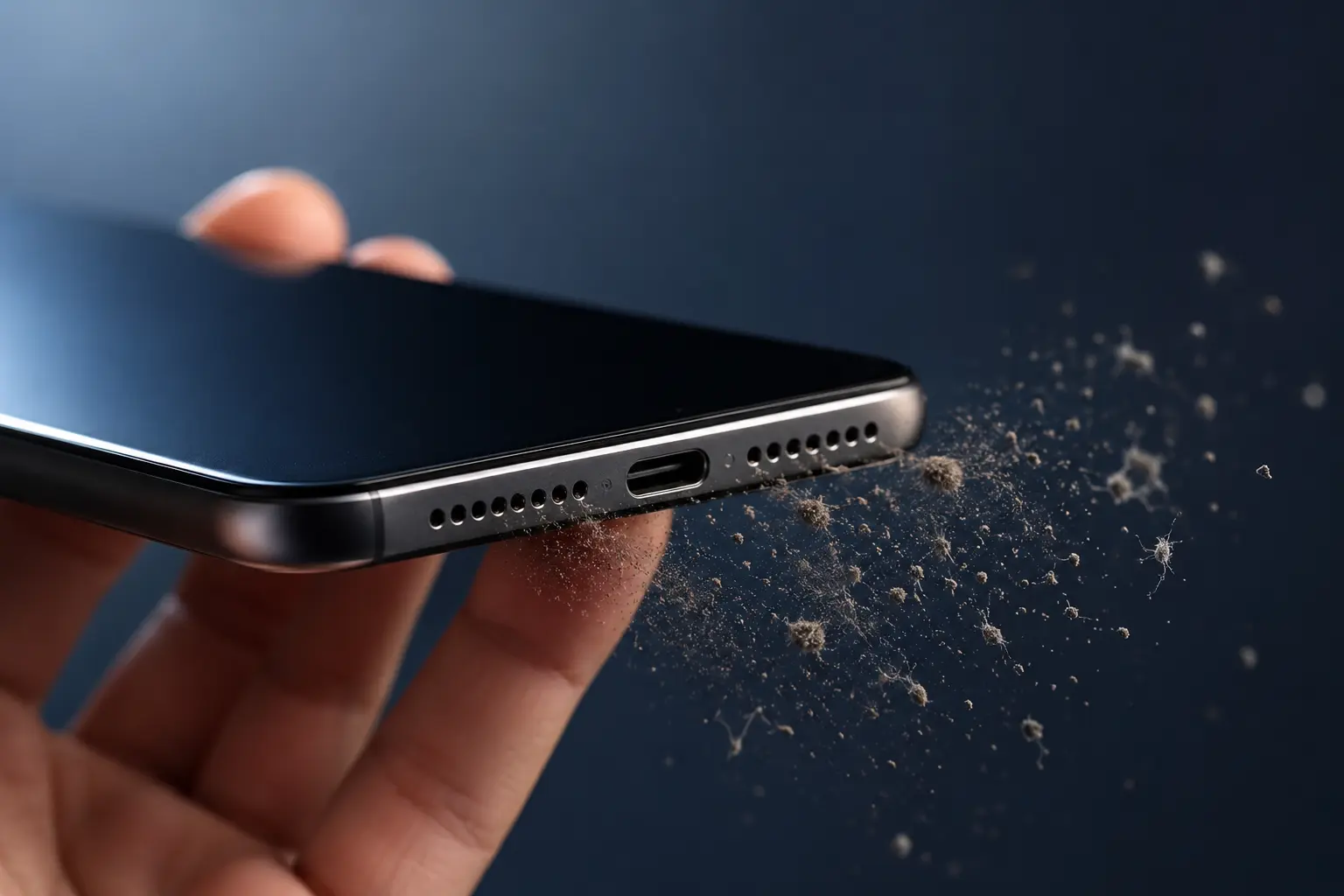
The speaker grille on your phone is really small. Over time dust, lint from your pocket, skin oil and tiny particles get stuck in those holes and block sound from coming out. Muffled phone speaker volume complaints on older devices are caused by this. And its not the speaker itself thats broken.
This can be tricky because there are two layers of mesh inside your phone. The outer grille you can see is the first one. There’s a mesh inside the phone that catches debris just as easily. This is why some people clean the grille hear no improvement and think the speaker is damaged. The blockage is actually one layer deeper, than where they cleaned.
Loudspeaker problems caused by debris can usually be fixed with the cleaning technique. If this is your problem go to the cleaning section.
Crackling, Distorted, or Buzzing Sound — Fixable or Not?
Crackling and distortion are two problems. One of them can be fixed by cleaning.
If you hear crackling or buzzing when the volume is high. It goes away when you turn it down it is probably because of dirt on the surface. Little particles inside the speaker can make a buzzing sound when they vibrate. This is something you can fix by cleaning.
If the sound is bad at every volume and it sounds broken or weird no matter how loud or quiet it is that is a different problem. Sometimes tiny metal pieces get inside the speaker. Stick to the important parts. When this happens you cannot fix it by cleaning. The part of the speaker that is broken needs to be replaced.
I know this is not what you want to hear.. Trying to clean a speaker that has metal pieces stuck to it is a waste of time. It can even make things worse. If the sound is bad at every volume you need to replace the speaker you cannot just fix it. That is the truth, about crackling and distortion.
Completely Silent Software or Hardware?
A silent speaker is really confusing. People get really worried about this problem because it seems like a deal when they do not hear anything.
So what do I do first? I check the software and settings on the phone.
A phone that does not make any sound, no audio all could have many different reasons why this is happening. It might not be the speaker that’s the problem. The phone might be sending the sound to a Bluetooth device that you paired with it and forgot about. Maybe the Do Not Disturb mode is turned on. An app might have changed the settings on your phone without you knowing. There could be dirt or something else inside the headphone jack that is making the phone think headphones are plugged in all the time. When there is no sound coming from the phone I start by checking these things, not the speaker itself.
The speaker is usually okay. The phone just thinks the sound should be going else not the main speaker.
If the earpiece is not working when you are on a call. The loudspeaker is working fine when you are watching videos or listening to music that is another problem that is similar, to this one. We will talk about how to fix this problem later.
Go through the software checks in the part before you think that something is physically broken. From what I have seen most people can fix their problem in a few steps usually within the first two steps.
Start Here — The 60-Second Checks That Fix Most Speaker Problems
The first time my phone speaker stopped working, I spent 45 minutes reading about hardware repairs before someone pointed out my Bluetooth was still connected to my car. That was it. That was the whole problem.
Phone audio not working is a software or settings issue far more often than people expect. Samsung, Apple, and Realme all officially recommend running through settings checks before touching any hardware. And the reason is simple: phones brought into repair shops for ‘broken speakers’ walk out minutes later after a technician changes one setting. Not always but often enough that skipping the software checks first is a real mistake.
Run through these checks. Every single one takes under 30 seconds
Check Volume, Silent Mode, and Do Not Disturb First
Press the volume button on your phone. A slider will appear on the screen.
* This part is easy to understand.
* Here is what most guides don’t tell you:
Tap the three dots above the volume slider.
On Android this opens another menu.
It shows separate volume controls for:
* Media
* Calls
* Notifications
* Ringtones
Your media volume and ringtone volume are two settings.
A phone can have ringtone volume and zero media volume at the same time.
From the outside it might look like a loudspeaker problem when the phone itself is fine.
* Check the media volume slider.
This slider controls music, videos and most apps.
Next swipe down to your Quick Settings panel.
Check for Do Not Disturb mode.
The icon looks like a circle with a line through it.
Do Not Disturb mode stops audio output quietly.
If someone turned it on by accident the phone seems dead in terms of sound.
Even if the audio output phone settings are untouched.
While you are there
* If you hear no sound in one app like YouTube
open that app.
Look for a speaker or mute icon inside the video player.
YouTube has a setting called ‘Muted playback, in feeds.
It is buried inside its data-saving options.
This setting cuts audio for videos in your feed.
Many people think this is a phone speaker problem when the phone is fine.
Is Your Audio Routing to a Bluetooth Device?
This really surprises people more than any situation.
Your phone keeps a record of all Bluetooth devices you’ve ever connected to. If you’ve paired a speaker, headphones or car audio system before and its nearby your phone can quietly connect to it again. This happens without any notification. All your audio gets sent to that device. From where you’re standing it seems like your phones speaker has stopped working. The audio is playing,. Not where you are.
To fix the Bluetooth audio redirect issue on Android follow these steps:
* Go to Settings
* Then Connections
* Then Bluetooth
* Look at the list of devices
* If you see any device thats actively connected tap it. Disconnect
* Then test your speaker
On iPhone you can find this check in:
* Settings
* Then Bluetooth
A quicker solution, on both Android and iPhone is to turn off Bluetooth. You can do this from the Quick Settings or Control Center panel. If your speaker starts working away that’s your solution. You’re all set.
Restart, Reset App Preferences, and Update Software
Restarting your phone is obvious.. It is worth thinking about why it actually works.
Your phone has a thing called a background driver. This driver manages how sound gets played and sent to the speaker. Sometimes after you install apps or update your phones system this driver can get a little mixed up. It can cause the sound to stop working or get all weird. When you restart your phone it clears up these problems and makes the audio system start from scratch. It only takes thirty seconds.. It fixes a lot of phone speaker problems that seem like they are hardware issues.
There is another fix that not many people know about except for some people in Android communities.
On your Android phone you can go to Settings then Apps. Then tap the three dots in the corner. Select Reset App Preferences. You will get a message that explains what is going to happen. Do not worry your personal stuff is safe. What changes is the way apps are set up to work in the background including how they handle sound. Sometimes these settings can get messed up after an app update. Resetting the app preferences makes them go back to normal. You will not lose anything. It takes than sixty seconds.. It fixes sound problems that restarting your phone will not fix.
Then you should check if your phone needs any software updates. Some versions of Android 14 had problems, with sound that affected some phones.. These problems were fixed in later updates. So it is an idea to check for updates before you think your phones speaker is broken. You can go to Settings, System then Software Update and install any updates you find. If you still need to do a factory reset to fix the sound that is something we can talk about later.. Try the update first.
If none of these things work then we need to do some work to figure out what is going on with your phone.
The Hidden Cause Nobody Checks — Your Headphone Jack
If your phone audio is working properly when you use headphones but you do not hear any sound from the speaker the issue is probably not with the speaker. This might sound strange. There is a reason for this.
There is a switch inside the headphone jack. When you do not have headphones plugged in this switch is in its position and the audio goes to the main speaker. When you put in your headphones the plug moves the switch to a position and the audio goes to the headphones. This is a design that works well when the jack is clean.
What happens when you carry your phone in a pocket or bag for a long time?
* Lint and dust get into the headphone jack.
* They build up slowly over time.
* Eventually there is debris to keep the switch in the position that says headphones are connected even when they are not.
Your phone thinks headphones are plugged in. It does not send any audio to the main speaker. You will not hear anything during phone calls. When you play music. There will be no sound all.
The phone is sending the audio to what it thinks is the headphones so everything looks normal in the settings. There are no errors or warnings silence from the main speaker.
This problem is not with the speaker. The phone speaker is actually fine. The issue is, with the headphone jack, which is giving the phone information. The headphone jack is telling the phone that headphones are connected, when they are not.
Step one: plug and unplug headphones several times in a row.
Sometimes the debris is loose enough that cycling a headphone plug in and out a few times physically dislodges the stuck switch back into its correct position. I have seen this fix the problem in under 20 seconds. Not elegant, but it works more often than you would expect.
If the cycling does not work, the debris needs to come out manually.
Step two: clean the headphone jack carefully.
Turn the phone off before doing this. Then take something thin enough to fit inside the 3.5mm jack — a toothpick, a SIM removal tool, a hair clip, or a cotton bud all work. If you use a cotton bud, pull most of the cotton off first so you are working with just a thin tip rather than a fluffy swab that might leave more material inside.
Insert the tool gently and scrape along the inner walls of the jack with light pressure. You are trying to loosen and pull out the compacted lint, not push it deeper. Work slowly. After scraping, blow firmly into the jack for a few seconds to push any remaining loose particles out.
Then power the phone back on and test the speaker.
A lot of people who experience phone audio not working through the main speaker trace the problem back to this exact issue after trying everything else first. The fix takes two minutes. The frustration of not knowing about it can last days.
One thing worth noting: if your phone does not have a headphone jack at all — many newer models dropped it — you can skip this section entirely and move on. But if your phone has the jack and you have been carrying it in a pocket for months, checking the jack before anything else is always worth the 60 seconds.
Test Your Speaker First — Then You’ll Know Exactly What to Fix
Skipping diagnosis and going straight to a fix is the single biggest mistake with phone speaker problems. When something stops working, the instinct is to start doing things. But trying fixes randomly wastes time, and occasionally makes the actual problem worse.
Two minutes of testing tells you exactly which section of this guide you need. That is a better use of two minutes than 20 minutes of guessing.
This is the diagnostic sequence I use whenever a phone’s audio starts acting up.
Test 1: Try multiple apps, not just one.
Open three different apps that produce sound — a music app, a video app, and your phone’s default ringtone preview in Settings. Play audio from each one separately. If sound is missing in only one specific app but works fine in the others, the problem is entirely inside that app’s settings and has nothing to do with the phone speaker hardware. Phone speaker hardware failure affects all apps equally. App-specific silence means an app-specific fix.
Test 2: Separate the earpiece speaker from the loudspeaker.
Your phone actually has two separate audio components. The earpiece speaker sits at the top of the screen and handles phone call audio when you hold the phone to your ear. The loudspeaker at the bottom handles media, speakerphone, and ringtones. These are different physical parts that can fail independently.
Make a phone call and listen through the earpiece. Then play music through the loudspeaker. If one works and the other does not, you have isolated exactly which component has the problem. A phone speaker blown on the bottom loudspeaker will not affect earpiece audio at all, and vice versa.
Test 3: Test volume at different levels.
Play audio and slowly increase the volume from low to maximum. If the sound is clean at low volume but starts crackling or distorting as volume increases, that specific pattern points toward debris in the speaker grille rather than a damaged component. Clean sound at low volume is actually a useful sign — it means the speaker membrane is still intact.
The 2-Minute Safe Mode Test (Android)
If your speaker seems broken across all apps but you cannot figure out why, safe mode audio testing on Android is the fastest way to determine whether a third-party app is the culprit.
Safe mode temporarily disables all apps you installed and runs only the core Android operating system. If the speaker works normally in safe mode but fails in regular mode, an installed app is interfering with the audio system. That narrows the problem down to software.
Entering safe mode on most Android devices follows these steps. Press and hold the power button until the power menu appears on screen. Then press and hold the “Power off” option on screen, not the physical button. After a moment, a prompt appears asking if you want to reboot into safe mode. Tap OK.
The phone restarts with “Safe mode” displayed in the corner of the screen.
Now test your speaker. Play music, play a video, test ringtones. If everything sounds fine, a recently installed app is causing the conflict.
Think back to what you installed or updated in the days before the problem started Uninstalling those apps one at a time in regular mode will identify the specific culprit
But if the speaker still fails in safe mode, the problem is at the system level — the OS itself or the hardware. And that is actually helpful to know. It means you are not chasing app conflicts. You skip straight to the hardware and system-level sections ahead and stop wasting time on fixes that were never going to work.
How to Clean a Phone Speaker Without Destroying It
Most guides tell you to clean your phone speaker. Very few tell you what happens when you clean it the wrong way. And the wrong way does not just fail it creates permanent membrane damage that even a repair shop cannot reverse.
A few tools should stay away from your speaker grille entirely for reasons that matter more than they might seem
Stop — Never Use These Tools Near Your Speaker Grille
The speaker membrane inside your phone is thinner than a standard sheet of paper, and it vibrates thousands of times per second to produce sound. When you see debris blocking those tiny grille holes, reaching for something thin and sharp to clear them out feels like the obvious move.
That instinct will destroy your speaker.
iFixit’s repair guides consistently warn against inserting needles or pins near a speaker grille, since one slip can permanently puncture the membrane (iFixit). Professional technicians use fine tools near speaker components too, but only under magnification and with training most of us don’t have.
Here is what to keep away from the grille:
- Needles, pins, or any pointed object inserted into the holes
- Compressed air blasted directly into the speaker — it forces debris deeper into the internal components rather than pulling it out
- Liquid sprayed directly onto or into the grille
- Stiff brand-new toothbrushes — rigid bristles cannot conform to the mesh and push against it instead of cleaning it
A phone speaker blown by physical membrane damage cannot be cleaned back. That is a replacement situation. This list exists so you do not accidentally create that problem while trying to fix a simpler one.
The Right Way to Brush Your Speaker Grille
Dry brushing is the right starting point, and the details here matter more than most people expect.
Use an old toothbrush, not a new one. The bristles on a used toothbrush have softened slightly with time, which makes them flexible enough to conform to the speaker grille mesh and pull debris out rather than pushing against it. A stiff new brush works against the shape of the grille.
Hold the phone with the speaker grille facing slightly downward. This uses gravity to help loose debris fall away from the mesh rather than back into it. Then brush the speaker grille in short, gentle strokes, alternating direction — side to side, then angled diagonally. Do not press hard. The goal is dislodging, not scrubbing.
Set a timer for two full minutes and brush continuously before you test. Most people brush for 15 or 20 seconds, decide it did not work, and move on. Two minutes is what actually shifts the compacted debris that is causing the muffled sound. Test the speaker only after the full two minutes.
For a low-risk complement to brushing, press a small piece of adhesive tape gently against the speaker grille sticky-side down, then peel it away slowly.
Using Isopropyl Alcohol Safely (And What Happens After)
If dry brushing improves the sound but does not fully clear the phone speaker grille, isopropyl alcohol is the next step. There are two rules that matter here, and skipping either one causes more problems than the cleaning solves.
Rule one: apply the isopropyl alcohol to your brush bristles, never directly to the speaker. A couple of small drops on the brush tip is enough. You want damp bristles, not a soaking brush. Excess liquid that enters the speaker components can cause exactly the kind of water damage you are trying to avoid.
Rule two: keep the phone face-down throughout the entire process, with the speaker grille pointing toward the floor. Any liquid that migrates beyond the bristles needs to drip away from the phone, not deeper into it.
Now brush the grille gently for another two minutes using the same technique as before.
After isopropyl alcohol cleaning, the speaker will often sound worse for a short time — sometimes noticeably quieter than before you started.
Do not try additional fixes at this point. Wait several minutes for the alcohol to fully evaporate. The volume will return — and in most cases comes back clearer than before the cleaning.
The Internal Mesh Most Guides Never Mention
This is the part I almost never see covered anywhere, and it is the reason some people clean their speaker grille thoroughly, hear no improvement at all, and conclude their speaker must be damaged beyond repair.
Modern smartphones do not simply have one layer of mesh between the speaker and the outside world. Inside the phone sits a component called the ringer enclosure — essentially a small sealed chamber that houses the speaker module. That enclosure has its own secondary mesh built directly into it. And dust gets through the outer grille and accumulates on this inner mesh just as readily as the outer one.
So the outer grille can look perfectly clean while the internal ringer enclosure mesh is completely clogged with compacted dust. When this happens, no amount of external brushing fixes the sound because the real blockage is one layer deeper than anything you can reach from outside.
If you have cleaned the outer speaker grille properly and the phone speaker still sounds muffled, this internal blockage is the most likely explanation.
Here is what to do. Take the phone to a repair shop — but ask for something specific. Do not just say the speaker sounds bad. Tell them you want the internal ringer enclosure mesh cleaned, not the speaker replaced. A technician who opens the device and cleans that secondary inner mesh is doing a straightforward job that costs a fraction of a full speaker replacement. Knowing what to ask for is the difference between paying for a targeted cleaning and being charged for a component swap you did not need.
Repair technicians confirm that a clogged internal mesh is a common misdiagnosis point — asking specifically for a mesh cleaning rather than a full speaker swap can meaningfully lower the repair cost
How to Fix Phone Speaker After Getting Wet
When a phone falls in water, the panic is real. And the first thing most people hear is the same advice: put it in rice. That advice is wrong — and Apple has officially said so.
Water damage accounts for a large share of phone speaker failures. But what matters is not the fall itself. It is what you do in the first ten minutes.
The First 10 Minutes Matter Most — Do These Now
Turn the phone off immediately if it is still powered on. Do not wait. Do not check if it still works. Every second the phone stays on while wet increases the chance of an internal short circuit that damages components beyond the speaker.
Do not charge the phone. Do not plug anything into any port. Moisture inside the charging port or headphone jack can cause electrical damage the moment power flows through.
Pat the exterior dry with a soft cloth or towel, but do not shake the phone aggressively. Shaking forces water deeper into internal chambers rather than out of them. Tilt the phone gently with the speaker grille facing downward and let gravity pull surface water toward the openings.
And absolutely do not use heat. No hair dryer. No direct sunlight on a dashboard. No oven, no radiator, no heat gun. High heat can warp the internal adhesive seals and plastic components, which makes the water damage worse and creates new problems that were not there before.
Rice Is Not the Answer — Here’s What Apple Says Instead
Apple’s official support documentation states this directly: putting your iPhone in a bag of rice risks letting rice particles damage the device internally (Apple Support). Samsung’s support guidance echoes the same warning.
The correct approach, straight from Apple, is air drying in a well-ventilated area for at least five hours. Place the phone near a fan — not a heater, just moving air — with the speaker grille and any open ports facing the airflow. The fan speeds evaporation without introducing heat damage risk.
If you have silica gel packets available, place the phone in a sealed container surrounded by the packets for up to 72 hours. Silica gel absorbs moisture far more effectively than rice and leaves no residue. But air drying with a fan works just as well for most cases and does not require waiting three full days.
Use Sound Frequencies to Push Water Out (New Method)
Speaker water ejection tools apps and browser-based tone generators have become widely available over the past few years. They work on the same principle Apple Watch uses to push water out of its speaker after swimming
Open a frequency tool in your phone’s browser. Play the tone at maximum volume. Then tilt the phone so the speaker grille faces directly downward toward the floor. Gravity combined with the speaker vibration physically forces trapped water droplets out through the grille openings. You can often see the droplets emerge in real time.
This method works well for light to moderate water exposure. But if the sound coming from your speaker is distorted or torn even after drying, internal corrosion has likely begun bonding to the voice coil. At that point, the damage moves beyond what any DIY method can reverse.
iPhone Speaker Not Working? Android Speaker Not Working? The Fixes Are Different
Every generic phone speaker guide treats all devices the same. And that is exactly why people waste hours trying fixes that never had a chance of working on their specific phone. iPhone runs iOS. Android runs a completely different operating system. The settings paths are not the same. The troubleshooting tools are not the same. Following Android steps on an iPhone achieves nothing except frustration.
Here is what actually works, separated by device.
iPhone Speaker Not Working — Settings Most People Miss
iOS hides several audio-related settings inside the Accessibility menu that most iPhone users never open. These settings can silently redirect audio or disable the earpiece speaker during calls, and turning them back on fixes the problem instantly.
Fix 1: Enable Hearing Aid Compatibility
Go to Settings, then Accessibility, then Hearing Devices. Toggle Hearing Aid Compatibility ON. This setting affects how the earpiece speaker processes audio during phone calls. When it is off, some iPhones route call audio incorrectly or produce no sound at all through the earpiece. This toggle resolves earpiece issues on a meaningful share of iPhones — it’s one of the more commonly overlooked Accessibility settings.
Fix 2: Check Call Audio Routing
Go to Settings, then Accessibility, then Touch, then Call Audio Routing. Make sure this is set to Automatic or Speaker. If Call Audio Routing is stuck on Bluetooth Headset or another option, your iPhone will refuse to play call audio through the built-in earpiece speaker even when no Bluetooth device is connected. This setting controls where call audio goes, and it overrides everything else.
Fix 3: Force Restart Your iPhone
Press and release Volume Up. Press and release Volume Down. Then press and hold the Side button until the Apple logo appears. This forces a full system restart that clears deeper audio driver glitches than a normal restart touches.
And if none of the software fixes work, Apple expanded its Self Service Repair program in 2025 to include speaker replacement parts for the iPhone 17 lineup. You can now order genuine Apple speaker components and install them yourself, though the process requires specific tools and careful disassembly.
Android Speaker Not Working — Fixes You Won’t Find Elsewhere
Android has troubleshooting tools iOS does not offer. These are the ones that actually resolve the most stubborn audio problems.
Fix 1: Turn On Mono Audio in Accessibility
Go to Settings, then Additional Settings, then Accessibility, then Hearing. Toggle Mono Audio ON. This setting instantly clears firmware-level audio output bugs that cause one or both speakers to go silent.
This toggle addresses a known firmware-level audio bug on several Android versions, which is why it can resolve speaker issues that restarts and factory resets don’t touch
Fix 2: Wipe the System Cache Partition
Turn your phone completely off. Then press and hold Volume Up and Power simultaneously until the Android Recovery Menu appears. Use the volume buttons to navigate down to Wipe Cache Partition, then press Power to select it. After the process completes, select Reboot System Now. This clears corrupted temporary system files that interfere with audio processing without erasing any personal data.
Fix 3: Force Restart Using Hardware Keys
Hold Volume Down and Power together for a full 20 seconds without releasing. The screen will go black. Keep holding. When the manufacturer logo reappears, release both buttons. This hardware-level restart fixes audio driver crashes that a normal restart cannot touch.
The safe mode audio test covered earlier also applies only to Android. iPhone does not have a safe mode equivalent for troubleshooting app conflicts.
When Your Speaker Is Actually Blown — How to Tell for Sure
The difference between a phone speaker that needs cleaning and one that needs replacement comes down to one thing: the quality of the sound it produces. Not the volume. The quality.
A phone speaker blown by physical damage sounds distorted or torn at every volume level. Turn it down to the lowest setting and the audio still sounds warped, hollow, or crackling. This is the signature of irreversible internal damage, and no amount of cleaning fixes it.
The mechanism behind this is straightforward: when metallic particles The voice coil is the component that moves the speaker membrane to create sound. Once metal filings attach to the voice coil, they interfere with the membrane’s motion permanently. Every vibration sounds wrong because the physical mechanism itself is compromised.
Cleaning cannot remove particles that are magnetically bonded to internal components. Brushing the grille does nothing. Isopropyl alcohol does nothing. The only fix for a phone speaker producing distorted sound at all volume levels is component replacement.
But low volume or muffled sound is completely different.
If your phone speaker sounds quieter than normal or like something is covering it, but the audio quality itself is clean when you do hear it, that is almost always physical obstruction. Debris in the grille. Dust on the internal mesh. Something blocking the sound from getting out. And blockage is fixable through the cleaning methods covered earlier.
The phone speaker muffled after a drop scenario follows the same rule. If you dropped your phone and the speaker immediately sounded quieter or dull but not distorted, debris likely shifted into the grille during impact. Drops cause this kind of hidden internal shift more often than people expect — the same impact that dislodges speaker debris can also trigger display issues, like the bright spot on your phone screen that some people notice only after a fall.
One more cause people overlook: sweat.
The earpiece speaker sits right against your face during phone calls. Over months of use, sweat and skin oil seep into that tiny speaker opening and corrode the internal contacts. This happens gradually, so the earpiece speaker failure feels sudden even though the damage built up slowly over time.
Sweat damage to the earpiece speaker often mimics a blown component. No sound during calls. Clean sound through the loudspeaker during media. But if you caught it early enough, a thorough cleaning or a professional corrosion removal can bring the earpiece back. If you waited too long and corrosion ate through the internal connections, replacement is the only option.
When to stop trying DIY fixes.
If you have worked through the software checks, cleaned the grille properly, tested in safe mode, and the phone sound is still distorted or completely absent, the problem has moved beyond what any home fix can resolve. Smartphone speaker repair at that stage requires opening the device, diagnosing the exact failure point, and either replacing the component or repairing a circuit trace.
Continuing to attempt fixes after that point wastes time. Take the phone to a repair shop. Ask them to diagnose whether the speaker module itself failed or if the problem is deeper in the audio circuit. Knowing what to ask for keeps you from paying for unnecessary work.
DIY Repair vs. Professional Shop — What It Actually Costs and Who Should Do What
Most people assume professional smartphone speaker repair is expensive and takes days. In most cases, it is neither. Many repair shops complete a speaker replacement in under an hour, and phone speaker repair cost typically runs $50 to $150 depending on the device and your location a fraction of what most people expect before they call
DIY phone repair costs significantly less on the parts side. Replacement speaker modules for most Android phones are available for $10 to $50. But the parts cost is only part of the picture.
The real question is not which option is cheaper. It is which option makes sense for your specific situation.
When DIY Makes Sense (And When It Doesn’t)
DIY repair is a reasonable choice when:
- Your phone is older and out of manufacturer warranty
- You have previous experience opening phones or small electronics
- The repair is a straightforward speaker module swap with no micro-soldering required
- The phone’s replacement value is low enough that a shop repair cost is hard to justify
If you do attempt DIY speaker replacement, one detail separates a good result from a disappointing one. When fitting the new speaker module, the acoustic seal along the border rails matters as much as the speaker component itself. Professional repair technicians use high-grade mobile adhesive such as T-7000 or B-7000 along those rails when reseating the speaker. A poor seal creates air gaps around the speaker chamber, and those gaps degrade audio quality even when the new speaker is working perfectly. The phone sounds worse than it should despite having a brand new component inside.
And verify part quality before purchasing. Replacement market speakers vary considerably, and cheaper sourced parts often cannot match the acoustic performance of the original component. Not always. But often enough to check reviews before ordering.
Professional repair is the better call when:
- Your phone is still under manufacturer warranty DIY repair voids that warranty immediately
- The device is a newer high-end model where the repair cost is a fraction of replacement value
- The audio problem involves water corrosion damage, which requires cleaning of the circuit board beyond just the speaker module
- You have no prior experience opening phones and the risk of causing additional damage is real
For iPhone users specifically, Apple expanded its Self Service Repair program in 2025 to include speaker replacement parts for the iPhone 17 lineup, along with a toolkit rental option. This is the first time Apple has officially supported consumer-level speaker replacement, which changes the calculation for confident iPhone owners who want to fix their own device with genuine parts.
Sometimes the honest answer is that repair does not make financial sense at all.
If the phone is old, the screen is cracked, the battery holds minimal charge, and now the speaker needs replacing, the combined repair cost may exceed what the device is actually worth. Knowing when to stop chasing repairs on an aging device is as useful as knowing how to fix a speaker on a phone in the first place.
Stop Your Speaker From Breaking Again
Fixing a phone speaker once is fine. Fixing the same speaker twice because nothing changed feels like a waste of time and money. Prevention is not exciting, but it is cheaper than paying the phone speaker replacement cost again in six months.
Here are the few things that actually make a difference.
Your water resistance has an expiration date.
If your phone has an IP68 rating, you probably assume it is protected from water indefinitely. That assumption is wrong. The rubber seals that create water resistance degrade after roughly 18 to 24 months of normal daily use. Exposure to shower steam, humidity, and even sweat slowly breaks down those seals. A phone that survived a pool drop two years ago may develop water damage from moisture exposure today, and the reason is that the seals are no longer doing their job.
IP68 ratings also apply specifically to fresh water at controlled depths and temperatures. They do not cover salt water, soapy water, hot water, or steam. Taking a supposedly waterproof phone into a steamy bathroom or rinsing it under a hot tap creates risks the rating was never designed to cover. Treat water resistance as a safety feature for accidents, not as permission to expose the phone to moisture regularly.
Clean the speaker grille once a month.
Debris accumulation is gradual. You do not notice it happening until the sound is already muffled. Monthly cleaning with a soft toothbrush keeps the speaker grille clear before blockage becomes a problem. Two minutes once a month prevents the need for a deeper cleaning session later, and it costs nothing.
Choose a case that covers the speaker grille opening.
Not completely. Just enough to deflect debris from entering directly. Cases with slightly raised edges around the speaker grille reduce how much pocket lint and dust can pack into those holes over time. A case that leaves the speaker grille fully exposed increases how quickly debris builds up inside.
Avoid maximum volume for extended periods.
Running your phone speaker at full volume for long stretches accelerates membrane wear. The speaker membrane flexes more aggressively at maximum output, and sustained high-amplitude vibration stresses the component faster than moderate use. If you need loud audio regularly, connect to an external speaker instead of pushing the phone’s internal speaker to its limit constantly.
Keep the phone out of hot cars and direct sunlight.
High heat softens the adhesive seals inside the phone, including the ones around the speaker enclosure. Repeated heat exposure breaks down those seals and allows dust to enter areas that should be protected. A phone left on a dashboard in summer heat for an hour can develop seal damage that leads to speaker problems weeks later when debris finally works its way inside.
None of these steps guarantee anything. But skipping one repair because you cleaned the grille once a month or stopped leaving the phone in a hot car that pays for every minute of prevention work combined. Sometimes the boring answer is the right one.
Frequently Asked Questions
Why does my phone speaker work with headphones but not on its own?
Lint or debris inside the headphone jack is holding the contact switch in the “headphones connected” position, so your phone thinks headphones are permanently plugged in. Plug and unplug headphones several times to unstick the switch, then clean the jack with a toothpick or SIM tool to remove the debris.
Is putting a wet phone in rice actually helpful?
No — Apple explicitly states “Don’t put your iPhone in a bag of rice” because rice particles can damage the device and rice does not stop internal corrosion. Air-dry the phone in a well-ventilated area with a fan for at least 5 hours, or use silica gel packets in a sealed container.
How do I know if my phone speaker is blown or just dirty?
If the sound is muffled or low but still clean in quality, the speaker is likely blocked by debris and cleaning should fix it. If the audio sounds distorted, crackling, or torn at every volume level, the voice coil is damaged and the speaker needs replacement, not cleaning.
Can I clean my phone speaker with isopropyl alcohol?
Yes, but apply the alcohol to your brush bristles, not directly to the speaker, and keep the phone face-down during cleaning so liquid does not drip into internal components. The sound will temporarily drop quieter after cleaning — wait a few minutes for the alcohol to fully evaporate before judging the results.
How much does it cost to fix a phone speaker at a repair shop?
Professional phone speaker repair typically costs between $50 and $150 depending on your device model and location, while DIY replacement parts cost $10 to $50. Most repair shops complete speaker replacement in under one hour, often within 45 minutes.