Does Your iPad Support PS5 Controllers? (Compatibility Check First)
Before you learn how to connect ps5 controller to ipad, there is one thing you need to confirm first. Your iPad has to meet a specific software requirement, and if it does not, the controller simply will not connect no matter what you try. I learned this the hard way before checking the basics.
The good news is that most modern iPads work perfectly with the PS5 DualSense wireless controller. You just need to make sure your iPad is running the right version of iPadOS before you begin learning how to connect ps5 controller to ipad properly
What iPadOS Version Do You Need?
Your iPad must be running iPadOS 14.5 or later. This is the minimum requirement with no workarounds if your iPad is running an older version. Checking takes about ten seconds.
Go to Settings on your iPad. Tap General. Tap About. The software version number is listed right there. Anything below 14.5 means you need to update before the DualSense controller will work.
Updating is straightforward. Open iPad settings bluetooth and head to General, then Software Update. If an update is available, tap Download and Install. Once your iPad reaches iPadOS 14.5 or later, you are ready to connect your PS5 controller.
Updating is straightforward. Go to Settings, tap General, then tap Software Update. If an update is available, download and install it. Once your iPad is on iPadOS 14.5 or later, you are ready to connect your PS5 controller without any issues.
Which iPad Models Work?
Every iPad model that can run iPadOS 14.5 or later is compatible with the PS5 DualSense wireless controller. That covers a wide range of ipad compatible controllers including the iPad Air, iPad Mini, iPad Pro, and the standard iPad lineup going back several generations.
Want to use a USB-C cable instead of Bluetooth? Your iPad needs a USB-C port. The iPad Pro and iPad Air (4th generation and later) both support this wired method. The standard iPad 10th generation uses USB-C too. Older models with Lightning ports can only connect via Bluetooth.
So if you are using a newer iPad model, you have both connection options available to you. If you have an older iPad, Bluetooth is your only route and it works just as well for everyday gaming.
What Is a “DualSense Wireless Controller”?
DualSense Wireless Controller is the official PlayStation name for the PS5 controller. Sony chose this name because the controller combines haptic feedback and adaptive trigger technology into one device.
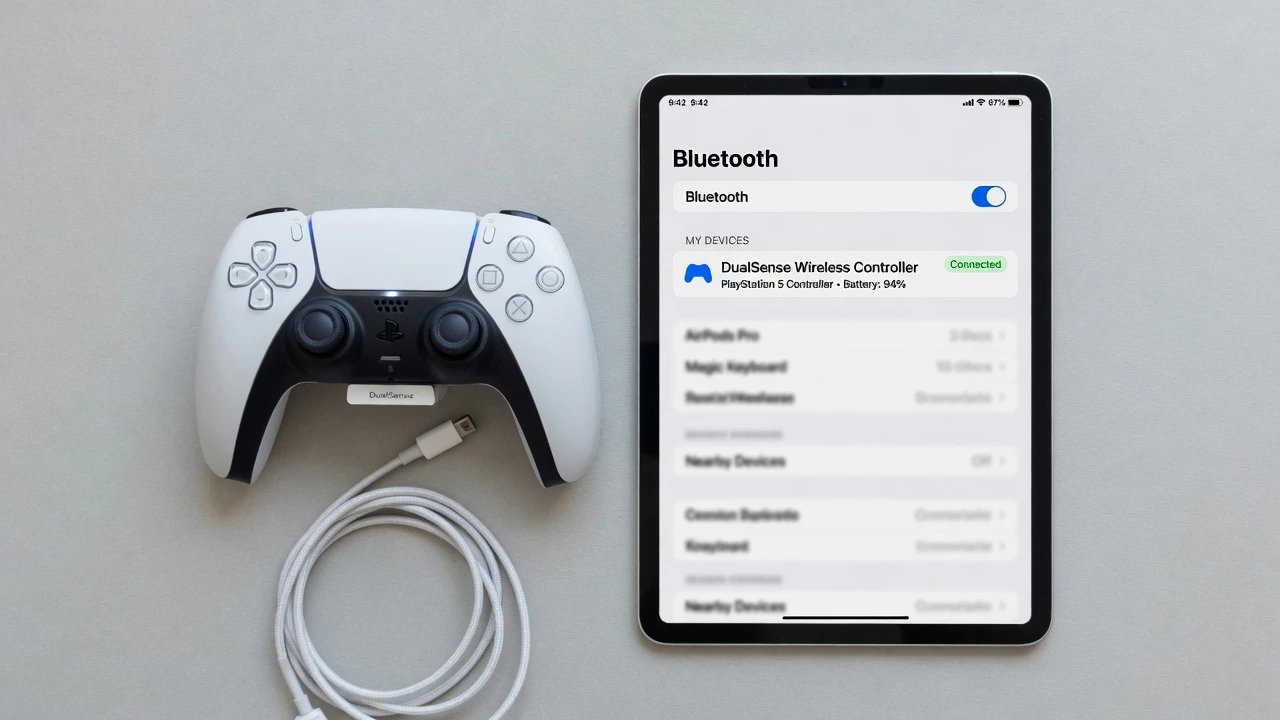
Here’s what matters. When you go into your iPad Bluetooth settings and look for available devices, the name that shows up is “DualSense Wireless Controller.” Not “PS5 Controller.” Not “DualSense.” The exact name is “DualSense Wireless Controller.” Many people see this name and assume something went wrong because they were expecting something different.
When you see “DualSense Wireless Controller” appear in your iPad Bluetooth menu, that is your PS5 controller. Tap it. You are connected. And the pairing process becomes instantly less confusing because you know ahead of time what name to look for instead of second-guessing yourself.
Understanding Your Controller’s Light Bar (It’s Your Connection Guide)
Most people jump straight into the Bluetooth settings on their iPad without paying attention to what the PS5 controller’s light bar is actually telling them. That is a mistake I made during my first attempt, and it caused unnecessary confusion. The light bar on the DualSense wireless controller is your real-time status indicator throughout the entire pairing process.
And here’s the thing. Once you know what each light state means, connecting your PS5 controller to an iPad becomes much less stressful because you always know exactly where you are in the process. No more guessing. No more second-guessing whether you did something wrong.
Blinking Light = Pairing Mode Active
When you press and hold the PS button and the Create button together, the light bar around the DualSense touchpad will start blinking rapidly. This blinking is your confirmation that the controller has entered pairing mode. The light is actively broadcasting its Bluetooth signal to search for nearby devices.
The blinking light is usually blue. The exact shade can vary slightly depending on your controller model. As long as the light is blinking, the DualSense wireless controller is ready to pair.
Do not tap anything on your iPad until you see that blinking light. This is critical. If you open Bluetooth settings before the controller enters pairing mode, your iPad will not detect the controller in the device list and you will have to start over.
Solid Light = Successfully Connected
Once you select the DualSense Wireless Controller from your iPad’s Bluetooth device list, watch the light bar closely. The blinking stops. The light bar switches to a solid color. That solid light is your confirmation that pairing is complete and the PS5 controller is now connected to your iPad.
Depending on your iPadOS version and controller model, the solid light might appear as orange or blue. The color doesn’t matter. Either one means the connection succeeded.
If the light bar goes solid and you see “Connected” appear next to the controller name in your iPad’s Bluetooth settings, you are ready to start gaming right away. No other steps. No additional configuration.
Light Bar Stopped Blinking? Here Is What Happened
If the light bar on your PS5 controller stops blinking before you finish the pairing process on your iPad, the controller has timed out of pairing mode. This usually happens after about 30 seconds of inactivity, which is not much time when you are navigating through your iPad settings for the first time.
Nothing is wrong with your controller. Simply press and hold the PS button and the Create button together again to reactivate pairing mode. The light bar will start blinking again. Continue from where you left off.
If the DualSense controller does not appear in your iPad’s Bluetooth list even though the light is still blinking, double-check that the light is actively flashing. A controller that has gone dark has exited pairing mode entirely and needs to be reactivated before your iPad can detect it.
How to Pair PS5 Controller to iPad via Bluetooth (Step-by-Step)
Bluetooth is the most popular way to connect a PS5 controller to an iPad. Once you do it the first time, the entire process takes under a minute. The DualSense wireless controller pairs with an iPad the same way any Bluetooth device does. You just need to know the right button combination to activate pairing mode on the controller side.
Here is how this works. I will walk you through every step exactly as it happens, showing you what to look for at each stage so you always know exactly where you are in the process and never have to guess.
Step 1: Turn On Bluetooth on Your iPad
Start by unlocking your iPad. Open the Settings app (grey square icon with gear symbol on your home screen or app library).
Once you are inside iPad settings, tap Bluetooth on the left side menu. Make sure the Bluetooth toggle at the top is in the ON position. The toggle turns green when Bluetooth is active.
Your iPad will immediately start scanning for nearby devices. You will see two sections on the right side. “My Devices” shows devices you have paired before. “Other Devices” shows new devices nearby. The PS5 controller will appear in the “Other Devices” section.
Leave the Bluetooth screen open. Set your iPad down somewhere easy to see. You will need to return to it in the next step.
Step 2: Put Your PS5 Controller into Pairing Mode
Pick up your DualSense wireless controller and make sure it is powered on. If the controller is completely off, press the PS button once in the center of the controller to wake it up.
Find the two buttons you need. The PS button is the circular PlayStation logo sitting in the center of the controller between the two thumbsticks. The Create button is the small button on the upper left area of the controller face, just above the D-pad. On older PlayStation controllers this button was called Share, so if you have used a PS4 controller, you already know where to look.
Now press and hold the PS button and the Create button at the same time. Hold them down firmly. Do not tap. Do not release. You need to hold both buttons for 10 to 15 seconds. Most people give up after 5 seconds thinking nothing is happening. But the ps5 controller pairing mode takes longer to activate than you expect. You have to wait. It will feel slow. It is not.
Keep holding until the light bar around the touchpad starts blinking rapidly. That blinking light tells you the DualSense controller has entered pairing mode and is broadcasting its Bluetooth signal actively. Once you see the blinking light, release both buttons and move to the next step.
Step 3: Select the Controller on Your iPad
Go back to your iPad and look at the Bluetooth settings screen you left open. Within a few seconds, “DualSense Wireless Controller” will appear under “Other Devices.”
Tap “DualSense Wireless Controller” to start the pairing process. Watch for the “Connecting” status to appear next to the controller name. Wait until it changes to “Connected.”Illustration showing USB-C cable connecting PS5 DualSense controller top port to iPad USB-C port for wired connection
Check the light bar on your PS5 controller as soon as pairing completes. The blinking light stops and switches to solid. Either solid blue or solid orange. Either color means the same thing: the DualSense wireless controller is fully paired and ready to use with your iPad.
Troubleshooting: Controller Does Not Appear in Bluetooth List
If you have followed every step above but “DualSense Wireless Controller” is not showing up in your iPad’s Other Devices list, this is fixable. It happens. There are a few simple things to check.
First, look at the light bar on your PS5 controller. If the light bar has stopped blinking and the controller appears to be off or showing a faint glow, the controller has timed out of pairing mode. Pairing mode only stays active for about 30 seconds. Press and hold the PS button and the Create button again for 10 to 15 seconds to reactivate it.
Second, do a quick Bluetooth refresh on your iPad. Tap Wi-Fi in Settings. Then immediately tap back on Bluetooth. This forces your iPad to refresh its device scan list. Most of the time, the DualSense controller appears right away after this step.
If the controller still does not show up, restart your iPad completely. Hold the power button until the power off option appears. Turn your iPad off. Wait 10 seconds. Power it back on. Open Bluetooth settings again and repeat the pairing steps. A full restart clears Bluetooth conflicts that sometimes prevent new devices from being detected.
Connect PS5 Controller to iPad via USB-C (Lower Latency, Instant Recognition)
Most people go straight for the Bluetooth method, and it works perfectly for casual gaming. But some players notice a slight delay between pressing a button and seeing the action happen on screen. A wired USB-C cable connection solves that problem completely. Connecting a PS5 controller to an iPad with a USB-C cable eliminates wireless latency and gives you an instant, stable connection without touching a single Bluetooth menu.
This method is simpler than Bluetooth in important ways. Your iPad recognizes the DualSense wireless controller the moment you plug in the cable. No scanning. No pairing. No waiting. The cable connection is instant.
Which iPad Models Have USB-C?
Not every iPad has a USB-C port, so check before looking for a cable. The easiest way is to look at the charging port on the bottom edge of your iPad. A small oval shape means USB-C. A narrower rectangular shape means Lightning. If your iPad has Lightning, the wired USB-C method is not available to you. Bluetooth is your only option in that case.
iPad models with USB-C ports include all iPad Pro generations, the iPad Air 4th generation and later, and the standard iPad 10th generation. Using an older iPad Air, iPad Mini, or standard iPad from before 2022? Your device most likely has a Lightning port.
How to Connect via USB-C Cable
The USB-C connection method requires almost no effort. This is why I recommend it for anyone who games seriously on their iPad.
You do not need to buy any special cable. The USB-C charging cable that came with your iPad works perfectly. Here is exactly what to do:
Take your USB-C cable and plug one end into the charging port at the top center of your PS5 DualSense controller. Plug the other end of the cable into the USB-C port on your iPad. Wait about two seconds.
Done. Your iPad will instantly recognize the DualSense wireless controller as a connected input device. No setup required in Bluetooth settings. You can open any controller-compatible game immediately and start playing.
Bonus: The PS5 controller charges while connected this way if your iPad has enough power to supply it. This becomes especially useful during long gaming sessions where you want to keep your controller powered up.
Bluetooth vs USB-C: Which Should You Use?
Both methods work well. The right choice depends on how you play and what games you prefer. Here is my honest breakdown based on testing both.
I prefer Bluetooth when:
I want a wireless setup with no cables running everywhere
I am playing casual games, RPGs, or turn-based titles where split-second timing does not matter
My iPad only has a Lightning port and Bluetooth is my only option anyway
I prefer to game from a distance with my iPad propped up or docked
I prefer USB-C when:
I play fast-paced action games where controller input lag is noticeable
I want to keep my DualSense controller charged while I play
I want a completely stable connection with no risk of wireless interference
Here is the reality. Bluetooth input lag on an iPad is small. Most casual players never notice it because the wireless latency sits in a range where everyday gaming feels perfectly responsive. But if you are the type of player who notices every single frame difference, the wired USB-C connection removes that variable entirely and gives you the most direct experience possible.
My personal recommendation is to start with Bluetooth for convenience. If you ever feel like your controller is responding slightly slower than you want in a particular game, switch to USB-C and test it yourself. See if the difference actually matters to you or if you are just overthinking it
Verify Your Connection Works Before Launching a Game
Here is a tip that saves frustration: do not open a game the moment your PS5 controller connects. Test the connection on your iPad’s home screen first. This takes about ten seconds. And it immediately tells you whether the DualSense wireless controller is truly working before you invest time launching a game.
Many games on the App Store do not support controller input at all. If you skip the home screen test, you might assume your ipad gaming controller connection failed when the controller is actually working perfectly fine. That misunderstanding wastes time.
Test on Your Home Screen
Stay on your iPad home screen after pairing. Do not open any app yet.
Pick up your DualSense wireless controller and press the D-pad (the four-directional button pad on the left side of the controller). As you press up, down, left, and right, your iPad app icons become highlighted and move in response. Your iPad is treating the wireless controller as a navigation device on the home screen.
Next, press the X button on your controller (the blue cross-shaped button on the right side). Pressing X acts as a tap. If pressing X opens an app, your controller is fully connected and responding correctly.
Both the D-pad and X button working on the home screen means your PS5 controller is completely set up and ready to use. Open any controller-compatible game immediately and start playing.
What to Do If Your Controller Does Not Work on the Home Screen
If pressing the D-pad does nothing and the X button has no effect, the pairing did not complete successfully. Your iPad may have briefly shown “Connected” but something went wrong.
Go back into your iPad Settings and tap Bluetooth. Check whether “DualSense Wireless Controller” appears under “My Devices” with a “Connected” label next to the name. If the status shows “Not Connected” or the controller is not listed, the pairing failed. Repeat the Bluetooth pairing steps from the beginning.
If iPad Bluetooth settings show the controller as connected but the home screen still does not respond, restart your iPad completely. Power it off. Wait ten seconds. Power it back on. Try pairing the DualSense wireless controller again from scratch. A full restart resolves most cases where the system shows a connection but the controller is not actually communicating.
If you have tried everything and Bluetooth is not working, plug your PS5 controller into your iPad using a USB-C cable instead. The wired connection bypasses Bluetooth entirely.
This tells you quickly whether the issue is with Bluetooth specifically or with the controller itself. Before trying these troubleshooting steps, also consider clearing your iPad’s cache, which can resolve many Bluetooth connectivity problems. See our guide on how to clear cache on iPad for step-by-step instructions.
PS5 Controller Won’t Connect to iPad? Common Fixes
When a PS5 controller won’t connect to an iPad, the problem almost always comes down to one of a handful of specific causes. Light timeout. Bluetooth visibility issues. Device conflicts. Pairing failures.
Every single one has a clear solution. I have gone through most of these controller not connecting to ipad scenarios myself, and the fixes are simpler than most people expect. Work through each subsection below that matches your situation and you will have your controller working within a few minutes.
Controller Light Stopped Blinking (Pairing Mode Timed Out)
If you put your DualSense wireless controller into pairing mode but it disappeared from your iPad’s Bluetooth scan before you could select it, the controller timed out. The PS5 controller stays in pairing mode for roughly 30 seconds. Then it powers down the Bluetooth broadcast.
Nothing went wrong. Nothing needs to be reset. Simply press and hold the PS button and the Create button together again for 10 to 15 seconds until the light bar starts blinking rapidly. Pairing mode is now active again. Go straight to your iPad Bluetooth settings and select the DualSense Wireless Controller before the blinking stops.
Controller Does Not Show Up in Bluetooth List
This is the most common complaint I see. And it usually has a very simple explanation. Most people are looking in the wrong section of their iPad Settings. When a new device like the DualSense wireless controller is connecting for the first time, it appears under “Other Devices” at the bottom of the Bluetooth screen. Not under “My Devices.” Scroll down past your previously paired devices and look there first.
If the controller is definitely in pairing mode with the light bar blinking but still does not appear, try a quick Bluetooth refresh. Tap Wi-Fi in the left menu of your iPad Settings. Then immediately tap back on Bluetooth. This forces your iPad to restart its device scan. Most of the time, the controller appears within a few seconds.
If the controller still does not show up, make sure the light bar is still blinking. If it has stopped, reactivate pairing mode by pressing PS and Create again. If that does not work, restart your iPad completely.
Controller Paired But Won’t Work in Games
This situation trips up many people. And I completely understand the frustration. You go through the full pairing process. Everything looks connected. You open your game. Nothing happens. Before assuming the pairing failed, know this: the DualSense wireless controller being connected to your iPad does not mean every game will automatically respond to it. Many games on the App Store simply do not support game controllers.
Your pairing is working fine. The issue is game compatibility. Check the App Store listing for your specific game. Look for any mention of controller support in the description or features list. Games from Apple Arcade almost universally support controllers because Apple built controller compatibility directly into the platform. Popular titles such as Call of Duty Mobile, PUBG Mobile, and Roblox also have controller support. Though some require you to enable controller input inside the game’s own settings menu.
Want to quickly confirm your controller works and the game is the problem? Open an Apple Arcade game as a test. If the controller responds there, your connection is fine and the original game simply does not support controllers.
Controller Keeps Disconnecting
A PS5 controller that connects successfully but keeps dropping the connection during gameplay usually points to one of three causes: software, distance, or a pairing conflict.
Start with the simplest fix. Go to Settings. Tap General. Tap Software Update. Make sure your iPad is fully up to date with the latest iPadOS version. Outdated iPadOS versions can cause Bluetooth stability issues. A simple update resolves most of them.
Next, check your physical distance from the iPad. Bluetooth has a practical range of around ten meters in open space. But walls, other electronics, and wireless interference reduce that range significantly. Move closer to your iPad and see if the disconnections stop.
If updating and moving closer do not help, try removing the pairing completely and starting fresh. Go to Settings. Tap Bluetooth. Find “DualSense Wireless Controller” in your My Devices list. Tap the information icon next to the name. Select “Forget This Device.” Then repeat the full Bluetooth pairing process from the beginning. A fresh pairing resolves most persistent controller keeps disconnecting ipad problems.
If Bluetooth keeps dropping no matter what you try, switch to the USB-C wired connection. A wired connection eliminates all wireless interference and gives you a completely stable link between the DualSense controller and your iPad.
Controller Was Accidentally Unpaired (Selected Forget This Device)
Accidentally tapping “Forget This Device” feels alarming. But it is not a problem. Forgetting a device simply removes the saved pairing record from your iPad. Your DualSense wireless controller is completely fine. Nothing about the controller itself has changed.
All you need to do is repeat the pairing process exactly as you did the first time. Press and hold the PS button and the Create button for 10 to 15 seconds until the light bar blinks. Go to your iPad Bluetooth settings. Select “DualSense Wireless Controller” from the Other Devices list. The controller will pair again in seconds. Everything will be back to normal immediately.
How to Factory Reset Your PS5 Controller (If All Else Fails)
A factory reset on the DualSense wireless controller is a genuine last resort. But it can solve persistent problems that no other fix resolves. A reset wipes all pairing data from the controller and returns it to original condition.
Here is how to reset ps5 controller:
Make sure your PS5 controller is powered on.
Flip the controller over. Look at the back surface below the L2 trigger button. You will see a small pinhole labeled “RESET.”
Use a thin pin or the end of a straightened paperclip. Press and hold the button inside that pinhole for 3 to 5 seconds.
The light bar will flash white several times. Then the controller will power off completely. That white flashing light sequence confirms the reset happened.
Wait about 30 seconds. Press the PS button to power the controller back on.
Repeat the full Bluetooth pairing process on your iPad as if setting up the controller for the first time.
Customize Your PS5 Controller on iPad (Button Remapping and More)
Most people connect their PS5 controller to their iPad and go straight into gaming without ever realizing that iPadOS has a built-in controller customization menu. I only discovered this feature by accident. And once I found it, I was genuinely surprised that no one talks about it. If you have your DualSense wireless controller connected, you can remap buttons, adjust your layout, and even identify which ipad gaming controller is which using a vibration test. All without downloading any extra app.
This is one of those hidden features that makes gaming on iPad feel much more personal. You can tailor it to exactly how you actually play instead of accepting the default layout.
How to Find the Game Controller Menu
The Game Controller menu in iPadOS is tucked away in a spot most people never look. Here is exactly where to find it.
Open the Settings app on your iPad. Tap General from the left side menu. Scroll down through the General options and look for “Game Controller.” This option only appears when a controller is already paired to your iPad. If you do not see it, make sure your DualSense wireless controller is connected first.
Tap Game Controller and your paired controller is listed on the screen. From here you have access to all the customization options iPadOS offers for connected game controllers. This menu is your gateway to remapping buttons and personalizing your setup.
Remap Your Controller Buttons
Inside the Game Controller menu, iPadOS lets you reassign the physical buttons on your DualSense wireless controller to different inputs. This is genuinely useful if certain games use button layouts that feel awkward for you personally. You can customize controls globally instead of game-by-game.
Tap your DualSense controller name in the list. You will see an option to customize the button layout. The exact wording varies slightly depending on your iPadOS version. But the option is always present in this menu.
From the customization screen you can reassign buttons by tapping any button graphic and choosing which input you want that button to perform. For example, if you prefer swapping the X and circle buttons because a particular game uses a layout that feels reversed to you, you can make that change right here. Any remapping applies across all games that use your DualSense controller on that iPad.
This button remapping feature works independently of any individual game’s own settings. You only need to set it up once. Every game will then respect your preferred layout automatically.
Identify Multiple Controllers (Vibration Test)
If you have more than one PS5 DualSense wireless controller paired to your iPad, figuring out which physical controller corresponds to which listing on screen gets confusing fast. iPadOS has a simple solution for this built right into the Game Controller menu.
Go to Settings. Tap General. Tap Game Controller. You will see all your paired controllers listed. Tap the controller entry you want to identify. Look for the “Identify Controller” option. Tap it. The physical controller that matches that listing will vibrate immediately.
This vibration test is a small feature. But it saves real confusion when you are setting up for a gaming session with a friend and two controllers are sitting on the table. One quick tap and you know instantly which controller is which. No guessing. No switching them around five times trying to figure out which is which.
What Games Work with PS5 Controller on iPad?
Once you’ve successfully connected your PS5 controller to your iPad, the next question is obvious: what can you actually play? The good news is that plenty of games support PS5 controller input on iPad. You’re not limited to a tiny selection. I’ve tested many of these games myself. The experience ranges from smooth and responsive to absolutely excellent depending on the title.
The key is knowing which games genuinely support controller input. Not every game in the App Store works with your DualSense controller. That’s important to understand before you go searching. I’ve seen many people get frustrated thinking their ipad gaming controller is broken. When really the game they tried just hasn’t implemented controller support yet
Apple Arcade Games Guarantee Controller Support
If you want the safest option, start with Apple Arcade. Every single game on Apple Arcade supports PS5 controller input. This is the one place where you never have to wonder or check. Apple built controller support directly into the Apple Arcade platform, so whether you’re playing puzzle games, action games, or anything in between, your DualSense controller will work perfectly.
Apple Arcade costs around $9.99 per month and gives you access to hundreds of games with full PS5 controller compatibility. I’d say this is the best starting point if you just connected your controller and want immediate confirmation that everything works. You’ll have instant success, which feels great.
The variety on Apple Arcade is solid too. You get everything from casual games to more serious titles. If you’re not sure what else supports controllers, start here and you’ll feel confident right away.
Popular Games Confirmed to Work
Beyond Apple Arcade, several major games support PS5 controller input on iPad. Call of Duty Mobile is one of the biggest. I’ve played it with the DualSense controller and the response time is sharp. You get full button mapping and the game runs smoothly.
PUBG Mobile also supports controller input well. The game detects your PS5 controller automatically once it’s connected. I found the aiming and movement controls to feel natural and responsive.
Roblox works with the DualSense too. Since Roblox hosts thousands of individual games made by different creators, controller support varies from game to game within the platform, but many popular Roblox experiences have excellent controller implementation.
Fortnite is available if you download it directly from the App Store rather than through the Epic Games app. The controller support is solid once you get it running.
Other games with confirmed PS5 controller support include Genshin Impact for action RPG gameplay, Minecraft for creative building and exploration, and Stardew Valley if you prefer something more relaxed. The list keeps growing as more developers add controller support to their games.
Cloud Gaming Services Open Up More Possibilities
Here’s where things get really interesting. You can also use your PS5 controller to play PS5 games directly on your iPad through PS Remote Play. This means you’re not limited to games built for iPad. You can stream your actual PS5 library to your tablet.
PS Remote Play lets you play your full PS5 game collection on iPad as long as you have a solid internet connection. Your DualSense controller works perfectly with it since it’s designed for PS5 games anyway.
Xbox Game Pass for cloud gaming is another option. If you have an Xbox Game Pass Ultimate subscription, you can play Xbox games directly on your iPad using your PS5 controller. The service streams the game to your screen, so you’re getting console quality gameplay on a tablet.
NVIDIA GeForce Now is a third cloud gaming service worth considering. You can stream games you own from your PC library or play games available through GeForce Now’s catalog. The PS5 controller works seamlessly here too.
Cloud gaming services essentially remove the limitation of needing games designed specifically for iPad. You get access to much larger libraries of games. The tradeoff is that these services require a strong and stable internet connection to work well.
How to Check If Your Favorite Game Supports Controllers
Wondering if a specific game supports PS5 controller input? The process is simple. Open the App Store and search for the game you’re interested in. Scroll down to the description section and look for any mention of controller support.
Most games that support controllers will have a line that says “Supports game controllers” or mention specific controller compatibility. If you see this in the description, you’re good to go. Your DualSense controller will work with that game.
If the description doesn’t mention controller support, the game probably doesn’t have it implemented yet. This doesn’t mean your controller is broken or connected improperly. It just means that particular game hasn’t added the feature. The developer may add it in future updates.
Some games have what’s called “MFi controller support” which means they support Made for iPhone controllers and any compatible gamepad, including your PS5 DualSense. Others might specifically list DualSense support.
I recommend checking the game description before downloading something. It saves you time and prevents the disappointment of discovering after download that your controller won’t work with that particular title. Read the reviews too. Users often mention controller functionality in their reviews if they’ve tested it.
How to Disconnect Your PS5 Controller from iPad
Disconnecting your PS5 controller from iPad is straightforward, but there’s an important distinction you need to understand. You can either temporarily disconnect the controller or completely unpair it from your device. The difference matters, especially if you switch between your iPad and PS5 console regularly.
I’ve seen many people get confused about this because the iPad settings menu uses two different options. One keeps the pairing intact while the other removes it entirely. Knowing which one to use depends on what you’re trying to accomplish. Let me break down both options so you can choose the right one for your situation.
Option 1: Disconnect (Temporary Pause)
If you want to stop using your PS5 controller with your iPad temporarily but plan to use it again soon, the disconnect option is your best choice. This keeps the pairing memory intact on your device.
Here’s how to disconnect your DualSense controller. Go to Settings on your iPad and open Bluetooth. Find the DualSense Wireless Controller in your list of connected devices. Tap the information icon next to it. You’ll see a disconnect option listed there. Tap it and your controller instantly disconnects.
The beauty of this approach is that the pairing stays saved. When you want to use your PS5 controller with your iPad again, it reconnects automatically without any fussing around. You don’t need to enter pairing mode or hold down buttons again. Just enable Bluetooth and the controller finds your iPad on its own.
I use disconnect when I’m switching between devices throughout the day. If I’m playing on my iPad for an hour and then want to move to my console, I disconnect rather than forget. It’s quick and hassle-free.
Option 2: Forget This Device (Complete Unpairing)
When you want to completely remove the pairing between your PS5 controller and iPad, use the forget option instead. This erases the connection entirely from your device’s memory.
Go to Settings and open Bluetooth on your iPad. Locate the DualSense Wireless Controller in your connected devices list. Tap the information icon next to it. This time select Forget This Device. The controller is now completely unpaired from your iPad.
If you ever want to use that controller with your iPad again, you’ll need to go through the full pairing process once more. That means holding the PS button and Create button together until the light bar flashes white. You’ll search for available devices on your iPad and pair them fresh.
The forget option exists for a reason, especially if you own multiple devices. Here’s where it gets important: if you forget your PS5 controller from your iPad, it prevents your controller from accidentally connecting to your iPad when you’re actually trying to use it with your PlayStation 5 console. This solves a real frustration that multi-device users face. Your controller won’t keep trying to reconnect to the wrong device.
I recommend forgetting the device if you’re selling your iPad, giving it to someone else, or permanently switching to console gaming. It cleans up your Bluetooth settings and prevents confusion later.
Quick Power-Off: Just Disable Bluetooth
Here’s a faster option if you just want to power down your controller without dealing with settings menus. Toggle Bluetooth off from your iPad’s Control Center. Swipe down from the top right corner of your screen and tap the Bluetooth icon to turn it off.
When you disable Bluetooth this way, your PS5 controller automatically powers itself down within a few seconds. You don’t need to manually shut it off or press any buttons. The controller recognizes that Bluetooth has been disabled and enters sleep mode.
This approach saves battery life on your DualSense controller. If you’re done gaming for the day and want quick battery conservation, just flipping Bluetooth off is the easiest solution. No navigation required and no accidental connections happen while your iPad’s Bluetooth is disabled.
Play Your PS5 Games on iPad with Remote Play
Once you have your PS5 controller connected to your iPad, you unlock something really powerful. You can stream your entire PS5 game library directly to your tablet using PlayStation Remote Play. This isn’t playing iPad versions of games. You’re actually playing your full PS5 games through a wireless connection to your console.
This changes everything about what your PS5 controller can do on an iPad. Instead of being limited to games designed for mobile, you suddenly have access to every PS5 game you own. I discovered this feature after connecting my controller and realized the possibilities were much bigger than I initially thought.
What Is PS Remote Play?
PS Remote Play is PlayStation’s official streaming feature that lets you play PS5 games on your iPad from anywhere in your home. Your PS5 console stays in your living room, but the games appear on your tablet screen. Your PS5 controller communicates with your iPad to control the action.
The way it works is simple. Your PS5 streams video and audio to your iPad over your home WiFi network. Every button press on your DualSense controller sends a signal back to your console. The entire experience happens wirelessly without any cables needed.
I’ve used Remote Play to play demanding games like Elden Ring and Final Fantasy XVI on my iPad while someone else uses the living room TV. The streaming quality is excellent when your WiFi is strong. Games run smoothly and the controller response feels immediate and natural. This feature exists because PlayStation understands that gamers want flexibility about where they play.
How to Use PS5 Controller with Remote Play
Getting PS Remote Play working with your PS5 controller takes just a few steps. First, download the PS Remote Play app directly from the App Store on your iPad. Search for it by name and install it like any other app.
Next, pair your PS5 controller to your iPad using Bluetooth. Follow the pairing steps covered earlier in this guide if you haven’t already connected it. Make sure your iPad and PS5 console are both connected to the same WiFi network. This is important because Remote Play communicates through your home network.
Open the PS Remote Play app on your iPad and sign in with your PlayStation Network account. The same account connected to your PS5 console. The app will search for your PS5 automatically and display it when found. Tap your console to connect. Once connected, your home screen appears on the iPad screen.
From there, launch any PS5 game you own. The game starts on your console but displays on your iPad. Your DualSense controller controls everything just like you’re playing on your TV. I usually play with my iPad propped up on a stand for comfort, but you can hold it however feels natural to you.
The quality of your experience depends mainly on your WiFi connection. A strong, stable connection gives you fluid gameplay with minimal lag. If your WiFi is weak or far from your console, you might notice delays or video quality drops. PlayStation recommends checking their official Remote Play bandwidth requirements to optimize your setup. I recommend playing close to your router for the best results.
Frequently Asked Questions
Do I need to update my iPad before connecting my PS5 controller?
Yes, your iPad must be running iPadOS 14.5 or later. Check by going to Settings, then General, then About to see your current version. If you’re running anything older, update through Settings > General > Software Update before attempting to connect. This ensures your iPad has the Bluetooth capability needed to recognize your DualSense controller.
Why is my PS5 controller paired but won’t work in my game?
Pairing success doesn’t guarantee game support. Just because your controller connects to your iPad doesn’t mean every game recognizes it. Open the App Store, search for your game, and look for “Supports game controllers” in the description. If it’s not mentioned, that game hasn’t enabled controller support. Test with Apple Arcade games instead since all of them support controllers.
What’s the difference between ‘Disconnect’ and ‘Forget This Device’?
Disconnect temporarily pauses your connection while keeping the pairing saved. Your controller reconnects instantly next time without any setup. Forget This Device completely removes the pairing and erases the memory from your iPad. You’ll need to repeat the full PS plus Create button pairing process if you want to use it with that iPad again. Use Forget when switching permanently to your PS5 console.
Can I use the same PS5 controller with both my iPad and PS5 console?
Absolutely, but you need to manage the pairing properly. When you want to switch from iPad to PS5, forget the device on your iPad first. This prevents your controller from automatically reconnecting to your iPad when you’re trying to game on your console. It’s a simple step that eliminates frustrating multi-device conflicts.
My controller light bar isn’t blinking blue. What does that mean?
The light bar only blinks when you’re actively in pairing mode. If it’s not blinking, you’re either not in pairing mode or the mode timed out. Press and hold the PS button plus Create button together for 10 to 15 seconds until you see the white blinking light. That’s your signal the controller is ready to pair with your iPad.