
Quick Steps to Pair Your Apple Watch With Your iPhone
To pair an Apple Watch with your iPhone, turn on the watch, unlock your iPhone, and keep both devices close together. When the setup prompt appears, tap Continue and follow the on-screen instructions to scan the pairing animation or choose manual pairing. After pairing, complete the setup and wait for the initial sync to finish.
Before you begin, check that Bluetooth and Wi-Fi are enabled, your devices are compatible, and both have enough battery to complete setup.
- Turn on your Apple Watch by pressing and holding the side button until the Apple logo appears.
- Unlock your iPhone and enable Bluetooth and Wi-Fi.
- Keep the devices close together. When the pairing prompt appears, tap Continue.
- Follow the on-screen instructions to scan the animation on your watch. If scanning does not work, choose the manual pairing option.
- Choose to restore from a backup or set up the watch as new, then follow the remaining setup instructions.
If the pairing prompt does not appear, open the Watch app on your iPhone, tap All Watches, and select Add Watch. Keep both devices nearby until the initial sync is complete.
The following sections explain compatibility requirements, manual pairing, transferring your watch to a new iPhone, and troubleshooting connection problems.
What to Check Before You Start
Three checks cover almost every failed pairing. I have seen an unlocked iPhone with Bluetooth and Wi-Fi on, a powered-on Apple Watch on your wrist, and an iPhone and watch that actually work together. Skip any one of them and the pairing prompt may never appear.
Most people start tapping before the basics are in place. Then they blame the watch.
Prepare Your iPhone
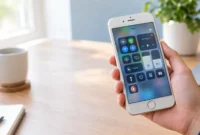
Before pairing, unlock your iPhone and check that Bluetooth and Wi-Fi are enabled. You can verify both settings in Control Center or in the Settings app.
Also check that Airplane Mode is off and keep the iPhone near your Apple Watch. If the pairing prompt does not appear, confirm these settings before trying to pair again.
Prepare Your Apple Watch
Make sure your Apple Watch is powered on before starting setup. Press and hold the side button until the Apple logo appears.
The side button is separate from the digital crown, which is the round dial on the side of the watch. If the battery is low, charge the watch before beginning so it can remain powered on throughout setup.
Follow the on-screen instructions for wrist selection and other personal settings. If the watch does not turn on, charge it and try again before continuing.
Check Compatibility
Apple Watch compatibility depends on the watch model and the iOS version supported by your iPhone. Before pairing, check Apple’s official compatibility requirements for your specific Apple Watch.
To check your iPhone software, open Settings, select General, and tap Software Update. Install any available compatible update before trying again.
If your devices meet the compatibility requirements but still will not pair, check whether the watch is already paired with another iPhone and follow the troubleshooting steps below.
Here is the check I run. Open Settings on the iPhone, tap General, then Software Update, and see whether an update is waiting. Then look at Apple’s support page for your exact watch model. Apple lists which iPhone and iOS version each Apple Watch needs, and those requirements change over time, so that page is the one to trust. If the pairing still fails after this, jump to the troubleshooting section.
Compatibility also answers the question I see most often: why can’t my Apple Watch pair with my new iPhone? Sometimes the new iPhone is fine, and the problem is a watch that needs a software update first. I cover that fix in the troubleshooting section.
Step-by-Step: Pair Your Apple Watch With Your iPhone
Follow these steps to pair your Apple Watch with your iPhone. Keep both devices nearby and follow each prompt on the screen before moving to the next step.
The whole thing is quicker than it sounds. Most of the trouble comes from one step going slightly off, and I will point out where.
Bring Your Watch Close to Your iPhone
Start by holding your powered-on Apple Watch right next to your unlocked iPhone. A message should pop up on the iPhone that says “Use your iPhone to set up this Apple Watch.” Tap Continue.
“Close” means close. A few inches is better than a few feet. I keep the watch on my wrist and rest my wrist against the top of the phone.
Then wait. The message can take several seconds to appear, and tapping around the screen while you wait only gets in the way.
Open the Watch App If No Prompt Appears
If the pairing message never shows up, open the Watch app on your iPhone, tap All Watches, and then tap Add Watch. This takes you to the same pairing screen the pop-up would have opened.
This is the most common stall I see, and the cause is usually something small. A locked screen, Bluetooth switched off, or a watch that has not finished starting up can all keep the pop-up away. The watch is rarely broken.
Check those three things if the Add Watch route does not respond either. Then try again.
The Watch app comes with iPhone, so you should not need to download anything. If you cannot find it, swipe down on the Home Screen and search for “Watch.”
Scan the Pairing Animation
The next screen asks you to set up the watch for yourself, so tap Set Up for Myself. Your iPhone camera then opens with a viewfinder. Hold the iPhone over the watch so the animation on the watch face sits in the middle of that viewfinder.
The animation looks like a swirling, moving pattern. Some videos in search results call it a QR code, but Apple’s own wording describes an animation, and that is what you will see on the screen.
Center it. That is the whole trick.
Two things cause most failed scans. Glare on the watch face makes the pattern hard to read, and holding the phone too far away leaves the watch too small in the frame. Move closer, tilt away from bright light, and keep both devices steady for a moment.
When the scan works, the watch shows a message saying it is paired, and your iPhone moves on to the setup choices.
Pair Manually If the Camera Won’t Work
If your iPhone cannot scan the pairing animation, choose the manual pairing option on the setup screen. Follow the prompts on your iPhone to identify the watch and continue setup.
Keep both devices close together while completing these steps. If manual pairing also fails, check Bluetooth, Wi-Fi, software compatibility, and whether the watch is still paired with another iPhone.
Finish Setting Up Your Apple Watch
After the pairing scan works, you still have three things to finish: choose restore from backup or set up as new, sign in and pick your settings, and wait for the final sync. The Apple Watch is linked at that point, but it is not ready to use until all three are done.
This is the stretch where people relax too early. The hard part feels over, so they start tapping fast and accept whatever the screen offers.
Restore from a backup or set up as new.
Choose restore from backup if you already used an Apple Watch and want your old settings and data back. Choose Set Up as New Apple Watch if this is your first watch or you want a clean start.
The decision is simpler than it looks. A backup brings back your watch faces, app layout, and preferences, so the watch feels familiar right away. A fresh setup gives you a blank start, which is useful if your old watch was cluttered or acting strange.
Here is how I think about it. Replacing a watch with the same wearer and the same habits? Restore. Handing the watch to a different person or fixing a watch that never worked right? Start new, because a backup can carry the old problem over with it.
One more thing. Restoring takes longer than a fresh setup, because more data has to move across. Do not read a slow screen as a frozen one.
I cannot tell you every detail of what a backup contains, and it can differ by watch and software version. Apple Support lists exactly what gets saved, so check that page if you are keeping data you care about.
Sign In and Choose Your Settings
The iPhone may ask you to sign in with your Apple Account during this part. Use the same account you use on the iPhone, so the watch connects properly with iCloud and your other Apple services.
Then come the personal settings. You create a passcode, choose which wrist you wear the watch on, and adjust text size and health settings.
Do not skip the passcode. A watch without one is easy for anyone to pick up and use, and some features need it. A passcode can be a short number, so the usual excuse about hating to type it rarely holds up.
Take a minute on text size too. The default can feel small on a tiny screen, and fixing it now beats squinting for a week. You can change every one of these later in the Watch app or in the watch’s own settings, so nothing here is permanent.
Wait for the Final Sync
Keep your iPhone and Apple Watch side by side until the sync finishes and the watch face appears. Syncing is when the iPhone sends your settings, apps, and data over to the watch.
This step is where I see the most glitchy pairings come from. Someone sees a progress bar, gets bored, and walks off with the iPhone in their pocket in the next room. The sync can pause or stall when the devices drift apart.
So stay put. Let the screen finish.
And how do you know it worked? The watch face appears, the progress screen is gone, and the watch responds when you tap and swipe. If something still looks half loaded, give it another minute before you assume anything went wrong.
How to Connect Your Apple Watch to a New iPhone
To connect an Apple Watch to a new iPhone, back up your old iPhone, restore that backup onto the new one, and follow the prompt that offers to move your watch over. Most people do not need to start from zero, but the order of the steps matters.
The mistake I see most is people setting up the new iPhone as a blank phone and only then remembering the watch. By that point the easy route is already closed. If you are also planning to move your phone number to the new iPhone, do that in the same sitting so the whole switch happens in one go.
Back Up and Sync Your Data Before Switching
Back up your old iPhone before you touch the new one, and check that your Health data is syncing to iCloud. Your Apple Watch stores much of its information through the iPhone, so a weak backup means a weak starting point on the new phone.
Here is the Health check. Open Settings on the old iPhone, tap your name, tap iCloud, then tap Saved to iCloud. Tap Health and make sure Sync this iPhone is switched on. Apple’s own support page points to this same path.
Why does this matter so much? Health data is the one thing people regret losing. Photos and apps come back easily. Years of activity history do not always come back if the sync was never on.
Do the backup last, right before the switch. A backup from three weeks ago will not include three weeks of watch history.
Pair Your Existing Watch With the New iPhone
You usually pair your existing watch with a new iPhone by restoring the old iPhone’s backup during the new phone’s setup, then accepting the prompt to use your Apple Watch with the new phone. This lets you keep the watch you already have, without a full reset in the normal case.
Start with the new iPhone’s setup screens. When it asks how to set up, choose to restore from your iCloud backup or from a backup on a computer. Then keep the Apple Watch nearby and unlocked on your wrist, and watch for the pairing prompt after the restore finishes. Tap Continue and follow the screens.
Can you do this without resetting the watch? Often yes, and that is the whole reason the backup step comes first. A reset only becomes necessary when the move fails or the watch cannot find its old link. I cover that in the troubleshooting section.
Do not set up the new iPhone as a brand new phone if you want to keep your watch data. And leave your old iPhone alone until the watch is working on the new one. Not always required. But it keeps your options open.
What to Do If You No Longer Have Your Old iPhone
If your old iPhone is lost, broken or wiped, you can still use your Apple Watch with the new iPhone, but you will likely need to erase the watch and set it up again. The watch usually cannot transfer smoothly without its old paired iPhone.
That sounds worse than it is. If a recent watch backup exists in iCloud, you may be able to restore from it during setup. If no backup exists, the watch starts fresh, and your data returns only to the extent it was saved to iCloud.
One thing catches people off guard here: Activation Lock. The watch is tied to your Apple Account, so the setup may ask for your Apple Account password before it lets you start over. Keep that password handy before you begin.
So the order is simple. Erase the watch, pair it with the new iPhone the same way you would a new watch, then pick restore from backup if the screen offers one. That route is slower, but it works when the old phone is gone.
Apple Watch Won’t Connect? Fixes to Try
When an Apple Watch will not connect to an iPhone, start with the simple checks (Bluetooth, Wi-Fi, distance, a restart) and move to unpairing only if nothing else works. Most connection problems clear up before you ever need a reset.
I work from the least disruptive fix to the most disruptive one. That order saves time, and it protects your data.
Quick Checks First
A watch that will not connect to your phone is usually missing something basic: Bluetooth is off, Airplane Mode is on, or the two devices are too far apart. Check those first, because they cause more trouble than any real fault.
Here is the order I follow:
- Open Control Center on the iPhone and confirm Bluetooth and Wi-Fi are on and Airplane Mode is off.
- Check Control Center on the watch for Airplane Mode too.
- Move the devices close together, a few feet at most.
- Restart the iPhone, then restart the watch.
- Open Settings, General, then Software Update on the iPhone and install any waiting update.
The restart sounds too easy to matter. But a surprising number of stuck connections clear after one.
Try the pairing or reconnection again after each step, not after all five. That way you learn which one fixed it.
Reconnect a Watch That Lost Its Connection
If your watch was working and then stopped talking to your iPhone, you can usually reconnect it without unpairing anything. Turn Airplane Mode on for a few seconds on the watch, then turn it off, and keep the iPhone nearby.
A watch that has lost its connection normally shows a disconnected symbol on the watch face or in Control Center. Seeing that symbol does not mean the pairing is gone. The link is often still there and only needs a nudge.
If the Airplane Mode toggle does not help, restart both devices and wait a minute. Open the Watch app on the iPhone and see whether your watch appears under All Watches. If it appears, the pairing survived, and the connection should return shortly.
Do not unpair yet. Unpairing is a big step, and a lost connection rarely needs it.
Fix a Watch That Won’t Pair With a New iPhone
A watch that refuses to pair with a new iPhone usually has one of three causes: outdated software on either device, a watch still tied to the old iPhone, or an interrupted setup. Check them in that order.
Update the new iPhone first, since a phone fresh out of the box can be behind on software. Then check the watch for a pending update through its own settings or the old iPhone.
The second cause catches the most people. If the watch is still paired to your old iPhone, the new phone may not be able to take it over cleanly. Go back to the new iPhone, open the Watch app, tap All Watches, then tap Add Watch, and follow the prompts. If it still refuses, unpair the watch from the old iPhone first, which the next section covers.
An interrupted setup is the third cause. Maybe the sync stopped when the phone moved away, or the screen locked at the wrong moment. Starting the pairing again from the beginning, with both devices close and awake, fixes it more often than you would expect.
And remember the Apple Account. If setup asks for your password, it is checking that the watch belongs to you. Have it ready.
Unpair, Reset and Pair Again
Unpairing and re-pairing is the last resort, and it works when everything above has failed. It breaks the link between the watch and iPhone, erases the watch, and lets you set it up again as if it were new.
Do this with both devices side by side. Open the Watch app on the iPhone, tap All Watches, tap the info button next to your watch, and choose Unpair Apple Watch. Confirm when asked. Apple’s process normally makes a backup of the watch before it erases it, but check the screen as it works so you know a backup exists.
If you cannot reach the iPhone, you can erase the watch from its own settings. Open Settings on the watch, tap General, then Reset, then Erase All Content and Settings. The watch then returns to its start screen.
After either route, pair the watch again using the steps earlier in this article. When the screen offers a backup, restore it if you want your old settings back.
Unpairing is not hard. But it is final enough that I keep it for when the earlier fixes have genuinely failed.
Can You Connect an Apple Watch to an Android Phone?
No. An Apple Watch needs an iPhone to set up and pair, and it does not work with an Android phone. There is no workaround that gives you the full experience, so it is better to know that before you buy or start setup.
Many people land on this question after finding a used watch, receiving one as a gift, or switching phones. Then they spend an hour searching for a trick that does not exist.
Why the iPhone Is Required
Pairing an Apple Watch starts on the iPhone. The Watch app, the pairing prompt, the camera scan and the setup choices all live on the iPhone, and Android has no matching app for any of them.
That is why every pairing guide begins with an iPhone, including the steps earlier in this article. Apple built the watch as a companion to the phone, so the phone is where the setup happens.
You may see videos or posts claiming a clever method that connects the watch to Android. I would be careful with those. Anything that promises to bypass the iPhone requirement is likely to leave you with a half working watch at best, and downloading unknown apps to chase it can cause bigger problems than the one you started with.
What to Do If You Use Android
If you use an Android phone and want a smartwatch, the practical answer is to pick a watch made for Android. Several brands sell smartwatches that pair with Android phones through their own apps, and they handle the same jobs of notifications, fitness tracking and calls.
If you already own an Apple Watch and plan to move to an iPhone, you are in good shape. Everything in the earlier sections applies to you.
And if you own an Apple Watch but cannot get an iPhone, I would sell it or pass it on. Not the answer anyone wants. But it saves you a lot of frustration.
Frequently Asked Questions
Can I Use an Apple Watch Without Pairing It to an iPhone?
Not really. A new Apple Watch needs to be paired with an iPhone during setup, and without that step you cannot get past the start screen. The watch is built as a companion to the phone, so the iPhone is where setup happens.
Some people ask because they want a watch for a child or a family member who has no phone. Apple has a setup option for that case, but it still needs an iPhone, usually belonging to a family member, to handle the setup.
Once the watch is set up, it can do some things on its own, like show the time and track workouts. But the first pairing is not optional.
What If My Watch or iPhone Is Already Paired With Something Else?
An Apple Watch can be paired with only one iPhone at a time, so a watch tied to another phone has to be unpaired from that phone first. The cleanest way is to unpair it from the old iPhone, which also backs up the watch.
Your question can mean two things, so here are both cases. If the watch is paired to an old iPhone you still have, unpair it there using the steps in the troubleshooting section. If the old iPhone is gone, erase the watch from its own settings and set it up again as a new pairing.
An iPhone, on the other hand, can usually work with more than one Apple Watch. If your iPhone already has a watch and you are adding a second one, the steps are the same as in the step-by-step section. Open the Watch app, tap All Watches, then Add Watch.
Is the Process the Same on Newer iPhone Models?
Yes, the pairing process is the same on newer iPhone models. The iPhone 13 Pro Max, the iPhone 16 and other recent models all use the same flow of holding the devices close, tapping Continue and scanning the animation.
What changes between phones is the software. A newer iPhone may ship with a newer version of iOS, and menu names can shift slightly from one version to the next. The steps stay the same even when a button has a slightly different label.
If your iPhone is brand new, check for a software update before you start. A phone fresh out of the box can be behind, and that is a common reason a pairing refuses to begin. And if you have not finished setting the phone up yet, my guide on how to activate your new iPhone covers that first step.
How Long Does It Take to Pair an Apple Watch?
Pairing itself takes a few minutes, but the full setup usually takes longer. Most of the extra time goes to the final sync, when your settings, apps and data move over to the watch.
A fresh setup is the fastest. Restoring from a backup takes more time, because more data has to transfer. A watch with a lot of apps and data can take a good while to finish.
Do not judge the time by the clock alone. If the progress screen is still moving, the watch is working. Keep both devices side by side until the watch face appears.
Do I Need Wi-Fi to Pair My Apple Watch?
Apple’s setup instructions tell you to turn on both Bluetooth and Wi-Fi on your iPhone before pairing, so the safe answer is yes, turn Wi-Fi on. Bluetooth is how the iPhone finds the watch, and Wi-Fi supports the setup and sync that follow.
I would not try to skip it. Even if a pairing starts without Wi-Fi, a sync that needs to download or restore data can stall. Switching Wi-Fi on takes a few seconds and removes one possible cause of trouble.
If your pairing fails, check Control Center on the iPhone first. Make sure Wi-Fi and Bluetooth are on and Airplane Mode is off. The same wireless basics apply when you connect your iPhone to a Samsung TV.
How to Connect Apple Watch to iPhone?
To connect your Apple Watch to your iPhone, turn on the watch and unlock your iPhone with Bluetooth and Wi-Fi enabled. Keep both devices close together, tap Continue when the pairing prompt appears, and follow the on-screen instructions to scan the pairing animation. If the prompt does not appear, open the Watch app on your iPhone, tap All Watches, then Add Watch to start pairing manually.
Conclusion
Learning how to connect Apple Watch to iPhone is simple when you follow the correct setup steps. Keep both devices close together, enable Bluetooth and Wi-Fi, and follow the pairing instructions on your screen. If the pairing prompt does not appear or the connection fails, check device compatibility, update your software, or try manual pairing. For persistent problems, restart both devices before considering a reset. Once setup and syncing are complete, you can start using your Apple Watch with your iPhone.