Why Two Monitors Make Such a Difference (And What to Know Before You Start)
If you have ever tried to juggle multiple browser tabs, documents, and communication apps on a single laptop screen, you already know how frustrating it gets.
I used to constantly switch between windows, losing track of what I was doing and breaking my focus every few minutes. The moment I learned how to connect two monitors to a laptop, everything changed.
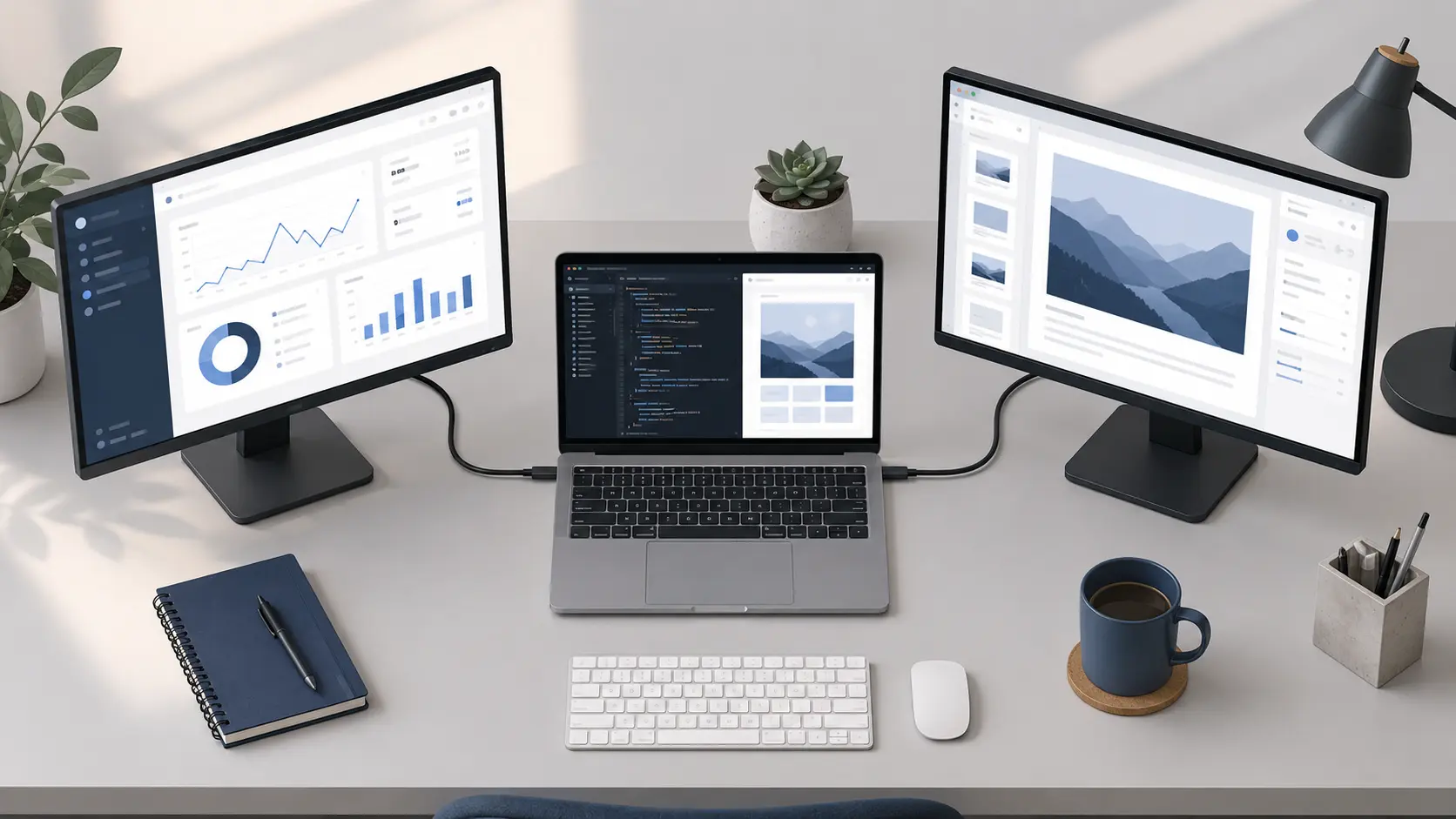
A dual monitor setup is the practice of connecting two external displays to your laptop so you can spread your work across more screen space.
A dual monitor setup lets you keep your email visible on one screen while your spreadsheet or document stays open on the other, eliminating constant window switching. That alone saves a surprising amount of time throughout the day.
People who use this kind of multi-monitor productivity setup often describe it as one of the biggest workflow improvements they have ever made. Real users across tech communities consistently call it a game-changer, and after using it myself, I completely agree
People who use this kind of multi-monitor productivity setup often describe it as one of the biggest workflow improvements they have ever made. Real users across tech communities consistently call it a game-changer, and after using it myself, I completely agree.
Here is something most guides do not mention upfront. When you connect two external monitors to your laptop, your laptop screen does not turn off.
It stays active as a third screen. So you are not just getting two monitors, you are potentially working across three separate displays at once.
In this guide, I will walk you through every practical method for how to connect two monitors to a laptop, from a simple HDMI cable connection to advanced docking station setups.
Whether you’re using Windows 10, Windows 11, or macOS, and whether your laptop has two video output ports or just one, I cover the simplest free options all the way to full multi-monitor productivity solutions. By the end, you will know exactly what to do and what to buy based on your specific laptop’s graphics card capabilities
Check This Before You Buy Anything — Does Your Laptop Support Two Monitors?
Before you spend a single dollar on cables, adapters, or a docking station, you need to answer one important question: Does your laptop actually support two external monitors at the same time?
I learned this the hard way. I bought an adapter before checking my laptop specs and ran into issues that took me an hour to figure out. Save yourself that frustration by checking your graphics card compatibility first.
Most modern laptops from brands like Dell, HP, Lenovo, and Apple support two external displays, but not every laptop does.
If you’re using a Dell laptop and encounter display issues after connecting, our guide on fixing black lines on Dell laptop screens covers common display hardware problems that might affect your multi-monitor setup.
Some budget and entry-level laptops are built with a graphics card that only outputs to one external monitor regardless of how many video output ports the laptop has or what adapters you use. This is a hardware limitation with your graphics card, not a software problem, and no cable or adapter can bypass it
The fastest way to check is to search your laptop model name followed by “specifications” on your manufacturer’s website and look for the display output section. That page will tell you exactly how many external monitors your laptop graphics card supports.
What Ports Does Your Laptop Have?
Pick up your laptop right now and look at both sides. You’re looking for video output ports, and knowing which ones you have will determine your connection method.
Here’s what each port type means for connecting two monitors to a laptop:
HDMI — The most common port on modern laptops. A full-size HDMI port connects directly to most external monitors with a standard HDMI cable. If your laptop has two HDMI ports, you can connect two monitors without buying any additional adapters or cables.
DisplayPort — Less common on laptops but found on many business and gaming models. DisplayPort supports higher refresh rates than HDMI and also supports daisy chaining monitors in some configurations, allowing you to connect multiple displays through a single port.
USB-C — USB-C ports look identical whether they carry video signals or not, so you cannot tell just by looking. Some USB-C ports support video output while others are data-only—I’ll explain how to check yours in the next section.
Thunderbolt — A Thunderbolt port on your laptop is one of the best options for dual monitors. Thunderbolt ports support video output, data transfer, and power delivery all at once through a single cable, making them incredibly versatile for laptop docking stations.
VGA — If your laptop has a VGA port, that’s a legacy connection rarely used today. VGA ports support only one external display and don’t carry audio. Most modern monitors no longer include VGA inputs, making this option impractical for modern dual monitor setups
Does Your USB-C Port Actually Output Video?
This is where a lot of people get confused, and I completely understand why. A USB-C port looks the same no matter what. But not every USB-C port on a laptop can carry a video signal to an external monitor.
Some USB-C ports are data-only. Plugging a USB-C adapter for monitors into a data-only port will give you nothing on the screen, even if the connection seems physically secure.
To output video through a USB-C port, the port needs to support one of two things. The first is DisplayPort Alt Mode, which allows the USB-C port to carry a video signal alongside data. The second is Thunderbolt, which is Intel’s more powerful standard that supports DisplayPort Alt Mode by default.
Here is how to check your specific laptop. Go to your manufacturer’s website, find your laptop model page, and open the full specifications. Look for the USB-C port description. If you see the words “DisplayPort Alt Mode,” “DP Alt Mode,” or “Thunderbolt” listed next to the USB-C port, that port can output video to an external monitor.
If the USB-C port description only mentions charging or data transfer with no mention of DisplayPort or Thunderbolt, that port cannot send a video signal no matter what adapter you connect to it.
This is one of the most common reasons a USB-C to HDMI connection fails even when everything looks correctly set up. The port simply does not support video output, and switching to a USB-A display adapter or a different port is the right next step.
What You Actually Need: Cables, Adapters and a Quick Cost Comparison
The good news is connecting two monitors to a laptop doesn’t require expensive hardware. What you need depends entirely on your laptop’s existing video output ports, and in many cases you can get the whole setup running for less than ten dollars.
Let me break this down into three scenarios so you can identify exactly what applies to your laptop’s ports and hardware.
Scenario 1: Your laptop already has two video output ports
If your laptop has an HDMI port and a DisplayPort, or two HDMI ports, or any combination of two separate video outputs, you are in the best possible position. All you need is two cables, one for each monitor.
A standard HDMI cable connection costs just a few dollars, and a DisplayPort connection cable is similarly affordable. No adapters, no extra hardware. Just plug one cable into each port and you are ready to configure your display settings.
Scenario 2: Your laptop has only one video output port
This is the most common situation, and it’s completely solvable. You have a few good options depending on which additional ports your laptop has available.
Option A: USB-to-HDMI Display Adapter
A USB display adapter is the most budget-friendly choice if you need to add a second monitor. A USB-to-HDMI display adapter costs around five to ten dollars and plugs into any available USB port on your laptop to create a second video output.
The technology behind USB display adapters uses video compression standards explained in USB-IF’s documentation on display adapters, which helps you understand why performance varies between USB 2.0 and USB 3.0 connections
Option B: USB-C to Dual HDMI Adapter
If your laptop has a USB-C port that supports DisplayPort Alt Mode, a USB-C to dual HDMI adapter is even better. This adapter lets you connect both monitors through that single USB-C port at the same time, reducing cable clutter on your desk.
Option C: USB 3.0 vs USB 2.0
If you’re using a USB display adapter, connect it to a USB 3.0 port for best performance. USB 3.0 ports have a blue interior; older USB 2.0 ports are black. While USB 2.0 adapters work, USB 3.0 delivers noticeably smoother display performance when scrolling or moving windows
Scenario 3: You want a clean desk setup with one cable to your laptop
A laptop docking station is the premium solution for connecting two monitors to a laptop with minimal cables. A docking station connects to your laptop through a single USB-C or Thunderbolt cable and provides multiple video outputs for connecting two or more external monitors.
While docking stations cost more than simple adapters—typically ranging from forty to one hundred fifty dollars depending on features they deliver a much cleaner and more organized desk setup.
One Important Warning About HDMI Splitters
Before you buy anything, I want to address something that trips up a lot of people. An HDMI splitter is not the same as a display adapter, and confusing the two leads to real frustration.
An HDMI splitter takes one video signal from your laptop and sends the exact same image to two or more monitors simultaneously.
A standard HDMI splitter can only duplicate or mirror your display. An HDMI splitter cannot show different content on each screen, which means you cannot use one monitor for email and another for your work document.
If you want two monitors to function as independent workspaces, which is what most people actually want, you need a USB display adapter, a USB-C to dual HDMI adapter, or a docking station. Not a splitter.
I have seen people buy an HDMI splitter expecting an extended dual monitor setup, only to find both screens showing identical content. Save yourself that experience by choosing the right hardware from the start.
Here is a quick summary of your options and rough costs:
Two cables (if laptop has two ports) — Under ten dollars total for both cables
USB-to-HDMI display adapter — Around five to ten dollars
USB-C to dual HDMI adapter — Around fifteen to thirty dollars
Laptop docking station — Around forty to one hundred fifty dollars depending on features
Start with the simplest and most affordable option that fits your laptop’s available ports, and only go up in cost if your setup requires it.
Your Laptop Only Has One HDMI Port Here’s How to Connect Two Monitors Without a Splitter
If your laptop has just one HDMI port and no other video output, you have several working solutions. You can absolutely connect two monitors to a laptop without an HDMI splitter—you just need the right display adapter.
The key difference: A display adapter creates a true second video output that extends your workspace across both screens independently. An HDMI splitter versus adapter works differently—a splitter only duplicates your screen. Most laptops with a single HDMI port have either a USB-C port or standard USB-A ports you can use to add a second display output.
Which method works best depends on your specific laptop’s available ports. Let me walk you through all three options.
Method A: Use Your HDMI Port and USB-C Port Together
This is the cleanest method if your laptop has both an HDMI port and a USB-C port that supports video output. I use this setup myself and it works flawlessly.
Steps:
- Connect your first monitor to the HDMI port on your laptop using a standard HDMI cable.
- Get a USB-C to HDMI adapter that outputs video. These USB-C adapters are small (usually 3–4 inches) and cost around fifteen to twenty dollars.
- Plug the USB-C adapter into your laptop’s USB-C port.
- Connect your second monitor to the HDMI port on the USB-C adapter using another HDMI cable.
- Turn on both monitors. Your laptop detects both displays automatically within a few seconds.
Important: Your laptop’s USB-C port must support DisplayPort Alt Mode or Thunderbolt for video output. If your USB-C port is data-only, this method won’t work—skip to Method C instead.
Method B: USB-C to Dual HDMI Adapter (Both Monitors from One Cable)
If your laptop has a USB-C port but no built-in HDMI port, or if you prefer running both monitors through a single connection point, a USB-C to dual HDMI adapter is your best option.
A USB-C to dual HDMI adapter has one USB-C plug on one end and two HDMI ports on the other end. You plug the USB-C end into your laptop and connect both monitors to the two HDMI ports on the adapter, so both external monitors run through that single USB-C connection.
Steps:
- Plug the USB-C to dual HDMI adapter into your laptop’s USB-C port.
- Connect both monitors to the two HDMI outputs on the adapter.
- Power on your laptop and both monitors.
Initial Setup Note: When you first connect, your monitors might show a blank screen or both might mirror the same image. This is normal. You’ll configure the proper dual display settings in a later section by selecting extend mode.
This adapter lets you create a clean dual monitor laptop setup with minimal cables running directly to your laptop
Method C: USB Display Adapter (For Laptops Without USB-C)
If your laptop doesn’t have a USB-C port, or if your USB-C port doesn’t support video output, you can still add a second monitor using a USB display adapter that plugs into a standard USB-A port.
Before you buy: Look at your USB ports. Ports with a blue interior are USB 3.0 (best performance). Black-colored USB ports are USB 2.0 (also work, but slower display performance).
Steps:
- Connect your first monitor to your laptop’s HDMI port.
- Plug a USB-to-HDMI display adapter into any available USB-A port on your laptop.
- Connect your second monitor to the HDMI port on the USB display adapter.
- Install the driver software for the USB display adapter if prompted.
Driver Installation on Work Laptops: Many USB display adapters require driver installation, and corporate laptops often need administrator permissions. If you see a permission error, contact your IT department. If you can’t get admin access, look for plug-and-play USB-C to dual HDMI adapters using Thunderbolt or DisplayPort—these typically don’t require drivers.
Bonus Tip: If your USB-A ports are full, use a USB-C to USB-A adapter (OTG connector) to plug the USB display adapter into your USB-C port instead. This gives you flexibility to use whichever port is available
How to Connect Two Monitors to a Laptop Using a Docking Station
A laptop docking station is a single device that connects to your laptop through one USB-C or Thunderbolt cable and provides multiple video outputs for connecting two or more external monitors. If you connect and disconnect your laptop from your desk regularly, a docking station is by far the most convenient solution for a dual monitor computer setup.
Instead of plugging in multiple cables every time you sit down, you plug in one cable and everything connects at once. Your monitors, keyboard, mouse, and even wired internet all work through that single docking station connection.
I’ve watched people use simple adapters for years, then switch to a docking station and immediately wonder why they waited so long. The difference in daily convenience is remarkable.
Here is exactly how to connect two monitors to a laptop docking station:
Step 1: Check compatibility before you buy
Before purchasing any laptop docking station, verify that your laptop has a USB-C or Thunderbolt port and that the docking station explicitly lists your laptop model or operating system as compatible. Not all docking stations work with all laptops, so checking this first saves you from having to return incompatible hardware.
Step 2: Connect the docking station to your laptop
Plug the docking station’s USB-C or Thunderbolt cable into your laptop’s matching port. Some docking stations also include power delivery, which means the same cable charges your laptop while connecting all your peripherals.
Step 3: Connect both monitors to the docking station
Plug your first monitor into one of the HDMI or DisplayPort outputs on the docking station. Plug your second monitor into another video output on the docking station. Most docking stations have two or more HDMI ports, making the connection straightforward.
Step 4: Turn everything on and configure your display settings
Power on your laptop and both monitors. Your laptop should automatically detect both displays. You will then configure the display settings to arrange the monitors and choose extend mode, which I cover in detail in a later section.
Real-World Example: The Anker 8-in-1 USB-C Hub
I’ve extensively tested the Anker 8-in-1 USB-C Hub, and it’s an excellent example of how effective a docking station can be.
This particular hub connects two HDMI monitors through a single USB-C cable to your laptop and includes extra USB-A ports for keyboards and mice, an Ethernet port for wired internet, and card readers. The entire multi-monitor productivity setup runs through that one cable, making desk setup and teardown incredibly fast
Some advanced options you might see while shopping include KVM docking stations, which let you switch between multiple computers using the same monitors and peripherals with a button press. Powered docking stations include their own power adapter and can charge your laptop while connected, while unpowered models rely entirely on your laptop’s power.
For regular daily use at a home or office desk, a laptop docking station is the most reliable and convenient way to connect two monitors to your laptop.
Can You Use Three Screens? Using Your Laptop Display as a Third Screen
Yes, you can absolutely use three screens when you connect two external monitors to a laptop. Your laptop screen doesn’t turn off when you add external displays. The laptop display stays active and functions as a third independent screen alongside your two external monitors.
When you connect two external monitors to a laptop using any of the methods I’ve shown, Windows automatically treats your setup as a three-screen workstation. Your laptop becomes screen 1, while your two external monitors become screens 2 and 3.
I’ve extensively tested three-screen setups, and the productivity boost is remarkable. You can have your email open on the laptop screen, your main work document on the first external monitor and research material on the second monitor. No more switching between windows or losing focus on your tasks
Here’s how Windows handles the three-screen configuration. When you go to Display Settings, you’ll see three numbered rectangles representing your laptop screen and both external monitors. Drag these rectangles to match your physical desk arrangement so your mouse moves naturally from screen to screen.
For the cleanest three-screen setup, a laptop docking station like the Anker hub I mentioned works exceptionally well. You get all three screens plus keyboard, mouse, and peripherals connected through a single cable to your laptop.
When you need to leave your desk, you unplug one cable and go. When you return, you plug in that cable and your entire three-screen extended desktop is ready immediately.
Monitor Arrangement Options:
Windows lets you position your laptop screen in the middle with external monitors on either side, or arrange all three screens in a row. The configuration adapts to however you physically position your screens
Wireless Options: Connect Two Monitors Without Any Cables
You don’t need any cables to connect a second monitor to your laptop if you choose a wireless display approach. Wireless display technology lets you extend your laptop’s screen to compatible monitors, TVs, or even another laptop over your Wi-Fi network.
There are two main wireless display methods for dual monitor setups:
- Wireless Display Adapters — Uses a wireless display adapter or Miracast-enabled device to connect a wireless monitor or TV as your second screen
- Second Laptop as Monitor — Turns a spare laptop into a free wireless monitor using built-in Windows features
Both wireless approaches work through your existing Wi-Fi network, requiring no cables or adapters to buy. Setup takes just a few minutes once you know the steps
Miracast and Wireless Display Adapters
If you have a Miracast-enabled monitor or TV, or if you own a wireless display adapter like the Microsoft Wireless Display Adapter, you can connect wirelessly to extend your laptop’s screen. A wireless display adapter plugs into any monitor or TV’s HDMI port and makes that display available as a wireless target for your laptop.
Connection Steps for Windows 10/11:
- Press Windows key + K to open the Cast menu
- Your wireless-enabled monitor or display adapter appears in the list
- Click on the device name to connect
- Once connected, press Windows key + P to open display modes
- Select “Extend” to create an extended desktop across both screens
Performance Tip: Miracast wireless connections work best when your laptop and wireless display are on the same Wi-Fi network and within reasonable range of your router
Use a Second Laptop as a Free Wireless Monitor
This method costs nothing if you already have a spare laptop, and it works surprisingly well. You can turn any Windows 10 or Windows 11 laptop into a wireless second monitor using the built-in Projecting feature.
Setup Steps:
On Your Second Laptop (The Monitor):
- Make sure both laptops are connected to the same Wi-Fi network
- Go to Settings → System → Projecting to this PC
- If prompted to install Wireless Display, click Optional Features, find Wireless Display, and click Install. Wait for installation to complete.
- Set the first dropdown to “Available everywhere” and choose “Every time a connection is requested” for security
On Your Main Laptop (The Control Device):
- Press Windows key + K to open the Cast menu
- Select your second laptop’s name from the list to connect
- Accept the connection on the second laptop when prompted
- Press Windows key + P and select “Extend” to use both laptop screens as an extended desktop
Advanced Feature: Once connected, you can enable mouse, keyboard, touch, and pen input sharing in the Cast menu. This lets you control your main laptop from the second laptop’s keyboard and touchpad, creating a true dual screen experience.
This wireless display approach turns any spare laptop into a functional second monitor without purchasing additional hardware
Extend or Mirror? Setting Up Your Display the Right Way in Windows and Mac
Once you’ve connected two monitors to your laptop, you need to decide between two display modes: extend or mirror. This choice determines whether you get a productive multi-screen workspace or simply duplicate content across both screens.
The Key Difference:
- Extend Mode — Each screen shows different content. You can drag windows from one monitor to another, creating an expanded virtual workspace
- Mirror Mode — Both screens show the identical image simultaneously
Which Mode Should You Use?
For most productivity work and daily computing, extend mode is the clear choice. You can keep your email open on one monitor while working on a document on the second, without constantly switching windows. Mirror mode works better for presentations when you want an audience to see your full screen while you control it from your laptop.
Both Windows and Mac make the configuration process straightforward once you know where to look in display settings
Windows 10 and 11 Display Settings Step by Step
Here is exactly how to configure your dual monitor setup in Windows 10/11:
Right-click anywhere on your desktop and select Display settings from the menu.
You will see numbered rectangles representing each of your screens. Click the Identify button to see which number corresponds to which physical monitor.
This next step is critical for natural mouse movement. Drag the monitor icons in the settings window to match their actual physical positions on your desk. If your second monitor sits to the right of your laptop, drag monitor 2 to the right of monitor 1 in the settings.
Scroll down to Multiple displays and click the dropdown menu. Select “Extend these displays” to create an extended desktop across all screens.
Choose which monitor should be your primary display by clicking on a monitor icon and checking “Make this my main display” if you want to change it from the default.
Click Apply to save your Windows display settings.
Pro tip that most people do not know about: Press Windows key plus P at any time to quickly switch between display modes without opening the settings menu. This keyboard shortcut cycles through PC screen only, Duplicate, Extend, and Second screen only modes instantly
Mac Display Settings for Dual Monitors
Configuration Steps:
- Click the Apple menu and select System Settings (or System Preferences on older macOS versions)
- Click Displays in the sidebar
- Click the Arrangement tab to see your connected monitors represented as blue rectangles
- Drag the display rectangles to match the physical arrangement of your monitors on your desk
For Extend Mode (Two Independent Workspaces):
- Make sure the “Mirror Displays” checkbox is unchecked
- Your extended desktop setup is automatically ready
For Mirror Mode (Duplicate Display):
- Check the “Mirror Displays” box
Set Your Primary Display:
Drag the white menu bar from one monitor rectangle to another in the arrangement view to set your main display.
Note: macOS automatically saves your changes, so no additional apply button is needed
Extend vs Mirror — Which One Should You Pick?
Choose extend display mode for productivity work and daily computer use. Extended desktop lets you have different applications open on each screen, dramatically improving your workflow efficiency. You can keep your communication apps like email or chat on one monitor while your main work stays on the other monitor.
Choose duplicate display mode primarily for presentations or when you want to share your screen content with others in the room. Mirror mode also works well if you want to use a larger external monitor but prefer to keep the exact same content visible on your laptop screen.
In my experience, over 90% of people who set up dual monitors want the extend mode for the productivity benefits. The ability to see multiple applications simultaneously without switching windows is what makes a dual monitor computer setup so valuable for work and personal use.
Fine-Tune Each Screen: Resolution, Refresh Rate, and Arrangement
Getting both monitors connected is a great feeling, but your dual monitor setup is not truly finished until each screen looks sharp and feels right to use. This is the step most guides skip, and it is exactly why some people end up with one blurry monitor sitting next to a crisp one.
Set the Right Resolution for Each Monitor
Windows lets you adjust monitor resolution settings individually for each connected display, which matters a lot when your two monitors are different sizes or different models.
On Windows 10 and Windows 11, open Display Settings by right clicking the desktop. Click on each monitor in the layout diagram at the top, then scroll down to the Resolution dropdown. Always choose the resolution labeled “Recommended” for that specific screen. That recommended value matches the monitor’s native resolution and gives you the sharpest possible image.
If one of your external monitors looks slightly soft or blurry after connection, an incorrect screen resolution is almost always the reason.
Changing to the native resolution fixes the problem instantly. For persistent display issues that aren’t resolution-related, our guide to unlocking HP laptops and accessing system settings can help you regain access to display configuration options if your system is locked
Adjust the Refresh Rate for Each Screen
Refresh rate controls how smoothly motion appears on screen, and each monitor in your dual display setup can run at its own rate independently.
To adjust refresh rate on Windows 11 or Windows 10, go to Display Settings, select the monitor you want to adjust, scroll down, and click Advanced display settings. You will see a dropdown labeled “Choose a refresh rate.” Select the highest available option for that monitor.
Most standard monitors run at 60Hz, which is perfectly fine for everyday work. If one of your monitors supports 75Hz or higher, setting it to the correct rate makes scrolling and cursor movement noticeably smoother on that screen.
Adjust Scale and DPI for Mixed Monitor Sizes
When you connect two monitors of different sizes to a laptop, the text and icons can look oversized on one screen and tiny on another. Windows calls this setting “Scale” and you find it right in Display Settings under each individual monitor.
Select each monitor separately in the layout diagram and look for the Scale option. A 100% scale works well on large high-resolution monitors. A 125% or 150% scale is more comfortable on smaller displays or on your laptop screen if you keep that visible too.
Getting scale right across all three screens means text looks consistent whether you are glancing at your laptop or working full screen on an external monitor.
Arrange Your Monitors to Match Your Desk
The monitor arrangement in Display Settings should mirror exactly how your physical screens sit on your desk. If Monitor 2 is physically to the right of Monitor 1, drag the display rectangle to the right in the settings panel.
When the arrangement is correct, your mouse cursor will move smoothly from one screen to the next in the same direction you would naturally look. A mismatched arrangement makes the cursor seem to jump or disappear at screen edges, which becomes surprisingly annoying in daily use.
A Quick Word on Desk Ergonomics
I always recommend positioning external monitors so the top of each screen sits roughly at eye level. When you work on larger external screens for several hours, having the monitors at the right height reduces neck strain noticeably compared to looking down at a laptop screen all day. A simple monitor stand or even a sturdy book under each screen makes a real difference over time.
Second Monitor Still Not Showing Up? Work Through These Fixes
When your dual screen laptop and monitor setup refuses to detect the second display, the problem almost always comes down to one of five things. I have been through every one of these scenarios personally, and I can tell you that most of them have a surprisingly simple fix. Work through these steps in order before assuming something is broken.
Step 1: Check Every Cable Connection
The most common reason an external monitor is not detected is a cable that is not fully seated. Pick up each cable and press it firmly into both the laptop port and the monitor port. Even a slightly loose connection stops the display signal completely.
Also check the input source on the monitor itself. Use the buttons on the monitor’s bezel to open the on-screen menu and confirm the monitor input is set to the correct source, for example HDMI 1 or DisplayPort, depending on which cable you used. A monitor waiting on the wrong input source shows a blank screen even when the cable is perfectly connected.
Step 2: Unplug Everything for 5 Seconds and Reconnect
This is the fix I reach for whenever an adapter or cable connection fails to register, and it works more often than you would expect. Unplug the HDMI cable or the entire adapter from your laptop, wait a full five seconds, then plug everything back in.
The reason this works is that display adapters and USB-C hubs sometimes get stuck in a detection loop. Physically disconnecting the adapter for five seconds clears that loop and forces the laptop to restart the display detection process from scratch. Reconnecting after five seconds gives Windows a clean signal to work with.
Step 3: Use the Detect Button in Display Settings
If the second monitor still does not appear after reconnecting the cables, tell Windows to scan for connected displays manually. Right click on the desktop, open Display Settings, scroll down past the display diagram, and click the Detect button.
Windows 10 and Windows 11 both include this Detect function, and it prompts the operating system to check all video output ports for a connected display. In many cases this is all it takes to bring a stubborn monitor into the dual display settings layout.
Step 4: Update Your Graphics Drivers
Outdated graphics drivers are one of the more frustrating causes of external monitor detection failure because the connection looks physically correct but nothing shows up on screen.
To update your laptop’s graphics drivers, open Device Manager, expand the Display Adapters section, right click your GPU listing (Intel, NVIDIA, or AMD depending on your laptop), and select Update Driver. You can also visit the Intel, NVIDIA, or AMD website directly and download the latest driver for your specific laptop graphics card model. After installing updated drivers, restart your laptop before testing the connection again.
If you use a work laptop, driver updates sometimes require administrator permissions. If Windows blocks the update, contact your IT department or ask them to approve the installation. Work laptops occasionally have software restrictions that prevent standard driver updates from running, and a Thunderbolt port laptop hub or a different connection method may be a practical workaround while you wait for IT support.
Step 5: Verify Your USB-C Port Supports Video (DisplayPort Alt Mode)
If you are connecting your monitors through a USB-C adapter and nothing is showing up, the problem may not be the adapter at all. Not every USB-C port on a laptop supports video output.
Video output through USB-C requires a feature called DisplayPort Alt Mode. Some USB-C ports only carry data and power and cannot transmit a display signal at all, even with a good quality adapter plugged in. To check whether your USB-C port supports DisplayPort Alt Mode, look up your laptop’s specification sheet on the manufacturer’s website and search for “DisplayPort Alt Mode” or “Thunderbolt” in the port descriptions.
If your USB-C port does not support DisplayPort Alt Mode, a USB 3.0 display adapter that plugs into a standard USB-A port is a reliable alternative. A Thunderbolt port on a laptop always supports video output, so if your laptop has a Thunderbolt port alongside a standard USB-C port, use the Thunderbolt port for your display adapter instead.
One Extra Note for HDMI Splitter Users
If you connected both monitors using an HDMI splitter rather than two separate cables or an adapter, an HDMI splitter cannot extend your display to two independent screens. An HDMI splitter sends the same image to both monitors simultaneously, which is duplication not extension. If your goal is a true dual monitor laptop setup with two separate workspaces, replace the HDMI splitter with a proper USB-C to dual HDMI adapter or a docking station.
Now You Have Everything You Need — Pick Your Method and Get Started
You’ve got four solid ways to connect two monitors to a laptop, and picking the right one really comes down to your hardware and what you’re trying to accomplish. Let me break down the easiest path forward.
If your laptop has two video output ports, go straight for a direct cable connection. It’s the simplest approach and you skip the middleman entirely. For single-port laptops, grab a USB-C or USB-A adapter that matches what you’ve got available. This keeps things straightforward without extra gear cluttering your desk.
Want the cleanest dual monitor setup? A docking station is your answer. You connect once to the dock and everything else flows from there. No cable management headaches, no fumbling with adapters every time you move. It’s the setup I reach for when I’m serious about productivity.
Finally, if you hate cables altogether, wireless displays give you freedom and flexibility. Just know that you’ll trade a bit of responsiveness for that cable-free convenience.
Here’s what I’d suggest: start with the simplest method your laptop supports. Test it for a week. If you’re happy, you’re done. If you want something cleaner or more powerful, then move to the next option. Your laptop dual monitor setup step by step doesn’t need to be complicated from day one. Build it gradually and your multi-monitor productivity will improve along with it.
Ready to dive in? Pick your method and connect those monitors today.
Frequently Asked Questions About Connecting Two Monitors to a Laptop
Can all laptops connect to two external monitors?
Not all laptops support two external monitors—budget and entry-level models often support only one regardless of ports. Check your GPU specs and manufacturer documentation before buying hardware, though USB display adapters can sometimes bypass this limitation
What’s the difference between an HDMI splitter and a USB-C adapter?
An HDMI splitter duplicates the same image to both screens only. A USB-C adapter or docking station lets you extend your desktop so each monitor shows different content independently.
Does my laptop screen turn off when I connect external monitors?
No—your laptop screen stays on by default and becomes a third display in your setup. You can disable it in Display Settings if you prefer, but most people keep all three screens active.
Can I use Windows + P to switch display modes quickly?
Yes—pressing Windows + P opens a quick sidebar with four options: PC screen only, Duplicate, Extend, and Second screen only. This is much faster than navigating Display Settings repeatedly.
Do I need a docking station or is there a cheaper option?
A docking station isn’t required. A USB-to-HDMI adapter costs just five to ten dollars and works alongside your existing HDMI port to add a second monitor for a fraction of the price.