
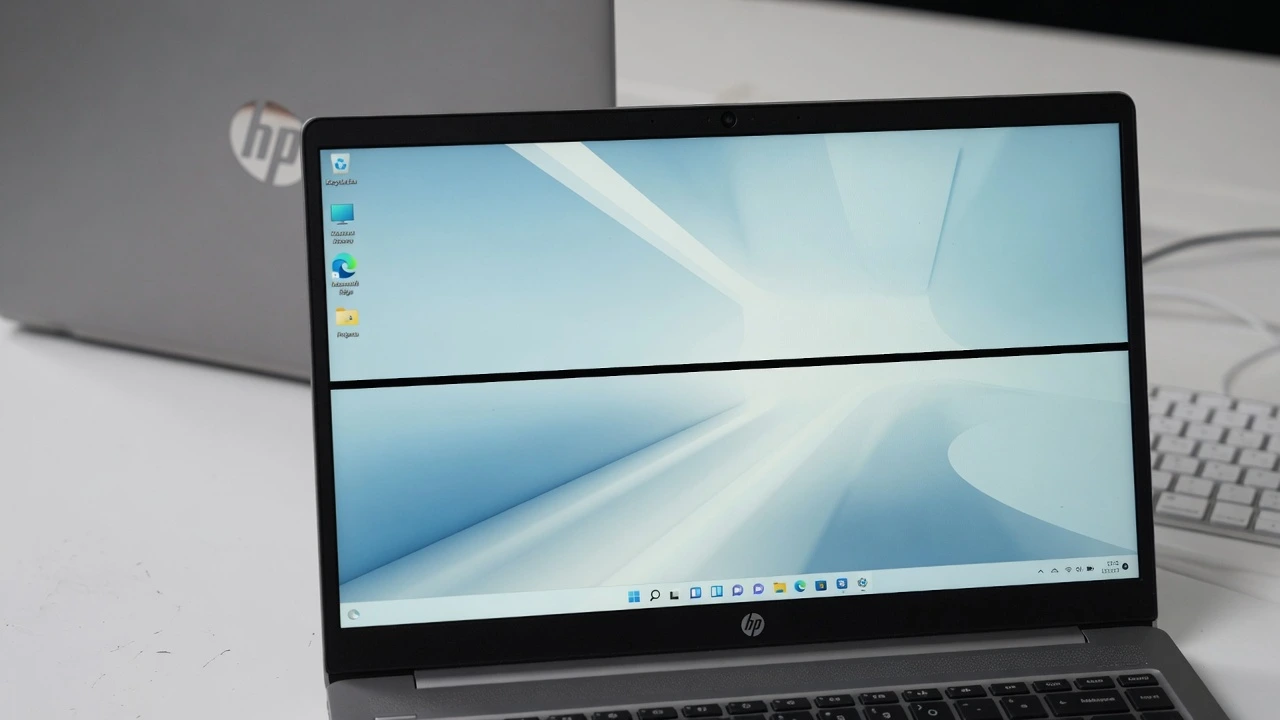
I know how unsettling it is to open your HP laptop and discover a black line on your laptop screen. One moment everything looks fine, and the next there is a dark streak sitting right across your display that will not disappear no matter what you try.
Here is the good news. A black line on an HP laptop screen does not always mean your laptop is broken beyond repair. In many cases, the fix takes just a few minutes and costs nothing at all.
Before you spend money at a repair center or start searching for a new laptop, it helps to understand what is actually happening.
Black lines on HP laptop screens fall into two categories: software problems and hardware problems and the same is true across laptop brands. If you have ever dealt with a black line on a Dell laptop screen, you will recognize several of the causes and fixes here, though HP-specific steps differ in important ways
A black line on an HP laptop screen is a display fault where one or more rows or columns of pixels stop showing correctly, appearing as a dark streak across the display due to either a driver glitch, a loose internal cable, or physical panel damage.
What I have seen over time is that most people jump straight into fixes without first figuring out which category their problem belongs to. That approach wastes time and can lead to unnecessary spending. This article takes a different path. I will help you identify your specific cause first, then point you toward the exact fix that works for your situation.
Whether you are dealing with a straight horizontal line across the middle of your screen, a thin vertical streak near the edge, or a line that comes and goes, this guide covers every scenario. By the time you finish reading, you will know whether your HP notebook display issue is a quick software fix or something that needs a closer look at the hardware.
Horizontal vs Vertical Black Lines They Have Different Causes
Most people treat all black lines on a laptop screen as the same problem. That is actually one of the biggest mistakes I see, because a black horizontal line on a laptop and a vertical black line on a screen come from completely different root causes. Knowing which type you have cuts your diagnostic time in half
Think of it this way. The direction of the line is your first clue about what went wrong inside your display.
Horizontal Black Lines What They Usually Mean
A horizontal black line runs straight across your screen from the left edge to the right edge. When I see this type of line, the first things I check are the LCD panel, the ribbon cable connection, and the display refresh rate.
Horizontal lines on a laptop monitor most commonly point to one of three things. The LCD panel may have experienced a pixel row failure, which means an entire row of pixels stopped receiving the correct signal and went dark.
The flex cable or ribbon cable connecting the screen to the laptop body may be loose or slightly damaged. Or the display refresh rate may be set incorrectly for your screen, which creates visual noise in the form of horizontal lines.
If your HP laptop also shows flickering alongside the lines, the behavior and causes overlap closely with what I cover in this guide on Lenovo laptop screen flickering with horizontal lines the diagnostic approach is nearly identical across both brands.
Here is what makes horizontal lines genuinely interesting. A real user documented their experience of eliminating horizontal lines entirely just by changing the monitor refresh rate in Windows display settings, with no driver reinstall or hardware work involved at all. That tells me horizontal lines often have a software dimension that is worth exploring before assuming the worst.
Vertical Black Lines What They Usually Mean
A vertical black line on a laptop screen runs from the top of the display straight down to the bottom. Vertical lines behave differently and usually point toward the graphics side of the problem rather than the panel itself.
When a vertical black line appears on an HP laptop screen, the most common causes are a display driver issue or a graphics card problem on the laptop. The GPU sends display data column by column to the screen, and when that signal is corrupted or interrupted, a vertical column of pixels goes dark
One important test I always recommend for vertical lines is Safe Mode. If the vertical black line disappears completely when you boot your HP laptop into Safe Mode, that is a strong signal the cause is software or a display driver conflict rather than physical hardware.
If the line persists in Safe Mode, you need to investigate the graphics card or consider a safe mode driver rollback to address the physical cable connection
A brief note worth mentioning here. If you see colored lines alongside a black line, such as green, pink, or yellow streaks, that combination usually indicates a more advanced stage of LCD panel failure or a severely damaged flex cable. Colored lines appearing with black lines warrant a hardware inspection sooner rather than later.
Why Is There a Black Line on Your HP Laptop Screen?
A black line appears on an HP laptop screen when something interrupts the normal flow of display signals, either at the software level through a driver or settings problem, or at the hardware level through physical damage to the screen.
The five causes below cover every scenario I have encountered, and understanding each one helps you pick the right fix without wasting time on solutions that will not work for your specific situation.
1. Display Driver or Software Glitch
This is the cause I always hope for, because it costs nothing to fix.
Your laptop’s display driver is the software that tells your graphics card how to send images to the screen. When the display driver becomes corrupted, outdated, or incompatible after a Windows update, the graphics card starts sending incorrect signals to the LCD display panel.
The result is often a black line that appears suddenly, even though the screen itself is physically fine
A graphics driver issue is one of the most common causes of black lines on HP laptop screens, and it is entirely reversible through software.
A simple graphics driver reset, done by pressing Windows plus Ctrl plus Shift plus B simultaneously, sometimes clears the black line on your laptop screen in seconds without any reinstallation needed at all.
If the black line disappears after a restart or a driver reset, a software glitch was almost certainly the cause.
2. Loose or Damaged Flex Cable (Display Cable)
Inside your HP laptop, a thin ribbon cable called the flex cable or EDP cable runs from the laptop motherboard up through the hinge and connects directly to the back of the LCD panel. This ribbon cable in your laptop screen carries the display signal from your graphics system to your display.
A loose or damaged display cable on an HP laptop is one of the most frequent hardware causes of persistent black lines, especially lines that are present from the moment the laptop powers on. The flex cable can become partially disconnected from rough handling, repeated opening and closing of the laptop lid over time, or from dropping the laptop even once.
When the ribbon cable loses a solid connection, specific rows or columns of pixels stop receiving their signal and go dark. The line stays fixed in the same position regardless of what you do on screen, because the problem is physical rather than digital.
3. Physical Pressure or Impact Damage
Dropping your laptop, placing something heavy on the lid, or accidentally sitting on a bag that contains the laptop can all cause screen pressure damage on your laptop. When significant force reaches the screen, the internal glass layers of the LCD display can crack or deform
An LCD display contains liquid crystal material sandwiched between two glass layers. When those glass layers crack under pressure, the liquid crystal leaks outward into surrounding areas of the screen and forms dark blotches or lines.
I have seen demonstrations where applying pressure to a damaged area temporarily shifts the liquid crystal and makes the dark spot appear to shrink, but the underlying crack remains and the laptop screen damage returns or spreads.
I have seen demonstrations where applying pressure to a damaged area temporarily shifts the liquid crystal and makes the dark spot appear to shrink, but the underlying crack remains and the damage returns or spreads.
A laptop screen line after a drop is almost always physical LCD damage. Screen pressure damage on a laptop cannot be repaired through software, and attempting to manipulate the panel manually only delays the need for screen replacement
4. Failing LCD or LED Panel
Even without any physical impact, LCD panels and LED backlights degrade over time. Heat, age, and prolonged heavy use gradually wear down the internal components of a laptop display.
When an LCD panel starts to fail, individual pixel rows lose the ability to display correctly and produce a dead pixel line on your laptop screen.
These lines are perfectly straight, static, and permanent. Unlike driver caused lines that may flicker or shift, lines from LCD panel failure stay exactly where they appear and do not respond to any software change
If you have tried every software fix and the black line remains unchanged, the LCD panel itself is likely the source. A failing LED backlight can also produce darkened areas or uneven brightness alongside visible lines, which is another sign that the panel has reached the end of its useful life.
5. GPU or Graphics Card Problem
This is the rarest cause, but it is important to know about because it changes the repair approach entirely.
The GPU, or graphics processing unit, sits on the laptop motherboard and generates the entire image your screen displays. When the GPU begins to fail, corrupted display data gets sent to every output the laptop has, including both the built in screen and any external monitor connected to the laptop.
A graphics card problem on a laptop producing black lines is serious because the issue is not in the screen itself but in the component that feeds the screen its image.
If you connect your HP laptop to an external monitor and the black line appears there too, the GPU on the motherboard is the likely cause rather than the display panel. This level of repair typically requires professional diagnosis and is beyond what a screen replacement alone can address.
Before You Try Any Fix Run This 60-Second Diagnosis First
Most troubleshooting guides completely skip over this hardware diagnostic step, and it is honestly the most useful thing you can do before touching a single setting on your laptop.
Run a quick diagnosis first.
Every fix in the next section works for either a software problem or a hardware problem, but not both. Trying a software fix on a hardware problem wastes your time. Trying hardware investigation on a software glitch is unnecessary. These three tests take under two minutes combined and tell you exactly which direction to go.
Test 1 Take a Screenshot (Done in 5 Seconds)
Press Windows plus Shift plus S to take a screenshot, or use the Print Screen key. Open the screenshot in any image viewer and look at it carefully.
Does the black line appear in the screenshot image?
If the black line is invisible in the screenshot, your HP laptop is sending a perfectly clean image signal. The graphics output is fine. The problem exists only in the physical display hardware, meaning the LCD panel, the flex cable, or the physical screen connection. No software fix will resolve a hardware problem confirmed by this test.
If the black line does appear in the screenshot, the problem exists in the graphics output itself, pointing toward a display driver issue or a GPU problem. Software fixes are worth trying first in that case.
This is the single fastest diagnostic test available, and I learned it from a real user who discovered it while troubleshooting their own laptop. It costs zero effort and gives you an immediate, reliable answer
Test 2 The Task Manager Check (Done in 30 Seconds)
Press Ctrl plus Alt plus Delete and open Task Manager. Now look carefully at the Task Manager window itself, not the rest of the screen.
This test splits into two clear outcomes.
If Task Manager also shows lines or flickers alongside the rest of your screen, the problem is rooted in your display driver or in a hardware fault affecting the entire display output. You need to address the display driver or investigate the physical components
If Task Manager looks completely clear and normal while the rest of your screen shows the black line, a specific software application running in the background is causing the interference. The display driver itself is likely fine. The fix involves identifying and removing the conflicting application rather than reinstalling drivers.
This distinction matters enormously. Misidentifying this split is why so many people reinstall drivers repeatedly without results. They were actually dealing with a software application conflict the whole time.
Test 3 Boot Into Safe Mode (Done in 2 Minutes)
Safe Mode is the definitive hardware versus software filter for black line problems on an HP laptop screen. Safe Mode loads Windows with only the essential system drivers and no third party applications, which creates a clean testing environment similar to a BIOS startup screen test..
To enter Safe Mode, force your laptop to shut down by holding the power button during startup. Do this two to three times in a row until you see the Preparing Automatic Repair screen appear. From there, navigate to Troubleshoot, then Advanced Options, then Startup Settings, then Restart. When the options appear, press 4 to enable Safe Mode.
Now observe your screen carefully.
If the black line disappears completely in Safe Mode, your laptop hardware is confirmed fine. The cause is a software conflict, a corrupted display driver, or a problematic Windows update. Every fix option in the software section ahead applies directly to your situation.
If the black line remains in Safe Mode, the problem is physical. Software fixes will not help. The black line is coming from the hardware itself, whether that is the LCD panel, the flex cable connection, or in rare cases the graphics card.
One additional indicator worth knowing. If the black line appears on your HP laptop screen from the very first moment the laptop powers on, before Windows even begins to load, that is a strong hardware signal on its own. Lines present at the BIOS startup screen stage exist before any display driver or software is active, which means the cause is definitively in the physical display components.
How to Fix the Black Line on Your HP Laptop Screen (7 Steps)
Now that you know whether your black line is a software problem or a hardware issue, you can approach the fixes in the right order. I have arranged these seven steps from the absolute fastest fix that takes three seconds to the most involved option that requires system level changes.
The key to how to fix lines on a laptop screen effectively is following the diagnostic order rather than trying random fixes. Start at Step 1 even if it seems too simple, because I have seen that single keyboard shortcut resolve black lines that people spent hours trying to fix in more complicated ways.
Step 1 Press This Keyboard Shortcut First (Takes 3 Seconds)
Before you open a single settings menu, try this.
Press Windows plus Ctrl plus Shift plus B all at the same time.
Your screen will go black for about half a second, you may hear a beep, and then the display will flash back on. What just happened is that Windows forcibly reset your graphics driver without requiring a restart or any configuration change.
For black lines on an HP laptop screen caused by a display driver glitch, especially lines that appeared after your laptop woke from sleep mode or after a program crashed, this shortcut resolves the problem instantly. If the black line is gone after the screen flashes back on, you are done. The cause was a temporary driver state error and it is now cleared.
This keyboard combination works on Windows 10 and Windows 11. I cannot overstate how often this single step fixes display problems that people assume require driver reinstalls or hardware repair. It costs nothing and takes three seconds, which makes it the single highest value action you can take before moving to anything more involved.
Step 2 Restart Your HP Laptop
A full restart clears temporary system states, frees up memory that background processes may be holding incorrectly, and reloads every driver fresh. This is different from putting your HP laptop to sleep or closing the lid, which preserves the current system state and may leave the black line in place.
Restart your laptop fully by clicking Start, selecting Power, and choosing Restart. Wait for the laptop to shut down completely and boot back up to the Windows login screen.
If the black line disappears after the restart but comes back after using the laptop for a while, that behavior points toward a software or driver conflict rather than permanent hardware damage. Make a note of what programs you were using when the line reappeared, because that information becomes useful in later steps.
Step 3 Test With an External Monitor
Connect your HP laptop to an external monitor or television using an HDMI cable or DisplayPort connection. Extend the display or mirror it so you can see the same content on both screens.
Now look at the external monitor carefully.
If the external monitor shows a perfectly clear image with no black lines anywhere, the problem is confirmed to be inside your laptop’s physical LCD screen or the flex cable connecting that screen to the motherboard. The graphics card and display driver are working correctly, because the external monitor receives a clean signal. Your fix path is hardware focused from this point.
If the external monitor also shows the same black line in the same position, the GPU or the display driver is sending corrupted output to every screen connected to your laptop. This means the laptop screen itself is likely fine and the issue is in the graphics processing system. Your fix path is software and driver focused.
This single external monitor test eliminates half of the possible causes and gives you absolute clarity on whether you are dealing with a screen problem or a graphics card problem.
Step 4 Update or Roll Back Your Display Driver
Your display driver is the software that tells Windows how to communicate with your graphics hardware. An outdated or corrupted display driver is one of the most common causes of black lines that appear suddenly without any physical damage.
Here is how to update your display driver through Windows Device Manager.
Right click the Start button and select Device Manager. Expand the section labeled Display adapters. You will see one or two entries depending on your HP laptop model. Many HP Pavilion and HP Envy laptops have both an Intel integrated graphics adapter and an NVIDIA or AMD dedicated graphics card.
Right click the first adapter and select Update driver. Choose Search automatically for drivers. Windows will check online and install any newer version available. Restart your laptop after the update completes and check whether the black line is gone.
If the black line appeared immediately after a recent driver update, you want to roll back instead of updating forward. Right click the display adapter, select Properties, go to the Driver tab, and click Roll Back Driver if that option is available. This returns the driver to the previous version that was working correctly before the update.
For HP laptops running both Intel and NVIDIA graphics on Windows 10 or Windows 11, update or roll back both adapters and test after each change. Sometimes the conflict is between the two drivers rather than in a single one.
Step 5 Adjust Your Refresh Rate (Especially for Horizontal Lines)
This step is particularly effective if you are seeing horizontal black lines running across your HP laptop screen rather than vertical lines.
Right click anywhere on your desktop and select Display settings. Scroll down and click Advanced display. Look for the option labeled Choose a refresh rate and note what value is currently selected.
Now change the refresh rate to a different value from the dropdown menu. If your screen is set to 60 Hz, try changing it to a higher value if available, or toggle it down and then back up to 60 Hz again.
Apply the change and observe your screen.
Multiple real users have reported that simply toggling the refresh rate setting eliminated horizontal black lines immediately without requiring any driver reinstall or hardware repair. One documented case showed horizontal lines disappearing completely when the refresh rate was changed from 60 Hz to 165 Hz on a high refresh rate display. The same fix worked for several other users who confirmed the solution in community discussions.
If the black line appeared after a Windows update, the update may have changed your screen resolution or refresh rate setting without you noticing. Resetting the display settings to their optimal values often resolves lines caused by this type of software configuration change.
Step 6 Roll Back or Uninstall a Recent Windows Update
If the black line on laptop screen HP appeared within a day or two of a Windows update installing automatically, that update may have introduced a driver conflict or system file corruption that is causing the display issue.
Windows updates sometimes include graphics driver changes that conflict with HP specific display hardware. Rolling back the update removes those changes and returns your system to the state it was in before the problem started.
To uninstall a recent Windows update, you need to access the Advanced Options menu. Force your laptop to shut down by holding the power button during the startup process. Do this two to three times in a row until Windows recognizes a startup failure and displays the Preparing Automatic Repair screen.
From the repair screen, select Troubleshoot, then Advanced Options, then Uninstall Updates. You will see two options: Uninstall latest quality update and Uninstall latest feature update.
Try uninstalling the latest quality update first, as quality updates are smaller and installed more frequently. Restart your laptop after the uninstall completes and check if the black line is resolved. If the line remains, return to the Advanced Options menu and try uninstalling the latest feature update instead.
This is the correct fix when driver reinstalls alone have not resolved the problem, because the issue may be deeper in the Windows system files rather than just in the display driver itself.
Step 7 Perform a System Restore
System Restore is your last software based option before concluding that the black line is caused by hardware and requires physical repair.
If the black line appeared after a specific date and you know your screen was working perfectly before that point, System Restore can roll your entire Windows configuration back to that earlier state. This fix preserves your personal files, photos, and documents while reverting system settings, drivers, and installed programs to an earlier restore point.
Press Windows plus R to open the Run dialog. Type rstrui.exe and press Enter. The System Restore window will open and show you a list of available restore points with dates and descriptions.
Select a restore point from a date before the black line appeared. Click Next, confirm your selection, and let the restore process complete. Your laptop will restart during this process, and the restoration may take 15 to 30 minutes depending on how much has changed since the restore point was created.
Use System Restore as a final software attempt before concluding the issue is hardware. If the black line remains after a system restore to a point when the screen was definitely working correctly, the cause is almost certainly in the physical display components rather than in Windows or any installed software.
Why Your Black Line Appears Sometimes But Not Always
If the black line on your HP laptop screen comes and goes instead of staying fixed in place, you are actually dealing with a different problem than people whose lines are permanent. An intermittent black line on a laptop almost always means a partially disconnected flex cable rather than a fully failed LCD panel.
Here is why that distinction matters. A loose connector inside your laptop is potentially fixable by reseating the cable, which costs significantly less than replacing the entire screen. A permanently failed LCD panel leaves you no option except full replacement.
The flex cable, also called the ribbon cable or EDP cable, is the thin flat connector that runs from your laptop motherboard through the hinge and plugs into the back of the LCD screen. Every pixel on your display depends on that cable staying firmly connected at both ends. When the flex cable becomes partially loose from repeated opening and closing of the laptop lid, from a drop, or just from normal wear over time, the connection becomes unstable.
That unstable connection is what creates the intermittent behavior.
One real user documented a particularly telling pattern. When they put their laptop into sleep mode for three to five minutes and then woke it back up, the black lines disappeared completely and did not return until the next full reboot. Another user reported getting the lines to disappear inconsistently after their laptop came out of sleep, but the lines always returned eventually.
This sleep mode behavior is actually a clue to what is happening physically inside the laptop. When your HP laptop goes into sleep mode, the internal components cool down slightly and then warm back up when the laptop wakes. That thermal cycling causes microscopic expansion and contraction of the metal connectors, and a partially loose flex cable may temporarily shift back into better contact during that process.
The lines return on the next boot because the cable is still not fully seated, and the movement of opening the laptop lid or the vibration of normal use shifts the connection out of alignment again.
If your black line behaves this way, appearing on some boots but not others, or disappearing after sleep mode, a loose or damaged display cable on your HP laptop is the most likely cause. This is good news in the sense that cable reseating is a less expensive repair than full screen replacement, but it does typically require a technician to open the laptop and reseat the connector properly.
The One Fix Nobody Tries And It Works for Many Users
If you have tried every driver fix, every display setting, and even a system restore, and the black line on your HP laptop screen is still there, I have two advanced fixes that rarely appear in standard troubleshooting guides but work surprisingly often.
The first one involves a Windows background service that can interfere with display output in unexpected ways.
Press Windows plus R to open the Run dialog. Type msconfig and press Enter. When the System Configuration window opens, click on the Services tab. Scroll through the list until you find Windows Error Reporting Service. Uncheck the box next to that service, click Apply, and then restart your laptop.
This disables a background service that occasionally conflicts with graphics drivers and causes display artifacts including black lines. Multiple users have reported that this single change resolved persistent screen issues that driver updates could not fix.
The second advanced fix is for users whose Safe Mode test showed the black line persists, which usually points to hardware, but who have not experienced any physical impact or drop. Check your RAM.
RAM modules sit on the laptop motherboard and connect through metal contacts that can oxidize or come slightly loose over time. A poor RAM connection sometimes causes display problems that look identical to screen hardware failure. Power off your laptop completely, remove the back panel if you are comfortable doing so, take out the RAM modules, gently clean the metal contacts with a pencil eraser, and reseat the RAM firmly back into the slots.
This is an unconventional hardware diagnostic step, but it resolves display line issues more often than most people expect, especially on laptops that have been in use for several years without the internal components being cleaned or reseated.
When Your HP Laptop Screen Actually Needs to Be Replaced
There comes a point where software fixes and driver adjustments can no longer help, and acknowledging that point saves you time, frustration, and unnecessary troubleshooting attempts. An HP laptop screen needs physical repair or replacement when specific hardware failure indicators are present that software cannot address.
If none of the software methods in this guide have worked and the black line remains unchanged, your issue is almost certainly in the physical screen components or the internal cable connection. At that stage, professional hardware repair or screen replacement becomes the only realistic path forward.
Signs That Tell You the Screen Needs Hardware Repair
These are the clear indicators that tell you the black line on your HP laptop screen is a hardware problem that requires professional attention:
- The black line appears at the BIOS startup screen before Windows loads, meaning the line is present before any operating system or driver is active
- The black line persists in Safe Mode after you have tried all seven software fix steps in this guide
- You connected an external monitor and it shows a perfectly clear image with no lines, confirming the laptop screen itself is faulty while the graphics card works correctly
- You connected an external monitor and it also shows the same black line, indicating a GPU failure rather than just a screen problem
- There is a visible physical crack on the screen or you can see a dark blotch spreading around the line
- The black line has grown longer, darker, or multiplied into additional lines over time
If any of these signs match your situation, continuing with software troubleshooting will not produce results. The issue is in the hardware.
How Much Does HP Laptop Screen Repair Actually Cost?
Let me give you realistic cost ranges based on the type of repair needed, because knowing what to expect financially helps you make the right decision between repair and replacement.
Software fixes: Free if you follow this guide yourself. Everything covered in the fix steps section costs nothing except your time.
Flex cable reseating: If the problem is a loose or damaged display cable inside your HP laptop, professional reseating typically costs between $50 and $150 depending on your location and the repair shop. This is the least expensive hardware repair because it does not require replacing any parts, just opening the laptop and reconnecting the cable properly.
Full LCD panel replacement: Replacing the entire screen on an HP laptop ranges from $100 to $300 depending on your specific HP model. An HP Pavilion screen issue tends to fall on the lower end of that range, while premium models like HP Spectre or high resolution HP Envy display problems cost more due to more expensive replacement panels.
Touchscreen models: If your HP laptop has a touchscreen and you are seeing a touchscreen black line, be aware that touchscreen models have an additional digitizer layer on top of the LCD panel. Replacing a touchscreen assembly costs more than a standard screen, typically $200 to $400 depending on the model.
Before you pay for any repair, check whether your HP laptop is still under warranty. HP Inc. provides a standard one year limited warranty on most laptops, and that warranty covers manufacturing defects including screen problems that appear without physical damage.
You can check your warranty status through HP Support Assistant, which comes preinstalled on most HP laptops, or by visiting the official HP Support page and entering your laptop serial number for model-specific diagnostics and warranty verification
If your black line appeared without you dropping or damaging the laptop and your warranty is still active, HP may repair or replace the screen at no cost to you. Always verify warranty eligibility before spending money on repairs.
Three Mistakes That Make the Black Line Worse
I want to warn you about three common mistakes people make when trying to fix a black line on their laptop screen, because each one either makes the damage worse or wastes significant time that could have been spent on a solution that actually works.
Mistake 1: Pressing on the Screen to Try to Fix It
Some people notice that when they apply gentle pressure near the black line, the line temporarily shrinks or shifts position. This creates the false impression that pressing harder or manipulating the screen will fix the problem permanently.
Do not do this.
When you press on an LCD screen that has internal damage, you are temporarily moving the liquid crystal material inside the panel. The liquid crystal shifts under pressure, which makes the black spot or line appear to shrink for a moment. But the underlying crack or leak in the glass layers remains, and applying pressure actually accelerates the spread of screen pressure damage on a laptop.
What happens over time is that the repeated pressure causes the crack to extend further, the liquid crystal leaks into larger areas, and the black line grows or multiplies into additional lines. Physical damage to a screen cannot be manipulated away. The only permanent fix is screen replacement.
Mistake 2: Reinstalling Drivers Over and Over When the Problem is Hardware
I have seen many people spend hours reinstalling display drivers, rolling back drivers, and updating drivers repeatedly without ever checking whether their problem is actually a hardware issue that drivers cannot fix.
One real user documented reinstalling all their drivers multiple times, but the black line on their HP laptop screen did not change at all because the line appeared in Safe Mode and at startup, which confirmed the problem was in the physical screen hardware from the beginning. Reinstalling drivers on a hardware problem accomplishes nothing.
This is why I placed the diagnostic tests at the beginning of this guide. Run the screenshot test, the Task Manager test, and the Safe Mode test before you spend time on driver fixes. Those three tests take under two minutes combined and tell you definitively whether driver work will help or whether you are dealing with laptop screen damage that requires physical repair.
Mistake 3: Using Metal Tools to Open the Laptop
If you decide to attempt a DIY screen replacement or want to check the internal cable connection yourself, do not use metal screwdrivers or metal pry tools on the plastic bezel that frames your laptop screen.
Metal tools scratch and gouge the plastic casing, leave visible marks that reduce resale value, and can slip and crack the screen glass if you apply too much force. The proper tools for laptop disassembly are plastic pry tools designed specifically for electronics work. These cost only a few dollars and prevent the cosmetic damage that metal tools cause.
Additionally, if your laptop screen uses adhesive strips to hold the panel in place, pull those strips very slowly and steadily. Yanking the adhesive tabs quickly causes them to snap, and once the adhesive breaks, removing the screen panel without damaging the laptop lid becomes extremely difficult.
How to Stop Black Lines From Coming Back
If you successfully fixed the black line on your HP laptop screen, or if you want to protect your screen from developing lines in the future, these prevention habits make a significant difference in keeping your display healthy long term.
Keep your display drivers updated regularly. Use HP Support Assistant, which comes preinstalled on most HP laptops, to check for driver updates every few months. Outdated display drivers are one of the most common software causes of black lines, and keeping your graphics drivers current prevents many of these issues before they start.
Avoid putting pressure on the laptop lid. When you carry your HP laptop in a backpack or bag, make sure nothing heavy is pressing against the lid. Books, chargers, or other objects stacked on top of the laptop create pressure points that can damage the LCD panel or loosen the internal flex cable over time.
Use a padded laptop sleeve or hard case. A protective case absorbs impact if you accidentally drop your bag or bump the laptop against a surface. Even minor impacts that do not crack the screen visibly can jar the internal cable connections loose and cause intermittent black lines to develop later.
Do not leave your laptop in extreme temperatures. LCD panels are sensitive to heat. Leaving your HP laptop in a hot car, near a heater, or in direct sunlight for extended periods weakens the liquid crystal material inside the screen and accelerates panel degradation that leads to dead pixel lines.
Open your laptop with both hands. Grab the lid on both sides near the corners and lift evenly. Opening the laptop from one corner repeatedly puts stress on the hinge and the flex cable running through it, which increases the chance of the cable becoming partially disconnected over time.
These habits are simple, but they genuinely reduce the likelihood of developing an HP laptop display problem that requires repair down the road.
Frequently Asked Questions
Why does my HP laptop screen have a black line on it?
A black line on an HP laptop screen is caused by one of five issues: a corrupted display driver sending incorrect signals, a loose flex cable inside the laptop losing connection, physical impact damage that cracked the LCD panel, a failing LCD panel from age or heat exposure, or in rare cases a failing GPU on the motherboard. The cause determines whether you can fix the line for free through software or whether you need hardware repair.
If I take a screenshot and the black line is not in it, what does that mean?
If the black line is invisible in your screenshot, the problem is confirmed to be in the physical display hardware itself, not in the graphics output. Your laptop is sending a clean image signal, so the LCD panel, flex cable, or screen connection is where the fault exists. Driver updates and software fixes will not resolve a hardware problem confirmed by the screenshot test.
Can the black line be fixed without replacing the screen?
Yes, in many cases. Software caused black lines can be fixed for free using driver updates, the Windows plus Ctrl plus Shift plus B graphics reset shortcut, refresh rate adjustments, or system restore.
Even some hardware caused lines can be fixed by having a technician reseat the loose flex cable connector, which costs $50 to $150 instead of $100 to $300 for full screen replacement. Only black lines from a physically cracked LCD panel require complete screen replacement.
Why does the black line disappear when I put my laptop to sleep and come back when I restart?
This specific behavior strongly indicates a loose flex cable connection inside your HP laptop. When the laptop goes into sleep mode, the internal components cool slightly and then warm back up when it wakes, causing thermal expansion that temporarily shifts the loose cable back into better contact.
The line returns on restart because the cable is still not fully seated. A technician can reseat the connector for significantly less than replacing the entire screen
Does my HP laptop’s warranty cover a black line on the screen?
HP’s standard one year limited warranty covers manufacturing defects, so if the black line appeared without you dropping or physically damaging the laptop, it may qualify for free repair.
Physical damage voids the warranty. Check your warranty status through HP Support Assistant or by entering your serial number on the HP support website. If your warranty has expired, HP Care Pack extended coverage is available for purchase.
How much does it cost to fix a black line on an HP laptop screen professionally?
Software fixes cost nothing if you follow this guide yourself. Professional flex cable reseating costs $50 to $150. Full LCD panel replacement ranges from $100 to $300 depending on your HP model, with budget models like HP Pavilion on the lower end and premium models like HP Spectre on the higher end. Touchscreen repairs cost $200 to $400. Always check your warranty status before paying for repairs.


