Just downloaded a new app from the Google Play Store and now you’re staring at your home screen wondering where it went? I have been there. You tap around, swipe left, swipe right, and the icon is completely missing even though your phone said the download finished
This is actually one of the most common Android complaints I hear. Most phones ship with the auto-add setting disabled, so newly installed apps land in the app drawer and nowhere else. People switching from an older device or a different Android brand get caught off guard by this every single time
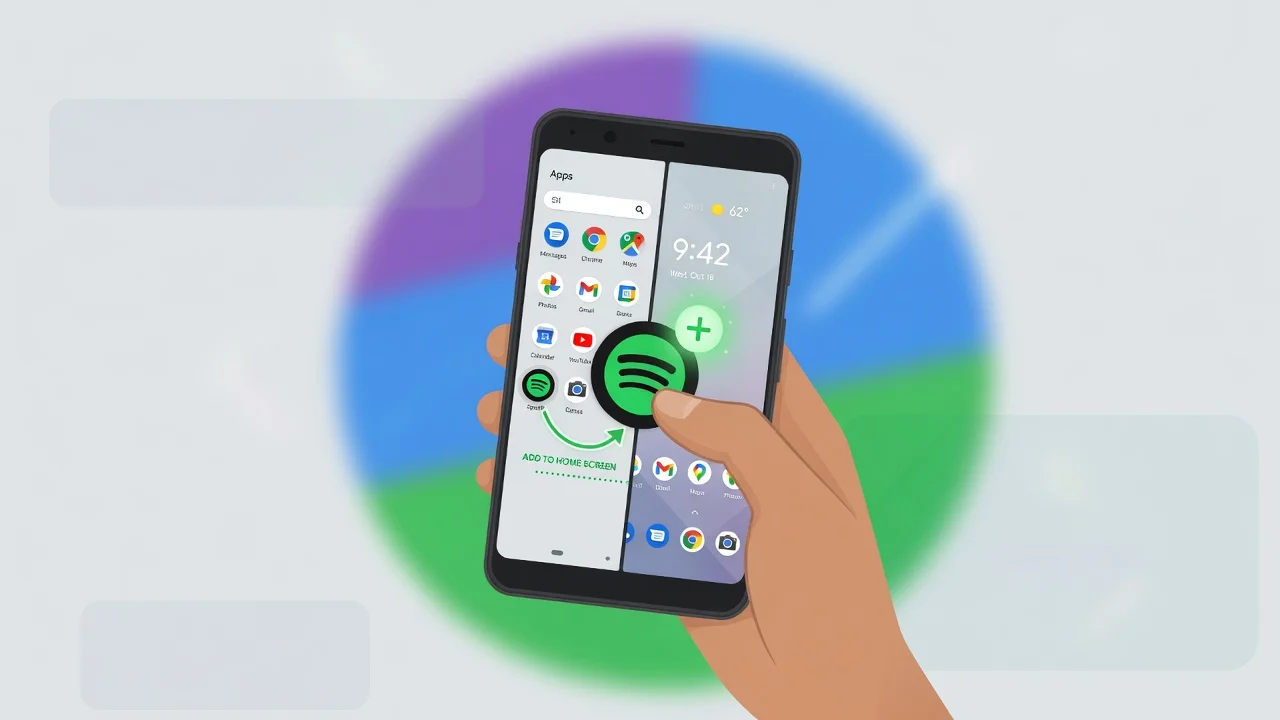
I’ve walked dozens of friends and family members through this exact problem. In this guide I cover every method how to add app to home screen Android including the standard drag and drop, the faster tap option on Samsung, and the auto-add setting fix that makes the problem disappear permanently. Works for Samsung Galaxy, Google Pixel, and every other Android device.
You’ll also learn what to do when apps go missing after installation, how to organize icons across multiple home screen pages, and the real difference between your app drawer and home screen. By the end of this article, you’ll have complete control over your Android home screen layout and know exactly how to troubleshoot when things don’t work as expected.
App Drawer vs. Home Screen: What’s the Difference?
Your app drawer holds every app installed on your Android phone. Your home screen only shows the shortcuts you personally decided to put there. The simplest way I describe this to people is that the app drawer is your full app library and the home screen is your favorites shelf.
I see this confusion constantly, especially from people switching to Android for the first time. Once it clicks, everything about managing your phone gets easier. But until it clicks, people keep making the same mistakes over and over
To open your app drawer, place your finger near the bottom of your screen and swipe upward. Your full app list appears in a scrollable grid. Every app you download from the Google Play Store lands here automatically regardless of whether you ever see it on your home screen
The home screen appears every time you unlock your phone or press the home button. Unlike the app drawer, the home screen only shows the icons you deliberately chose to place there. Nothing else.
Here is the part that trips most people up. Adding an app to your Android home screen does not remove the app from the drawer. The app exists in both places at the same time. The icon on your home screen is just a shortcut that launches the app faster. (When you’re ready to do the opposite and clear out apps you no longer need, check out my step-by-step tutorial on how to delete apps on Android.
The same logic applies when you remove an app from your home screen. Deleting that icon only removes the shortcut. The actual app stays fully installed in your app drawer and works exactly as normal.
Your Android launcher is the software layer that controls how the home screen and app drawer look and work. Samsung runs One UI on top of Android. Google Pixel runs stock Android. Both are launchers, and the core behavior is the same even though the visual design differs
Widgets are not the same as app icons. Tapping an app icon opens the full application. A widget sits on your home screen and displays live information or controls without you opening anything. Think weather forecasts, calendar events, or music controls showing up right on your screen. Widgets take up more space than icons but they save you from opening apps constantly
Once you understand this relationship, the rest of managing your Android home screen becomes straightforward. You can move shortcuts around, delete them, rearrange entire pages, and nothing you do will ever actually uninstall an app. That is good to know before you start reorganizing.
How to Add Apps on Samsung Phones (One UI)
Samsung phones running One UI work a little differently than stock Android when it comes to adding apps. The Samsung One UI home screen has a built-in search bar at the top of the app drawer and a tap-to-add shortcut that most other Android brands simply do not offer.
I use a Samsung Galaxy myself, and I noticed the launcher difference immediately when I switched from a Pixel. Samsung’s approach is actually faster once you get used to it the tap-to-add method alone saves real time when you’re setting up a new phone.
Here’s how to add apps to your Samsung home screen step by step.
Swipe up from your Samsung home screen to open the app drawer. Apps are sorted alphabetically across multiple pages. If you have a large number of apps installed, scrolling through everything takes a while which is exactly why the search bar matters
Once the app drawer is open, you can swipe left or right through the menu pages to browse your apps. Samsung phones typically have more pre-installed apps than stock Android, so scrolling through everything can take a while if you have dozens of apps installed.
Find the app you want and press down on the icon for about a second. A pop-up menu appears showing several options including widgets, app info, and the one you need: Add to Home
Tap Add to Home from the pop-up. The app icon appears on your Samsung home screen immediately without dragging anything. I use this tap method every time I set up a new phone because adding ten apps in a row is dramatically faster this way.
Samsung One UI also supports the traditional drag method. After long pressing the icon, drag it upward toward the top of your screen instead of tapping Add to Home. The app drawer minimizes and your home screen appears behind it. Drop the icon wherever you want it.
One thing that confuses some Samsung users is that certain Samsung models hide the app drawer button by default. If you don’t see an apps button on your home screen and swiping up doesn’t work, you may need to enable the app drawer in your home screen settings. Go to Settings, tap Home Screen, and make sure the Apps Button option is turned on.
Use the Search Bar to Find Apps Instantly
Samsung puts a search bar at the very top of the app drawer. It is one of my favorite One UI features because finding an app takes three seconds instead of thirty.
Instead of swiping through pages just tap the search bar and type the first few letters of the app name. Results appear as you type. Once you see the app long press it and select Add to Home
I use this search method constantly especially right after installing something new. Typing three letters is always faster than scrolling through pages guessing where the app landed alphabetically. And it works for system apps too, not just downloaded ones
How to Add Apps on Google Pixel and Stock Android
The Google Pixel home screen runs pure stock Android with no manufacturer customization layer on top. The process for adding apps on Pixel is more stripped-down than Samsung, which honestly makes it faster to learn
Stock Android is Android without any manufacturer software on top. No pre-installed apps you did not ask for. No renamed menus. No extra steps. What you see is exactly what Google built.
Swipe up from the bottom of your screen to open the app drawer. All your installed apps appear in an alphabetical grid
Once the app drawer is open, find the app you want to add to your home screen. You can scroll through the alphabetical list or swipe left and right if you have multiple pages of apps.
Press and hold the app icon for about one second until you feel a short haptic vibration. The app drawer shrinks back and your home screen appears behind it
Without lifting your finger, drag the icon upward toward your home screen. Position the app where you want it, then lift your finger to drop it into place
Stock Android uses a grid layout for home screen icons. If you drop an app onto an occupied spot, the surrounding icons shift automatically to make room.
Pixel phones on Android 12, 13, and 14 all use this same drag-and-drop process. The visual design changed with each version bigger icons in 12, smoother animations in 13 and 14 but none of those updates touched the actual steps for adding apps. What worked on Android 12 still works the same way today
Stock Android doesn’t include the tap-to-add shortcut menu that Samsung One UI offers. The drag and drop method is the primary way to add apps on Pixel devices. I actually prefer this approach because it gives you immediate control over exactly where the app icon lands on your screen.
Stock Android does feel snappier than most manufacturer versions. There is less software running in the background, and Google fine-tuned the animations specifically for Pixel hardware. On a newer Pixel model the difference is noticeable from the first time you swipe.
How to Automatically Add Every New App to Your Home Screen
You can set your Android phone to place app icons on your home screen automatically the moment an installation finishes. One setting. No more manually hunting down every new app.
Most Android phones ship with this feature disabled by default, a design choice explained in detail by Android Central’s customization guide. That is why people download an app successfully and then cannot find the icon anywhere on their home screen.
Here’s exactly how to enable automatic app adding on Android.
Open your phone’s Settings app. Swipe down from the top of your screen and tap the gear icon if you want the fastest route to it
Inside the Android settings menu, scroll down until you find the option labeled Home Screen. The exact name varies by brand. Some phones say Home Screen Settings, others just say Home. Either way, tap it
Look for a toggle that says Add New Apps to Home Screen or Automatically Add Apps. The exact wording differs by phone and Android version but the function is the same. Tap it to turn it on
Tap the toggle to turn this setting ON. The switch will change color or position to indicate the feature is now active.
That’s the complete process. Once this feature is enabled, downloading any new app from the Google Play Store will make the app icon immediately show up on your home screen layout without requiring any extra actions from you.
Install any app right after enabling this setting and the icon appears on your home screen the moment installation completes. If your current home screen pages are full, Android automatically creates a new page to place it
I turn this setting on for every Android phone I touch. It matters most after a factory reset when you are reinstalling 10 or 15 apps at once. Without auto-add you spend 10 minutes placing icons one by one. With it you just install and move on
Some people keep this setting off on purpose. If you download a lot of apps you rarely use, auto-add fills your home screen with icons you never tap. Fair enough. Both approaches work.
To reverse this, go back into Settings, open Home Screen, and toggle Add New Apps back to OFF. From that point, new apps go directly to the app drawer and stay off your home screen until you manually add them.
One thing worth knowing: this setting only affects apps you install after enabling it. Apps already on your phone before you turned on the toggle will not suddenly appear on your home screen. You still need to add those manually
The automatic add feature works with everything from the Google Play Store. APK files installed outside the Play Store may not trigger automatic placement depending on your phone’s security settings.
How to Move Apps Between Home Screen Pages
Moving apps between home screen pages uses a drag-to-edge gesture that most people stumble across by accident rather than learning intentionally. Pull an app icon toward the left or right edge of your screen and the page flips automatically while your finger is still holding the icon
Most Android phones support multiple home screen pages. I keep my most-used apps on the main page, productivity tools on the second, and entertainment apps on the third. It took me about five minutes to set up that way and I have never rearranged it since.
Here’s how to move apps across home screen pages.
First, long press the app icon you want to move. Keep your finger pressed down until the app lifts off the screen slightly or you feel a haptic vibration. Don’t lift your finger yet.
While holding the app icon, drag your finger toward the left edge to go to the previous page or the right edge to move forward
When your finger reaches the edge, the page flips automatically while you are still holding the icon. You can keep dragging through multiple pages this way just keep pulling toward the edge until you reach the right one.
Once you reach the page where you want to place the app, position the icon in an empty spot and lift your finger. The app will drop into that location and stay there.
Most Android launchers support five to seven home screen pages depending on your phone model. Adding apps beyond your available page space creates a new page automatically.
How to Add Apps to Your Bottom Dock
The dock is the row of icons fixed at the bottom of your Android home screen. Unlike regular home screen icons, the dock stays visible no matter which page you are on
Adding an app to the dock works the same way as adding one to your home screen. Long press the icon from your app drawer, drag it down to the dock area at the bottom, and drop it into an open slot
Most Android phones allow 4 to 5 apps in the dock depending on your screen size and launcher. If your dock is already full, you’ll need to remove one app first before adding a new one. Just long press any dock app, drag it up to the main home screen area, and drop it there to free up a dock spot.
I keep Phone, Messages, Chrome, and Camera in my dock because those four get tapped more than everything else combined. If you have not thought about what goes in your dock deliberately, it is worth five minutes of your time
How to Create Website Shortcuts on Your Home Screen
You can add any website as a shortcut icon on your Android home screen directly from Chrome. The shortcut sits alongside your regular app icons and opens the site with one tap.
I use website shortcuts constantly for tools I visit several times a day. Having the icon on my home screen is just faster than digging through browser bookmarks every time
Open Chrome on your Android phone and navigate to the website you want to add.
Tap the three-dot menu icon in the top right corner of Chrome. This menu icon opens a dropdown with several options.
Tap the option that says Add to Home Screen. Some sites that support Progressive Web Apps show Install App instead — both do the same thing
A dialog box will appear asking you to name the shortcut. Chrome automatically fills in the website name, but you can edit this to anything you want. I usually shorten long website names to save space on my home screen.
Tap Add to confirm. Chrome creates the shortcut and places the icon on your home screen right away
The website shortcut icon will use the website’s favicon or logo as the icon image. When you tap the shortcut, the website opens in Chrome just like clicking a bookmark, but the access is instant from your home screen.
You can treat website shortcuts exactly like regular app icons. Long press to move them between pages, drop them into folders, or put them in your dock. The only real difference is that tapping one opens your browser instead of a standalone app.
Fix: “Add to Home Screen” in Chrome Isn’t Working
If you tap Add to Home Screen in Chrome and nothing appears on your home screen, the problem is not Chrome. It is a system-level Android permission that prevents all apps and websites from creating shortcuts.
A lot of people waste time clearing Chrome cache or adjusting browser settings trying to fix this. That will not work because the restriction lives at the Android system level, completely above Chrome
Here’s how to fix the permission issue.
Exit Chrome and open your phone’s Settings app. Tap the search bar at the top and type Add to Home Screen. Your phone shows the matching setting, usually labeled Add Apps to Home Screen. Tap that result. You will see a toggle that is currently off. Turn it on
Tap on that search result to open the permission page. You’ll see a toggle switch that’s currently turned off.
Turn the toggle ON to enable the permission. Once you enable this system setting, Chrome and all other apps will be allowed to create home screen shortcuts.
Go back to Chrome, visit the website, tap the three-dot menu, select Add to Home Screen, and confirm. The shortcut will appear on your home screen this time
This permission controls both app shortcuts and website shortcuts. If you already enabled automatic app adding earlier in this guide, the permission is already on and website shortcuts should work without doing anything extra
How to Organize Apps into Folders
Folders let you group related apps together on your Android home screen so your icons do not spread across five pages. One folder icon can hold dozens of apps and still only takes up one grid slot
I organize my Android home screen entirely around folders sorted by category. One folder for work apps, one for social media, one for Google tools. I almost never scroll anymore
Here’s how to create and manage app folders on your Android home screen.
Long press any app icon that is already on your home screen until it lifts slightly. While holding it, drag the icon on top of another app you want to group with it. When the first icon hovers over the second one, Android automatically merges them into a new folder.
While still holding the first app, drag the app icon directly on top of another app icon that you want to group together. When the first app hovers over the second app, both icons will merge and Android automatically creates a new folder containing both apps.
The folder shows as a single icon with small previews of the apps inside. Tap outside the folder to close it.
To rename the folder, tap it to open it, then tap the suggested name at the bottom. Android auto-suggests names based on the apps inside. Type whatever you want and tap done.
To add more apps to an existing folder, long press any app and drag it onto the folder icon. The folder expands slightly to signal you are adding to it. Drop the app and it joins the group.
I organize by purpose rather than alphabetically. Work tools in one folder, social media in another, Google apps together, streaming and entertainment apps grouped separately. It sounds obvious but most people never bother setting it up properly. Once you do, finding any app takes seconds.
Folders can hold unlimited apps, but the folder icon only previews the first few apps inside. When you tap a folder, all contained apps appear in a grid layout that you can scroll through if needed.
How to Remove Apps from Your Home Screen
Removing an app from your Android home screen is simple and takes just a few seconds. Long press the app icon until a menu appears or the icons start to wiggle. Then tap the “Remove” option that shows up on screen.
Here is the most important thing I want you to know before you do this. Removing an app from your home screen does not uninstall it from your phone. The app stays fully installed and ready to use. You are only removing the shortcut from your home screen view.
Think of your home screen as a notice board. When you take down a pinned note it does not destroy the note. The app works the same way. The icon shortcut disappears from your main screen but the actual application remains safely on your device.
So if you accidentally removed an app icon do not panic. Nothing was deleted.
How to Add Apps Back to Your Home Screen
Getting a removed app back on your home screen is just as easy as adding any new app.
Swipe up from the bottom of your screen to open the app drawer. Find the app you want to restore. Long press its icon and drag it back to your home screen. Release your finger where you want the icon to sit.
That is all there is to it. The app never left your phone so you are simply placing the shortcut back where you want it. You can repeat this process for any app at any time without worrying about losing your data or settings.
If you are someone who uses both Android and iPhone or you are helping a friend or family member who switched devices, the process of getting deleted apps back works very differently on iOS. On Android the app stays in your drawer even after you remove the home screen shortcut but iPhone handles deletions completely differently. If you need to recover deleted apps on iPhone I put together a separate guide that covers every method including how to restore apps that were fully removed from the device entirely.
Why Your Apps Aren’t Showing on Your Home Screen (And How to Fix It)
If a newly installed app is not appearing on your Android home screen, you are not alone. This is one of the most common Android frustrations I see people run into. The good news is that the problem almost always comes down to one of five simple causes, and every single one has an easy fix.
Work through these checks one by one. You will find your missing app.
Check 1: Is the Auto-Add Setting Turned Off?
When you install a new app from the Google Play Store, Android can automatically place the icon on your home screen. But this only happens if the auto-add setting is switched on.
If newly installed apps keep going missing from your home screen, this setting is almost certainly the cause. Head back to Section 5 of this article where I walk you through exactly how to turn this feature on in just a few taps.
Check 2: Is the App Hidden in Your Settings?
Many Android phones have a built-in option to hide apps from your home screen and app drawer. Someone may have turned this on accidentally or you may have enabled it without realising what the setting does.
Open your phone’s Settings app and type “Hide Apps” or “App Hide” into the search bar at the top. If a result appears tap it and check whether your missing app is listed there. If the app shows up in the hidden apps list simply toggle it back to visible and the icon will reappear immediately.
Check 3: Is the App Disabled?
A disabled app will not show up anywhere on your phone including your home screen and app drawer. This is worth checking if an app you installed a while ago has suddenly vanished.
Open your Settings app and go to App Management or Apps depending on your phone model. Scroll through the list until you find the missing app. If the app status says Disabled tap on the app name and select Enable. The app will become active again and its icon will return to your app drawer.
Check 4: Is Your Home Screen Layout Locked?
Some Android phones have a home screen layout lock that prevents any icons from being added moved or removed. When this lock is active you may not even realise it is on because Android gives no obvious warning until you try to make a change.
If you try to drag an app to your home screen and nothing happens or you see a notification saying “Home screen layout is locked” this is your problem. Open Settings and search for “Home screen layout” in the search bar. Find the lock option and turn it off. Once the layout is unlocked you can place app icons wherever you like.
Check 5: Is the App Hidden in Your Phone Dialer? (Xiaomi / Oppo / Vivo)
This one surprises a lot of people. Many Android phones from brands like Xiaomi, Oppo and Vivo include a built-in privacy feature that can hide entire apps behind a secret passcode inside the phone’s calling app. If an app seems to have completely disappeared from your device this feature may have been activated.
Open your Dialer or Phone app as if you are about to make a call. Enter a privacy access code using the dial pad. These codes typically start and end with a hash symbol, for example something like #1234#. If a privacy space or hidden apps vault opens up you will find your missing app waiting inside.
To move the app back to your regular home screen you will need to exit the privacy vault and disable the feature through your phone’s security or privacy settings. The exact path varies by brand so searching “privacy space” or “app lock” in your Settings search bar is the quickest way to find it.
Quick Tips for Managing Your Android Home Screen
Once you know how to add apps to your Android home screen the next step is keeping everything organised so your phone actually feels good to use every day.
Here are a few habits I personally follow that make a real difference.
Put your most used apps on the first page. Your Android home screen first page is the one you see the moment you unlock your phone. Placing your most used apps there means you reach them instantly without swiping or searching. As one person I came across put it perfectly, putting frequently used apps directly on your primary page eliminates the need to swipe open the entire app menu every single time you open your device. That small change saves more time than you would expect.
Use your app drawer search bar. Instead of scrolling through pages of icons just swipe up to open the app drawer and type the first two letters of any app name. Android finds it in an instant.
Choose widgets over icons where it makes sense. A weather widget shows you today’s forecast without opening any app at all. A calendar widget shows your next event right on the home screen. Widgets save taps and keep your most useful information visible at a glance.
Adjust your home screen grid size if your launcher supports it. Many Android launchers let you change the number of rows and columns on your home screen. A larger grid fits more apps on a single page which means less scrolling and less clutter overall.
Small adjustments like these turn your Android home screen from a messy app dump into a tool that actually works for you.
While you are taking time to improve how your phone looks and works, it is also worth making sure your phone sounds as good as it performs. A cluttered home screen and a muffled speaker both get in the way of a smooth experience. If you have noticed your Android phone’s speaker sounding quiet, crackly, or distorted lately, I put together a full guide on how to fix phone speaker issues on Android that walks through every common cause and solution. Audio problems are almost always fixable without any hardware repair.
Frequently Asked Questions
Why aren’t my newly downloaded apps showing up on my home screen automatically?
Most Android phones have the auto-add setting turned off by default. Go to Settings then Home Screen and turn on the “Add new apps to Home screen” toggle so every app you install appears automatically.
Does removing an app from my home screen delete it from my phone?
No. When you remove an app from your Android home screen you are only deleting the shortcut icon. The app stays fully installed and you can still find it in your app drawer anytime.
How do I move an app to a different home screen page?
Long press the app icon and drag it toward the left or right edge of your screen. The page will flip and you can drop the icon wherever you want on the new page.
What is the difference between the app drawer and the home screen on Android?
Your app drawer holds every installed app on your device while your home screen only shows the shortcuts you choose to place there. Think of the home screen as your quick-access shelf and the app drawer as your complete app library.
How do I add a website as an app icon on my Android home screen?
Open the website in Chrome, tap the three dot menu at the top right and select “Add to Home screen.” Name the shortcut and tap Add and the website icon will appear on your home screen just like a regular app.