If your computer is running slow and you have no idea where to start, you are not alone. Most people who search for how to repair slow PC already know something is wrong they just do not know what to fix first. That is exactly the problem I want to solve for you right here.
I have spent a lot of time testing these fixes on real machines, and the results surprised me. After applying all the steps in this guide, I watched the active background processes on one PC drop from around 140 down to 110 and the thread handles fall from roughly 56,000 down to 37,000. Those are not small numbers. That is a genuine measurable improvement you can verify yourself by opening Task Manager before and after.
This guide works as a complete system. We start with a quick diagnosis so you know exactly what is causing your slow computer, then move into fast software fixes, then deeper system changes, and finally hardware options if the problem goes beyond software. Each step builds on the last.
And if you try everything here and your PC still struggles, a clean Windows reset is always the last resort. But in my experience most people never need to go that far.
Before You Repair a Slow PC, Find Out What’s Actually Causing It
The biggest mistake people make when trying to fix a slow computer is jumping straight into fixes without knowing what is actually wrong. I have done this myself and wasted hours running disk cleanup and disabling startup programs when the real problem was something completely different. Before you touch a single setting, spend five minutes diagnosing your PC first.
A slow PC is not always slow for the same reason. The cause of your computer running slow matters enormously because it determines which fix you actually need. Applying the wrong solution wastes time and sometimes makes things worse.
There are two main patterns to look for. The first is a sudden slowdown where your PC was fine yesterday and today it feels completely different. The second is a gradual slowdown where performance has been getting worse over weeks or months. These two patterns point to very different causes and very different solutions.
Is Your Slowdown Sudden or Gradual? (It Changes Everything)
A sudden slowdown almost always points to one of three things: a malware infection, a recent Windows update that went wrong, or a hardware component starting to fail. When your PC performance drops overnight with no obvious reason, I always check for malware first and look at recent Windows update history second.
A gradual slowdown tells a different story. Gradual computer slowdown is usually caused by accumulated software clutter, too many startup programs building up over time, a storage drive filling up, or ageing hardware that can no longer keep up with current software demands. This is the more common scenario and the easier one to fix.
Knowing which pattern you have is the first step. If your slowdown was sudden, skip ahead to the malware section after reading this diagnostic. If your slowdown has been gradual, work through every section in order.
How to Read Task Manager in 60 Seconds
Windows Task Manager is the single best tool for diagnosing why your PC is running slow. Task Manager shows you exactly which resources are under pressure so you can find the problem without guessing.
Here is how to open it and what to look at:
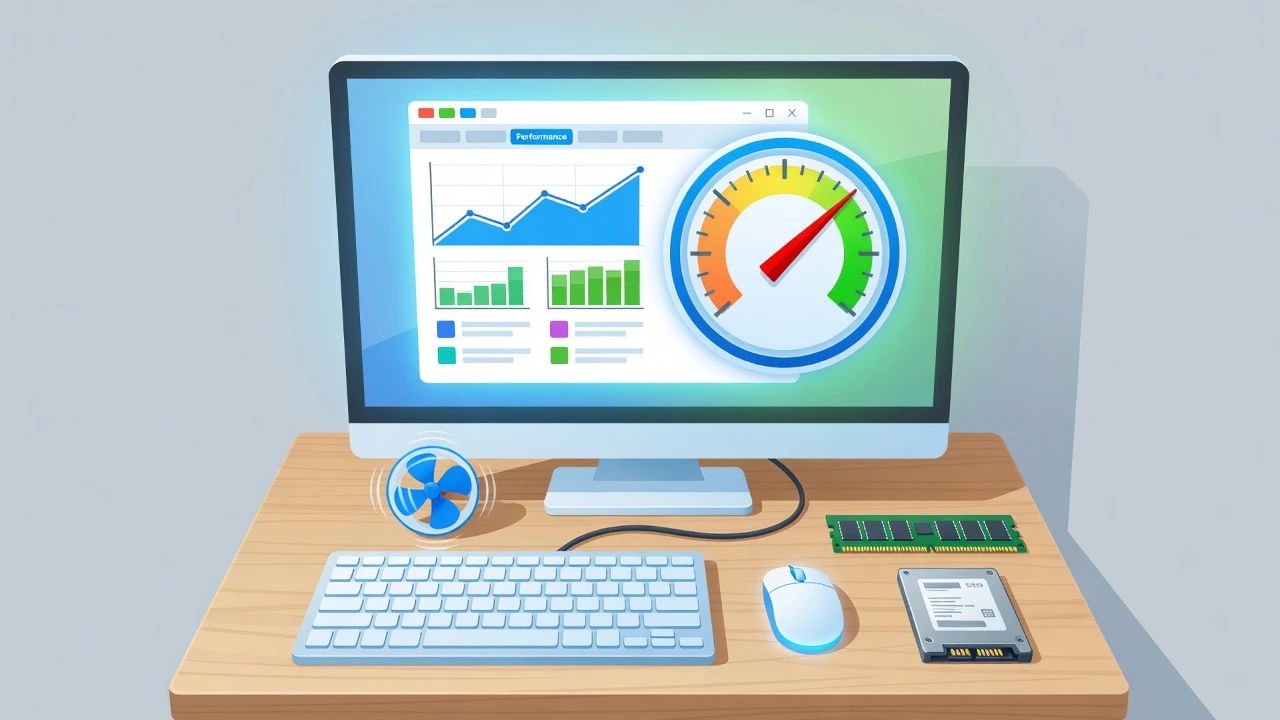
Press Ctrl + Shift + Esc on your keyboard to open Windows Task Manager directly. Click the Performance tab at the top. You will see four graphs: CPU, Memory, Disk, and Network.
Read each graph like this:
CPU: If CPU usage is sitting above 80 percent while you are not running anything demanding, something is consuming processing power in the background. This often means a rogue process, malware, or a poorly behaved application.
Memory: If memory usage is consistently above 85 to 90 percent, your PC does not have enough RAM to handle what you are asking it to do. Windows uses a portion of your hard drive to compensate for this through a system called virtual memory, which allocates hard drive space to behave like RAM and prevents freezing during heavy application use. But when both RAM and virtual memory are maxed out, slowdowns and freezing become constant.
Disk: A disk usage reading that stays above 90 percent is one of the clearest signs of a storage or hard drive problem. This is especially common on older machines running mechanical hard drives rather than SSDs.
Network: Unusually high network activity when you are not actively downloading anything can signal a background process consuming your bandwidth, which sometimes includes cloud sync tools running without your knowledge.
On a healthy PC, you should see CPU usage at idle sitting somewhere between 2 and 15 percent, memory usage comfortably below 70 percent, and disk usage dropping back to single digits when you are not actively opening files. If your numbers look very different from these, you now know where the problem lives and which section of this guide to focus on first.
Why Is Your PC Slow? The 8 Most Common Causes
Understanding why your PC is slow is more useful than any fix I could give you, because once you know the cause the solution becomes obvious. In my experience working through slow computer problems, almost every case comes down to one of these eight causes. Find yours and you are already halfway to fixing it.
1. Too Many Startup Programs
Every time your PC boots up, a long list of applications launches automatically in the background. Most of these programs were added to your startup list without you ever agreeing to it. Too many startup programs running at once drain your RAM and CPU from the moment Windows loads, which makes the entire system feel sluggish even before you open a single application.
2. Your C Drive Is Full
A full C drive is one of the most direct causes of lagging and system freezes that I have seen. Windows needs free space on the C drive to run basic operations, create temporary files, and manage memory. When the C drive runs out of breathing room, your entire system performance suffers immediately.
3. Malware or Hidden Background Processes
Deep-seated malicious processes and tracking scripts can completely choke your computing output without you ever knowing they are there. Malware and viruses slowing your PC often look identical to normal slowdowns, which is why many people spend weeks applying the wrong fixes. If your slowdown was sudden, check for malware before anything else.
4. Outdated Drivers
Your PC relies on drivers to communicate between Windows and your hardware components. Outdated drivers slowing your PC is more common than most guides admit, especially outdated GPU drivers, chipset drivers, and storage controller drivers. Old drivers can cause stuttering, freezing, and general performance degradation that software cleanup tools will never fix.
5. PC Overheating (Thermal Throttling)
PC overheating slow performance is one of the most misunderstood causes I come across. When a CPU gets too hot, it deliberately reduces its own clock speed to prevent damage. This process is called thermal throttling. Your PC does not break or crash. It just quietly slows itself down while the temperature climbs. If your computer starts fast and gets slower after 20 to 30 minutes of use, overheating is almost certainly the reason.
6. Too Many Background Services Running
Background processes hogging CPU resources is not just about applications you can see. Windows runs dozens of services in the background that most users never interact with. Some of these services consume significant RAM and CPU even when your PC is sitting idle. Thinning out unnecessary background services is one of the most effective and least talked about computer lagging fixes available.
7. Not Enough RAM and No Virtual Memory Buffer
When your RAM fills up completely, Windows starts using a portion of your hard drive as overflow memory. This works, but a hard drive is dramatically slower than actual RAM sticks. If your RAM is consistently maxed out and your virtual memory settings are not configured correctly, your PC will freeze and stutter during any moderately demanding task.
8. Ageing Hardware
Sometimes the honest answer is that the hardware is simply too old to keep up with current software. Modern applications and browser tabs consume far more resources than they did five years ago. If your PC is more than seven or eight years old and none of the software fixes in this guide produce noticeable results, the underlying hardware may be the limiting factor.
Each of these causes has a specific fix. Work through the sections below to address whichever cause matches your situation.
Quick Wins: Fix Your Slow PC in the Next 10 Minutes
These are the fastest changes you can make to speed up Windows PC performance without touching any advanced settings. I always start here before going deeper because these four steps alone produce noticeable results in most cases. The key rule is to complete all the steps before you restart. Do the restart once at the very end so all changes apply together.
Restart Your PC the Right Way (It Is Not What You Think)
Most people think shutting down their PC is the same as restarting it. It is not, and this difference matters more than you would expect.
Windows has a feature called Fast Startup that is enabled by default on most PCs. When you click Shut Down with Fast Startup active, Windows saves the current system state to a file instead of fully clearing memory. The next time you power on, Windows loads from that saved state rather than starting fresh. This means all the memory clutter and background process buildup carries over every single time you shut down.
When you click Restart instead of Shut Down, Windows performs a full memory flush and starts completely clean. Slow computer boot time and lingering performance issues often disappear after a proper restart simply because the system gets a genuine fresh start.
So before anything else, go to your Start menu and choose Restart rather than Shut Down. Do this now and come back to continue.
The One Setting That Turns Off All Background Apps Instantly
Here is something that almost no guide talks about, and I only discovered it while working through a particularly sluggish Windows 10 machine. Windows gives you a single toggle that switches off every background application at once.
Here is how to find it. Open your Start menu and go to Settings. Click on Privacy and then scroll down the left sidebar until you see Background apps. At the top of that page you will find a master toggle. Turn background apps off using that single switch and Windows immediately stops all background applications from running behind the scenes.
Background processes hogging CPU resources is one of the leading causes of slow system performance, and most people spend time closing apps one by one when this single setting handles all of them simultaneously. Turning off this toggle frees up RAM and reduces CPU load immediately without any restart needed.
Disable Startup Programs the Right Way
Too many startup programs launching automatically at boot is one of the most common causes of a slow PC. Disabling startup programs correctly takes about two minutes and often produces one of the most noticeable speed improvements of any fix in this guide.
Here are the exact steps:
Right-click on an empty area of your Taskbar and select Task Manager.
Click on the Startup tab at the top. You will see a list of every application that launches automatically when Windows starts, along with a Startup impact rating next to each one showing High, Medium, or Low.
Focus on anything rated High first. These are the programs consuming the most resources during startup. Look for browser update services, cloud storage sync apps, chat applications, and software from programs you rarely use. Right-click each one and select Disable.
Two important warnings here. Never disable anything related to your audio drivers, your GPU software, or your security or antivirus application. And if you are unsure what a program does, search the name online before disabling it. When in doubt, leave it alone.
Delete Three Folders Full of Junk Your PC No Longer Needs
Windows quietly accumulates temporary files in three separate folders over time. Most people only ever clear one of them. Clearing all three takes about three minutes and recovers meaningful storage space that your system can use more productively.
Here is how to access and clear each folder:
Folder one: temp Press the Windows key and R at the same time to open the Run window. Type temp and press OK. Select all the files inside using Ctrl and A together. Press Shift and Delete to permanently remove them and bypass the Recycle Bin. If Windows tells you a file is currently in use, click Skip and move on.
This folder contains temporary files created by Windows itself during normal operations. None of these files are important once Windows is done with them.
Folder two: %temp% Open the Run window again. Type %temp% and press OK. Select all files using Ctrl and A and press Shift and Delete. Skip any files that Windows flags as currently in use.
This folder stores temporary files created by your installed applications. Application temp files and residual registry data accumulate here over time and slow down disk performance when left to build up.
Folder three: prefetch Open the Run window one final time. Type prefetch and press OK. If Windows asks for administrator permission, click Continue. Select all files and press Shift and Delete.
The prefetch folder stores launch history data that Windows uses to predict which programs you will open. On older mechanical hard drives this data can actually slow launch times down rather than speeding them up. Clearing it is safe and Windows rebuilds the prefetch data automatically after the next restart.
Once you have cleared all three folders, do not restart yet. Continue through the next sections and do your single restart at the very end to apply everything at once.
How to Speed Up Your Computer With Windows’ Built-In Tools
Windows comes with a set of built-in tools that genuinely improve PC performance when used correctly. Most people either never touch them or only use them halfway. I want to show you how to get the full benefit from each one because when you combine all four of these steps together, the difference in system speed is very noticeable.
These tools work on both Windows 10 and Windows 11. Where the navigation path is slightly different between the two versions I will point that out so you can follow along regardless of which version you are running.
Run Disk Cleanup the Way Most People Miss
The Windows Disk Cleanup tool is something most people have heard of but very few people use correctly. Here is the step most guides skip entirely.
Open your Start menu and type Disk Cleanup in the search bar. Select your C drive when prompted and click OK. The tool will calculate how much space you can recover and show you a list of file categories to remove. Most people check the boxes and click OK at this point. Do not do that yet.
Before you check anything, click the button that says Clean up system files. This is the step that unlocks the most significant cleanup. After clicking that button and selecting your C drive again, Windows recalculates and reveals a much larger set of removable files including cached Windows update installation files that can take up several gigabytes of space.
Now check every box in the list and click OK to confirm. The disk cleanup Windows process with this extra step removes far more junk than the standard approach. A full C drive directly causes system sluggishness and freeing up disk space through this method often produces immediate improvements.
Turn On Storage Sense (Windows Does the Cleanup for You)
Storage Sense is a built-in Windows feature that automatically deletes temporary files and clears the Recycle Bin on a schedule you control. Turning Storage Sense on means you never have to remember to run manual cleanup again.
To activate Storage Sense on Windows 10, go to Settings and click System then Storage. Find the Storage Sense toggle and switch it on. On Windows 11 the path is the same but the interface looks slightly different. Once you switch Storage Sense on, click into the Storage Sense settings to choose how often it runs. I set mine to run every month which keeps junk from building up without being too aggressive.
Storage Sense handles the ongoing maintenance so that the disk cleanup Windows steps above stay effective over the long term rather than needing to be repeated every few weeks.
Fix Your Visual Effects Settings Without Making Windows Look Terrible
Windows runs a large number of visual animations and effects in the background that consume RAM and GPU resources on every machine. On older hardware or machines with less than 8GB of RAM, these visual effects performance options cause a meaningful drag on overall speed.
Here is how to adjust them. Press the Windows key and R at the same time to open the Run window. Type sysdm.cpl and press OK. Go to the Advanced tab and click Settings under the Performance section. Select the option that says Adjust for best performance. This turns off all visual animations at once.
Now here is the detail that no other guide I have found actually specifies. Selecting Adjust for best performance makes Windows look noticeably bare and unpleasant to use. Before clicking Apply, manually check these four boxes to restore the most important visual elements:
Animate windows when minimizing and maximizing. Enable Peek. Show thumbnails instead of icons. Smooth edges of screen fonts.
With just these four visual effects active, your PC still looks clean and modern while running significantly faster than before. Click Apply and then OK to save the changes.
Change Your Power Plan (Most PCs Are Stuck on the Wrong One)
Power plan settings in Windows control how aggressively your PC uses its CPU and other components. Most PCs ship with the Balanced power plan set as the default. Balanced mode is designed to conserve energy by reducing CPU speed when the PC is not under heavy load. This is a reasonable choice for laptops on battery but it actively limits desktop performance for no good reason.
Running your PC in low power mode or Balanced mode when you need full performance is like driving with the handbrake partially engaged. The engine works but the output is deliberately limited.
To change the power plan on Windows 10, open Control Panel and click on Power Options. Select High Performance from the list. If you do not see High Performance, click Show additional plans to reveal it.
On Windows 11, search for Choose a power plan in the Start menu search bar and select it from the results. The same High Performance option is available there.
Switching to High Performance tells Windows to run the CPU at full capacity at all times rather than throttling it to save energy. For desktop PCs this change costs nothing meaningful in electricity but delivers noticeably faster response times and better overall system performance. For laptops I recommend only switching to High Performance while plugged in since the Balanced plan genuinely extends battery life when running on battery power.
The Windows Update Setting That’s Quietly Slowing Your PC Down
Here is something that genuinely surprised me when I first discovered it, and I have not seen a single mainstream guide mention it. Windows Update does not just check for updates when you ask it to. By default, Windows checks for available updates as often as every two hours throughout the day. Every time Windows Update runs one of these background checks, Windows update performance takes a direct hit on your CPU and disk. If your PC already has limited resources, these constant background checks contribute to sluggishness you might never connect to updates.
The problem is not Windows Update itself. Keeping Windows updated is important for security and stability and I would never recommend skipping updates entirely. The problem is the timing. Windows Update running its background checks during your working hours or gaming sessions causes CPU usage to spike and disk activity to increase without any visible indication that it is happening.
Completely disabling Windows Update creates real security risks because your PC stops receiving critical patches. The right solution is to schedule updates so Windows does its background work at a time when you are not using the machine.
Here is how to set that up. Open your Start menu and search for Windows Update then open it. Click on Advanced options. Look for the section that controls your update schedule and change the active hours or update delivery timing to a window when your PC is on but you are not actively using it. I set mine to run on Sunday mornings when my PC is powered on but sitting idle.
If you want a temporary break from update activity while you work through the other fixes in this guide, you can also use the Pause updates option on the same page to pause update checks for up to a week.
Once updates are scheduled rather than running freely throughout the day, background processes hogging CPU resources from Windows Update disappear during your active hours. The difference this makes to perceived system performance is more significant than most people expect, especially on PCs with mechanical hard drives where disk activity from update checks causes noticeable slowdowns.
Make sure you return to Windows Update at least once or twice a month to manually check for and install any available updates. Scheduling updates is not the same as ignoring them. Security patches matter and staying current protects your PC from the kinds of threats that also cause performance problems.
Advanced Fixes Most Guides Never Show You
If you have worked through the previous sections and your PC is still not running the way you want it to, these three fixes are where things get genuinely interesting. None of these appear in any of the major competitor articles I have reviewed, and all three come from real hands-on testing rather than standard advice. These are the fixes that separate a properly optimised PC from one that has just had a basic cleanup.
Work through each one carefully and you will improve computer speed at a level that most guides never reach.
Which Background Services Are Secretly Eating Your RAM (And How to Stop Them)
Windows runs a large number of background services that most users never see and never interact with. Some of these services are essential and should never be touched. Others are third-party processes that consume RAM and CPU continuously while providing you no benefit during normal use.
Background processes hogging CPU resources through these hidden services is one of the most overlooked causes of persistent slowness on Windows 10 and Windows 11 machines.
Here is how to access and manage them safely. Press the Windows key and R at the same time to open the Run window. Type msconfig and press OK. Click on the Services tab. Before you do anything else, check the box at the bottom that says Hide all Microsoft services. This single step is critically important. Hiding Microsoft services ensures you cannot accidentally disable something Windows needs to function properly.
With Microsoft services hidden, you are left with a list of third-party services only. Here are the specific services that are safe to disable and what each one does:
Background Intelligent Transfer Service (BITS): This service handles background file transfers for Windows Update and other Microsoft programs. When not actively updating, BITS can still consume disk bandwidth unnecessarily.
SysMain (previously called Superfetch): SysMain preloads frequently used programs into RAM to speed up launch times. On PCs with mechanical hard drives this often causes more disk activity than it prevents. On SSDs it provides minimal benefit and can be safely disabled.
Connected User Experiences and Telemetry: This service sends diagnostic and usage data to Microsoft continuously. Disabling Connected User Experiences and Telemetry stops that background reporting and recovers CPU cycles.
Windows Search Indexer: The Windows Search service constantly indexes your files in the background so search results appear faster. On older hardware this indexing causes significant disk and CPU usage high readings even when you are not searching for anything.
Remote Desktop Services: If you never use Remote Desktop to connect to your PC from another machine, this service runs in the background for no reason. Disabling Remote Desktop Services is also recommended for security.
After unchecking each service you want to disable, click Apply and then OK. When Windows prompts you to restart, select Exit without restart. You will do one final restart at the end after completing the remaining fixes.
One firm warning: never disable anything related to your audio, your graphics card, your processor, or your security software. If you are unsure what a service does, search the name online before touching it.
How to Set Virtual Memory Correctly (The Formula Most People Get Wrong)
Virtual memory is a section of your hard drive that Windows uses as overflow space when your RAM fills up completely. When your RAM runs out and virtual memory is either too small or incorrectly configured, your PC freezes and stutters under any moderately demanding workload.
Most people leave virtual memory settings on automatic and never think about them. The automatic setting is often too conservative for PCs under heavy load. Configuring virtual memory settings manually using the correct formula produces noticeably better performance on machines with 8GB of RAM or less.
Here are the exact steps. Press the Windows key and R to open Run. Type sysdm.cpl and press OK. Go to the Advanced tab and click Settings under the Performance section. Click the Advanced tab inside that new window. Find the Virtual memory section and click Change.
Uncheck the box at the top that says Automatically manage paging file size for all drives. Select your C drive from the list and click the Custom size radio button.
Now use this formula to calculate the correct values. First check your physical RAM amount by looking at your System Properties. Then multiply your RAM in gigabytes by 1024 to convert it to megabytes.
For the Initial size: take your RAM in megabytes and multiply by 1.5. For the Maximum size: take your RAM in megabytes and multiply by 3.
Here is a worked example for a PC with 8GB of RAM. 8 multiplied by 1024 equals 8192 megabytes. The Initial size is 8192 multiplied by 1.5 which equals 12288 MB. The Maximum size is 8192 multiplied by 3 which equals 24576 MB.
Enter 12288 in the Initial size field and 24576 in the Maximum size field. Click Set then click OK. Memory usage in Windows will be better managed after the next restart and freezing during heavy tasks should reduce significantly.
Is Your Browser Slow Because of a Hidden Proxy Setting?
This is one of the most unexpected fixes in this entire guide and it solves a problem that many people spend weeks trying to diagnose. If your overall PC feels reasonably responsive but your browser specifically runs slowly or pages load inconsistently, a corrupted or unauthorised proxy setting in your Windows Internet Properties may be responsible.
Proxy settings are sometimes left behind by past corporate or school network configurations, or introduced by poorly behaved software. When a proxy setting points to a server that no longer exists or was never valid, every browser request your PC makes gets routed through that broken path before eventually loading normally. The result is slow browsing that no amount of clearing browser cache or disabling browser extensions will fix because the problem sits outside the browser itself.
Here is how to check and reset your proxy settings. Press the Windows key and R to open Run. Type inetcpl.cpl and press OK. Go to the Connections tab and click LAN settings. If you see any manual proxy address entered in that window and you did not set it yourself, that entry does not belong there.
Uncheck any manual proxy configuration boxes you find. Select the option that says Automatically detect settings and click OK.
Go back to the Internet Properties window and click the Advanced tab. Click Restore advanced settings and then click Reset. Before clicking Reset make sure you have exported or noted your browser bookmarks because the reset process clears saved browser data. Check the box that says Delete personal settings and confirm the reset.
After completing this step, restart your browser and check whether browsing speed has improved. In cases where a proxy setting was the hidden cause, the improvement is immediate and significant.
Is Your PC Slow Because of Malware? Here’s How to Find Out
Malware and viruses slowing your PC is one of the most common causes of both sudden and gradual performance problems, and it is also one of the most frequently misdiagnosed. I have seen people spend hours running disk cleanup and disabling startup programs on machines that were actually infected, and none of those fixes helped because they were addressing the wrong problem entirely.
Malware does not always announce itself. Many infections are designed to run silently in the background, consuming your CPU and RAM without triggering any obvious alerts. The only way to know for certain whether malware is responsible for your slow PC is to run the right scans in the right order.
Before you scan, open Windows Task Manager and click the Processes tab. Sort the list by CPU usage by clicking the CPU column header. If you see an unknown process sitting at 30 percent CPU usage or higher while you are not actively running anything demanding, that is a significant warning sign. Background processes hogging CPU at that level without a recognisable name deserve immediate investigation.
The Free Malware Scanner Stack That Actually Works
No single scanner catches everything. Different tools specialise in different types of threats and running them in sequence gives you the most thorough protection without spending any money.
Here is the three-tool approach I recommend for a complete antivirus scan and slow PC diagnosis:
Step one: Windows Defender or Avast If you do not already have antivirus software installed, Windows Defender is built into Windows 10 and Windows 11 and provides solid baseline protection. If you want a free third-party option, Avast Antivirus offers a free version that works well as a starting point. Run a full system scan and remove anything flagged before moving to the next tool.
Step two: Malwarebytes Malwarebytes is the most widely recommended free malware removal tool available and for good reason. Malwarebytes catches threats that traditional antivirus programs frequently miss, including adware, browser hijackers, and various types of background malware. Download Malwarebytes from the official website, install it, and run a full scan Remove everything it finds and restart your PC before continuing.
Step three: HitmanPro HitmanPro specialises in rootkits and deeply embedded threats that survive standard scans. When you download HitmanPro and run the installer, you will be asked whether you want to install the program or perform a one-time scan.
Select the one-time scan option. This gives you a complete scan at no cost and requires no subscription or ongoing commitment. HitmanPro works alongside your existing security software rather than replacing it, making the one-time scan approach genuinely useful.
Step four (if problems persist): SUPERAntiSpyware If your PC is still showing signs of infection after running Malwarebytes and HitmanPro, download the free trial of SUPERAntiSpyware. SUPERAntiSpyware targets stubborn tracking cookies, trojans, and persistent spyware that other tools leave behind. Run a full scan, clean the results, and restart.
Running this four-step sequence in order gives you a thorough and layered malware removal process using only free tools.
Could Someone Be Using Your PC to Mine Crypto? (Check This)
Cryptojacking is a specific type of attack where unauthorised software uses your PC’s processing power to generate digital currency for someone else without your knowledge. Cryptojacking software runs entirely in the background and is designed to be invisible to the average user.
The symptoms of cryptojacking are distinctive once you know what to look for. Your PC fan runs at high speed constantly even when you are not doing anything intensive. Your computer runs hot to the touch. CPU usage stays high even when your desktop is sitting idle with no programs open. Programs that used to open quickly now take noticeably longer.
To check for cryptojacking, open Windows Task Manager and click on the Processes tab. Sort by CPU usage. On a healthy idle PC, CPU usage across all processes should add up to somewhere between 2 and 10 percent total. If you see one or more unfamiliar processes consuming 20 percent or more of your CPU while your PC is sitting idle, cryptojacking software is a realistic possibility worth investigating.
Look up the name of any suspicious process in a search engine before taking action. Legitimate Windows processes sometimes look unfamiliar but are necessary.
If your search confirms the process is not a recognised Windows component, run the full malware scan sequence described above. Malwarebytes and HitmanPro together catch the majority of cryptojacking infections and remove them completely.
Is Your PC Overheating? Your CPU Might Be Slowing Itself Down on Purpose
If your computer starts fast in the morning but crawls by afternoon, your hardware might be the culprit rather than your software. The most overlooked cause of this pattern is thermal throttling, and understanding it changed how I approach PC maintenance entirely.
Thermal throttling is when your CPU automatically reduces its own clock speed to protect itself from heat damage. Modern processors are smart enough to do this on their own.
When the chip senses it has crossed a safe temperature threshold, usually somewhere around 90 to 95 degrees Celsius, it deliberately slows down to generate less heat. Your PC does not freeze or crash. It just quietly becomes a fraction of what it was.
This is not a bug. It is a built-in safety mechanism. But the result from your perspective is a computer that felt snappy an hour ago and now struggles to keep up.
How to Check If Your CPU Is Running Too Hot
Before blaming a slow program or an outdated operating system, I always recommend running a quick temperature check using free PC hardware diagnostics software.
HWMonitor is one of the best free tools available for this. It shows you real-time CPU temperature readings across all cores, and you can watch exactly what happens when you put the processor under load.
A healthy CPU under normal workloads should stay well below 80 degrees Celsius. If you open HWMonitor and see your processor hitting 90 degrees or higher during light tasks, thermal throttling is almost certainly already happening.
Why Dust Is the Real Enemy Behind PC Overheating and Slow Performance
Dust accumulation is the leading cause of overheating in PCs that are more than two years old. Over time, dust builds up inside vents, on fan blades, and across heat sink fins. This forms an insulating layer that traps heat inside your machine and prevents airflow from doing its job.
The fix is simpler than most people expect. Compressed air directed into the vents can clear out a surprising amount of buildup in just a few minutes.
For desktop towers, opening the case and cleaning the fans and heat sink directly makes an even bigger difference. I treat this as basic computer maintenance and try to do it every six months.
After cleaning the airflow path, most users notice an immediate temperature drop of 10 to 20 degrees Celsius. That alone can eliminate throttling entirely and restore full CPU performance without touching a single software setting.
The Key Takeaway
Deep-seated performance issues often relate to hardware temperature rather than software problems. Always check with monitoring software before assuming an application or driver is to blame. A clean machine running cool is a fast machine, and it costs nothing but a few minutes of your time.
How to Make Your Computer Run Faster Long-Term (Hardware Options)
Sometimes software fixes only go so far. When you have tried every setting tweak and your PC still drags, the real answer is almost always hardware. I have helped people speed up computers for years, and three upgrades stand out above everything else: switching to an SSD, adding more RAM, and doing a clean Windows reinstall when things have gotten too cluttered to recover. Before you spend a single dollar though, there is one free step most people skip entirely.
SSD vs HDD — How Much of a Difference Does It Really Make?
Replacing an HDD with an SSD is the single most impactful upgrade you can make to an older computer. The SSD vs HDD speed difference is not subtle. A traditional hard disk drive spins a physical platter to read data, which creates real mechanical delays. A solid state drive has no moving parts and reads data almost instantly.
In practical terms, a PC that takes two minutes to boot from an HDD can boot in under 20 seconds after an SSD swap. Programs that used to load slowly open almost immediately. File transfers that dragged on for minutes finish in seconds.
A decent 500GB SSD costs between 40 and 70 dollars at the time of writing, and most desktop and laptop models support a straightforward swap.
You can clone your existing HDD to the new SSD using free software like Macrium Reflect so you do not lose any data or settings. If your PC is more than three years old and still running on an HDD, upgrading to an SSD will make the computer feel new again.
If you are planning to upgrade to Windows 11 at the same time, make sure your hardware meets the requirements first I have a full guide on fixing the Windows 11 system requirements error if your PC is flagging compatibility issues
How Much RAM Do You Actually Need in 2026?
RAM is the short-term memory your computer uses to run programs simultaneously. When RAM runs out, Windows shifts tasks to a slower process called virtual memory, which uses your hard drive as a temporary substitute. Virtual memory can compensate for insufficient RAM while you plan an upgrade, but it is noticeably slower than real memory and you will feel the difference.
Here is a straightforward breakdown by use case:
8GB RAM covers light browsing, document editing, and streaming video without much trouble. Most budget laptops still ship with this amount and it holds up for everyday tasks.
16GB RAM is the sweet spot for most people in 2026. If you game, run multiple browser tabs, use video calls, or multitask regularly, 16GB gives your system real breathing room.
32GB RAM makes sense for content creators, video editors, 3D rendering, or anyone running virtual machines alongside their normal workflow.
To check how much RAM your PC currently has and how heavily it is being used, open Task Manager with Ctrl + Shift + Esc and click the Performance tab. If your memory usage regularly sits above 85 percent during normal tasks, a RAM upgrade for speed will make a noticeable difference right away.
Update Your Drivers Before You Spend Money on Hardware
Outdated drivers slowing your PC down is more common than most people realize, and it costs nothing to fix. A driver is the software that tells Windows how to communicate with a hardware component. When GPU drivers, chipset drivers, or NVMe storage drivers fall behind, performance drops in ways that feel exactly like a hardware problem.
Before buying anything, open Device Manager by right-clicking the Start button and selecting it from the list. Work through the main categories including Display Adapters, Storage Controllers, and Network Adapters, right-clicking each device and checking for driver updates. For GPU drivers specifically, I always recommend going directly to the NVIDIA or AMD website rather than relying on Windows Update alone, since manufacturer sites carry the most current versions.
After updating your drivers, run a quick PC hardware diagnostics check using a built-in Windows tool. Open Command Prompt as an administrator and type sfc /scannow then press Enter. This System File Checker command scans your Windows installation for corrupted system files and repairs them automatically. Many people who discover slowdowns caused by file corruption fix the problem entirely with this single command, no hardware purchase required.
When a Clean Windows Reinstall Makes More Sense Than an Upgrade
If your PC has accumulated years of software clutter, failed updates, broken registry entries, and forgotten programs running in the background, no hardware upgrade will fully solve the problem. Performing a system reset clears all faulty configurations and brings the computer back to its original out-of-the-box speed. I have seen machines that felt beyond saving come back completely after a clean reinstall.
Always back up your personal files before resetting. You can start the process through Settings then System then Recovery. Choose the option to remove everything and reinstall Windows fresh. Combined with an SSD swap or RAM upgrade done beforehand, a clean reinstall gives you a machine that performs like new hardware at a fraction of replacement cost.
Should You Fix Your PC or Just Buy a New One?
This is the question most people are really asking when they search for ways to speed up a slow computer, and almost no one gives them a straight answer. I will.
The fix vs replace decision comes down to four things: how old your PC is, whether the hardware can actually be upgraded, what repairs would cost compared to a replacement, and whether the slowdown is coming from software or hardware.
Fix Your PC If These Apply
If your computer is under five years old, the answer is almost always to fix it rather than replace it. A PC in that age range almost certainly supports an SSD swap and a RAM upgrade and those two changes alone can add years of usable life. Running PC hardware diagnostics first takes ten minutes and tells you exactly what is causing the slowdown before you spend anything.
Software problems including cluttered startup programs, background processes, outdated drivers, and Windows configuration issues can make a perfectly capable machine feel broken. These cost nothing to fix.
Replace Your PC If These Apply
If your computer is seven or more years old, cannot accept an SSD or additional RAM, and shows signs of failing hardware like a dying HDD or a motherboard that struggles with basic tasks, repair costs will likely exceed the value of the machine. At that point, buying a replacement makes more financial sense.
The clearest signal is when a system remains slow after applying every software and configuration fix available. If you have worked through the full list of performance improvements and system performance has not meaningfully recovered, the bottleneck has moved beyond what software can solve.
The Honest Middle Ground
Most PCs that feel impossibly slow are not actually broken. Years of accumulated software clutter, ignored driver updates, and neglected computer maintenance are responsible for the majority of slowdowns I have seen. A thorough cleanup and one or two modest hardware upgrades will rescue most machines that owners have written off as too old to save.
Your PC Can Run Fast Again Here Is What to Do Next
A slow computer is almost always a solvable problem, and the solution rarely requires buying anything new. The approach that works consistently is to start with diagnosis before jumping to fixes. Open Task Manager, check what is using your CPU, memory, and disk, and let the data tell you where the real problem lives.
From there, work through the quick wins first. Disable unnecessary startup programs, clear out background processes, adjust your power settings, and check your storage space. Most people see a noticeable improvement in system performance before they even reach the hardware layer.
If the quick fixes are not enough, move to the deeper solutions. Update your drivers, run the sfc /scannow command to catch corrupted files, check your CPU temperature, and consider whether an SSD or RAM upgrade makes sense for your machine.
After completing these steps, open Task Manager one more time. CPU usage during idle should be low, disk usage should have dropped out of the constant 100 percent range, and programs should open noticeably faster than before. Those are your benchmarks.
If your PC is under five years old and has upgradeable hardware, fixing it will almost always cost less than replacing it and deliver results just as good. Learning how to repair a slow PC properly means you never have to throw away a machine that still has years of life left in it.
Frequently Asked Questions About Fixing a Slow PC
I have tried everything and my PC is still slow what now?
If you have worked through every software fix and your PC still struggles, run HitmanPro to catch hidden rootkits most people miss, then configure virtual memory using the formula of 1.5 times your installed RAM.
If system performance still does not recover after that, your PC age and hardware limits may make a clean reinstall or full replacement the smarter investment.
Which background services is it safe to disable on Windows?
When learning how to repair a slow PC through services, always hide Microsoft services first in msconfig before disabling anything. Safe to turn off include BITS, SysMain, Connected User Experiences and Telemetry, and Windows Search Indexer if you do not use search regularly — but never touch audio services, GPU drivers, or your security software.
Will deleting temp files and prefetch delete anything important?
No — temp folders contain only leftover data Windows no longer needs, and any file still in active use will be protected by a Windows prompt asking you to skip it. Prefetch data is simply program launch history that Windows rebuilds automatically the next time you use those programs.
How do I know if my PC is overheating?
Download HWMonitor for free and check your CPU temperature under 50°C at idle and under 85°C under load are the healthy targets. If your computer runs fast for 20 minutes then slows down noticeably, fans run at full speed constantly, or the bottom of your laptop feels very hot, thermal throttling from overheating is almost certainly the cause.
Is it better to add more RAM or switch to an SSD first?
If your PC still uses a mechanical hard drive, an SSD upgrade will produce a more dramatic speed improvement than adding RAM and should be your first move. If your PC already has an SSD but freezes during multitasking, more RAM or adjusting virtual memory settings is the right fix.